
![How to Transcribe Audio on iPhone [2026 Guide]](https://contiocdn.com/efdc9a99-5ac4-4f75-be3a-ed43de859d76/blog-covers/1782580104982-8b35y7sh-how-to-transcribe-audio-on-iphone--2026-guide-.webp)
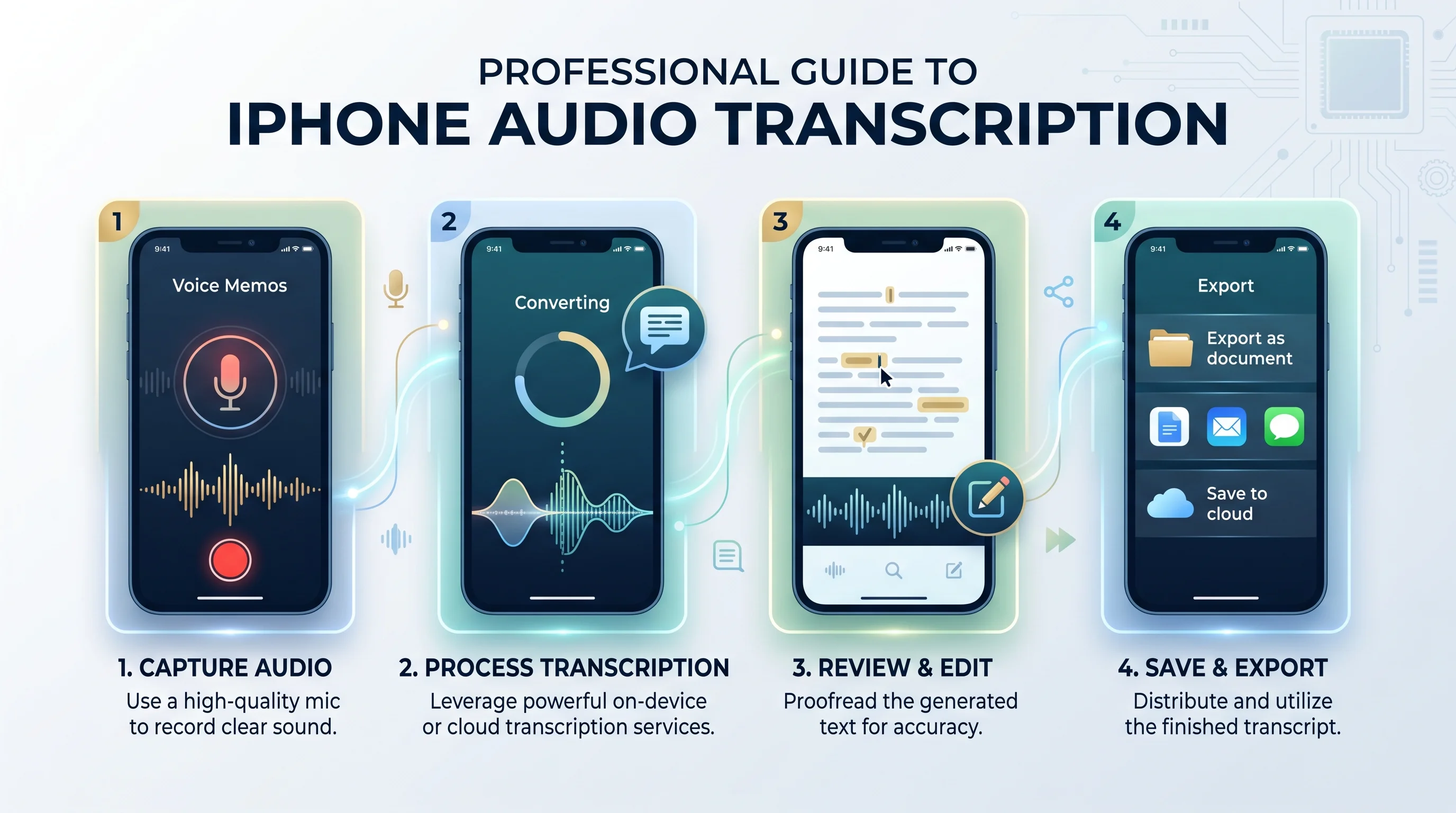
Your iPhone is smarter than you think. Most people have no idea their device can transcribe audio on iPhone automatically — no expensive app, no manual typing. Whether you're a student, journalist, or busy professional, iOS 18 changed everything. The Notes app now captures live audio and converts spoken words to text in real time. The Voice Memos app generates a full transcript with a single tap. And that's just the beginning. This guide walks you through every method available in 2026 — from built-in speech recognition tools to powerful third-party apps — so you can find the fastest, most accurate workflow for your needs.
We'll walk through native iOS tools, clever Apple Shortcuts automation, and the best third-party apps on the market. By the end, you'll know exactly which method fits your workflow — and how to get cleaner, more accurate transcripts every single time.
What Is Audio Transcription on iPhone and How Does It Work?
Think of iPhone audio transcription as having a silent stenographer living inside your phone. Apple's built-in speech recognition engine listens to spoken words and converts them into readable text — entirely on your device. This isn't a new gimmick. It's a mature, powerful feature that most iPhone users simply walk past every day.
Apple's on-device neural engine powers the whole process. It runs locally on your iPhone, which means your private conversations aren't floating around on some distant server. However, the very first time you use transcription, your iPhone needs an internet connection to download the language model. After that initial download, many features work completely offline. The system currently supports ten languages: English, Spanish, French, German, Italian, Portuguese, Japanese, Korean, Simplified Chinese, and Traditional Chinese. If you're looking for a completely free tool that works on any file format without creating an account, check out this free audio to text converter with no signup required.
What Are the Minimum Requirements to Transcribe Audio on iPhone?
Not every iPhone can do this. You need an iPhone 12 or later running iOS 18 as an absolute minimum. Older models like the iPhone 11 Pro Max simply lack the neural processing muscle required. Your device language must also be set to one of those ten supported languages — and English (US) delivers the most consistent results for American users. If the transcription button is missing from your screen, mismatched region settings are almost always the culprit.
Here's a quick breakdown of what you can and cannot transcribe natively on iPhone:
Content Type | Native Transcription Supported | Notes |
|---|---|---|
Live voice recordings (Notes app) | Yes | Real-time, automatic |
Existing Voice Memos | Yes | iOS 18 required |
Phone calls | Yes | iOS 18.1 required |
FaceTime audio calls | Yes | iOS 18.1 required |
YouTube videos | No | Needs third-party tool |
Background music | No | Speech only |
Non-supported languages | No | 10 languages only |
How Accurate Is iPhone's Built-In Speech Recognition?
Honestly? It's impressive. Apple's speech engine handles everyday American English with remarkable precision — especially in quiet environments. Technical jargon, heavy accents, and overlapping speakers are where it occasionally stumbles. For a journalism student transcribing a clean one-on-one interview, the native tools work beautifully. For a podcaster with three guests talking over each other, a third-party app with speaker identification will serve you better.
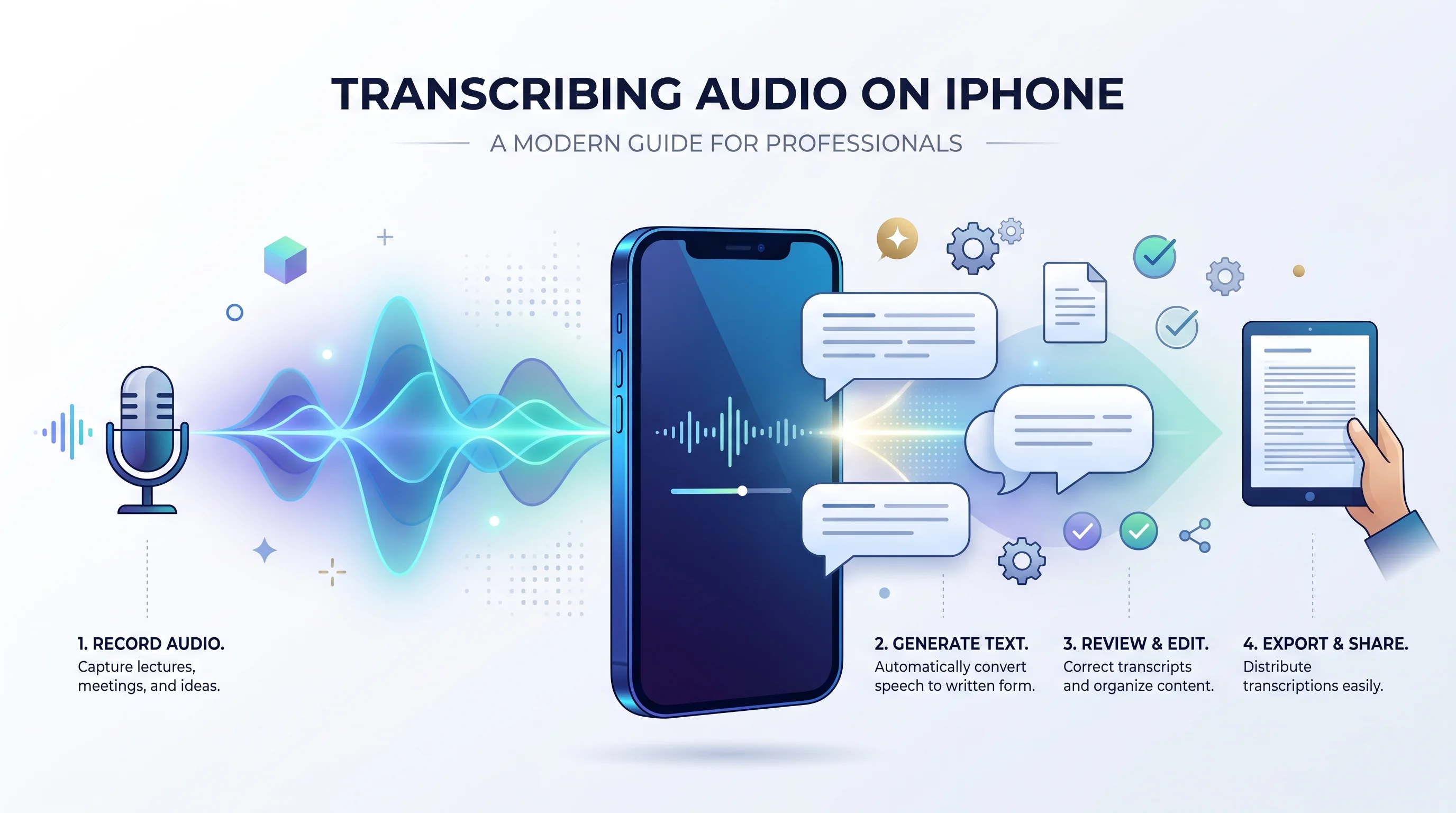
How to Transcribe Audio Using the iPhone Notes App (iOS 18)
The Notes app on iOS 18 is quietly the most underrated transcription tool Apple has ever built. It records live audio and converts spoken words to text in real time — right inside your note. No switching apps. No uploading files. No waiting. You speak and the words appear on screen almost instantly.
What makes this method special is the seamless integration with iCloud sync. The moment your transcript is saved, it appears across every Apple device connected to your account. Your MacBook, your iPad, your Apple Watch notifications — everything stays in sync. For anyone already living inside the Apple ecosystem, this is the fastest and most frictionless way to record and transcribe in Notes.
Step-by-Step: How to Record and Transcribe Live Audio in Notes
Here is the exact process to follow:
Open the Notes app on your iPhone
Create a new note or open an existing one
Tap the attachment icon — the small camera or plus icon at the bottom
Select Record Audio from the menu
Tap the red record button to begin
Speak clearly and watch the live transcription appear in real time below the waveform
Tap the stop button when you're finished
Tap the transcript icon — the speech bubble icon — to view the full text
Tap the three dots menu then select Add Transcript to Note to convert it to editable text
Important: This feature requires iPhone 12 or later running iOS 18. If you don't see the transcript icon, your device either doesn't meet the minimum requirements or hasn't detected a supported language.
How to Review, Search, and Export Your Notes Transcript
Once your transcript is visible, tap any word in the text and the audio recording jumps to that exact moment during playback. It works like a GPS for your recording. Use Find in Transcript — tap the magnifying glass icon — to search for specific words or phrases without scrubbing through the entire audio file. When you're ready to export, tap the three dots menu and choose Copy Transcript — then paste it anywhere. Email, iMessage, Google Docs, Notion — it goes wherever you need it.
If you have Apple Intelligence turned on, you get one extra superpower: tap Summarize after transcribing and your iPhone generates a concise executive summary with key bullet points. For a 45-minute meeting recording, this feature alone is worth its weight in gold.
How to Transcribe Voice Memos on iPhone
This is the question that floods Reddit every single week. People have years of voice memos sitting on their iPhones — interviews, ideas, reminders — and they just want the text. The good news is that iOS 18 added native transcription directly inside the Voice Memos app. No third-party app needed.
The bad news? The button isn't where most people expect it. Thousands of users — including a very active Apple Support Community thread with 172 "Me Too" votes — spent weeks confused because they were tapping the wrong thing. Here's the fix, once and for all.
How to View a Transcript in the Voice Memos App
Follow these steps carefully:
Open the Voice Memos app on your iPhone
Tap directly on the recording name — not the play button, not the three dots
The recording expands to show the full waveform
Look for the quotation mark icon — the speech bubble with quotes — at the bottom left
Tap it and your transcript loads automatically
Tap the three dots menu then select View Transcript or Copy Transcript
Pro Tip: Never tap the three dots menu first. Tap the recording name first. This is the single most common mistake users make and it's why so many people think transcription is broken on their device.
Why Your Voice Memos Transcription Is Not Showing Up
This problem has multiple causes and multiple fixes. First, check that your device language is set to English (US) under Settings then General then Language and Region. Second, make sure you have an active internet connection — at least for the first use. Third, if an older recording refuses to transcribe, try duplicating it. Tap the three dots menu then Duplicate. Open the new copy and try again. Several users on Apple's support forums confirmed this workaround fixes transcription on pre-iOS 18 recordings.
Problem | Likely Cause | Fix |
|---|---|---|
No quotation mark icon visible | Tapping three dots instead of recording | Tap recording name first |
Transcript button grayed out | Unsupported language set | Change to English (US) in Settings |
Needs internet connection error | Language model not yet downloaded | Connect to Wi-Fi and retry |
Old recordings won't transcribe | Pre-iOS 18 audio format issue | Duplicate the recording and try again |
Transcript shows odd sentences | Poor audio quality or background noise | Re-record in quieter environment |
How to Batch Transcribe Multiple Voice Memos on iPhone
Here's a truth Apple hasn't addressed yet: native iOS 18 does not support batch transcription of voice memos. You must open and transcribe each recording individually. However, third-party apps like VOMO AI and Transkriptor solve this completely. Open the Voice Memos app, long-press a recording, select multiple files, and use the share sheet to send them all to VOMO AI at once. The app processes every file in sequence and delivers clean text output for each one. For journalists and researchers sitting on dozens of recordings, this workflow is a genuine game-changer.
How to Transcribe Phone Calls and FaceTime Audio on iPhone
iOS 18.1 handed iPhone users something they'd been requesting for years — the ability to record and transcribe phone calls natively, right inside the Phone app. No third-party recorder needed. No legal grey areas to navigate alone. Apple baked automatic consent notification directly into the feature so every participant on the call hears an audio announcement the moment recording starts.
This is a big deal for American users specifically. US wiretapping laws vary wildly from state to state. Federal law requires only one-party consent. But California, Florida, Illinois, and ten other states require all-party consent. Apple's auto-notification system doesn't make you a lawyer — but it does create a clear, audible record that everyone on the call knew they were being recorded. Always verify your own state's laws before recording any conversation.
How to Record and Transcribe a Phone Call on iPhone
The process is straightforward once you know where to look:
Start or answer a call using the Phone app
Tap the Record button that appears on the call screen — requires iOS 18.1 or later
An automated voice announces to all parties that the call is being recorded
Talk normally — the recording runs in the background
End the call as usual
Open the Notes app — the recording saves there automatically
Tap the audio attachment then tap the transcript icon to view the full transcript
How to Transcribe FaceTime Audio Calls on iPhone
FaceTime call transcription works on a nearly identical principle. During a FaceTime audio call, tap the screen to reveal the call controls. You'll see a record option within the audio call tools panel. Tap it and the same automatic notification plays for all participants. After the call ends, the audio recording and its transcript land directly in your Notes app — ready to review, search, copy, or export. This feature requires iOS 18.1 and an iPhone 12 or newer.
Is Call Recording Legal in the USA?
Federal law requires only one-party consent to record a phone call. However, some US states — including California, Florida, and Illinois — require all-party consent, meaning everyone on the call must agree before recording begins. Apple's built-in auto-notification feature announces the recording to all parties automatically. That helps significantly. But you are still personally responsible for knowing your own state's wiretapping laws before you tap that record button.
How to Transcribe Audio Using Apple Shortcuts
Apple Shortcuts transcription automation is the secret weapon that power users swear by. It turns your iPhone into a one-tap transcription machine — no monthly subscription, no app switching, no manual steps. You build the shortcut once and it runs silently in the background every time you need it.
The trick that most tutorials skip over is this: you cannot do record-save-transcribe in a single shortcut. The Transcribe Audio action inside Shortcuts cannot accept a freshly recorded variable directly. You need two separate shortcuts — one that records and saves the audio to a file and a second that loads that file and transcribes it. Several Reddit users in the r/shortcuts community confirmed this is the only reliable method as of 2026.
How to Build a Basic Transcription Shortcut on iPhone
Here's the exact setup for the two-shortcut system:
Shortcut 1 — Record and Save:
Open the Shortcuts app
Tap + to create a new shortcut
Add action: Record Audio
Add action: Save File then save to a named folder in your Files app
Name this shortcut "Record Voice"
Shortcut 2 — Load and Transcribe:
Create another new shortcut
Add action: Get File then point to the saved audio file
Add action: Transcribe Audio
Add action: Create Note then paste the transcript as the note body
Name this shortcut "Transcribe to Notes"
Run Shortcut 1 first, then Shortcut 2. Your transcript appears in Apple Notes within seconds — synced to iCloud automatically.
The Best Pre-Built Transcription Shortcuts to Download in 2026
You don't always have to build from scratch. The community at RoutineHub.co maintains a library of free, ready-to-run shortcuts. Three stand out for transcription:
Shortcut Name | What It Does | Where to Find It |
|---|---|---|
Instant Voice Transcription | Records and saves text to Notes automatically | RoutineHub.co |
Share Sheet Transcriber | Adds transcription to any audio file via share menu | Shortcuts Gallery |
Voice Memo to Summary | Transcribes and sends to ChatGPT for bullet point summary | RoutineHub.co |
A Shortcut That Records, Transcribes, and Saves to Apple Notes
For power users who want the full automation chain, the most effective setup links three actions together across two shortcuts. The first shortcut handles recording and saves the raw audio recording to a specific folder inside your Files app. The second shortcut picks up that file, runs the Transcribe Audio action, and appends the result directly into a new Apple Notes entry. Add a ChatGPT API action at the end of Shortcut 2 and you also get an instant AI-generated executive summary dropped into the same note. The whole chain takes under 30 seconds from start to finish.
Best Third-Party Apps to Transcribe Audio on iPhone in 2026
Sometimes the built-in tools hit a wall. Long interviews, multiple speakers, non-English accents, video files — native iOS handles these imperfectly. That's where third-party apps genuinely earn their place. The market in 2026 offers everything from completely free, locally-run tools to professional-grade platforms used by courtroom reporters and broadcast journalists.
The most important thing to understand before choosing an app is the difference between on-device processing and cloud-based processing. Apps like Scraibe — built on OpenAI Whisper — run entirely on your iPhone. Your audio never leaves your device. Apps like Otter.ai and Rev send your audio to remote servers for processing. Cloud apps are generally faster and more accurate but raise privacy considerations for sensitive recordings. If you want a no-signup, browser-based option for quick MP3 files, check out AudioToTextify's MP3 to text converter for a fast result without installing anything.
Free vs Paid: Which Transcription App Is Actually Worth It?
Here is a comprehensive comparison of the top apps available for iPhone users in 2026:
App | Free Plan | Accuracy | Speaker ID | Best For | Price Paid |
|---|---|---|---|---|---|
Otter.ai | 300 min/month | 4 out of 5 | Yes | Meetings and interviews | $16.99/month |
OpenAI Whisper via Scraibe | Fully free | 5 out of 5 | No | Offline and private use | Free |
Rev | No free plan | 5 out of 5 | Yes | Professional accuracy | $0.25/min |
VOMO AI | Limited free | 4 out of 5 | Yes | Batch voice memos | $9.99/month |
Transkriptor | Limited free | 4 out of 5 | Yes | Long interviews | $9.99/month |
JustPressRecord | One-time purchase | 4 out of 5 | No | Apple Watch and iPhone sync | $4.99 one-time |
Whisper Memos | Free tier | 4 out of 5 | No | Email delivery of transcripts | $8.99/month |
Best App for Transcribing Long Interviews on iPhone
For a 40-minute interview — exactly the scenario raised repeatedly in Reddit's r/iphone community — Transkriptor is the most reliable choice. Upload your voice memo directly from the share sheet and the app handles files of any length without breaking a sweat. Otter.ai is the stronger choice when you need speaker identification — also called speaker diarization — which automatically labels each speaker's lines separately in the transcript. Both apps export in .TXT, .DOCX, and .SRT formats — making them compatible with Google Docs, Microsoft Word, and video editing software simultaneously. For WAV format recordings specifically, you can also run them through AudioToTextify's WAV to text converter for a fast, clean result without downloading any app.
Best Free Transcription App for iPhone in 2026
Scraibe — powered by OpenAI Whisper — is the strongest completely free option. No subscription, no monthly limit, no audio uploaded to external servers. Everything runs locally on your iPhone. Otter.ai's free tier is the best cloud-based free option, giving you 300 minutes of transcription per month with solid speaker identification included. And of course, Apple's own native tools in the Notes app and Voice Memos app remain completely free with zero strings attached — as long as your iPhone 12 or newer is running iOS 18.
How to Transcribe Pre-Recorded Audio Files and Videos on iPhone
Not everything you need to transcribe was recorded today. Maybe you have a folder of old MP3 interviews from three years ago. Maybe you downloaded a podcast episode and need the text. Maybe you recorded a video on your iPhone and want to pull the spoken words out of it. All of this is possible — it just takes a slightly different route than live transcription.
The Files app is your starting point for almost every pre-recorded transcription workflow on iPhone. As long as your audio is in a supported format — M4A, MP3, WAV, or FLAC — you can route it through the Notes app using the share sheet and trigger native transcription without downloading anything extra. For a deeper look at converting audio files without creating an account anywhere, the guide on free audio to text conversion with no signup walks through every option available in 2026.
How to Transcribe an Existing Audio File on iPhone
Here is the step-by-step process for pre-recorded files:
Save your audio file to the Files app on your iPhone
Tap and hold the file then tap the share button
Select Notes from the share sheet options
Open the Notes app then find the newly created note
Tap inside the grey audio box to expand it
Tap the transcript icon — the quotation mark icon — to generate the transcript
Tap three dots menu then Add Transcript to Note to convert to text
Copy transcript or export as needed
How to Transcribe a YouTube Video on iPhone
This is a multi-step process but entirely doable without a computer. First, use a YouTube-to-audio tool — Y2Mate works reliably — to download the video's audio track as an MP3. Save it to your Files app. From there, either route it through the Notes app as described above or upload it directly to Otter.ai or Transkriptor via their iPhone apps. Both accept MP3 uploads and return a clean, searchable transcript within minutes. For a 10-minute YouTube video, Otter.ai typically delivers results in under 90 seconds. You can also drop the MP3 straight into AudioToTextify's MP3 to text tool for an instant, no-fuss conversion.
How to Transcribe a Video Recorded on Your iPhone
Your iPhone camera records video in .MOV format, which contains an audio track that can be extracted and transcribed. Open your Photos app, select the video, and tap Share. Use a free app like Documents by Readdle to extract the audio as an M4A file and save it to your Files app. From there, the same Notes app workflow applies. Alternatively, Adobe Premiere Rush on iPhone has a built-in transcription tool that works directly on video files — no audio extraction needed.
How to Save, Export, and Share Your iPhone Transcripts
Getting a transcript onto your screen is satisfying. Getting it into the right hands — or the right document — is where the real value lives. Fortunately, Apple made the export and share process surprisingly smooth in iOS 18 and third-party apps have filled in every remaining gap.
The most direct path is the copy transcript function built into both the Voice Memos app and the Notes app. One tap copies the entire text format transcript to your clipboard. From there, paste it into anything — an iMessage, an email draft, a Google Doc, a Notion page, or a Slack message. It's the digital equivalent of handing someone a typed document, except it takes about four seconds.
How to Export Transcripts to Google Drive, Notion, or Email
For users who need more than a clipboard paste, here are the most useful export paths:
Google Drive: Copy the transcript then open Google Drive then create a new Google Doc then paste. Alternatively use Otter.ai which exports directly to Drive as a .DOCX file.
Notion: Open the Notion iPhone app then create a new page then paste the transcript. Notion's mobile app accepts pasted text perfectly and preserves formatting.
Email: From the Notes app, tap the share button then Send a Copy then choose Mail. The transcript attaches as a note body — no formatting lost.
Slack or Teams: Copy the transcript and paste directly into any channel or direct message. For very long transcripts, paste into a Google Doc first and share the link.
iCloud sync: Any transcript added to the Notes app syncs automatically to iCloud — accessible on your Mac, iPad, and every other Apple device instantly.
How to Share a Voice Memo Transcript via iMessage
This one's quick and worth knowing. Open the Voice Memos app then tap the recording then tap the quotation mark icon then tap the three dots menu then Copy Transcript. Switch to iMessage, open any conversation, long-press in the text field, and tap Paste. The full transcript lands in the message box ready to send. It works exactly the same way with WhatsApp, Signal, and any other messaging app on your iPhone.
Common iPhone Transcription Problems and How to Fix Them
If transcription on your iPhone feels broken, you're not alone. The Apple Support Community thread titled "Transcription not accessible on Voice Memos" has collected over 172 "Me Too" responses — which tells you this is a widespread, genuinely confusing issue. The good news is that almost every problem has a known fix and most of them take less than two minutes to apply.
The most important thing to understand is that iOS 18 transcription is more sensitive to setup conditions than Apple's marketing suggests. Your language settings, your iOS version, your internet connection at first launch, and even whether you tap the right part of the screen — all of these factors can make or break the experience. If you're an Android user helping a friend, or switching platforms, the guide on how to transcribe audio on Android covers the equivalent steps on Google's side of the fence.
Transcription Not Accessible — Full Fix Guide
This error appears in two situations: either the transcription button isn't visible at all, or it's grayed out and unresponsive. Here are the confirmed fixes ranked by how often they work:
Problem | Root Cause | Confirmed Fix |
|---|---|---|
Quotation mark icon missing | Tapping three dots menu first | Tap the recording name then look for the waveform icon |
Button grayed out on older recordings | Pre-iOS 18 recording format | Duplicate the recording via three dots then Duplicate |
Needs internet connection error | Language model not downloaded | Connect to Wi-Fi then toggle Airplane Mode off and on then retry |
No transcription option on iPad | iPad does not support this feature yet | Use iPhone or Mac instead |
Transcript shows garbled text | Language mismatch in settings | Settings then General then Language and Region then set to English US |
Feature works on new recordings only | iOS 18 update did not reprocess old files | Duplicate old recordings to trigger reprocessing |
Why Your iPhone Transcription Sounds Nothing Like What Was Said
Poor transcript accuracy almost always traces back to one of three issues. The first is microphone placement — if you recorded with the phone face-down or at arm's length, the audio quality was already compromised before transcription even began. The second is background noise — coffee shop chatter, traffic, or an air conditioner can muddy the speech signal enough to confuse the recognition engine significantly. The third is speaking pace — rattling off words at 200 or more words per minute leaves the engine scrambling to keep up. Record in a quiet room, hold the phone naturally, and speak at a comfortable conversational pace. Those three habits alone can dramatically improve your transcription accuracy.
iPhone Audio Transcription Tips to Improve Accuracy in 2026
Clean audio in equals clean text out. That's the single most important principle in transcription. No software — not Apple's engine, not OpenAI Whisper, not Deepgram Nova-2 — can fully rescue a muffled, echo-filled, wind-blasted recording. The good news is that improving your audio quality costs nothing. It just requires a few intentional habits before you press record.
Think of your iPhone's microphone array like a directional antenna. Different mics on your device capture sound from different directions and distances. The bottom microphone — the one near the charging port — is optimized for close-range speech. The top microphone is designed for speakerphone and louder ambient capture. Several iPhone 17 users on Reddit noticed dramatically worse Voice Memos quality after iOS updates began defaulting to the top mic. Knowing which mic your app uses — and how to position your phone accordingly — is the kind of detail most transcription guides completely skip over.
Microphone, Language, and Settings Checklist for Best Results
Before you record anything important, run through this checklist:
Microphone position: Hold iPhone naturally with the bottom facing toward you during voice recordings
Environment: Choose the quietest space available — even a closet beats a kitchen
Language settings: Go to Settings then General then Language and Region then confirm your device language matches the language you'll be speaking
iOS version: Confirm you're running iOS 18 or later — Settings then General then Software Update
Internet connection: Ensure Wi-Fi is active before your first transcription session to allow language model download
Apple Intelligence: Turn on via Settings then Apple Intelligence and Siri for access to AI summary and summarization features
Speak clearly: Maintain a steady pace of roughly 120 to 150 words per minute for optimal recognition
How to Edit and Format Your Transcript After Generating It
A raw transcript is a first draft — useful but imperfect. Once you've added your transcript to a note in the Notes app, treat it like any other document. Use Find in Transcript to locate specific moments. Fix proper nouns, product names, and technical terms that the engine guessed wrong. If you have Apple Intelligence enabled, tap Summarize to generate a concise executive summary — perfect for sharing with colleagues who need the key points without reading every word. For collaborative editing, paste the transcript into a Google Doc and share the link. Your whole team can comment, suggest edits, and highlight key passages in real time — regardless of whether they own an iPhone. For more step-by-step audio conversion walkthroughs, browse the full how-to guides library at AudioToTextify where every major platform and file format is covered in detail.
Frequently Asked Questions
How do I turn on Transcribe on my iPhone?
Open the Voice Memos app, tap a recording, then tap the waveform or quotation mark icon at the bottom left to activate transcription — no settings toggle required.
Does the iPhone have a built-in transcriber?
Yes — iPhone 12 and later running iOS 18 includes free built-in transcription inside both the Notes app and the Voice Memos app.
What is the easiest way to transcribe audio to text?
The easiest way is to record directly inside the Notes app on iOS 18 — it transcribes your spoken words to text automatically in real time as you speak.
Why won't my iPhone transcribe audio?
The most common causes are tapping the three dots menu instead of the recording itself, an unsupported device language, or running an iOS version older than iOS 18.
Can I transcribe audio on iPhone for free?
Yes, absolutely. iOS 18's Notes app and Voice Memos app both offer completely free built-in transcription on iPhone 12 and later. No subscription, no account required.
Can iPhone transcribe audio in languages other than English?
Yes. The native transcription engine supports ten languages: English, Spanish, French, German, Italian, Portuguese, Japanese, Korean, Simplified Chinese, and Traditional Chinese. English (US) delivers the highest accuracy for American users.
Conclusion
Your iPhone in 2026 is a transcription powerhouse — and now you know exactly how to use it. Start with the Notes app if you want the fastest, simplest experience. Move to Voice Memos transcription for recordings you've already captured. Use Apple Shortcuts if you want automation that saves you time every single day. And reach for third-party apps like Otter.ai, Transkriptor, or Scraibe when you need speaker separation, batch transcription, or professional-grade accuracy.
The days of manually typing out recordings — or paying a transcription service by the minute — are genuinely over for most iPhone users. Every method in this guide is available to you right now, on the device already in your pocket. The only question left is which one you'll try first.
Read more: How to Transcribe Audio on Android [2026]