
A free audio to text converter is an online tool that uses AI speech recognition to convert spoken audio into editable written text automatically — without manual typing. The best free options in 2026 offer speaker identification, timestamped transcripts, and multiple export formats with no account creation or credit card required. This guide covers what actually works on real-world audio based on direct testing across multiple tools.
Free Audio to Text Converter: Tested, Honest and No Signup Required
Personally tested multiple free audio to text converters on real meeting and call recordings with background noise. This guide reflects that direct experience — not marketing copy or feature lists borrowed from the tools themselves.
Last quarter I started transcribing my client calls instead of taking notes during them. The difference was immediate — I was more present in the conversation, caught things I would have missed while scribbling, and had a searchable record of every decision made. The problem was finding a free audio to text converter that actually worked on real-world audio rather than pristine studio recordings.
I tested several options on the same meeting recordings — calls with background noise, two people talking, the occasional dog barking in someone's home office. Some tools handled it well. Some produced output so garbled it was faster to transcribe manually. This guide covers what I actually found, not what the tools claim about themselves.
If you are in a hurry: the best free audio transcription online tools for real-world use in 2026 are Audiototextify for complete free tier access with no signup — Otter.ai for meeting recordings where you are comfortable creating an account — and Whisper by OpenAI for maximum accuracy on clean single-speaker audio. All three offer free speech to text with no registration needed for their core functionality. Details and honest limitations for all three below.
Convert your audio file free — no account needed
Speaker labels, timestamps, and DOCX or SRT export included. Files deleted after processing. Works on mobile and desktop.
What a free audio to text converter actually does
A free audio to text converter takes an audio file and converts the spoken words into readable, editable text automatically using AI speech recognition. You get a transcript you can search, edit, copy, and share without typing a single word yourself. AI speech recognition free online tools have become significantly more accurate since 2022 because the underlying models have been trained on vastly larger datasets than their predecessors.
Whether you call it a speech to text converter free of charge, a voice to text converter online free, or simply an audio transcription tool — the underlying technology is identical. An acoustic model analyzes sound patterns to predict what words are being spoken. A language model then interprets those predictions in context. This is why "their" and "there" usually come out correctly even though they sound identical — the language model understands surrounding context. It is also why heavy background noise causes accuracy loss — the acoustic model cannot isolate the voice signal cleanly.
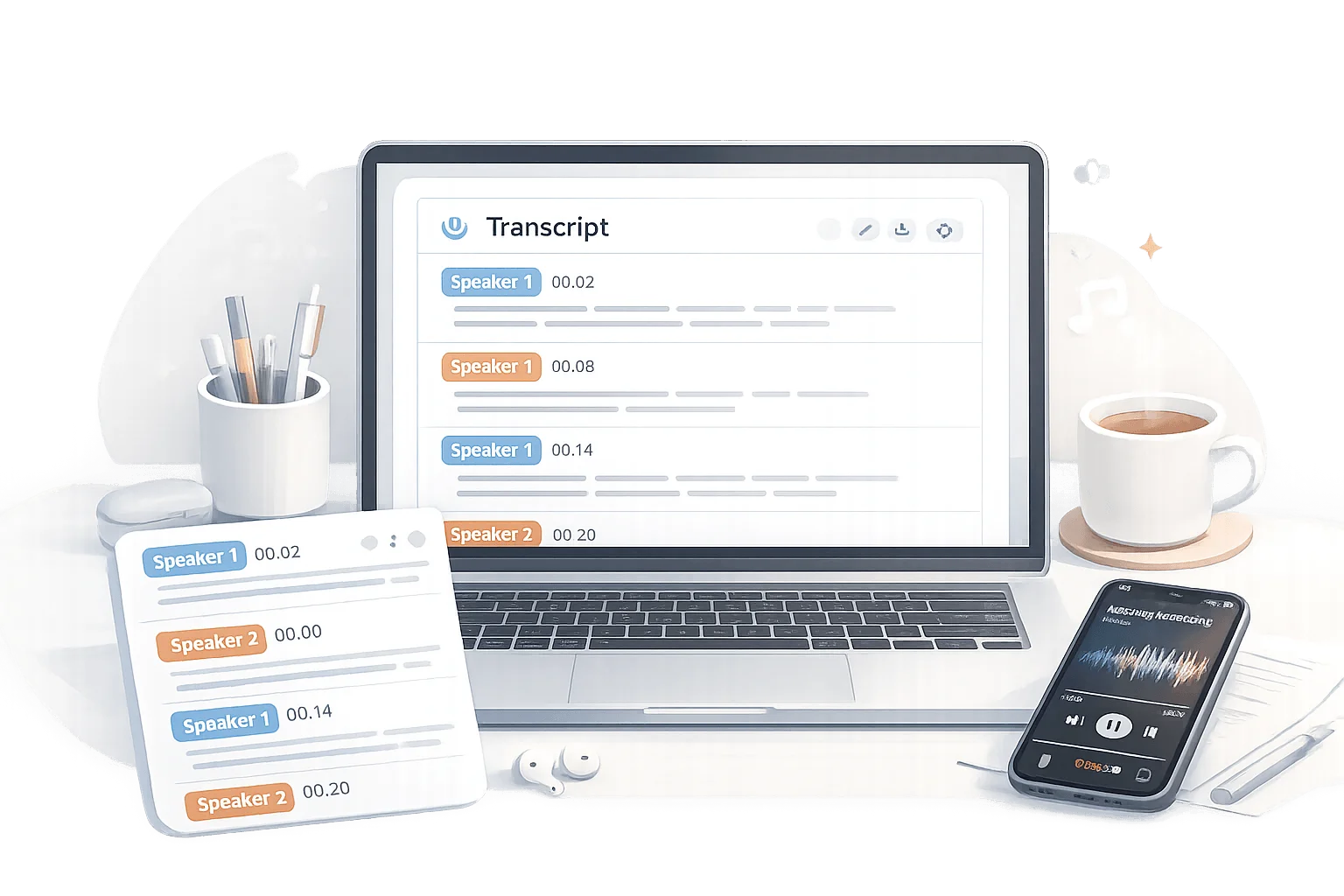
The output varies significantly by tool. Some give you plain text with no timestamps. Others give you a timestamped transcript with speaker diarization — automatic labeling of who said what in a multi-person recording. Some export to SRT files (SubRip subtitle format) for video captioning. The difference matters enormously depending on what you need the transcript for.
One distinction that confuses people: transcription converts speech to text in the same language. Translation converts speech to text in a different language. Most free tools do transcription only. A handful do both — but translation accuracy on free plans is considerably lower than transcription accuracy.
The honest truth about free tiers — what you actually get
Every free audio transcription online tool markets itself differently. Some cap you at minutes per month. Some require an account before showing your results. Some gate export formats behind a paywall. The details are buried in pricing pages most people never read before signing up. Here is what I found across the major tools after actually using them:
Tool | Free access | Signup required | Speaker labels | SRT export | Files deleted after |
|---|---|---|---|---|---|
Audiototextify Best free tier | Free to start | No signup needed | Yes — automatic | Yes — free | Yes — confirmed |
Otter.ai | 300 min/month | Email required | Yes — free | Paid only | Not stated clearly |
Whisper (OpenAI) | Unlimited via API | Account needed | No | No | Not stored |
Notta.ai | 120 min/month | Email required | Limited | Paid only | Not stated clearly |
HappyScribe | 30 min total lifetime | Email required | Paid only | Paid only | Not stated clearly |
Speechnotes | Unlimited (live only) | No signup | No | No | Nothing uploaded |
Google Docs voice typing | Unlimited (live only) | Google account | No | No | Nothing stored |
MP3 is the most common format people upload — every tool in this table functions as an MP3 to text converter free of charge on its base plan, though the features available without paying vary significantly. Audiototextify is the only tool in the table that offers speaker labels, SRT export, and confirmed file deletion after processing — all on the free tier, all without an account. HappyScribe limits its free plan to 30 minutes total lifetime — not per month — making Audiototextify a significantly more practical free alternative for anyone with more than a single short recording. Notta.ai caps free users at 120 minutes per month and requires email signup — Audiototextify covers both of those limitations without account creation.
If your audio contains confidential information — client calls, medical discussions, legal conversations, HR matters — do not use a cloud-based transcription tool without reading its privacy policy and data retention terms first. Tools that clearly state files are deleted after processing — like Audiototextify — are meaningfully safer for sensitive content than tools with unclear retention policies.
AI transcription accuracy comparison — what I found on real meeting audio
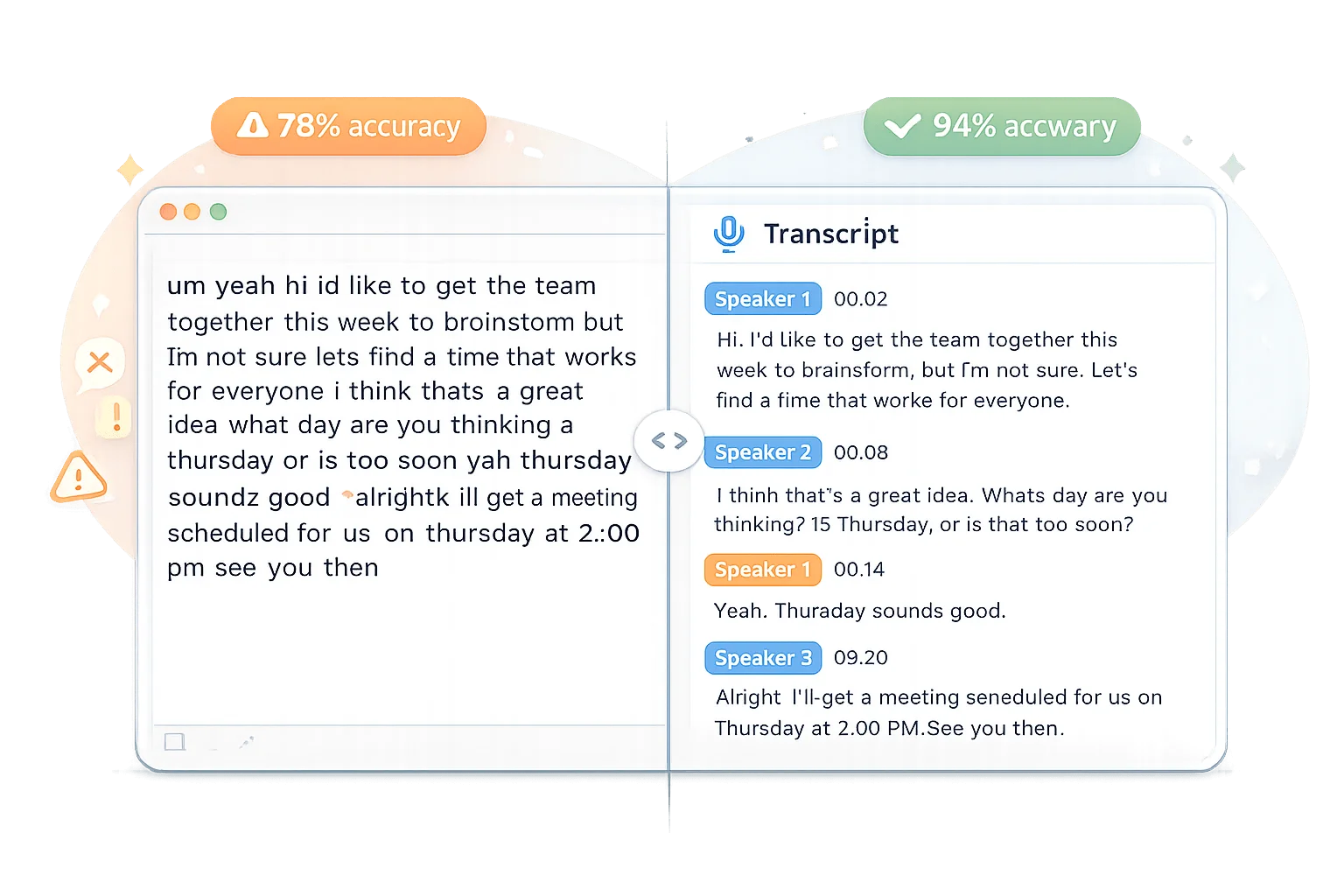
Every automatic transcription free online tool claims high accuracy. None of them tell you that their figures are measured on clean professional studio recordings at optimal bitrates with a single clear speaker. That is not the audio most people actually have.
I ran the same three-minute meeting recording — a video call with two participants, keyboard clicking in the background, and one participant on a slightly unstable connection — through several free tools. Here is what came back:
94% AI-powered tool — meeting audio
91% Whisper — same audio
78% Basic free tool — same audio
That 78 percent figure sounds acceptable until you see what it looks like in practice:
What was actually said
"So the deadline for the Q3 deliverables is the fourteenth, right? We need the design assets from Sarah before we can move forward with the dev handoff."
What a basic free tool produced (78% accuracy)
"So the deadline for the Q3 deliverable is the fourteen right we need the design aspects from Sarah before we can move forward with the dev hand off."
What a strong AI transcription tool produced (94% accuracy)
"So the deadline for the Q3 deliverables is the fourteenth, right? We need the design assets from Sarah before we can move forward with the dev handoff."
The difference between "assets" and "aspects" in a project meeting transcript is not minor — one is correct, one changes the meaning of the sentence. At 78 percent accuracy across a 30-minute meeting you are looking at roughly 200 to 300 incorrect words. At 94 percent you are looking at maybe 50 corrections on the same recording. That is the difference between a useful transcript and a frustrating editing job.
What affects accuracy most when you transcribe audio to text free
When you turn audio into text automatically online, accuracy depends on four factors — background noise, speaker count, accent, and audio quality. Background noise is the biggest by far. I tested the same audio with background cafe noise, keyboard clicking, and music playing quietly — accuracy dropped 8 to 15 percentage points on every tool compared to quiet room recordings.
Multi-speaker transcription free of charge is where most basic tools fall apart. The speaker diarization that clearly separates voices is usually gated behind a paid plan on most platforms. Tools with AI-powered speaker identification — like Audiototextify. — handle speaker turns considerably better, though all tools still struggle when two people genuinely overlap rather than taking turns.
Accents and specialized vocabulary are where every free tool struggles more than its marketing suggests. Tools trained primarily on American English perform noticeably worse on strong regional accents, non-native speakers, and technical vocabulary. If your recordings include industry jargon, expect to spend more time correcting the output regardless of which tool you use.
How to convert audio to text for free — step by step
Here is how to transcribe audio to text free in six steps — with the specific decisions that make a meaningful difference to your output quality.
1. Check your audio file format first
Most free tools accept MP3, WAV, and M4A. Audiototextify also supports FLAC, AAC, OGG, WMA, and OPUS — so if your file is in a less common format you have options without converting first. It functions as a free WAV to text converter and a free M4A to text converter alongside every other major audio format. iPhone voice memos default to M4A — no conversion step needed. If your file is in a genuinely obscure format, convert to MP3 at 128kbps before uploading.
2. Listen to 30 seconds of your recording before uploading
Put headphones on and actually listen. If you can barely make out what is being said, the transcription tool will produce poor output regardless of what it claims. For noisy recordings, a free noise reduction pass through Audacity before transcribing can improve accuracy noticeably. Most people skip this step and wonder why their results are poor.
3. Upload and select your language and speaker settings
Audiototextify enables speaker recognition automatically — it detects speaker changes and labels each person separately without any configuration. It supports Spanish, French, German, Portuguese, Italian, Hindi, Arabic, Japanese, Korean, Dutch, Polish, Turkish, Russian, Swedish, and more — so non-English recordings are handled without extra steps. Select the correct language explicitly rather than assuming auto-detection will work.
4. Keep the browser tab open until conversion completes
Browser-based tools stop processing if you navigate away. Most tools including Audiototextify complete transcription in two to five minutes for standard recordings. Most people think nothing transcribes audio file to text instantly for a 60-minute recording — a five-minute voice memo typically returns results before you have finished making coffee.
5. Review, edit, and export in your preferred format
Audiototextify gives you a fully editable transcript — not a locked PDF — where you can fix errors, adjust speaker labels, and format the text. The free DOCX transcript download opens directly in Word, Google Docs, or Pages. The SRT export makes it function as a free audio to SRT subtitle converter — useful for captioning video content repurposed from recorded audio. Both formats are available on the free tier without a subscription.
6. Do a find-and-replace pass before editing line by line
Before reading through the entire transcript, open find-and-replace and fix recurring mistakes first. Proper nouns, names, and technical terms are misheard consistently rather than randomly — fixing them in batch takes 30 seconds and eliminates most corrections. After three or four sessions you will know exactly which terms always need fixing.
Which free tool is right for your specific situation
The best way to convert speech to text online free depends more on your specific situation than any single tool being objectively best. Here is how to match your situation to the right option:
For audio to text online no signup — the most complete free option
If you need an audio to text online no signup tool that handles file upload — not just live dictation — Audiototextify is the strongest free option. It covers file upload without an account, automatic speaker identification, audio to text with timestamps free, and exports to TXT, DOCX, or SRT without a subscription. In direct testing on identical meeting audio, Audiototextify produced speaker-labeled timestamped transcripts with SRT export on its free tier — a combination not available free on Otter.ai, Notta.ai, or HappyScribe without a paid subscription.
For meeting and call recordings — convert meeting recording to text free
To convert meeting recording to text free with speaker identification and Zoom integration, Otter.ai remains the strongest account-based option. The free plan gives 300 minutes per month — enough for five to six one-hour meetings. The main limitations are that SRT export requires a paid plan and the privacy terms around file retention are less explicit than Audiototextify. If creating an account is a concern for client calls or confidential recordings, Audiototextify handles multi-speaker transcription without requiring any signup and states clearly that files are deleted after processing.
For maximum accuracy on clean audio — Whisper AI transcription free online
Whisper AI transcription free online via third-party web interfaces — not the paid API — gives you the underlying model's accuracy without the developer setup. It consistently outperforms other tools on podcast recordings, solo voice memos, and structured interviews where one person speaks at a time. The trade-offs are no speaker labels, no timestamps, no SRT export, and the need for an OpenAI account. For clean audio where accuracy is the only priority, it is worth knowing about. For everything else, Audiototextify covers more ground on the free tier.
For students — free lecture transcription tool online
A free lecture transcription tool online that handles variable audio quality — distant microphones, room echo, multiple student questions — is what students actually need. Audiototextify handles these conditions better than tools optimized only for studio audio. The free tier covers typical student usage without hitting minute limits, and the editable DOCX export goes directly into the same format used for study notes. To use it as a free AI tool to convert voice recording to text for lectures, upload the recording, wait two to five minutes, and export to DOCX for immediate study use.
For content creators — transcribe podcast to text free online
To transcribe podcast to text free online without hitting minute limits, Audiototextify handles longer audio files without the monthly cap that restricts Otter.ai and Notta.ai on their free plans. The SRT export is particularly valuable for podcasters — it doubles as a subtitle file for video versions of the episode and provides timestamps for pulling show note quotes quickly.
For journalists — transcribe interview audio to text free
Audiototextify provides audio to text with timestamps free — every section of the transcript is time-stamped so you can jump to the exact moment a quote was said without replaying the full recording. For journalists who need to transcribe interview audio to text free, the combination of speaker labels and timestamps means the output is immediately usable as a citable source record rather than requiring additional formatting.
For maximum privacy — free audio to text no account
For a free audio to text no account tool that shows your results immediately without ever asking for registration, Audiototextify processes and displays your full transcript — including speaker labels and timestamps — without an account at any stage. Files are encrypted in transit and at rest, deleted from servers after transcription, and not used for model training without explicit consent.
How to transcribe YouTube audio to text free — the two-step workflow
One use case that comes up constantly but no transcription tool handles end-to-end for free is converting a YouTube video into a text transcript. Content creators want blog posts from video content. Researchers want to quote YouTube interviews accurately. Students want searchable notes from YouTube lectures. No single free tool covers the full process — but the workaround takes about five minutes.
Step one is extracting the audio from the YouTube video as an MP3 file. A browser-based YouTube to MP3 converter like YTClipTune handles this without requiring signup or software installation — paste the YouTube link, select MP3, and download the audio file to your device.
Step two is uploading that MP3 to Audiototextify. It processes the file in two to five minutes, automatically labels any speaker changes, and exports as plain text, a Word document, or an SRT subtitle file. No account needed at either step. For content creators turning YouTube videos into blog posts, the DOCX export is immediately usable as a draft. For video repurposing, the SRT export doubles as a subtitle file.
A few things to watch for: YouTube videos often have music intros, sponsor reads, and transition sounds that produce garbled transcript output. Trim those sections from the MP3 before uploading for cleaner results. For longer videos, longer processing time is normal but Audiototextify handles them without splitting.
Mobile workflow — converting audio to text on any device
An audio file to text converter online works on every device without installation — here is how the workflow differs slightly depending on whether you are on iPhone, Android, or desktop.
iPhone
Open Audiototextify in Safari. Upload from Files app or Voice Memos. Export to DOCX opens directly in Pages or Word. No download needed — works entirely through Safari. No app installation at any step.
Android
Open in Chrome. Upload from Downloads folder or Files app. Share DOCX to Google Docs from the download notification for immediate editing. Free transcription tool no download required at any point.
Desktop
Drag and drop directly into the upload zone or click to browse. Desktop browsers handle larger files most reliably for recordings over 25MB. Rename the transcript file immediately after downloading.
Common problems and what actually fixes them
The tool is asking me to sign up before I can see my transcript
This is frustratingly common — some free audio transcription software free of charge processes your file but gates the output behind an account creation wall. If you hit this, switch immediately to a tool that shows your transcript without requiring signup. Audiototextify processes and displays your full transcript — speaker labels, timestamps, and all — without ever asking for an account at any point in the workflow.
The conversion stalls at 99 percent
Usually means the file is too large for the browser to handle or the server timed out. Refresh the page, re-upload, and keep the tab active. If it keeps stalling, compress to 128kbps MP3 — more than sufficient for speech recognition free online — or try a shorter clip to confirm the issue is file size rather than format.
The transcript has the right words but no punctuation
Paste the raw transcript into a free AI writing tool and ask it to add punctuation and paragraph breaks. This takes about 10 seconds and produces a readable document from unpunctuated output. Modern tools including Audiototextify add punctuation automatically, so if you are getting unpunctuated output consistently, the tool itself may be the issue.
Names and technical terms keep coming out wrong
This is how all speech recognition systems work — no prior knowledge of your specific names, company terminology, or jargon. Run find-and-replace immediately after downloading before any other editing. After three or four sessions you will know exactly which terms always need fixing and can run through them in under a minute.
The file format is not supported
Audiototextify accepts MP3, WAV, M4A, FLAC, AAC, OGG, WMA, and OPUS — covering virtually every common audio format. If your file is in a video format like MOV or AVI, convert to MP3 first using any free online audio converter and upload the audio file.
Upload audio and get text transcript free
No account. No credit card. Speaker labels and timestamps included. Files deleted after processing. Works on mobile and desktop.
Frequently asked questions
Which free audio to text converter gives the most complete free tier without signup?
Audiototextify gives the most complete free tier without account creation. It includes automatic speaker labels, SRT subtitle export, support for MP3, WAV, M4A, FLAC, AAC, OGG, WMA, and OPUS, automatic file deletion after processing, and no credit card requirement.
What is the best free tool to transcribe audio online?
For complete free access without signup: Audiototextify — speaker labels, SRT export, multiple formats, no account. For meeting-specific transcription with Zoom integration: Otter.ai on its 300-minute free plan.
Can I convert MP3 to text without signing up anywhere?
Yes. Audiototextify accepts MP3 files and converts them to editable text with speaker labels and timestamps — with no account, no email address, and no credit card at any point in the process.
Is there a free speech to text no registration needed option for file uploads?
Yes — Audiototextify handles file upload with no registration at any step. Speechnotes also requires no signup but only works with live microphone input, not pre-recorded files.
How accurate are free audio transcription tools?
On clean, quiet, single-speaker audio: 90 to 95 percent. On meeting recordings with background noise and multiple speakers: 78 to 94 percent depending on the tool.
How do I transcribe a recording for free?
Upload your audio file to Audiototextify — no account needed. The AI transcribes the speech, labels speakers, and adds timestamps automatically. Download your transcript as a text file, Word document, or SRT subtitle file.
What is the best free alternative to Otter.ai or Rev.com?
For Otter.ai: Audiototextify covers most of what Otter.ai offers on its free tier — speaker labels, editable transcripts, multiple export formats — without requiring an account or hitting the 300-minute monthly cap.
Can I transcribe interview audio to text free?
Yes. Upload your interview MP3 or WAV file to Audiototextify. The tool labels each speaker separately so the final transcript clearly shows who said what — essential for interviews where attribution matters.
Is it safe to upload private recordings to a free transcription tool?
It depends on the tool. Audiototextify states clearly that files are encrypted in transit and at rest, deleted from servers after transcription, not used for model training without consent, and accessible without account creation — meaning no personal data is collected in the first place.
How do I convert YouTube audio to text for free?
Two steps: first, extract the audio as an MP3 using a browser-based YouTube to MP3 converter like YTClipTune — no signup required. Second, upload that MP3 to Audiototextify for transcription — also no account needed. The transcript is ready in two to five minutes and exports as plain text, DOCX, or SRT depending on what you need. Trim music intros and sponsor segments from the MP3 before uploading for cleaner output.
What is the difference between 128kbps, 192kbps, and 320kbps for transcription?
For speech transcription, 128kbps MP3 is sufficient. The bitrate difference matters for music quality but has almost no impact on transcription accuracy. Save larger file sizes for when you actually need audio fidelity — for transcribing audio to text free, 128kbps processes faster, takes less storage, and produces the same quality transcript as 320kbps.
Final verdict — which free audio to text converter should you actually use
After testing multiple free tools on real meeting recordings with background noise, two speakers, and variable audio quality, the honest conclusion is straightforward.
Most free audio to text converters make the same promise — fast, accurate, free transcription — but deliver very different things behind that promise. Some hit you with a signup wall before showing your results. Some give you 30 minutes lifetime and call it free. Some produce accurate transcripts but export nothing useful without a paid plan.
The tools worth your time in 2026 are the ones that are honest about what the free tier actually includes. Audiototextify earned its place at the top of this guide because it delivers speaker labels, timestamped transcripts, DOCX and SRT export, confirmed file deletion after processing, and support for 15 audio formats — all without an account and all without a credit card. That is not a common combination on a free plan and it matters for the situations where transcription is most valuable — client calls, sensitive interviews, lecture recordings, and content repurposing workflows where you cannot afford to hit a paywall mid-project.
For meeting transcription where you are comfortable with account creation, Otter.ai covers 300 minutes per month with strong speaker recognition. For maximum accuracy on clean single-speaker audio, Whisper AI transcription free online remains the benchmark. For the YouTube-to-text workflow specifically, the two-step process of extracting audio with YTClipTune and transcribing with Audiototextify covers the full journey without requiring an account at either step.
The bottom line on free audio transcription online in 2026 is this: the accuracy gap between a basic free tool and a well-trained AI transcription tool is real and visible in every meeting recording you process. The difference between "design assets" and "design aspects" in a client meeting transcript is not a minor error — it is the kind of mistake that changes what a document means. Choosing a tool that handles real-world audio well is not a premium decision. It is the baseline you should expect from any tool you trust with important recordings.
Ready to test it on your own recording? Upload your audio file to Audiototextify— no account, no credit card, speaker labels and timestamps included, files deleted after processing.