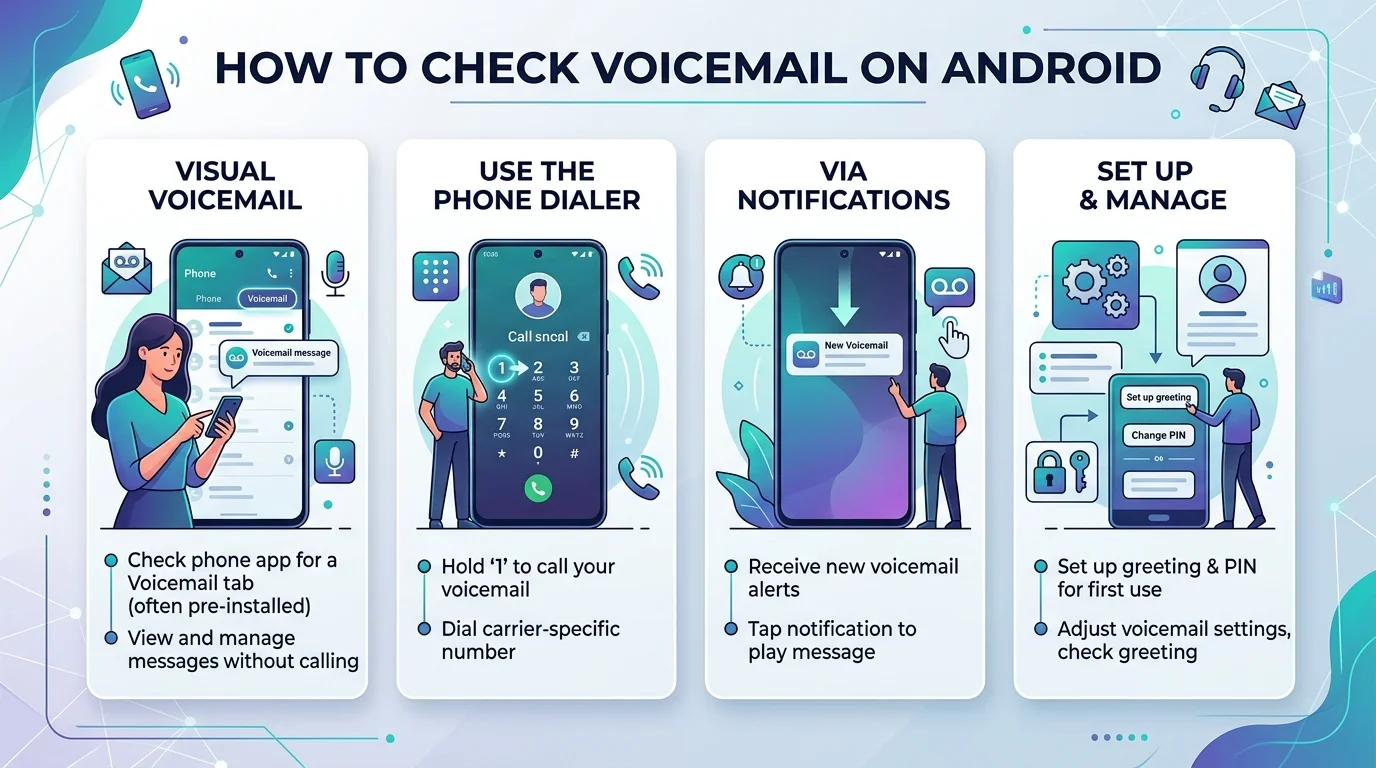
To check voicemail on Android, open your Phone app and either press and hold "1" on the dialpad to speed-dial your voicemail box, or tap the voicemail notification when it appears. If your carrier supports it, you can also use visual voicemail or turn on voicemail transcription to read messages instead of listening to them.
Now let's break down every method, step by step, so you can pick whichever works best for you.
What Is Android Voicemail, Really?
Before we jump into the how-to, let's quickly cover what's actually happening behind the scenes.
Your voicemail box isn't some app sitting on your phone — it's actually a phone number tied to your carrier. When someone calls you and you don't pick up, their message gets routed to this number and stored there until you retrieve it.
Sounds simple, right? It mostly is. But here's the catch — every carrier handles it a little differently, which is exactly why so many people get confused. If you haven't set up your mailbox yet, check out our guide on how to set up voicemail on Android before you try retrieving messages.
Method 1: The Classic Speed-Dial Trick
This is the fastest way to check voicemail on Android, and honestly, it's the one I use myself.
Here's exactly what to do:
Open your Phone app
Press and hold the "1" key on your dialpad
Wait for it to auto-dial your voicemail service
Enter your voicemail PIN if prompted
That's it. Seriously.
This trick works because your phone stores your voicemail number and automatically dials it whenever you long-press 1.
Method 2: Checking Through Notifications
Sometimes you don't even need to open the dialer at all.
According to Google's official Phone app support page, you can:
Swipe down from the top of your screen
Tap the voicemail notification
Listen right there
Quick tip: as of 2026, this feature typically requires Android 12 or higher, with the Phone by Google and Contacts apps installed. If you're not seeing it, check your Android version in Settings first.
Method 3: Using Visual Voicemail
Now let's talk about something a little more modern — visual voicemail.
Instead of dialing in and listening through a robotic menu, visual voicemail shows you a list of messages, kind of like an email inbox. You just tap whichever one you want to hear.
Here's the thing though — not every carrier or region supports this feature, so check with your provider first.
Carrier Comparison: Visual Voicemail & Transcription Support (2026)
Carrier | Visual Voicemail | Transcription | Password Reset Method |
|---|---|---|---|
Verizon | Yes | Yes | Verizon Call Assistant portal |
AT&T | Yes (dedicated app) | Yes | AT&T account settings |
T-Mobile | Yes | Yes | Dial #793# |
Visible | Yes | Yes | In-app settings |
Tracfone | Limited | No | Text 611611 |
This table is a quick reference — always confirm directly with your carrier since availability shifts by region and plan.
Method 4: Reading Instead of Listening (Voicemail Transcription)
I'll be honest — I'm not always in a place where I can play audio out loud. Meetings, libraries, awkward silences... you know the drill.
That's where voicemail transcription comes in clutch.
Here's how to turn it on:
Open the Phone app
Tap the three dots (or More options)
Go to Settings
Tap Voicemail
Toggle on Voicemail transcription
Per Google's support documentation, transcription is currently available only in English and Spanish, and only on Android 8.0 and above. If native transcription feels limited, our guide on how to transcribe audio on Android covers more accurate third-party options.
Method 5: Checking Voicemail From Another Phone
Lost your phone? Phone died? Been there.
You can still check your messages using someone else's device. Here's the trick, straight from RingCentral's guide:
Call your own phone number
Wait for the greeting to start playing
Press the asterisk key (*)
Enter your voicemail PIN
Listen away
Using Google Voice? Here's Your Method
If you're rocking Google Voice instead of a traditional carrier voicemail, the process looks a little different.
According to Google Voice's official help page, you'll want to:
Open the Google Voice app
Tap Voicemail at the bottom
Look for unread voicemails in bold
Tap the one you want
Hit Play
You can even read the voicemail transcript right there before deciding whether to listen at all.
Forgot Your Voicemail Password? No Stress.
This happens more than you'd think.
Per this guide on resetting Android voicemail passwords, here's how to reset it on most phones:
Open the Phone app
Tap the three dots
Tap Settings
Scroll to Voicemail
Tap Change PIN
Enter your current password
Set a new one
Carrier-Specific Resets
T-Mobile: Dial #793# to reset your password to the last 4 digits of your number, or #796# to disable it entirely
Tracfone: Text "voicemail" to 611611 and reply Y when prompted
Fixing Common Voicemail Problems
Not receiving your messages the way you expect? Let's troubleshoot.
Voicemail not showing up:
Double-check your voicemail settings in the Phone app
Confirm you're dialing the correct voicemail number
Restart your phone
Visual voicemail not working:
Confirm your carrier actually supports it (see the table above)
Check that your data plan includes visual voicemail access
Update your Phone app through the Play Store
No transcription option:
Make sure you're on Android 8.0+
Confirm your carrier is supported
Turn on visual voicemail first, since transcription usually depends on it
If none of these fix it, it's also worth reviewing your device's storage and app permissions, since some voicemail apps need explicit access to function correctly.
Frequently Asked Questions
Why isn't my voicemail notification showing up on Android?
This usually happens when RCS isn't enabled in Google Messages, or your Phone app needs an update. Check your notification settings under Phone app > Settings > Notifications.
Can I check voicemail without calling in?
Yes — if your carrier supports visual voicemail or transcription, you can read your messages as text instead of dialing in.
Is voicemail transcription free?
Yes, on supported devices and carriers, Google's built-in transcription feature is free to use.
What do I do if I forgot my voicemail PIN?
Reset it through Phone app > Settings > Voicemail > Change PIN, or use your carrier's specific reset code (like T-Mobile's #793#).
Does visual voicemail work on all Android phones?
No — it depends on your carrier, region, and Android version. Check the comparison table above for major U.S. carriers.
Final Thoughts
Checking voicemail on Android really isn't complicated once you know where to look.
Whether you prefer the classic speed-dial method, love the convenience of visual voicemail, or want everything transcribed into readable text, there's an option here that'll fit how you actually use your phone.
Try a couple of these methods out, see what clicks, and stick with whichever one feels the most natural to you.
![Recover Gmail Password Without Phone Number [2026]](https://contiocdn.com/efdc9a99-5ac4-4f75-be3a-ed43de859d76/blog-covers/1790082232767-y9rtx1hq-recover-gmail-password-without-phone-number--2026-.webp)