
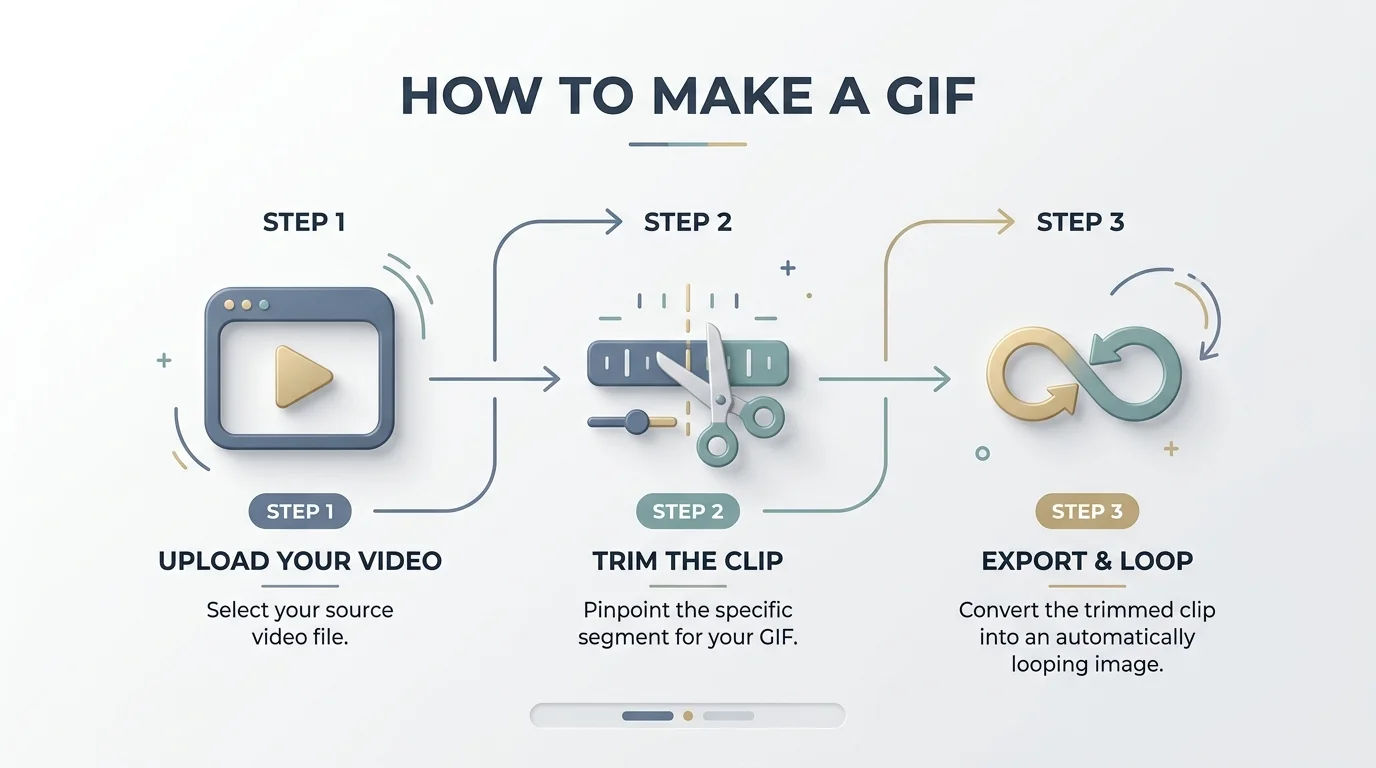
How to Make a GIF: The fastest way to make a GIF is to use a free browser tool like GIPHY's GIF Maker. Just upload a video or image, trim it, and export. If you want more creative control, Adobe Photoshop lets you build a true frame-by-frame animation. This guide walks you through both, plus a mobile method, so you can pick whatever fits your workflow.
I still remember the first time I tried to make one myself. It looked like a pixelated disaster. So trust me, I've made every mistake in the book here, and I'm going to save you from doing the same.
By the end of this guide, you'll know exactly how to create an animated GIF that actually looks professional, whether you're a marketer, a blogger, or just someone who wants to send the perfect reaction GIF to a group chat.
Let's dive in.
What Is a GIF? (Quick Definition)
A GIF (Graphics Interchange Format) is a bitmap image file that stores multiple frames in one file, creating a small, looping animation. That's the one sentence version. Here's the slightly longer story, because context matters.
The Graphics Interchange Format was created back in 1987 by a team at CompuServe led by Steve Wilhite. Yep, GIFs are pushing 40 years old. Wild, right?
The format supports up to 8 bits per pixel, referencing a palette of up to 256 colors, and it can hold multiple images in a single file. That's what makes looping animation possible. GIFs also use Lempel–Ziv–Welch compression to shrink file size without wrecking image quality. Pretty clever for '87 tech, honestly.
If you've ever wondered how a GIF stacks up against other image formats, it's worth reading our breakdown of JPG vs PNG. It'll help you understand exactly when a GIF is the right call versus a static image format.
Heads up: GIFs have declined a bit in "pure" usage because formats like PNG and MP4 now do certain jobs better. But short looping clips are still casually called "GIFs" even when they're technically video files under the hood. Confusing? A little. Does it matter for you as a creator? Not really. You just want to know how to make one. So let's get into it.
Photoshop vs. Snagit vs. GIPHY: Which Tool Should You Use?
Before we get into the step by step, here's a quick side by side so you can pick the right tool for your skill level and goal.
Tool | Cost | Skill Level | Best For | Output Quality |
|---|---|---|---|---|
Photoshop | Paid (subscription) | Intermediate to Advanced | Custom, branded animations | High, fully controllable |
Snagit | Paid (one time license) | Beginner | Screen recordings, tutorials | High, quick trims |
GIPHY GIF Maker | Free | Beginner | Fast, casual GIFs from video/URL | Good, capped at 15 second clips |
Phone (iPhone/Android) | Free | Beginner | On the go GIFs from Live Photos or video | Moderate, less editing control |
If you're brand new to this, start with GIPHY or your phone. If you're building marketing assets, go with Photoshop. If you're documenting software or tutorials, Snagit wins every time.
Method 1: How to Make a GIF in Photoshop (Step by Step)
I'll be honest with you: this is the method I recommend if you want full creative control over your animated GIF.
Here's exactly how to do it.
Step 1: Upload Your Images
Grab your images. They can be video frames, hand drawn animation frames, or even still photos. Import them all into Photoshop as separate layers.
Step 2: Open the Timeline Panel
Go to Window > Timeline. This is your animation command center.
Step 3: Create Frame Animation
Click "Create Frame Animation" inside the Timeline window. This tells Photoshop, "hey, I want to animate this thing."
Step 4: Make Frames From Layers
Click the menu icon on the right and select "Make Frames From Layers." Boom, each layer becomes its own frame.
Step 5: Set Timing and Looping
Under each frame, choose how long it displays before switching. Then, at the bottom of the toolbar, set your loop count (I always go with "Forever," because why not?).
Step 6: Export Your GIF
Head to File > Export > Save for Web, and export your masterpiece.
According to HubSpot's tutorial, this exact workflow is what most professional marketers use to build branded GIFs, so you're in good company here.
Method 2: Turning a Screen Recording Into a GIF
Maybe you don't want to animate from scratch. Maybe you just want to capture something happening on your screen: a software bug, a quick tutorial, or a funny gaming moment.
This is where a tool like Snagit shines.
Record or import your video into Snagit.
Trim the clip using the green and red markers to select exactly the part you want.
Click the button to save your selection as an animated GIF.
Choose "Use Selection" or "Use Whole Video."
Download and share.
No permanent edits are made to your original video, either, so you can experiment freely without worrying about ruining your source file.
Method 3: Using Online GIF Makers (No Software Needed)
Not everyone has Photoshop. And honestly, you don't need it.
Tools like GIPHY's GIF Maker let you create a GIF in your browser, completely free.
Add your content — drag and drop a file, or paste a URL. Videos need to be under 100MB and 15 seconds long.
Create layers to add captions or stickers to make your GIF pop.
Edit your layers so each one appears exactly when you want.
Crop it: choose Original, Portrait, Landscape, or Custom sizing.
Upload and finish: tag it, add a source URL, and hit "Create GIF."
I genuinely think GIPHY is the fastest option if you're in a rush. No downloads, no learning curve, just results.
Method 4: How to Make a GIF on Your Phone (iPhone & Android)
You don't need a computer at all, honestly. If you've got a Live Photo on iPhone, several third party apps (and some built in shortcuts) can convert it straight into a looping GIF. On Android, apps like Google Photos let you select a burst of images or a short video clip and export it as a GIF in a couple of taps.
This method trades some editing control for pure speed. It's the quickest path from "funny moment" to "shareable GIF" when you're out and about.
Pro Tips for Making GIFs That Don't Look Amateur
Let's talk quality, because a blurry, laggy GIF is worse than no GIF at all.
Compress your file size. Nobody wants a GIF that's too heavy to upload to Twitter, Discord, Slack, or email. Learn the compression techniques that actually preserve quality while shrinking the file.
Watch your resolution and frame rate. These two settings, along with your color palette and dithering, determine whether your GIF looks crisp or like a smudged mess. If you're not sure what resolution to aim for, our guide on what 4K resolution actually means is a useful primer before you start exporting large files.
Name your layers. Trust me on this one. When you're juggling ten plus frames in Photoshop, an unnamed layer stack becomes a nightmare fast.
Keep it short. The best GIFs are punchy: a few seconds, one clear idea, looped seamlessly.
Frequently Asked Questions
Is it free to make a GIF?
Yes. Tools like GIPHY's GIF Maker and most phone based methods are completely free. Photoshop and Snagit are paid, but they offer more editing control.
What's the best free GIF maker in 2026?
GIPHY remains one of the most popular free, browser based options, especially for quick GIFs from video clips or URLs.
How do I make a GIF on my phone?
On iPhone, you can convert a Live Photo into a GIF using built in shortcuts or third party apps. On Android, Google Photos can turn a burst of photos or a short video into a GIF in a few taps.
Why won't my GIF play or upload?
It's usually a file size issue. Most platforms cap GIF uploads, so compress your file and check the resolution before re-uploading.
What's the difference between a GIF and an MP4?
A GIF is a lossless bitmap format limited to 256 colors per frame, ideal for short, simple loops. An MP4 is a video format that supports full color and audio, making it better for longer or higher quality clips, though people often still call short MP4 clips "GIFs" out of habit.
Why You Should Start Making GIFs Today
Here's my honest take: if you're creating content, blog posts, product tutorials, social captions, onboarding docs, GIFs are one of the most underrated tools in your arsenal.
They boost engagement, simplify complex steps into something visual, and honestly, they're just fun.
Whether you go with Photoshop for full control, Snagit for screen recordings, GIPHY for a fast free option, or your phone for on the go speed, you genuinely can't go wrong. Each tool has its sweet spot, so pick the one that matches your workflow and start experimenting.
If you're brand new to this, start with GIPHY or your phone. It's free, fast, and you'll have your first GIF made in under five minutes. Once you're comfortable, level up to Photoshop or Snagit for more polished, professional results.
You now know exactly how to make a GIF from start to finish. So go make something good.