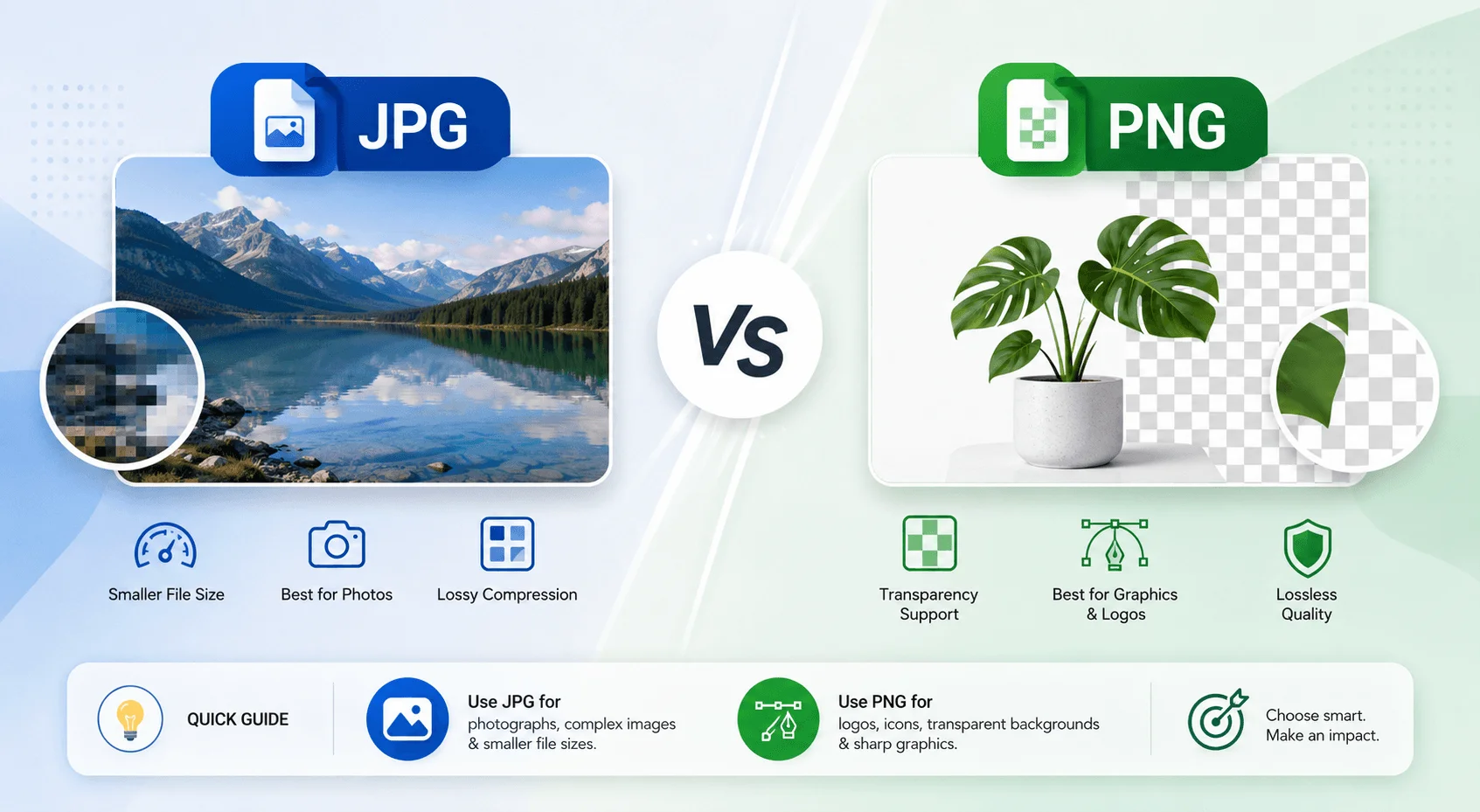
TL;DR: JPG and PNG are the two most common image file formats, and the core difference comes down to compression. JPG uses lossy compression, which shrinks file size by permanently discarding some image data, making it ideal for photographs. PNG uses lossless compression, which keeps every pixel intact and supports transparency through an alpha channel, making it the better choice for logos, screenshots, and graphics. Below, you'll get a full breakdown, a step-by-step way to choose, and a look at how newer formats like WebP and AVIF fit in.
If you've ever right-clicked "Save Image As" and stared at that dropdown wondering whether to pick JPG or PNG, you're definitely not alone. I get this question all the time.
It seems simple on the surface, but it gets confusing fast once you start digging into compression, transparency, and file sizes. So let's clear this up once and for all, and by the end you'll know exactly which format to reach for, every time.
What Is a JPG File?
Before comparing anything, you need to understand what JPG actually is. It's one of the oldest and most widely used image file formats on the internet, built with one goal: shrink file sizes without destroying quality too badly.
JPG (or JPEG) stands for Joint Photographic Experts Group, the group that created the standard in 1992. It's formally defined by the ISO/IEC 10918 specification. The key thing to know: JPG uses lossy compression.
That means every time you save a JPG, some of the original image data gets thrown away. Gone. Forever.
Sounds a little scary, right? It's not as bad as it sounds. The compression algorithm converts your image's colors into a format called YCbCr, separates brightness from color, and trims details your eyes are least likely to notice. Most of the time, you genuinely can't tell.
But here's the catch: JPG compression is cumulative. Every time you open, edit, and re-save a JPG, you lose a little more quality. Do that enough times and you'll see blurry edges and blocky artifacts, especially around sharp lines or text.
Why People Still Use JPG in 2026
Despite that downside, JPG remains massively popular, and for good reason.
It produces small file sizes — often 5 to 10 times smaller than an equivalent PNG for the same photo
It's supported by every browser, device, and app on the planet
It handles photographs and complex color gradients beautifully
So if you're uploading a sunset photo, a product shot, or a portrait, JPG is usually your best friend. (If you're curious how file compression affects quality in other media too, check out our guide on what 4K resolution actually means.)
What Is a PNG File?
Now let's flip to the other side. PNG stands for Portable Network Graphics, created as a patent-free alternative to GIF. According to the official W3C PNG specification, the format was first published as a W3C Recommendation in October 1996.
As of 2025, the format has actually kept evolving. The PNG Third Edition became a W3C Proposed Recommendation, and for the first time, PNG officially supports animated raster images, not just static ones.
The biggest everyday difference, though, is that PNG uses lossless compression. No image data gets deleted when you save it. The algorithm just stores the same pixel data more efficiently. So you can open, edit, and save a PNG a hundred times, and it'll still look exactly like the original.
The Transparency Superpower
Here's where PNG really pulls ahead: transparency.
PNG supports an alpha channel, which lets individual pixels be fully transparent, fully opaque, or anywhere in between. This is documented directly in the original RFC 2083 spec.
JPG can't do this at all.
So if you've ever downloaded a logo with a see-through background and dropped it neatly onto a colored webpage, that was a PNG. This makes PNG the go-to for:
Logos
Icons
Screenshots
Charts and diagrams
Any graphic with sharp lines or flat colors
JPG vs PNG: The Head-to-Head Comparison
Let's put these two side by side so you can see exactly how they stack up.
Feature | JPG | PNG |
|---|---|---|
Compression type | Lossy compression | Lossless compression |
File size | Small | Larger |
Quality after edits | Degrades over time | Stays identical |
Transparency support | ❌ No | ✅ Yes |
Best for | Photos, complex images | Logos, screenshots, graphics |
Color mode | RGB only | RGB + RGBA |
You'll notice a real trade-off here. It comes down to one question: do you care more about file size, or about image quality and flexibility?
How JPG, PNG, WebP, and AVIF Compare
Since JPG and PNG aren't the only formats in the game anymore, here's how the two newer contenders stack up against them.
Format | Compression | Transparency | Typical File Size | Browser Support |
|---|---|---|---|---|
JPG | Lossy | ❌ No | Small | Universal |
PNG | Lossless | ✅ Yes | Large | Universal |
WebP | Lossy or lossless | ✅ Yes | 25–35% smaller than PNG¹ | Broad, some legacy gaps |
AVIF | Lossy or lossless | ✅ Yes | Smallest of the four | Growing, not universal |
¹ Per Google's WebP lossless alpha study, WebP files with transparency run 25 to 35% smaller than equivalent PNGs, while keeping the same alpha channel quality.
The catch: older browsers like IE11 and Safari 13 don't support WebP, so if legacy traffic matters to you, keep a PNG fallback ready.
When Should You Use JPG?
Let's get practical. You should reach for JPG when:
1. You're uploading photographs
Photos are full of soft gradients and subtle color transitions. JPG's compression was designed for this. According to Adobe's comparison, it handles this content far more efficiently than PNG.
2. Page speed is a priority
Smaller JPG files load faster. If you're running an ecommerce store or photography portfolio with hundreds of images, this affects your site speed and your SEO performance. You can find more comparisons like this one in our format and tool comparison hub.
3. You don't need transparency
If your image has a solid background, there's no reason to pay the file-size penalty PNG carries.
When Should You Use PNG?
Now the flip side. You'll want PNG when:
1. You need a transparent background
Non-negotiable. If your image needs to sit on top of another color or image without a visible box around it, PNG (or WebP) is your option.
2. You're working with text, logos, or line art
Per Digital Trends, PNG handles high-contrast, detailed graphics far better than JPG, without fuzzy compression artifacts around sharp edges.
3. You're taking screenshots
Ever wonder why your screenshot tool defaults to PNG? It gives a near pixel-perfect capture of your screen, rather than compressing groups of pixels the way JPG does.
4. You plan to edit the image repeatedly
Since PNG doesn't lose quality with each save, it's the smarter choice for design files you'll revisit. For more practical walkthroughs like the one below, browse our full library of how-to guides.
Step-by-Step: How to Choose the Right Format
Here's a quick process to run through every time you're saving or exporting an image.
Step 1: Does this image need a transparent background?
If yes, go with PNG or WebP. Done.
Step 2: Is this a photograph with lots of color and detail?
If yes, JPG is almost always the better bet, for both quality and file size.
Step 3: Does the image have sharp text, flat colors, or fine lines?
If yes, lean toward PNG. JPG compression tends to blur these details.
Step 4: Will you be editing and re-saving this file repeatedly?
If yes, use PNG during editing, then export a final JPG copy for the web once you're done.
Step 5: Is page load speed your top priority?
If storage and bandwidth matter more than pixel-perfect detail, JPG wins here almost every time.
A Common Mistake You Should Avoid
Converting a JPG into a PNG does not restore any quality that was already lost. I want to repeat that, because it trips people up constantly.
If your original JPG has already been compressed and shows artifacts, saving it as a PNG afterward just locks in that same lower quality going forward. It won't sharpen anything back up.
So always work from the highest-quality original source file you have, and only compress down to JPG as your final step, not your starting point.
Frequently Asked Questions
Is PNG better than JPG?
Not exactly. It depends on your use case. PNG is better for graphics, logos, and anything needing transparency. JPG is better for photographs, where smaller file size matters more than pixel-perfect precision.
Does converting JPG to PNG improve quality?
No. Converting a JPG to PNG preserves the image at its current quality level, but it can't restore data already lost during the original JPG compression.
Why do screenshots save as PNG by default?
Because PNG's lossless compression captures your screen with near pixel-perfect accuracy, without smudging fine text or UI details the way JPG compression can.
Can JPG support transparent backgrounds?
No. JPG has no support for transparency at all. If you need a see-through background, PNG (or WebP) is what you want.
Which format is better for websites in 2026?
It depends on the image. Use JPG for photos to keep load times fast, PNG for logos and icons needing transparency, and consider WebP or AVIF where browser support allows, since both typically produce smaller files than PNG without losing transparency.
Wrapping Up
So there you have it: the full breakdown of JPG vs PNG.
Neither format is objectively "better." JPG shines with photographs and small file sizes. PNG shines with graphics, transparency, and anything you'll edit again and again without losing quality. And if browser support allows, WebP or AVIF can beat both on file size while still keeping transparency intact.
Next time you're about to hit export, run through the decision steps above, and you'll pick the right format every time.