
To make PDF fillable, open it in a PDF editor that supports form fields, such as Adobe Acrobat's Prepare a Form tool. Add text boxes, checkboxes, and dropdowns, then save. Free options include LibreOffice Writer and browser based form creators.
Nobody enjoys printing a form, signing it, and scanning it back in. It's 2026, for crying out loud!
So let me walk you through it. I'll show you every method I trust, plus the traps I've seen along the way.
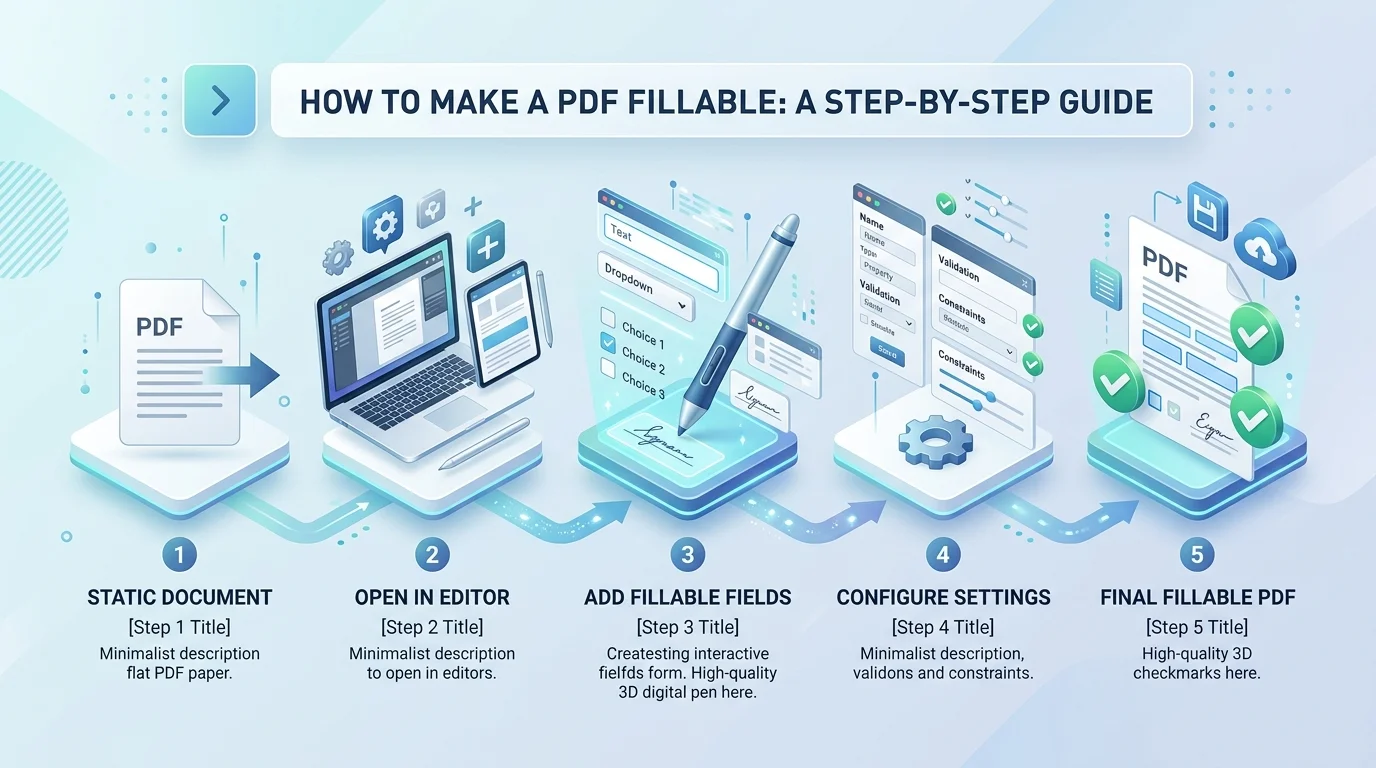
What Is a Fillable PDF?
A fillable PDF is a document with interactive boxes that people can type into. No printer. No pen. No headaches.
Jotform notes these files also go by interactive PDFs or editable PDFs. I love them because they save everybody time, and once you send one, you'll never go back to paper.
They're perfect for paperwork you reuse often, like a bill of sale template that buyers and sellers can complete on screen.
Every PDF form is built from a few parts: a text field, a checkbox, a radio button, a dropdown list, a list box, and a signature field. Adobe's guide covers them all.
Which Method Should You Pick?
Choosing a tool first saves you a ton of rework later. Some methods are quick but limited. Others take longer and give you far more control.
Here's how they stack up.
Method | Cost | Best for | Main limitation |
|---|---|---|---|
Adobe Acrobat Pro | Paid | Professional forms, electronic signatures, distribution | Subscription |
LibreOffice Writer | Free | Simple forms built from scratch | Labels aren't linked to fields |
Online creators (PDF24, Sejda, PDFgear) | Free tiers | Quick edits to an existing PDF | Upload privacy, plan limits |
Mac Preview | Free | Filling forms only | Can't create fields |
Word or Google Docs | Free or paid | Drafting the layout | Not recommended for fields |
Method 1: Adobe Acrobat Pro
Adobe created the format, so it's no shock that Acrobat handles forms best. It can scan your document and place fields automatically.
You don't have to use it. But if you build forms regularly, this is where I'd begin. Follow these steps:
Open Acrobat and choose Prepare a Form.
Select your file, or pick Start from blank page.
Tick "This document requires signatures" if you need an electronic signature.
Click Create form. Auto field detection makes the first pass.
Add anything missing from the Add Form Components pane.
Double click a field to open its field properties.
Preview, then save.
That's the process in Adobe's own walkthrough.
Already working inside Adobe's ecosystem? My guide to the Adobe QR code generator shows another handy way to put it to work, like linking a printed form to its online version.
Turn a Scan Into a Fillable Form
Got a paper scan? Acrobat uses OCR (optical character recognition) to extract the text, then converts lines and boxes into fields, as Adobe explains.
It isn't perfect, though. Always check the placement and delete stray boxes by hand.
Method 2: Free Ways to Make a PDF Fillable
Maybe you're on a budget. Fair enough.
Free routes work well for simple jobs. You just trade away some polish. Here are the two I'd try first.
LibreOffice Writer
LibreOffice is a free, open source suite that runs on Windows, macOS, and Linux. Its Writer app can export real interactive forms.
Here's what most people miss: you must export correctly, or you'll get a flat file. Open View > Toolbars > Form Controls, draw your fields, and turn off Design Mode. Then choose File > Export as PDF and tick Create PDF form, per this tutorial.
Don't use Save As. It won't work.
Free Online Form Creators
Browser tools are the fastest option. Upload, click, drop in fields, download.
Services like PDF24 and Sejda let you do this without installing anything. Free plans differ, though. DocFly, for example, caps its free tier at three exports a month.
Never upload a sensitive contract to a random site.
Make Your Form Smart and Accessible
A form that merely exists isn't enough. It should guide people, catch mistakes, and work for everybody.
That's where field validation, calculated fields, and accessibility come in. It's extra work, but it separates amateur forms from professional ones.
In Acrobat, the Format, Validate, and Calculate tabs control how data is entered, as this walkthrough shows. Adobe's formatting guide explains the built in date and number formats.
Now for accessibility. This matters more than most people think. According to BarrierBreak, PDFs make up 77% of federal agencies' most downloaded files, yet only about 20% meet Section 508 standards.
WebAIM lists four musts:
Add the correct fields.
Write a tooltip for each one.
Add tags.
Check the tab order.
Why the tooltip? Because screen readers announce it when someone tabs into a field.
AcroForm vs. XFA: Don't Skip This
This bit sounds nerdy, but it can save your bacon. Under the hood, there are two kinds of PDF forms, and one is being phased out.
Pick wrong, and your form might show up blank in Chrome or on a phone.
An AcroForm is the native standard, and Datalogics says it works everywhere. XFA was deprecated in PDF 2.0, and Flipper File warns it often breaks in browser viewers and Apple's Preview.
My rule? For anything new, choose AcroForm.
When Paying for Acrobat Pro Makes Sense
Free tools are great until they aren't. The moment you need form distribution, response tracking, or signature workflows, the gaps show up.
That's when I'd stop tinkering and invest.
With Acrobat's Distribute feature, you send the form and collect responses in your inbox or on a server. Auto detection builds your first draft in seconds. Custom scripts, calculations, and electronic signatures all live in one place.
Developers can automate the repetitive parts with pypdf, which can also flatten a finished form into regular page content. For most of us, though, Acrobat is the fastest route from idea to finished form.
If you make forms weekly, your time is worth more than the subscription. Try Acrobat Pro and build your first form today. If you only need one simple form, start free with LibreOffice.
Frequently Asked Questions
Can I make a PDF fillable for free?
Yes. LibreOffice Writer and online tools like PDF24 can add form fields at no cost. Free plans may limit exports or features.
Can I make a PDF fillable on a Mac?
Yes, but not with Preview. Preview only fills existing forms. Use Acrobat, LibreOffice, or an online creator instead.
Can I turn a scanned document into a fillable PDF?
Yes. Acrobat runs OCR and auto detects fields. Review the result manually, since detection isn't perfect.
What's the difference between AcroForm and XFA?
AcroForm is the universal standard. XFA is an older Adobe specific format that was deprecated in PDF 2.0.
How do I make a fillable PDF accessible?
Give every field a tooltip, add tags, and check the tab order. Then test with the keyboard alone.
Final Thoughts
You now know how to make a PDF fillable. You have the Acrobat method, two free options, and the accessibility and AcroForm essentials that most guides skip.
Start simple, test your form on a phone, and improve from there. Ready to ditch paper for good? Go build that form.