Yes — Adobe QR code generator is free inside Adobe Express, plus a native vector generator in InDesign. Adobe codes are static, which means they never expire, but they can't be edited or tracked after you create them. Here's how to use both, and when each one wins.
Updated for the 2026 Adobe Express interface.
Here's the thing nobody tells you about QR codes.
Most of them are ugly. Some of them don't scan. And a shocking number of them quietly die the moment somebody's free trial runs out.
I've tested a lot of tools. The Adobe QR code generator is the one I keep coming back to — partly because it's free, mostly because the codes it makes never stop working.
Let me show you exactly how I use it.
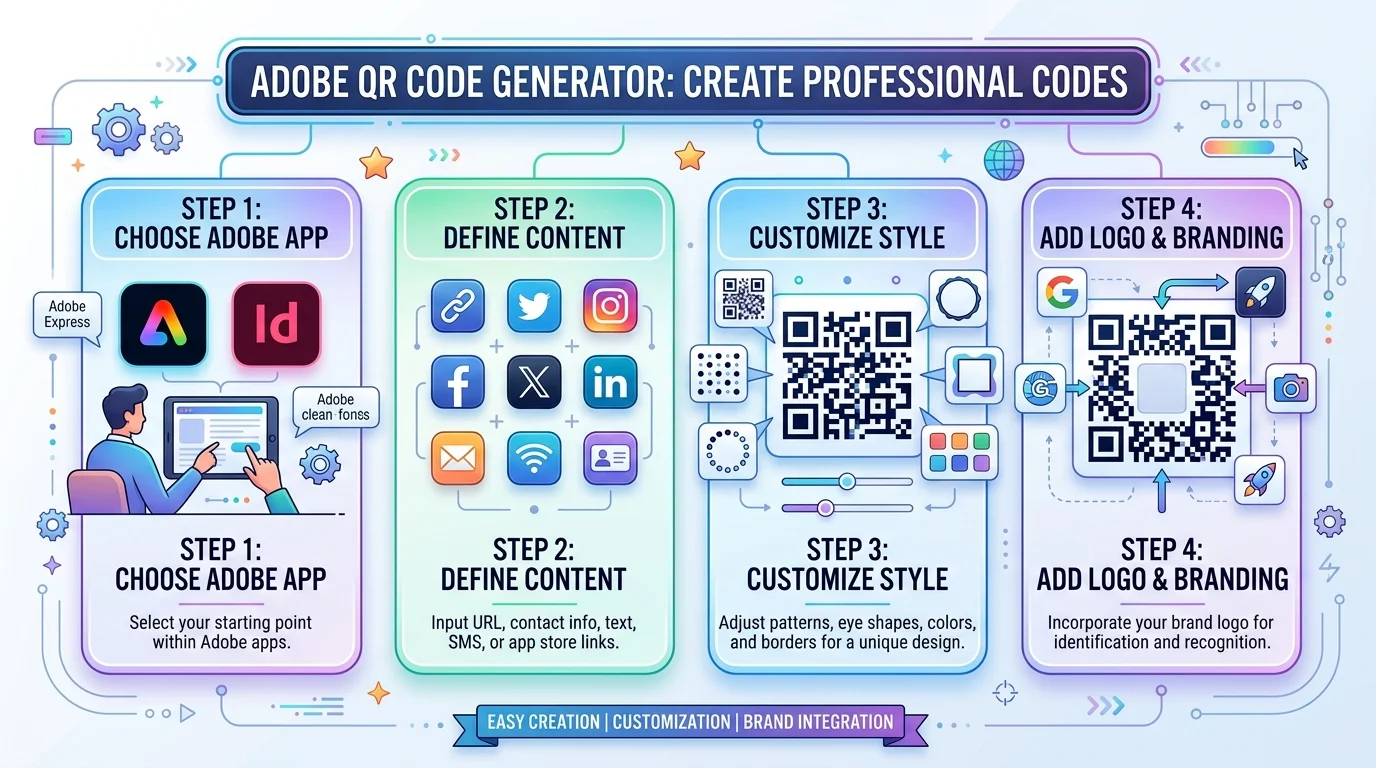
What the Adobe QR Code Generator Actually Is
Quick clarification before we go further, because this trips up almost everyone I talk to. "Adobe QR code generator" isn't one product — it's three separate tools living in three different apps, and picking the wrong one wastes an afternoon. I've used all three on real client work. Below, I'll break down what each one does well, so you can skip straight to the one that fits your project instead of clicking around Creative Cloud hoping something shows up.
Adobe Express | Adobe InDesign | Adobe Illustrator | |
|---|---|---|---|
Cost | Free, no signup wall | Creative Cloud subscription | Creative Cloud subscription |
Output format | PNG, SVG (RGB) | Native vector, CMYK-safe | None natively |
Editable after creation | No — static only | No — but re-generatable | N/A |
Logo support | Yes, via Add-ons | Manual overlay | Manual overlay |
Best for | Social, flyers, quick jobs | Print, packaging, spot inks | Editing a pasted code |
Adobe Express — The Fast One
This is the free QR code generator most people mean. It runs in your browser at express.adobe.com, and it's genuinely a two-minute job.
According to Adobe's official help documentation, you paste a URL, pick a format, style it, download it. Done.
Adobe InDesign — The Print One
InDesign has a native generator built right in. And honestly? For print work, it's the better choice.
Adobe's InDesign guide confirms it produces scalable vector graphics you can resize and format like any other vector object. Spot inks, overprinting, trapping — all supported.
Adobe Illustrator — The One That Doesn't Exist
Sorry. There's no native generator here.
As Adobe Community experts put it plainly: you can't make one in Illustrator, but you can paste one over from InDesign and edit it freely.
How to Generate a QR Code in Adobe Express (Step-by-Step)
I'm going to walk you through the exact workflow I use, because the tool hides in a menu most people never open. It takes roughly ninety seconds start to finish, and you don't need a paid plan to do any of it. Follow these six steps in order and you'll have a custom QR code design sitting in your downloads folder before your coffee goes cold. Seriously — it's that quick.
Step 1. Open Adobe Express and hit the plus icon in the left panel.
Step 2. Choose Quick actions → Generate QR code.
Step 3. Paste your destination URL into the link field.
Step 4. Pick your file format. Grab SVG for print, PNG for screens. If you're unsure which raster format suits your project, my breakdown of JPG vs PNG explains exactly when lossless compression matters — and for QR codes, it matters a lot.
Step 5. Now the fun part — customize. Adobe's mobile documentation notes that the Style panel controls your dot pattern, marker borders, and marker center shapes. Colors too.
Step 6. Scan the live preview with your phone. Then download, or open it in the editor to build a full design around it.
That's it. No signup wall, no watermark, no credit card.
One heads-up: Adobe refreshed this interface between its 2025 and 2026 documentation revisions. If you're following an older tutorial with screenshots, the panel positions have moved.
Static vs Dynamic: The Trade-Off You Need to Understand
Okay, this section matters more than the rest combined. Every competitor blog screaming that "Adobe QR codes are limited" is usually selling you a subscription, so let me give you the neutral version. Adobe makes static QR codes. That single fact explains every strength and every weakness of the tool, and once you understand it, you'll know instantly whether Adobe is right for your project or whether you need something else entirely.
An Adobe employee confirmed in the official community forum that Express codes are static — the URL can't be changed after generation, scan tracking isn't available, and the file downloads straight to your device rather than saving in the app.
So here's the honest scorecard:
What you gain:
The code never expires. Ever.
No server, no redirect, no subscription that can switch it off.
It works offline, forever, as long as your link stays live.
What you give up:
No QR code analytics or scan reports.
No editing the destination after you've printed 5,000 flyers.
One independent guide frames the trade-off perfectly: a static code bakes the destination into the pattern itself, which is exactly why it can't fail — there's no redirect to shut down.
How Adobe Compares to Canva, Bitly and QR Tiger
Canva behaves almost identically — static codes, no tracking, no expiry. Bitly and QR Tiger go dynamic, so you get editable destinations and scan data, but your code now depends on their servers and your billing staying current.
Want tracking without that dependency? Easy workaround. Point Adobe's code at a UTM-tagged link or a short link you control. You get permanence and data.
Adding a Logo and Branding Your Code
Branded codes get scanned more. That's not a hunch — it's why every serious marketer bothers with them in the first place. The good news is that Adobe supports logo embedding through its add-ons, and QR codes are far more forgiving of decoration than people assume. Below is what Adobe itself recommends, plus the test I run before anything goes to print.
Adobe's community team points to QR-specific Add-ons that let you drop images and logos into your code. They also note that error correction can recover up to 30% of a damaged code.
Their test is clever: overlay an 11×11-module square in the center, then scan. If it reads, your logo can be that big. If not, shrink it.
The Technical Rules That Keep Your Code Scannable
I've watched a beautifully designed poster get pulled from a print run because nobody checked the margins. Don't be that person. These specifications come from the ISO/IEC 18004 standard and from print professionals who deal with failed scans daily. Read them once, apply them forever, and your scannability problems basically disappear.
Quiet Zone
Per ISO/IEC 18004 guidance, you need at least four modules of blank space on all four sides. Crowding it is the number one cause of failed scans.
Error Correction Levels
Four options: L (7%), M (15%), Q (25%), H (30%). Outdoor signage or logo-embedded codes? Use Q or H.
Minimum Size and Resolution
Print specialists recommend roughly 2.5 cm square at arm's length, then apply the 10:1 rule — one centimetre of width per ten centimetres of scan distance.
Resolution matters just as much as dimensions here. The same pixel-density principles I cover in my guide to 4K resolution apply directly to QR codes: a low-resolution export blurs the module edges, and blurred modules simply don't scan.
Print Colour Warning
One thing to watch: Express exports RGB-native SVG, which converts to a faux process black in separations. For CMYK jobs, generate in InDesign instead.
And always — always — print a proof and test it on both iOS and Android before the run.
Frequently Asked Questions
These are the five questions I get asked most often about Adobe's QR tools, answered as directly as I can. If you're skimming, this section alone will probably solve your problem — and if you're deciding whether to open Express or InDesign right now, the first two answers will settle it in about thirty seconds.
Do Adobe QR codes expire?
No. Adobe Express and InDesign both create static QR codes, which encode the destination directly into the pattern. There's no redirect server involved, so nothing can be switched off. Your code works indefinitely — as long as the URL it points to stays live.
Can you make a QR code with a logo in Adobe Express?
Yes. Adobe Express offers QR-specific Add-ons that let you place images and logos onto your code. Because error correction recovers up to 30% of an obscured code, a centred logo is usually safe — just test-scan before printing.
Does Adobe Illustrator have a QR code generator?
No, Illustrator has no native generator. Adobe Community experts recommend generating the code in InDesign via Object → Generate QR Code, then copying and pasting it into Illustrator, where it stays fully editable as vector art.
Are Adobe QR codes dynamic or trackable?
Static, and not trackable. Adobe provides no scan analytics or scan reports. To get data, point your Adobe code at a UTM-tagged URL or a short link you control, and read the stats from that platform instead.
Is the Adobe QR code generator really free?
Yes. The Adobe Express Quick Action requires no payment, no watermark, and no credit card. InDesign's generator requires a Creative Cloud subscription, but adds no extra cost on top of it.
Should You Use It? My Honest Verdict
You're free, you're permanent, and you're two minutes away from a code that outlives every subscription-based competitor. That's a genuinely strong offer.
Use Adobe Express for flyers, business cards, packaging, and anything where the URL won't change.
Use InDesign when you need vector output and print-grade colour control.
Go dynamic only if you truly need editable destinations and scan analytics.
For everyone else? Open Adobe Express, click Quick actions, and ship it today.
Read Also: How to Calibrate a Monitor: Full Steps Guide 2026