To find hidden apps on iPhone, swipe left past every Home Screen page to reach the App Library, scroll to the bottom, tap the Hidden folder, and authenticate with Face ID, Touch ID, or your passcode. You can also view the full list at Settings → Apps → Hidden Apps. If an app is missing but not in that folder, check hidden Home Screen pages, Screen Time restrictions, or your App Store purchase history.
Now — let me tell you what surprised me when I actually dug into this.
When an app vanishes from your iPhone, it's almost never gone. It moved. And depending on how it moved, the story ranges from "you fat-fingered a long-press" to "someone is watching your screen."
I've spent weeks going through Apple's own documentation, security research, and child-safety reporting. Most articles on this topic cover about a third of the picture.
Here's the whole thing.
Why Your App Disappeared (And Why It's Probably Still Installed)
Before you panic, breathe. In my experience, roughly nine out of ten "missing app" cases are purely organizational. iOS gives you an unusual number of ways to make an icon stop showing up — some deliberate, some accidental. Apple confirms in its support guide that a missing app is typically sitting in the App Library, parked on a hidden Home Screen page, or tucked inside the Hidden folder. Knowing which one saves you a lot of guessing.
Here are the usual suspects:
You tapped Remove from Home Screen instead of Delete App
The app lives on a hidden Home Screen page you toggled off
It's inside the Hidden folder behind Face ID
Screen Time restrictions are blocking it
A Focus mode is limiting which apps display
You genuinely deleted it (check App Store purchase history)
Honestly? Number one gets people constantly.
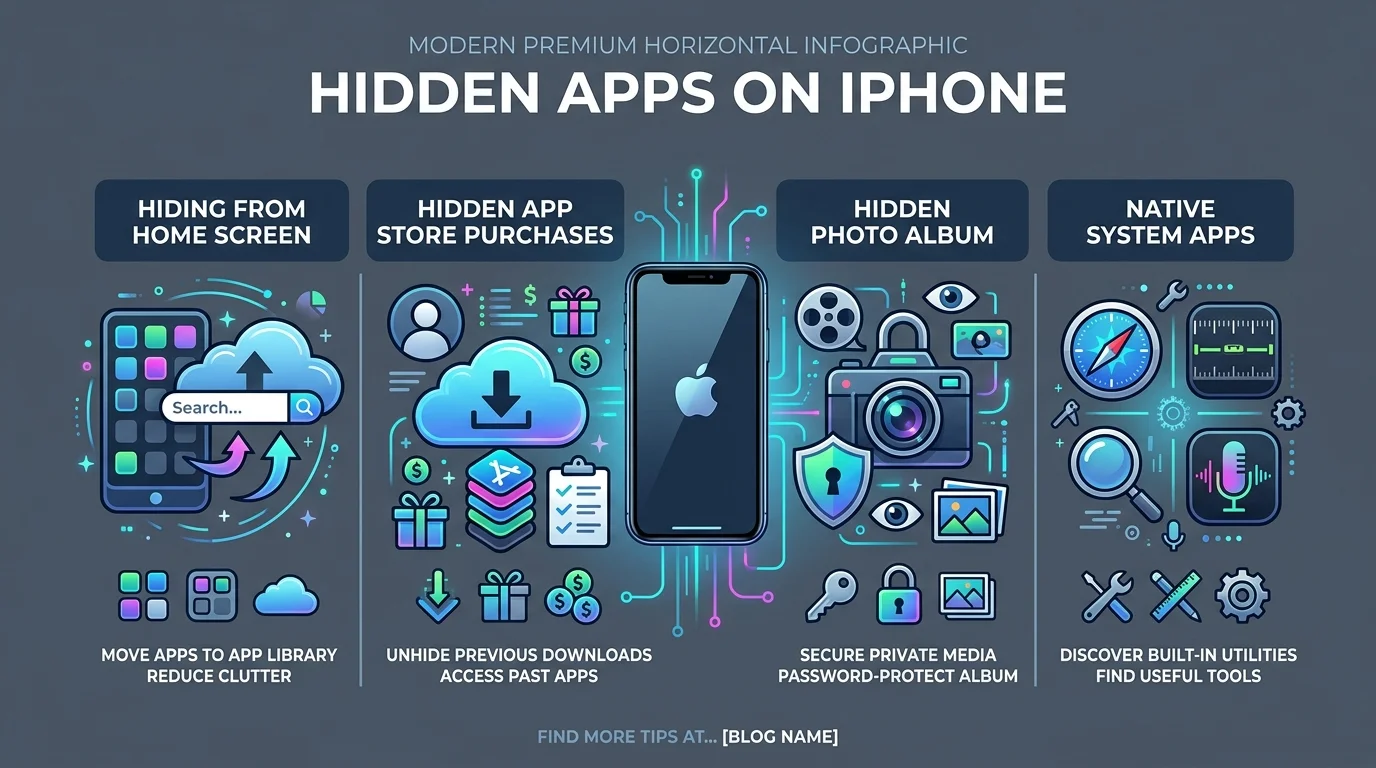
How to Find Hidden Apps on iPhone: A Step-by-Step Guide
Now let's get systematic. I'm walking you through this in order of speed — fastest method first, most thorough last. Work down the list and stop when you find what you're after. That said, I'd genuinely recommend running all six at least once, because each method reveals a different kind of hiding. Some of it will be yours. Some of it might not be.
Step 1 — Use Spotlight Search. Swipe down from the middle of any Home Screen. Type the app name. If it appears, tap it. (Note: truly hidden apps won't surface here — that's the point.)
Step 2 — Ask Siri. Say "Open [app name]." Siri launches it even when the icon is buried three folders deep. If you'd rather talk to your phone than tap through menus generally, our voice to text on iPhone guide covers the dictation and voice-command settings worth switching on.
Step 3 — Check hidden Home Screen pages. Long-press empty space → tap the dots near the bottom → tap any unchecked circles to unhide a page.
Step 4 — Open the Hidden folder. App Library → scroll to the bottom → Hidden → authenticate.
Step 5 — Review Screen Time. Settings → Screen Time → Content & Privacy Restrictions → Allowed Apps & Features. MacObserver reported that iOS 26 enforces age ratings far more aggressively, which quietly hid apps for a lot of people right after updating.
Step 6 — Check App Store purchase history. Tap your profile icon → Apps & Purchase History. Then check Hidden Purchases separately. That's a completely different list, and people miss it constantly.
How to Hide Apps on iPhone in iOS 18 and iOS 26
Apple built this feature properly, and I think it's underrated. Since iOS 18, you no longer need folder tricks or Shortcuts workarounds to conceal an app. There's a native, biometric-protected system that survives major updates — Technology.org confirms it behaves identically in iOS 26 despite the Liquid Glass redesign. Here's the exact sequence.
Long-press the app icon
Tap Require Face ID
Tap Hide and Require Face ID
Authenticate, then tap Hide App
The icon leaves your Home Screen and lands in the Hidden folder.
To reverse it: open the Hidden folder, long-press the app, tap Don't Require Face ID, authenticate. The app returns to your App Library, and you can drag it back onto any Home Screen page.
Lock vs. Hide: What Each One Actually Does
People conflate these two constantly, and the difference matters. Locking an app keeps it visible but demands authentication. Hiding does everything locking does and removes the icon. This table breaks down exactly what each option conceals — and, more importantly, what it leaves exposed.
Where the app appears | Locked | Hidden |
|---|---|---|
Home Screen icon | Visible | Removed |
Spotlight Search results | Hidden | Hidden |
Notification previews | Hidden | Hidden |
Siri suggestions | Hidden | Hidden |
App Library | Visible | Hidden folder only |
Screen Time reports | Visible | Visible |
Battery Usage by App | Visible | Visible |
App Store purchase history | Visible | Visible |
Settings → Apps → Hidden Apps | Not listed | Listed |
Syncs to your other devices | No | No |
What You Can't Hide
Apple restricts this feature deliberately. Preinstalled apps can't be hidden — only apps you downloaded yourself. In the EU, apps set as your default browser or app marketplace are also excluded. And children under 13 in a Family Sharing group can't lock or hide apps at all.
The Part Nobody Tells You: Hiding Isn't Erasing
This is the section I care most about, because nearly every competing guide stops short of it. Hiding an app slashes its visibility — it disappears from search, notifications, and Siri suggestions entirely. But it does not scrub the app from your phone. Engadget's breakdown catalogs the leftovers clearly, and if you're hiding something for real privacy reasons, you need to know them.
Look at the table above. Four separate places still expose that app.
And here's the big one: hidden status doesn't sync via iCloud. Hide an app on your iPhone and it's sitting in plain sight on your iPad.
Anyone who knows your passcode can open that folder in seconds. So treat this as privacy, not security.
Vault Apps and Decoy Apps: When "Hidden" Means Something Else
Now we shift from your apps to apps built to deceive. Vault apps — also called decoy apps, ghost apps, or locker apps — masquerade as ordinary utilities but unlock a private gallery once you enter a specific code. Bitdefender's research notes they typically disguise themselves as calculators, music players, or photo galleries, and many support a decoy PIN that displays harmless content when a parent demands the password.
Clever. Also concerning.
The names that come up repeatedly across safety research: Calculator#, Keepsafe, Private Photo Vault, Secret Calculator, Calculator Vault, and Notepad Vault. Some use deliberately bland labels like "Utilities," "Device Health," or "System Tool" to blend in with system apps, according to Findmykids' analysis.
The stakes aren't theoretical. Wondershare's FamiSafe research found over 24% of teens have received sexts, with roughly 27% of vault-app usage tied specifically to concealing content from parents.
Here's how to spot a fake calculator app:
Look for duplicates. Two calculators? Two flashlights? That's the classic tell, and Bark's guide calls it the single most reliable signal available to parents.
Actually use it. Most vault apps perform badly as the thing they're imitating.
Read the App Store reviews. Reviews frequently mention the hidden feature outright, or complain that the "calculator doesn't work right."
Check the App Library. Even when someone renames an icon using Shortcuts, the original app name still surfaces there.
When Hidden Apps Become a Safety Issue
I want to close here, because it matters more than everything above combined. Stalkerware — sometimes called spouseware — is monitoring software installed without consent. iPhones resist it better than Android since Apple restricts installation to the App Store, but the risk is real, and the detection method looks nothing like the rest of this article. If you also manage an Android device, the same logic applies there in a harsher form — our walkthrough on how to remove malware from Android covers that side.
Start with these checks:
Settings → General → VPN & Device Management — look for configuration profiles you didn't install
Jailbreak indicators like Cydia, Sileo, or Zebra on the Home Screen
Settings → [Your Name] — review every device signed into your Apple ID
Settings → Mail → Accounts — check for unfamiliar accounts syncing your data
Physical symptoms: unexplained battery drain, data usage spikes, overheating while idle
But here's the detail that changes everything, and MakeUseOf reported it well: many iPhone monitoring services never install an app at all. They simply log into your iCloud account. Someone holding your Apple ID password can read your backups, photos, contacts, and location history without ever touching your phone.
Which means hunting for a suspicious icon can hand you false comfort.
So: change your Apple ID password. Enable two-factor authentication. Turn on Stolen Device Protection. Run Apple's Safety Check.
One serious caution — if you suspect someone is monitoring you, removing their access may alert them. If your situation involves an abusive partner, please speak with a domestic violence advocate before you change anything.
Secret Messaging and Dating Apps Worth Knowing About
Vault apps aren't the only category that hides in plain sight. A separate cluster of secret messaging apps and hidden dating apps conceals activity through disappearing messages, PIN-locked chats, or generic icons rather than a decoy interface. If you're auditing a device, these deserve a second pass — they won't trip the "two calculators" heuristic at all.
Watch for apps offering self-destructing messages, hidden chat vaults, or anonymous handles. Check the App Library list rather than the Home Screen, since renaming via Shortcuts won't disguise the underlying name there. And cross-reference against Screen Time usage data — an app you've never seen logging two hours a day tells you plenty.
Frequently Asked Questions
Can hidden apps still be seen in Screen Time?
Yes. Hiding an app removes it from the Home Screen, Spotlight, and notifications, but it continues to appear in Screen Time reports, Battery Usage by App, and your App Store purchase history.
Do hidden apps sync across my Apple devices?
No. Hidden and locked status applies only to the device where you set it and does not sync through iCloud. An app hidden on your iPhone stays fully visible on your iPad or Mac.
Why do I have two calculator apps on my iPhone?
That's the most common indicator of a vault app. iOS ships with one calculator, so a second one is usually a disguised photo or file vault unlocked by entering a specific PIN into the calculator interface.
Can someone monitor my iPhone without installing an app?
Yes — and this is the most overlooked risk. Many monitoring services simply sign into your iCloud account with your Apple ID credentials, giving them access to backups, photos, contacts, and location history without any app on your device.
Can I hide preinstalled Apple apps?
No. Apple blocks hiding for apps that ship with iOS, including Calculator, Camera, Clock, Maps, and Settings. You can lock most of them behind Face ID, but you can't remove them into the Hidden folder.
Your phone should belong to you. All of it.