How to remove malware from Android takes about 20 minutes: disconnect from the internet, boot into Safe Mode, run a Google Play Protect scan, uninstall the suspicious app, strip its device-admin and accessibility permissions, clear your browser data, and reset your passwords afterward. A factory reset is your last resort, not your first move. Below, I walk you through every step in the exact order I'd do it myself.
Here's the thing nobody tells you.
Deleting the bad app is only half the job. If that app was a banking trojan, your passwords are already gone. So this guide covers cleanup and recovery.
Let's get into it.
Signs Your Android Phone Has Malware
Before you nuke anything, let's confirm you actually have a problem. Plenty of "infected phone" symptoms are really just an aging battery or a bloated Chrome cache. But when three or four of these show up together? That's your signal. I've grouped the signs of malware on Android into what I'd call the loud ones and the quiet ones. The loud ones are obvious. The quiet ones are the ones that cost you money.
Watch for these:
Unwanted pop-up ads appearing outside your browser, even on the home screen
Your browser redirects to unknown sites you never typed
Unfamiliar apps installed that you don't remember downloading
Battery draining fast and your phone overheating while idle
Unexplained mobile data usage spikes in Settings
Your Android phone running slow all of a sudden
Texts or calls going out that you didn't send
And one more, which is my favorite because it's so sneaky: a fake virus warning on Android. If a pop-up screams that you have 13 viruses and gives you a phone number, that pop-up is the attack. The FTC warns you should never call a number that appears in a pop-up window. (If you want the wider picture on that tactic, read our guide to spotting scam texts and phishing links.)
Why This Matters More Than It Used To
Mobile malware isn't the sloppy adware it was five years ago. It's a business now. According to Kaspersky's Q1 2026 report, more than 2.67 million mobile malware, adware, and unwanted-software attacks were blocked in a single quarter, with over 306,000 malicious installation packages discovered. That's the volume you're up against.
But volume isn't the scary part.
The Android banking trojan category alone made up roughly 53% of everything detected, with 162,275 banker packages found in three months. Families like TrickMo now combine phishing overlays, keylogging, screen recording, and SMS interception that suppresses your one-time-password notifications so you never see the fraud alert.
Read that last part again. That's why step seven of this guide exists.
Before You Start: Cut the Connection
I know you want to jump straight to deleting things. Hold on for sixty seconds. Whatever is on your phone right now is probably talking to a server, and that conversation is either sending your data out or pulling more payload in. Cutting the line first makes everything after it cleaner. This one takes ten seconds and it's the step most guides bury at the bottom.
Do this:
Swipe down and turn off Wi-Fi
Turn off mobile data
Leave Bluetooth off too
Now back up your photos and contacts only if you can do it to a computer via USB. Don't push a fresh cloud backup right now, because you'd be backing up the infection along with the baby pictures.
How to Remove Malware from Android: The 7 Steps
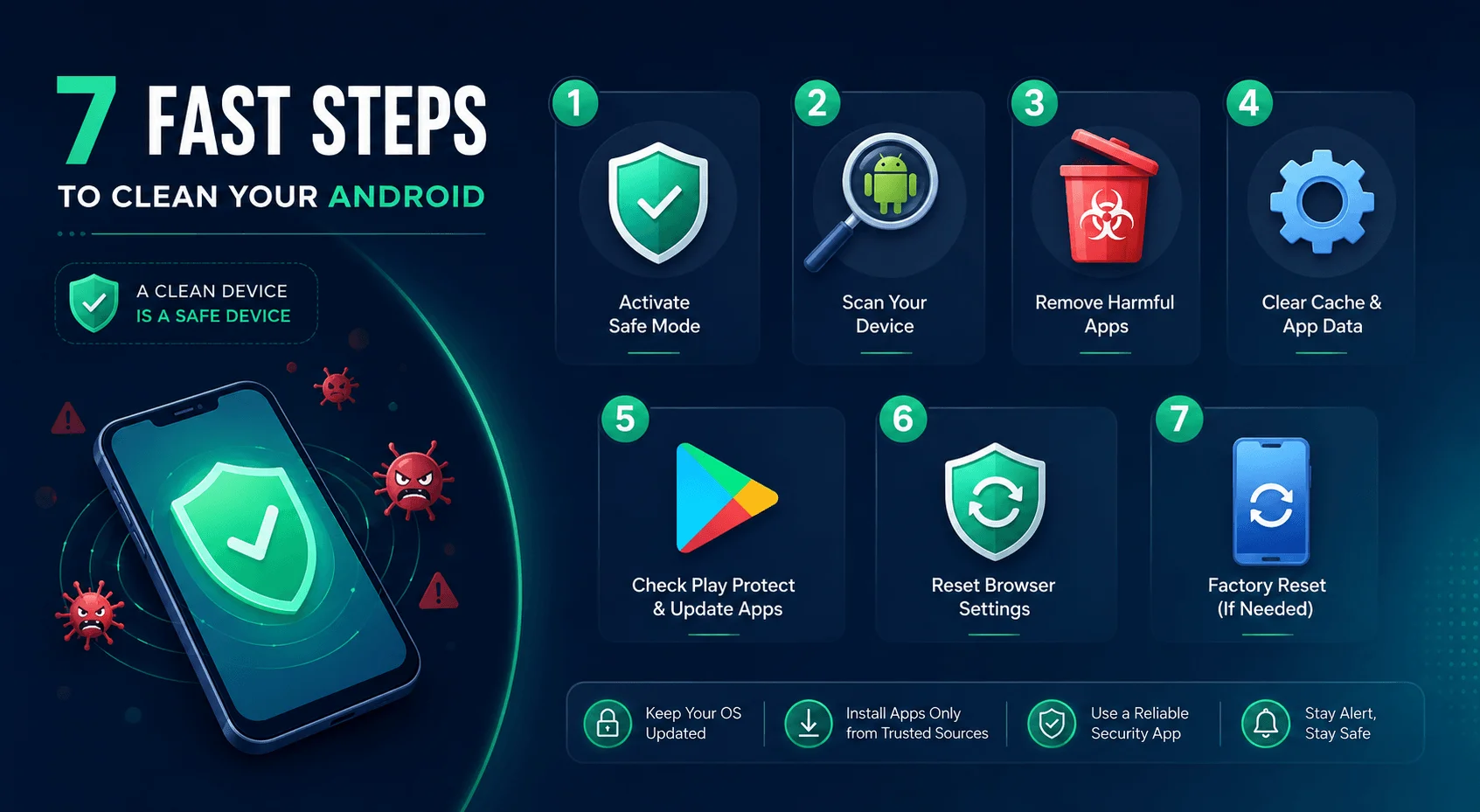
Everything below runs in order, and the order matters. Safe Mode first, because it stops the malware from fighting back. Account recovery last, because that's the part that protects your money rather than your phone. Most people finish steps one through five and stop, which is exactly why they end up back here in three months. Work through all seven and you're actually done.
Step 1: Boot Your Android Into Safe Mode
Android Safe Mode starts your phone with only the factory apps running. Every third-party app, including the malicious one, sits frozen. That means it can't block you, can't re-spawn itself, and can't throw pop-ups in your face while you're trying to work. This is also a free diagnostic: if the weird behavior stops in Safe Mode, you've confirmed a downloaded app is the culprit rather than a hardware issue.
Here's how to boot Android in Safe Mode:
Press and hold the power button until the power menu appears
Press and hold the Power off option on screen
A Safe mode prompt appears. Tap it
Your phone restarts, and you'll see "Safe mode" in the bottom corner
Quick heads-up: this path varies. Samsung's One UI, Pixel, and Xiaomi all shift it slightly. If holding "Power off" does nothing, search your exact model plus "safe mode."
To exit later, just restart normally.
Step 2: Run a Google Play Protect Scan
Most guides skip straight to installing a paid antivirus. I'd start here instead, because it's already on your phone and it costs nothing. Google Play Protect scans every app on your device regardless of where it came from, runs daily and on-demand scans, and even has offline scanning for known threats. When it finds a potentially harmful application (a PHA, which is simply Google's label for an app behaving maliciously), it either notifies you, disables the app, or removes it automatically depending on severity.
To run a manual Google Play Protect scan:
Open the Google Play Store
Tap your profile icon, top right
Tap Play Protect
Tap Scan
Follow the prompt to uninstall anything flagged
Is it enough on its own? Sometimes, yeah. AV-Comparatives tested it head-to-head against eight commercial suites on Android 16 using 3,156 unique malware samples. It holds its own. But it's not perfect, which is why we keep going.
Step 3: Uninstall the Suspicious App
Now for the satisfying part. In Safe Mode, open your app list and go hunting. You're looking for two things: apps you genuinely don't recognize, and apps that appeared right around the time your phone started acting up. Sort by install date if your launcher allows it, because that timeline is usually a dead giveaway. Malicious apps also love generic, forgettable names like "System Service" or "Media Player HD."
Here's how to remove a malicious app on Android:
Go to Settings → Apps → See all apps
Scroll the full list, not just the home screen
Tap anything unfamiliar
Check its permissions. A flashlight app requesting SMS access is a red flag
Tap Uninstall
Repeat for every questionable app. When in doubt, uninstall it. You can always reinstall something legitimate from the Play Store later.
Step 4: Revoke Device Admin and Accessibility Permissions
So you tapped Uninstall and the button was greyed out. Frustrating, right? That's not a bug. That's the malware defending itself. Malicious apps grant themselves device administrator permissions so Android refuses to remove them, or they hook into the accessibility service so they can read your screen and tap buttons on your behalf. Strip those two permissions and the app becomes deletable again.
To revoke device admin:
Go to Settings → Security (or Security & privacy)
Find Device admin apps or Device administrators
Toggle off the suspicious app
Tap Deactivate this device admin app
To revoke accessibility access:
Go to Settings → Accessibility
Look under Downloaded apps or Installed services
Turn off anything you didn't deliberately enable
Confirm
Now go back and uninstall. It'll work.
Why Accessibility Abuse Is the Big One
I want to slow down here, because accessibility service abuse on Android is the single most important mechanism in modern mobile malware and almost no consumer guide explains it. These APIs exist so screen readers can help visually impaired users navigate. Powerful, necessary stuff. Attackers weaponize the exact same permission to build keyloggers that read your banking password as you type it.
The same trick powers a remote access trojan, which is malware that hands a stranger live control of your screen. Google is finally moving on this. Android's Advanced Protection Mode restricts these APIs specifically because of how heavily they've been abused.
More on that shortly.
Step 5: Clear Browser Data and Kill Rogue Notifications
Sometimes you delete the app and the pop-ups keep coming. That's because the infection left a souvenir in your browser: a site with push-notification permission that keeps firing ads at your lock screen. Clearing your cache alone won't fix it. You have to revoke the notification permission at the site level, and honestly this is the step I see people miss most often.
Clear your browsing data:
Open Chrome → tap the three dots
Delete browsing data
Set the range to All time
Check cookies, cache, and site data
Tap Delete data
Revoke rogue notifications:
Chrome → three dots → Settings
Tap Notifications → Sites
Turn off every site you don't recognize
Reset your homepage and default search engine too, while you're in there.
Step 6: Run a Third-Party Malware Scan
At this point your phone is probably clean. Probably. A second opinion from a dedicated scanner catches leftovers, and it's the right move if you were dealing with spyware, a remote access trojan, or anything financial. Don't pick a free Android malware scanner off a random top-10 blog, though. The Play Store is full of fake security apps that are themselves adware.
Use independent lab results instead. Here's how the major options scored in the AV-Comparatives Mobile Security Review 2026, which tested nine products on Android 16 against 3,156 unique malware samples plus 500 clean apps:
App | Certification standard met | Free tier | Battery impact | Best for |
|---|---|---|---|---|
Google Play Protect | Built in, tested alongside paid suites | ✅ Always free | Negligible, runs natively | Everyone, as the baseline |
Bitdefender Mobile Security | ✅ Approved | ⬜ Trial only | Under 8% threshold | Lightest paid scanner |
Kaspersky for Android | ✅ Approved | ✅ Limited free tier | Under 8% threshold | Banking trojan defence |
Norton 360 for Mobile | ✅ Approved | ⬜ Trial only | Under 8% threshold | Bundled VPN and dark-web alerts |
Avast / AVG Mobile Security | ✅ Approved | ✅ Ad-supported free tier | Under 8% threshold | Free anti-theft features |
To earn that Approved award, each product had to hit a 99% malware protection rate, produce no more than 10 false positives, and stay under 8% battery drain. AV-TEST runs a parallel programme scoring products out of 18 points across protection, performance, and usability, with 10+ required to certify.
Install one, update it, run a full scan, quarantine what it finds. Then pick one and uninstall the rest. Running three antivirus apps at once just eats your battery.
Step 7: Factory Reset (And What It Won't Fix)
Still seeing symptoms? Then it's time. A factory reset on Android wipes every app and file and returns the phone to its out-of-box state. It's effective and it's final, so back up your photos, contacts, and documents first. But I want to be straight with you about the limits, because a lot of articles oversell this.
Here's the honest comparison:
Threat | Targeted removal (Steps 1–6) | Factory reset |
|---|---|---|
Adware and pop-up apps | ✅ Fixed | ✅ Fixed |
Banking trojan | ✅ Fixed on device | ✅ Fixed on device |
Stalkerware | ✅ Usually fixed | ✅ Usually fixed |
Pre-installed / firmware malware | ❌ Survives | ❌ Survives |
Stolen passwords and session tokens | ❌ Unaffected | ❌ Unaffected |
Fraudulent charges already made | ❌ Unaffected | ❌ Unaffected |
Your photos and files | ✅ Kept | ❌ Erased |
Notice the bottom three rows. Neither column fixes them, which is the whole argument for the section that follows.
To factory reset:
Settings → System → Reset options
Tap Erase all data (factory reset)
Confirm and enter your PIN
Wait for the reboot
Two warnings.
A reset does not remove pre-installed or firmware-level malware baked into system partitions. If your phone was a cheap off-brand device that shipped compromised, a reset won't save it.
And do not restore from a backup made while you were infected. You'll reinstall the malware in one tap. Add apps back manually from the Play Store instead. Also Read our How to Check Voicemail on Android: 2026 Guide
After Removal: Secure Your Accounts
This is the step that actually protects your money, and it's the one most people skip because the phone "feels fine again." If that app was a banker, it already harvested credentials and possibly intercepted your OTP codes. Cleaning the device doesn't un-steal a password. So treat this as mandatory, not optional, and do it from a different device if you can.
Work through this list:
Change your Google account password immediately
Run Google's Security Checkup and sign out unfamiliar devices
Change banking and email passwords
Turn on two-factor authentication, ideally with an authenticator app rather than SMS
Call your bank and ask them to flag recent activity
If you recorded any of those calls or kept voice notes as evidence, our Android audio transcription guide walks you through turning them into a written record.
Check your subscriptions for charges you didn't authorize
If you find fraud, report it at IdentityTheft.gov. Our walkthrough on locking down your Android security settings covers the 2FA setup in detail if you've never done it.
A Note If You Suspect Stalkerware
Stalkerware is a different situation and deserves different advice. If you think someone you know installed monitoring software on your phone, the FTC recommends talking to a domestic violence advocate before you remove it, because an abuser who loses access may escalate. Document evidence first. And never restore from an old backup afterward, since that can quietly reinstall the software.
Your safety comes before a clean phone.
How to Prevent Malware on Android Going Forward
Cleanup is reactive. Prevention is where you actually win. Most infections trace back to one of three habits: sideloading APKs, tapping links in random messages, or granting permissions without reading them. Kaspersky's data shows attackers now distribute heavily through messaging apps, dropping malicious files straight into DMs and group chats. Fix the habits, and you mostly stop worrying.
My short list:
Stick to the Play Store. Sideloading APK files is the number-one infection route
Leave install unknown apps permission off for every app
Install Android security patch updates the day they land
Read permissions before you accept them
Don't root your phone
Never tap "your device is infected" pop-ups
Then flip the big switch.
Turn On Advanced Protection Mode
If you're on Android 16 or newer, Advanced Protection Mode is the strongest thing you can do in a single tap, and it's off by default. It bundles Google's hardest security settings and locks them so malware can't quietly disable them. It blocks sideloading entirely, disables insecure 2G connections, forces always-on Play Protect scanning, hardens the phone's memory against exploits, and adds theft and offline device locks.
Go to Settings → Security & privacy → Advanced Protection and turn it on.
The tradeoff is real: you lose sideloading and some individual toggles. For most people that's a fine trade. For journalists, activists, or anyone handling sensitive accounts, it's not even a question.
FAQ
Can Android phones really get viruses? Not viruses in the classic self-replicating sense, but absolutely yes to malware: trojans, spyware, adware, and ransomware all target Android.
Does a factory reset remove all malware? Most of it, yes. Pre-installed and firmware-level malware can survive, and restoring an infected backup brings it right back.
Is Google Play Protect enough by itself? For average users with good habits, often yes. Independent lab testing shows it performing credibly against paid suites, though top commercial scanners still edge it out on detection.
How did malware get on my phone if I only use the Play Store? Malicious apps occasionally slip past review, and many infections arrive through links in messages or browser downloads rather than the store itself.
Can malware run in Safe Mode? Third-party apps are disabled in Safe Mode, which is exactly why it's the right place to work.
Should I change my passwords after cleaning my phone? Yes. Assume anything you typed while infected was captured.
The Bottom Line
Removing malware from your Android phone comes down to seven moves: disconnect, boot into Safe Mode, scan with Play Protect, uninstall the bad app, revoke its device-admin and accessibility permissions, clear your browser, and reset your passwords. Factory reset only if the symptoms survive all of that.
The cleanup is the easy part, honestly.
The part that protects you is what comes after: locking down your accounts, updating your patches, and turning on Advanced Protection so you don't end up back here in six months.
Start with the Play Protect scan right now. It takes two minutes, and it'll tell you where you stand. Then run through our full Android security checklist so this doesn't happen twice.
Read more: How to Set Up Voicemail on Android (2026 Guide)