Voice text on iPhone — officially called Dictation — lets you turn spoken words into typed text in any app with a keyboard. You turn it on once in Settings, then tap the microphone icon whenever you want to talk instead of type. It works in Messages, Mail, Notes, and third-party apps, supports punctuation and emoji voice commands, and on newer iPhones can process speech directly on the device for faster, more private results. Below, you'll find the exact setup steps, usage tips, troubleshooting fixes, and how Apple's built-in tool compares to dedicated transcription apps.
What Is Voice to Text on iPhone, Exactly?
iPhone dictation is Apple's built-in speech-recognition feature. You tap a mic icon, you talk, and your words appear as text — no third-party app required.
According to the feature works across Messages, Mail, Notes, Safari, and virtually every app with a text field. On supported models, a large portion of that processing happens on-device, which means less lag and less of your voice data traveling to a server.
That combination — speed plus privacy — is why it's worth setting up properly instead of just poking at it once and forgetting it exists.
Why You Should Actually Start Using It
Speech to text isn't a novelty feature. It's a real productivity shift, and here's where it pays off:
Writing a text message while your hands are full
Drafting a long email during your commute
Capturing a note before an idea slips away
Supporting users who rely on accessibility tools instead of a touchscreen keyboard
If you write more than a few messages a day on your phone, dictation will save you real minutes — and real thumb strain.
How to Turn On Voice to Text on iPhone (Step-by-Step)
You can enable dictation in under 30 seconds. Here's exactly how, confirmed against Apple Support's official instructions:
Open Settings
Tap General
Tap Keyboard
Turn on Enable Dictation
Tap Enable Dictation again when the confirmation prompt appears
Once that's done, open any app with a keyboard — Messages, Notes, Mail — and you'll see a microphone icon sitting on your keyboard. Tap it, and dictation starts.
How to Turn Voice to Text Off
If you ever want to disable it, the path is identical in reverse: Settings > General > Keyboard, then turn off Enable Dictation.
How to Use Dictation Like a Pro
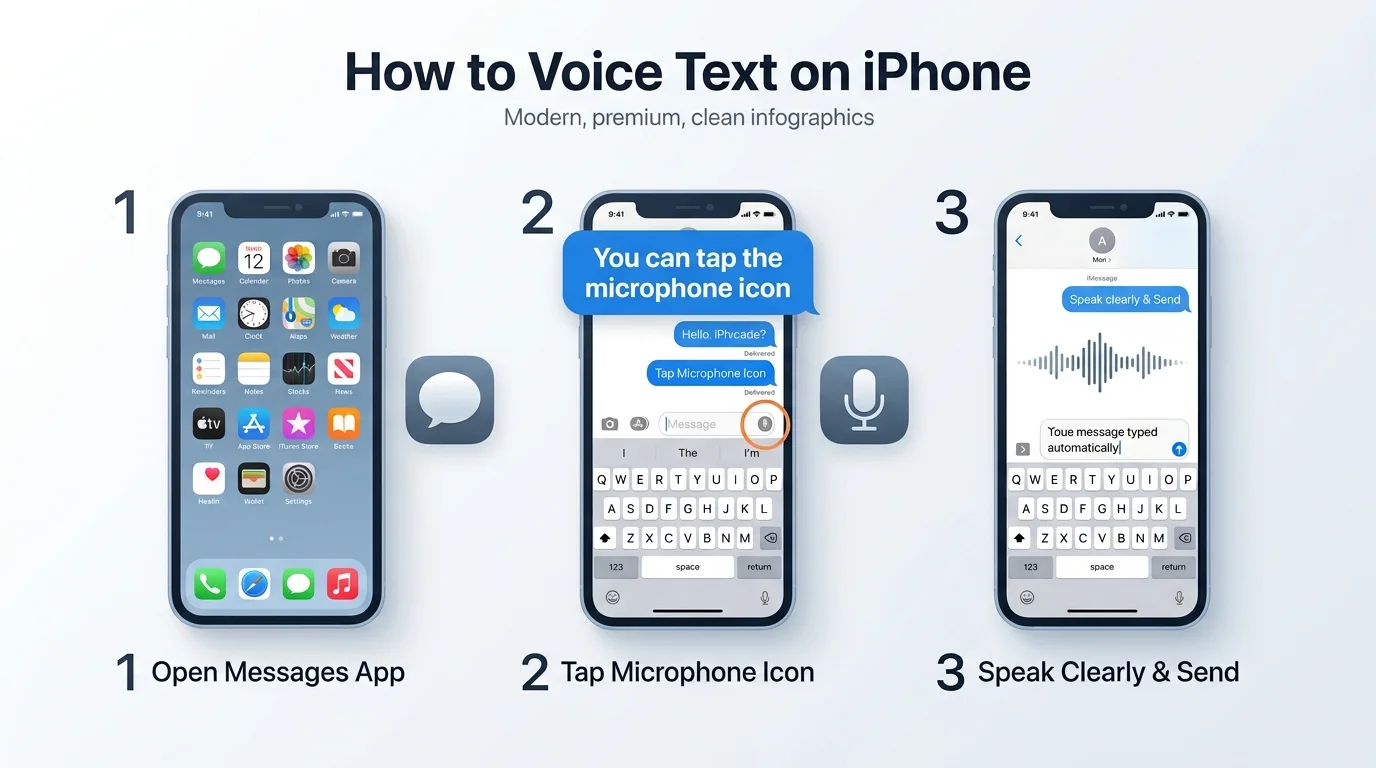
Once it's on, using it is simple:
Open the app you want to type in
Tap the text field
Tap the microphone icon
Speak clearly at a normal pace
Tap the mic again, or pause, to stop
Your real-time transcription appears on-screen as you talk.
Adding Punctuation and Formatting by Voice
You don't need to leave dictation mode to punctuate a sentence. Just say it out loud:
"Comma"
"Question mark"
"New line"
"New paragraph"
Apple maintains a full list of dictation commands, including emoji triggers like "heart emoji" or "car emoji," which makes voice commands far more capable than most people realize.
Why Dictation Sometimes Cuts Off
Your iPhone stops listening after roughly 30 seconds of silence. If it's cutting off sooner than that, a weak Wi-Fi or cellular connection is almost always the cause, since standard dictation needs a data connection to fully process speech.
On newer models using on-device processing, per Apple's iPad dictation documentation (which explains the same underlying tech used on iPhone), you can dictate much longer stretches without hitting that wall.
Using Dictation With a Magic Keyboard
If you've paired a Magic Keyboard with your iPhone, double-press the dictation key to start dictating without touching the onscreen keyboard at all. Apple documents this shortcut in its Magic Keyboard dictation guide, and it's a small habit that saves real time once it sticks.
Apple Dictation vs. Third-Party Voice-to-Text Apps
Apple's built-in dictation is fast, free, and private — great for texts and quick notes. But for long recordings, meetings, or interviews, a dedicated transcription app often produces cleaner, more structured output. If you regularly need to transcribe audio on iPhone from voice memos or recorded calls, that's a different workflow than everyday dictation — worth knowing the difference before you pick a tool. Here's how they stack up:
Feature | Apple Dictation | Dedicated Transcription Apps |
|---|---|---|
Cost | Free, built-in | Often free tier + paid plans |
Best for | Texts, quick notes, emails | Meetings, interviews, long recordings |
Offline support | ✅ On supported models | ❌ Usually requires upload/processing |
Speaker separation | ❌ | ✅ On most dedicated apps |
Auto-formatting/cleanup | Basic punctuation only | Structured summaries, timestamps |
Setup required | None — built into iOS | App download + account |
If your use case is short, everyday messages, stick with Apple's native tool. If you're transcribing long-form audio regularly, a dedicated app is worth the extra step.
Troubleshooting: When Voice to Text Isn't Working
Run through this checklist before assuming something is broken:
Check your connection — dictation needs Wi-Fi or cellular data unless your model supports on-device processing
Confirm dictation is enabled — Settings > General > Keyboard > Enable Dictation
Restart the app — the keyboard sometimes just needs a refresh
Reduce background noise — accuracy drops fast in loud environments
Check your language settings — under Dictation Languages, confirm the correct language is selected
Most issues resolve with one of these five steps.
Beyond Dictation: Other Ways to Get Your Voice Into Text
Voice to text isn't the only voice feature worth knowing on iPhone. If you'd rather record and send your voice directly instead of converting it to text, check out this guide on how to send a voice message on iPhone — a handy option when a quick recording says more than typed words ever could.
Frequently Asked Questions
Does iPhone dictation work offline?
On supported models, yes. On-device dictation processes many languages without an internet connection, according to Apple's official documentation. Standard dictation on older models still requires Wi-Fi or cellular data.
How do I turn off voice to text on iPhone?
Go to Settings > General > Keyboard, then turn off Enable Dictation.
Why does dictation stop after a few seconds?
It automatically stops after about 30 seconds of silence. If it's cutting off earlier than that, check your internet connection first.
Can I add punctuation while dictating?
Yes. Say the punctuation mark out loud — "comma," "period," "question mark" — and it will insert automatically.
Does dictation support emojis?
Yes, in supported languages. Say the emoji's name, like "heart emoji" or "thumbs up emoji," and it will insert directly into your text.
Is Apple Dictation as accurate as third-party apps?
For short, everyday messages, accuracy is comparable. For long recordings with multiple speakers, dedicated transcription apps typically produce more structured, readable output.
Which iPhones support on-device dictation?
Newer iPhone models with on-device processing support this; check the iOS and iPadOS Feature Availability page on Apple's site to confirm your specific model and language.
Final Thoughts
Voice to text on iPhone takes 30 seconds to set up and can save you real time every single day. Turn it on, try it for a week on your texts and notes, and see how much faster it feels than typing.
If you find yourself needing more than quick notes — longer recordings, meetings, structured transcripts — that's the moment to look at a dedicated transcription app instead.