
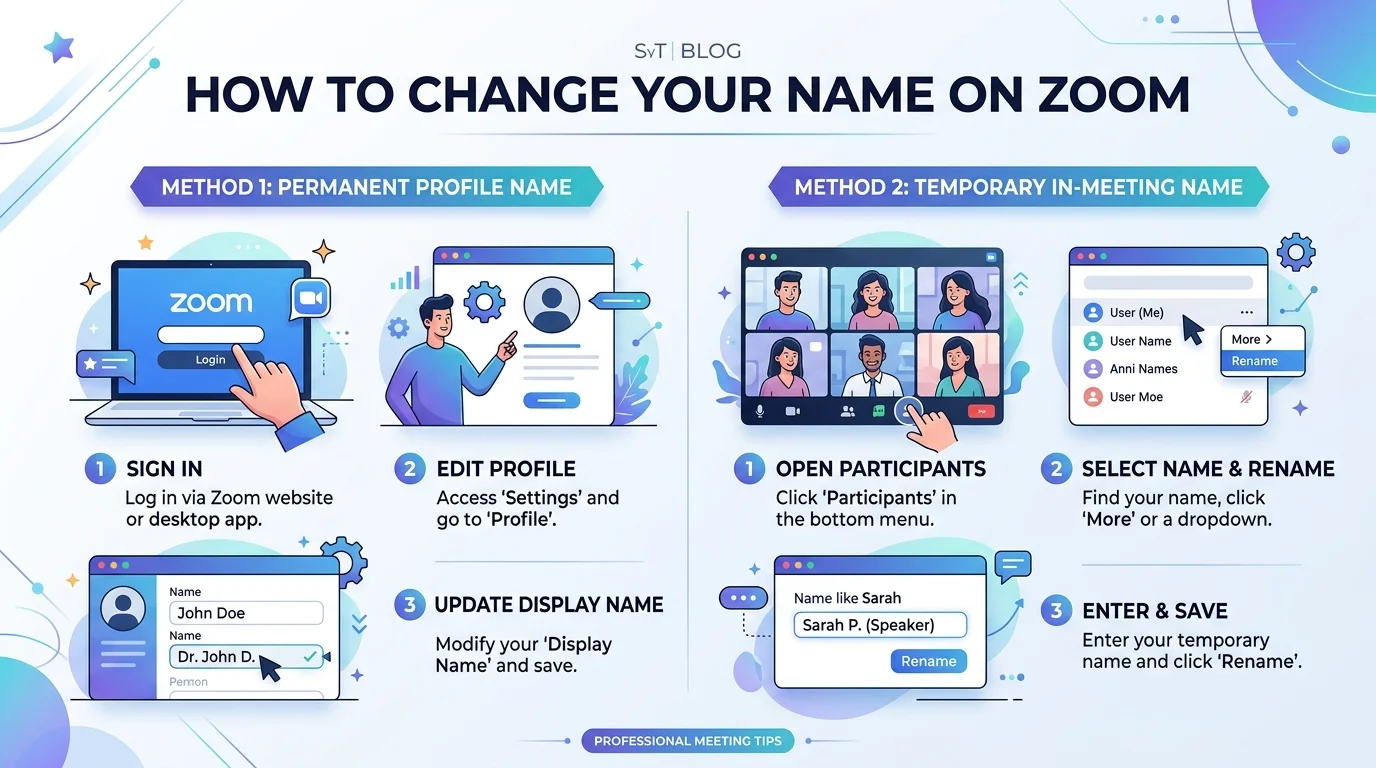
To change your name on Zoom, sign into the Zoom web portal, click Profile, then Edit next to your name. That updates it permanently. If you just need it fixed for one call, open Participants during the meeting, hover your name, and click Rename. That's the temporary fix.
Now, let's get into exactly how — and why — each method works.
So you want to know how to change your name on Zoom? I get it.
You're about to jump into an important meeting, and suddenly you realize your display name still says "iPhone" or some old nickname from three jobs ago. Not exactly a good look, right?
Here's the good news: changing your Zoom display name takes less than two minutes. In this guide, I'll walk you through every method — desktop, mobile, web, and mid-meeting — plus what to do when the rename option is missing entirely.
By the way, if you're new to Zoom's participant-side features, you might also want to check out our guide on how to raise your hand in Zoom — it's another small setting that makes a big difference in how you show up in meetings.
What's the Difference Between Your Zoom Profile Name and Display Name?
Before we get into the steps, you need to understand something important.
Your Zoom display name and your account profile name aren't always the same thing. One is permanent. The other is temporary. Mixing them up is exactly why so many people get confused.
Your profile display name lives on your account. It follows you into every meeting you join while signed in. An in-meeting name change, on the other hand, only applies to that one call — next time you log in, Zoom reverts back to your saved profile name.
Here's a quick side-by-side so you can see it at a glance:
Method | Permanent or Temporary? | Where to Do It | Best For |
|---|---|---|---|
Web Portal | Permanent | zoom.us profile settings | Fixing your name everywhere, for good |
Desktop App | Permanent | Profile → My Profile | Same as above, without opening a browser |
Mobile App | Permanent | Settings → Profile | Updating on the go |
In-Meeting Rename | Temporary | Participants panel during a call | One-off calls, nicknames, pronouns |
Guest Join Screen | Temporary (session only) | Before entering the meeting | Joining without an account |
Once you get this distinction, everything else clicks into place.
How to Change Your Name on Zoom (Web Portal Method)
This is the method I recommend if you want a permanent name change — one that sticks across every future meeting.
Here's exactly what to do:
Head over to the Zoom web portal and sign in with your credentials.
Click Profile in the left-hand sidebar.
Next to your current name, click Edit.
Type in your new first and last name.
Hit Save.
That's it. Seriously.
Once saved, your new account name updates automatically across every device where you're logged in — desktop, mobile, everywhere.
Quick note: if you're on a work or school account, your name might be tied to a Single Sign-On (SSO) system. In that case, you'll need to update it through your organization's identity provider instead, since Zoom just pulls that data automatically.
How to Change Your Zoom Name on the Desktop App
Maybe you're not a fan of browser portals. Fair enough. You can do the exact same thing right from the Zoom desktop app.
Open the Zoom app on your Windows or Mac computer.
Click your profile picture in the top-right corner.
Select My Profile. This opens your account settings in a browser window.
Click Edit next to your name.
Update it, then save.
Done in under a minute.
How to Rename Yourself During an Active Zoom Meeting
Now here's where things get interesting.
Let's say you're already in a meeting and your name looks wrong. Maybe it's showing "Guest123," or a coworker's kid renamed you during a family call (it happens). Either way, you don't need to leave the meeting to fix it. Here's the in-meeting rename process:
Click Participants at the bottom of your Zoom window.
Find your name in the list, then hover over it.
Click More (or the three dots, depending on your version).
Select Rename.
Type your new name, then click OK.
Just like that, your temporary display name updates for everyone in the call. But remember — this only lasts for the current session unless you also update your profile.
If you spend a lot of time on Zoom calls, it's worth polishing more than just your name. Our post on what WFH means and how remote meeting etiquette works covers a few other habits that make you look more professional on video calls.
Why Your Name Keeps Reverting (Troubleshooting)
If your name resets every single meeting, it's almost always one of these three culprits:
Host restriction: The Allow participants to rename themselves setting is switched off.
SSO override: Your organization's identity provider resets your name to the directory value every time you log in.
Guest sign-in: You joined without an account, so Zoom just reused whatever name you typed last time.
In fact, this is common enough that many universities — including UW-Madison — disable participant renaming by default across their entire Zoom Workplace environment, specifically to reduce Zoombombing risk. So if your name won't stick, there's a good chance it's an intentional admin setting, not a bug on your end.
How Hosts Can Rename Participants (And Control the Setting)
If you're the one running the meeting, you've got extra power here.
As host or co-host, you can:
Rename any participant — open Participants, hover over their name, click More, then Rename.
Toggle the rename permission for everyone — click the Security icon in your meeting toolbar, then switch Allow participants to rename themselves on or off.
Set this permission account-wide under admin Settings, so it applies to every future meeting automatically — exactly what University of Arkansas IT Services did to support inclusive naming and pronoun use campus-wide.
How to Change Your Name Before Joining a Meeting
Sometimes you don't even need to be signed in.
If you're joining as a guest, Zoom prompts you to enter a name before you're let into the call. Just type whatever you'd like displayed — this becomes your temporary session name.
Heads-up: while you're stuck in the waiting room, the rename option won't work yet. It only becomes available once the host admits you.
Read: 21 Zoom Games Your Team Will Love (2026 Guide)
Changing Your Name on Zoom Mobile (iOS/Android)
Open the Zoom mobile app.
Tap Settings, then tap your profile name at the top.
Tap Edit next to your display name.
Enter your new name and save.
Same as desktop — this updates your permanent account profile name across every device.
Frequently Asked Questions
Why can't I change my name on Zoom?
Most likely, the host has disabled the "Allow participants to rename themselves" setting, or your account is managed through SSO, which resets your name automatically.
Does renaming myself in a meeting change my profile permanently?
No. In-meeting renames are temporary and only apply to that one session. To make it permanent, update your name in the web portal or desktop app profile settings.
Can hosts see my real name even if I rename myself?
Depends on your account type. On managed/enterprise accounts, hosts and admins may still see the account-linked name in reports even after an in-meeting rename.
Can I have a different name for different meetings?
Yes — use the in-meeting rename feature for one-off calls, and keep your permanent profile name separate for everything else.
Final Thoughts
Changing your name on Zoom isn't complicated — but it is easy to get confused between temporary and permanent changes, especially once host settings and SSO come into play.
My honest recommendation: update your profile name once, correctly, in the web portal. That way, you won't have to worry about renaming yourself mid-meeting again. And if you're a host, take two seconds to check your security settings so your participants can (or can't) rename themselves based on what your meetings actually need.
Small tweak. Big difference in how professional your meetings look.
![Recover Gmail Password Without Phone Number [2026]](https://contiocdn.com/efdc9a99-5ac4-4f75-be3a-ed43de859d76/blog-covers/1790082232767-y9rtx1hq-recover-gmail-password-without-phone-number--2026-.webp)