To raise hand in Zoom, click Reactions in the meeting toolbar and select Raise Hand — or just press Alt + Y (Windows) / Option + Y (Mac). A hand icon appears next to your name so the host knows you want to speak, without you interrupting anyone.
That's the short version. But if you want the full walkthrough — desktop, mobile, dial-in, webinars, host controls, and what to do when the button just won't show up — keep reading. I've broken it all down below.
What Is the Zoom Raise Hand Feature, Anyway?
Think of it like this: it's the digital version of raising your hand in a classroom. You click a button, a little hand icon pops up next to your name, and the host knows you want to speak — without you interrupting anyone.
You're going to love this feature once you get used to it, because it keeps meetings organized. No cross-talk. No awkward silences where three people start speaking at once. Just a clean, simple Zoom raise hand signal that says "hey, I've got something to add."
According to UCL's IT Services guide, the feature lets participants "indicate that you wish to contribute a point or ask a question" — and the host sees it immediately in the participants panel.
Simple. Effective. Underrated. And if you're new to Zoom keyboard shortcuts in general, this is a great place to start.
How to Raise Your Hand in Zoom on Desktop
Alright, let's walk through this step by step. I promise it's easier than finding the mute button.
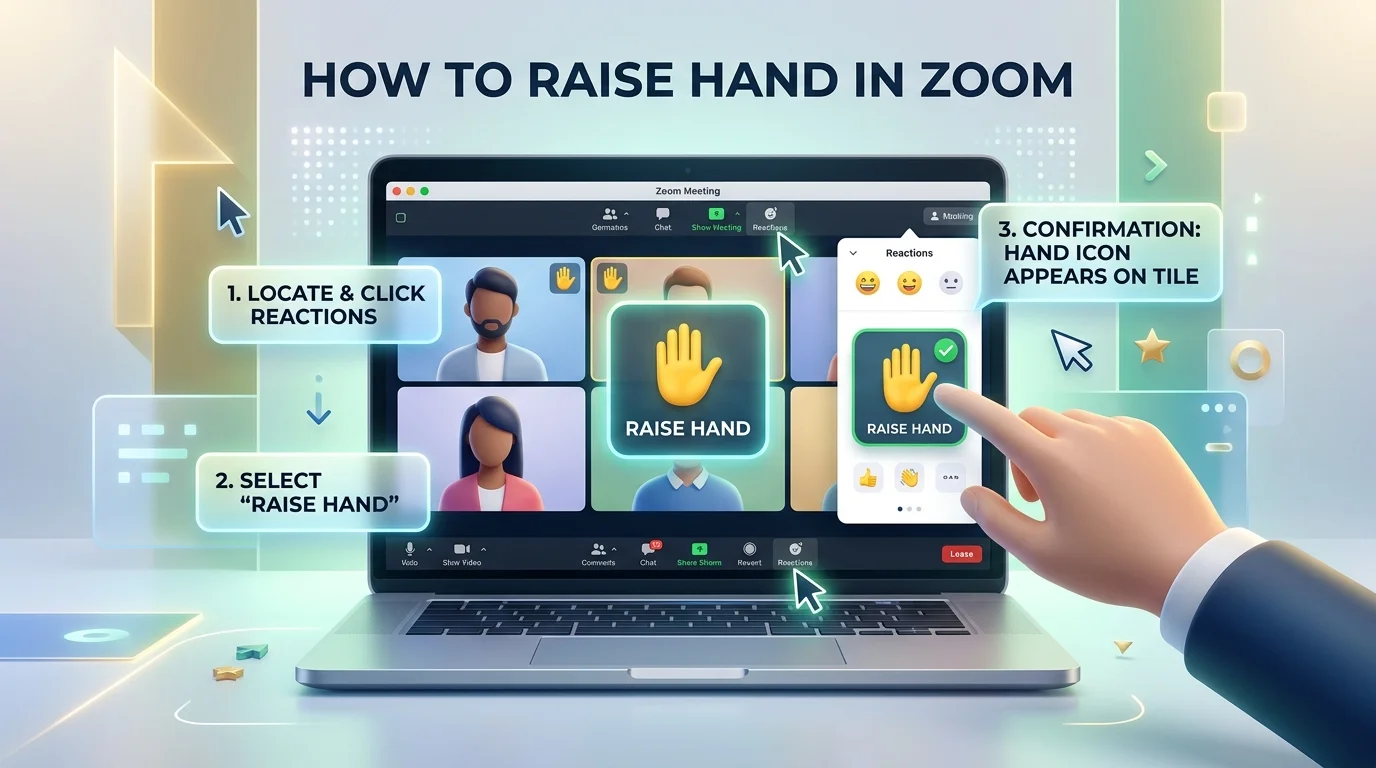
Step 1: Join your Zoom meeting like you normally would.
Step 2: Look at the bottom of your screen for the Reactions button (older versions might just say "Reactions" with an emoji icon).
Step 3: Click it, and you'll see a little menu pop up.
Step 4: Select Raise Hand.
That's it. Your hand icon now shows up next to your name in the participant list — and everyone (especially the host) can see it.
Want to lower your hand? Just click the same button again. It'll now say Lower Hand. Easy.
The Fastest Way: Zoom Raise Hand Keyboard Shortcut
Here's a little insider tip I wish someone told me years ago — you don't even need to touch the toolbar.
Just press:
Alt + Y on Windows
Option + Y on Mac
According to UCL's shortcut breakdown, this keyboard shortcut toggles your hand up and down instantly. It's a game-changer if you're in a big meeting and don't want to fumble around clicking menus.
I use this constantly. It's fast, it's clean, and honestly, it makes you look like you know exactly what you're doing on a call.
How to Raise Hand on Zoom Mobile (iPhone & Android)
Now, if you're joining from your phone, the process looks a little different — but don't worry, it's still simple.
Step 1: Tap your screen to bring up the controls (they hide automatically on mobile).
Step 2: Tap the More button — it looks like three little dots.
Step 3: Select Raise Hand from the menu.
You'll see the hand icon appear on your video feed, just like on desktop. When you're ready to lower it, tap More again and select Lower Hand.
This is one of those things that seems small, but it makes a huge difference when you're joining a virtual classroom or a big remote meeting from your commute. If you regularly join calls while working remotely, it's worth understanding what WFH actually means and how tools like this fit into that routine.
Raising Your Hand on a Zoom Dial-In Call
Here's something a lot of people don't know: even if you're dialed in from a regular phone (no app, no video, nothing), you can still participate.
Just press *9 on your keypad.
That's the Zoom dial-in raise hand shortcut, and it works exactly like the app version — the host gets a notification, your "hand" appears in the queue, and you can press *9 again to lower it.
Pretty clever, right?
How to Raise Your Hand in a Zoom Webinar
Webinars work a little differently than regular meetings, so it's worth calling out separately.
If you're joining as an attendee, you'll usually find Raise Hand in the same Reactions menu as a standard meeting. But if you're a panelist, the button sometimes hides itself under the Participants tab instead of sitting next to Chat and Q&A — a quirk that's been flagged directly on Zoom's own developer forum.
So if you're presenting and can't find it right away, check there first before assuming something's broken.
What Hosts See When You Raise Your Hand
Let's flip the script for a second. If you're the one running the meeting, here's what you need to know.
When someone raises their hand, you'll see it in the participants panel — and here's the cool part — Zoom actually lists raised hands in the order they were raised. So if five people raise their hands, you know exactly who went first.
As a host, you can:
Invite someone to speak directly
Lower a participant's hand for them
Keep track of the queue without losing your place in the conversation
Disable the Reactions feature entirely from your meeting settings, if it's not needed
This is huge for virtual classrooms, webinars, and any meeting where equitable participation actually matters. Teachers, for example, use a strategy called "Rapid Raising" — a 3-2-1 countdown where everyone raises their hand at once, creating a fair participation list on the spot.
Smart, right? And if you want a full record of everything said once hands go down and discussion starts, our audio transcription guide walks through how to capture and transcribe the whole conversation afterward.
Frequently Asked Questions
Why isn't the raise hand button showing up on Zoom?
Usually one of four things: the host has disabled reactions for that meeting, your Zoom app is out of date, you're using an unsupported browser version, or you're a webinar panelist and it's tucked under a different tab. Updating your app or asking the host to enable reactions fixes most cases.
What's the keyboard shortcut to raise your hand in Zoom?
Alt + Y on Windows, Option + Y on Mac. It toggles your hand up and down instantly, no toolbar clicking required.
Can you raise your hand in Zoom from a phone call (dial-in only)?
Yes. Press *9 on your keypad to raise your hand, and press it again to lower it. The host sees the same notification as they would from an app user.
Does Zoom show the order people raised their hands?
Yes. The Participants panel lists raised hands in the order they were raised, so hosts can call on people fairly, in sequence.
Can hosts lower a participant's hand for them?
Yes. Hosts and co-hosts can hover over a raised hand in the Participants panel and lower it manually — useful if someone forgets to lower their own.
Zoom Reactions Beyond the Raised Hand
Here's a bonus for you — raising your hand isn't the only non-verbal feedback tool in Zoom. You've also got:
👍 Thumbs up
👏 Clap
❤️ Heart
😂 Laughing
🎉 Celebration
These live in the same Reactions menu, and honestly, they're perfect for quick feedback without unmuting and talking over the speaker. It keeps the whole vibe of the meeting smooth and respectful.
Final Thoughts: Why This Small Feature Matters So Much
I know, I know — it's just a hand icon. But little tools like this shape how meetings actually feel. They cut down on interruptions. They make remote work and online classes feel more organized. And they give quieter folks a low-pressure way to jump into the conversation.
So next time you're in a Zoom call and you've got something to say? Don't just unmute and hope for the best.
Hit Alt + Y. Raise your hand. Wait your turn.
It's such a small habit, but trust me — it makes every meeting you're part of just a little bit better.
Read more: What Does WFH Mean? Complete Guide to Work From Home (2026)
![Recover Gmail Password Without Phone Number [2026]](https://contiocdn.com/efdc9a99-5ac4-4f75-be3a-ed43de859d76/blog-covers/1790082232767-y9rtx1hq-recover-gmail-password-without-phone-number--2026-.webp)