You can duplicate a Word document in under 30 seconds using File Explorer, Finder, or Word's own Save As menu, and I'll show you every method below. The right one depends on where your file lives: locally, on OneDrive, or on your phone. Each method preserves your original file's formatting, fonts, and images. If you've ever ended up with three files named "Report_Final_Final_v2.docx," this guide will fix that for good.
You'll also learn about a related resource on our site: our guide to Standard Operating Procedure Templates covers how to name and organize duplicates once you've made them, and our companion piece on how to duplicate a page in Word is worth bookmarking if you specifically need to copy a single page rather than the whole file.
Why You'd Want to Duplicate a Word Document in the First Place
Before the "how," let's cover the "why," because your reason for duplicating a file changes which method fits best.
You're probably duplicating a document for one of these reasons:
You want a document backup before making major edits
You're turning an old file into a reusable Word template
You need to send a copy to a coworker without touching the original
You're managing document version control across multiple drafts
I'll flag which method fits each case as we go through them.
How to Duplicate a Word Document on Windows
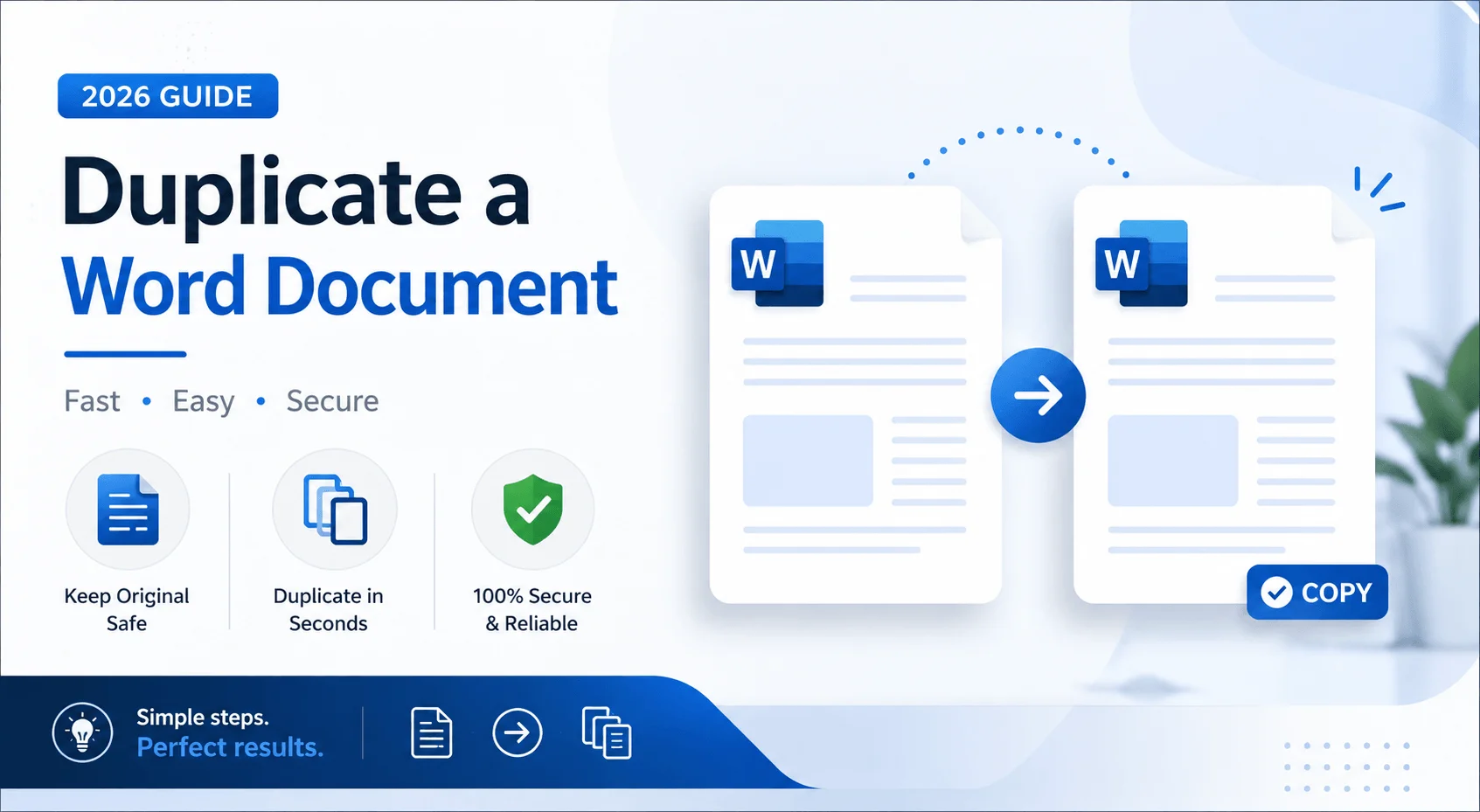
Windows gives you three reliable options, and most people only ever learn one.
Method 1: Copy and Paste in File Explorer
This is the fastest option for a plain document backup in the same folder.
Open File Explorer and find your
.docxfileRight-click it and select Copy
Right-click again in the same folder (or a new one) and select Paste
Windows renames it automatically, something like "Document - Copy.docx"
That's the whole process. The new file is completely separate from the original, so nothing you do to it will touch the source file.
Method 2: Save As Inside Word
If the document is already open, there's no need to close it first.
Open the file in Microsoft Word
Click File
Select Save As
Choose a new file name and, if needed, a different folder
Click Save
According to Microsoft Support's official guidance on copying Word content, Word will now be editing the new copy while your original stays untouched.
Method 3: Open as Copy
This option guarantees you never accidentally edit the original file.
Go to File > Open, right-click the document in your recent files list, and choose Open as Copy. Word opens a duplicate instantly, and you'll need to save it somewhere before it becomes permanent.
How to Duplicate a Word Document on Mac
Mac users have a slight edge here, mainly because of Finder's built-in duplication shortcut.
The Finder Method (Fastest)
Open Finder and locate your Word file
Select the document
Press Command + D
A duplicate appears instantly in the same folder, usually labeled "Document copy.docx." You can also right-click the file and choose Duplicate if you'd rather skip the keyboard shortcut.
Save a Copy Inside Word for Mac
If the document is already open:
Click File
Select Save a Copy
Give it a new name and location
Click Save
This keeps your current working file untouched while creating a fully independent version.
Option-Drag to Duplicate
Hold down the Option key while dragging the document to a different folder. Instead of moving the file, macOS creates a copy in the new location and leaves the original exactly where it was.
How to Duplicate a Word Document Online (Word Online and OneDrive)
Cloud-stored files behave a little differently, and this matters more than most guides admit, especially with AutoSave turned on.
Using Save As in Word Online
Open your document in Word Online
Click File
Choose Save As
Select Save a Copy
Pick your destination in OneDrive
Microsoft has shifted a lot of this behavior toward Save a Copy for cloud-stored files. The reason this matters: Save a Copy creates the duplicate in the background while your original file stays open, which prevents AutoSave sync conflicts that could otherwise overwrite the file you meant to keep as your master copy.
Copying a File Directly in OneDrive
If you'd rather skip opening the document entirely:
Go to your OneDrive web app
Right-click the file
Select Copy to
Choose the destination folder
Click Copy here
HelpDeskGeek's testing on OneDrive duplication found this to be the cleanest option for managing shared or team documents, since it skips opening Word altogether.
How to Duplicate a Word Document on Mobile (Android and iOS)
You might not expect to duplicate a document from your phone, but it comes up more often than you'd guess, especially when reviewing files on the go.
Open the Word app on Android or iOS
Navigate to the document you want to copy
Tap the three-dot menu
Select Save a Copy or Save As
Choose where to save the new file
The process is nearly identical across both platforms, which is a nice change from most mobile app inconsistencies.
How to Duplicate a Word Document Without Losing Formatting
Copying the file itself is easy. Keeping the formatting, images, and hidden document metadata intact is where people run into trouble.
Keep these three things in mind:
Duplicate the file itself rather than copying and pasting text into a new blank document. Pasting text can strip fonts, styles, and embedded images.
If you're building a reusable Word template, save the duplicate as a
.dotxfile instead of.docx. This forces Word to open a fresh, untitled copy every time someone double-clicks it, which works well for letterheads or recurring reports.Check your headers, footers, and page numbering after duplicating. These occasionally shift depending on which method you used.
Comparison Table: Which Method Should You Use?
Method | Best For | Speed | Keeps Formatting |
|---|---|---|---|
File Explorer / Finder copy | Quick backup | Fastest | Yes |
Save As / Save a Copy in Word | Editing a new version | Fast | Yes |
Open as Copy | Avoiding accidental edits | Fast | Yes |
OneDrive Copy To | Cloud collaboration | Medium | Yes |
Mobile Save a Copy | On-the-go editing | Medium | Yes |
Save as .dotx template | Reusable templates | Fast | Yes |
Common Mistakes to Avoid When Duplicating a Word Document
A few things trip people up here, and avoiding them will save you real time.
Renaming without changing the folder. If you rename a file in the same location without duplicating it first, you haven't created a backup. You've renamed your only copy.
Forgetting AutoSave is on. If your file lives in OneDrive or SharePoint, AutoSave can quietly sync changes to what you think is a safe original. Confirm you're editing the duplicate, not the source, before making major changes.
Copying text instead of the file. Selecting all the text and pasting it into a new document works in a pinch, but it's the least reliable method here since formatting, styles, and embedded elements don't always transfer cleanly.
Not labeling duplicates clearly. "Document copy.docx" works for a moment, but if you're managing several versions, use something specific like Proposal_v2_2026.docx so you're not guessing later which file is current. Our Documentation & Knowledge Management hub covers a full naming system if you're managing this across a team.
Frequently Asked Questions
Can I duplicate a Word document without opening it?
Yes. On Windows, copy and paste the file in File Explorer. On Mac, use Command + D in Finder. Neither requires opening Word.
What's the difference between Save As and Save a Copy?
Save As typically closes the original and opens the new file for editing. Save a Copy creates the duplicate in the background while keeping your original file open, which is the safer option for cloud-stored documents.
Does duplicating a Word document copy the formatting too?
Yes, as long as you duplicate the actual file rather than copying and pasting text into a blank document. The file-level copy preserves fonts, styles, images, and layout.
Can I duplicate multiple Word documents at once?
Yes. Select multiple files in File Explorer or Finder, then use Ctrl+C (or Command+C) followed by Ctrl+V (or Command+V) in your destination folder to duplicate them all at once.
Is there a keyboard shortcut to duplicate a Word document?
On Mac, Command + D duplicates a selected file instantly in Finder. Windows doesn't have one dedicated shortcut, but Ctrl+C followed by Ctrl+V achieves the same result.
Wrapping Up
Duplicating a Word document isn't complicated once you match the method to your situation. For local files, File Explorer or Finder gets the job done in seconds. For OneDrive files, use Save a Copy to avoid AutoSave conflicts. And if you're building something you'll reuse repeatedly, save it as a .dotx template so every new copy starts fresh.
Pick the method that fits what you're actually trying to do, and you won't end up digging through a folder of confusingly named duplicates again.
Read more: How to Duplicate a Page in Word: 7 Methods (2026)