
Quick answer: Microsoft Word has no built-in "Duplicate Page" button, because Word flows text between pages instead of treating each page as a fixed object. To duplicate a page in Word, press Ctrl + A (or Shift-click to select one page), then Ctrl + C, then Ctrl + Enter to insert a page break, then Ctrl + V to paste. For bulk copies — twenty pages, fifty pages — use a VBA macro instead.
Now, here's something nobody tells you upfront.
If you've been hunting through the ribbon for a duplicate button, you didn't miss it. It isn't there. And that's not a bug — it's a design decision baked into how Word works, which I'll unpack in a second.
But don't close the tab yet.
I've tested seven different ways to copy a page in Word, from the ten-second keyboard trick to a macro that spits out fifty identical pages while you go make coffee. This guide walks you through all of them — plus the header and footer landmines that wreck most people's first attempt.
Let's get into it.
Why Microsoft Word Has No "Duplicate Page" Button
Before you blame yourself, understand the architecture. Word isn't a page-layout app. It's a word processor, which means content flows — your text pours from one page into the next like water finding its level. A "page" in Word isn't a fixed object you can grab. It's just wherever the text happened to stop. So a duplicate page shortcut would have nothing solid to duplicate. Compare that to PowerPoint, where a slide is a discrete container you can right-click and clone instantly. That single architectural difference explains the entire problem.
And here's the proof it's deliberate.
Microsoft ships this exact feature in other apps. Publisher includes an "Insert duplicate page" command. Apple Pages lets you Control-click a page thumbnail and choose Duplicate. Both are layout tools with fixed pages. Word isn't.
App | Native duplicate page command? | Why |
|---|---|---|
Microsoft Word | No | Text reflows between pages; pages aren't fixed objects |
Microsoft Publisher | Yes — Insert → Duplicate Page | Layout tool with fixed, discrete pages |
PowerPoint | Yes — right-click → Duplicate Slide | Each slide is a self-contained container |
Apple Pages | Yes — Control-click thumbnail → Duplicate | Page-layout mode treats pages as objects |
Adobe Acrobat | Yes — Ctrl + drag in Organize Pages | PDFs have fixed, non-reflowing pages |
Word makes you work for it.
Fortunately, "work for it" means about four keystrokes. Microsoft's official support page on copying a page confirms the workaround: select, copy, paste. Every method below builds on that foundation.
[Image: Microsoft Word ribbon with the Insert tab open — alt text: "Microsoft Word Insert tab showing Blank Page and Page Break options for duplicating a page"]
Which method should you use?
Two questions decide everything. Is your document one page or fifty? And do you need one copy or forty? Answer those and the right method picks itself. Choose wrong and you'll spend an hour repairing formatting that never needed to break in the first place. Here's the decision matrix I use.
Your scenario | Best method | Time |
|---|---|---|
Single-page form, letter, or flyer | Copy and paste (Method 1) | ~15 seconds |
One page inside a long document | Shift-click selection (Method 2) | ~30 seconds |
A chapter or headed section | Navigation Pane (Method 3) | ~20 seconds |
A page you reuse constantly | Quick Parts / AutoText (Method 4) | 1 min setup, 5 sec after |
Complex branded or graphic page | Text from File (Method 5) | ~1 minute |
20–100 identical copies | VBA macro (Method 6) | 5 min setup, instant after |
Formatting must be pixel-perfect | PDF route (Method 7) | ~2 minutes |
Method 1: How to Duplicate a Page in Word Using Copy and Paste
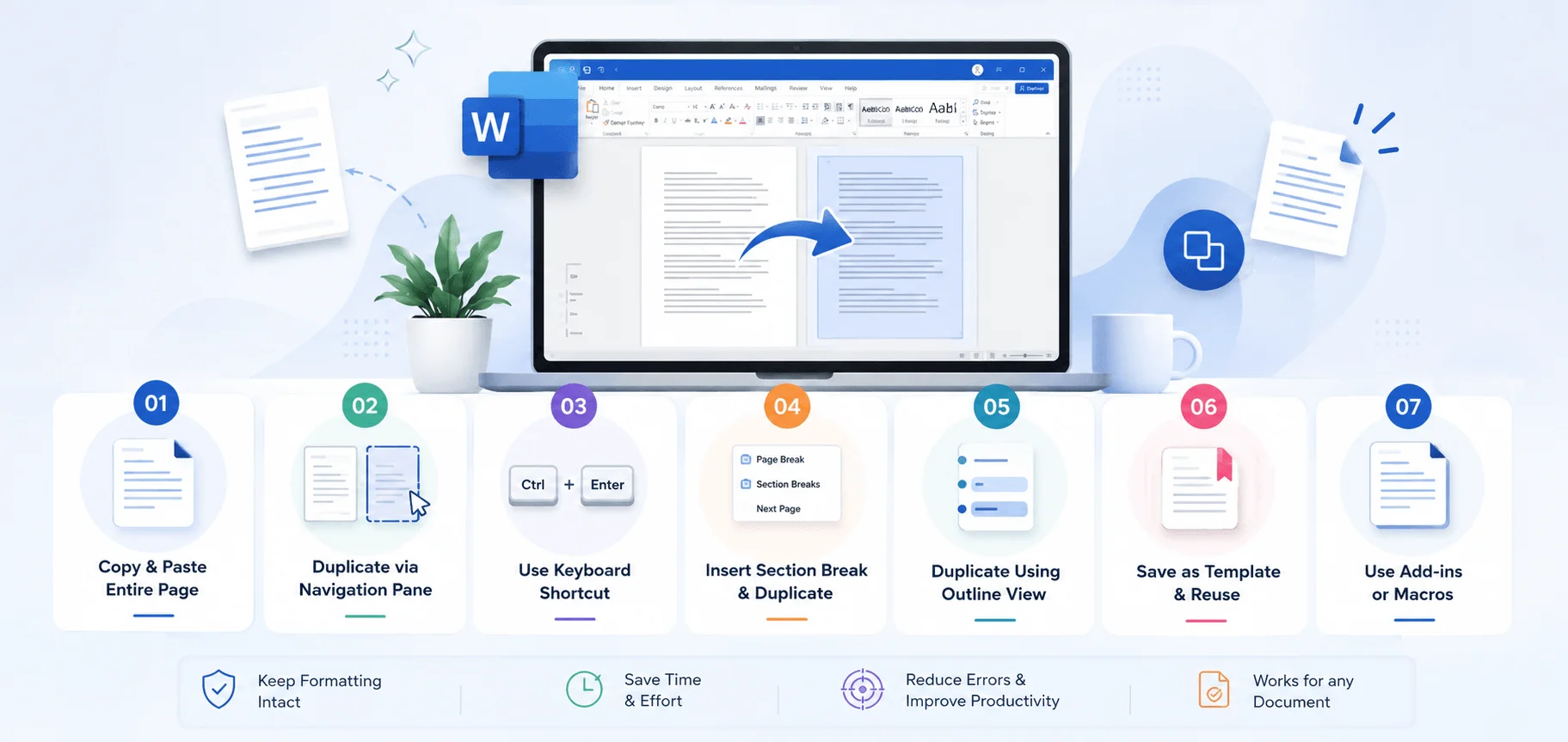
This is the method most of you need, and it takes under fifteen seconds. It works flawlessly on single-page documents — invoices, cover letters, flyers, permission slips, one-page forms. The logic is simple: grab everything, force a fresh page, drop it in. What trips people up isn't the copying, though. It's the page break. Skip that step and your duplicate merges straight into the original like nothing happened. So follow the sequence exactly as written below.
Step 1. Open your document and press Ctrl + A to select all the content.
On a Mac, that's Command + A.
Step 2. Press Ctrl + C to copy it. (Or right-click and hit Copy — same result.)
Step 3. Click at the very end of your page content. This part matters. Your cursor needs to sit after the final character.
Step 4. Press Ctrl + Enter. This inserts a hard page break and drops you onto a fresh blank page.
Step 5. Press Ctrl + V to paste.
That's it. You now have an identical duplicate page.
[Image: Word document showing highlighted text after Ctrl+A — alt text: "Selecting all content in a Word document with Ctrl+A before duplicating the page"]
A shortcut inside the shortcut
Microsoft mentions a nice trick for selection: move your mouse into the left margin and triple-click. Word highlights the entire document instantly. Some people find that faster than reaching for Ctrl + A — and if you like that kind of thing, it's worth learning a few more Word keyboard shortcuts while you're here.
Also worth knowing — once you've copied, you can press Ctrl + V repeatedly. Each press stamps out another copy without re-copying anything. Need six pages? Six taps.
Don't use the Enter key
I see this constantly, so let me be blunt.
Hammering the Enter key until a new page appears is not the same as inserting a page break. You're just adding empty paragraphs. The moment you edit anything above, your whole layout collapses. Use Ctrl + Enter, or go to Insert → Blank Page. Never Enter. (If that distinction is fuzzy, my guide to page breaks in Word breaks it down properly.)
Method 2: Duplicating One Page Inside a Multi-Page Document
Multi-page documents change the game, because Ctrl + A would grab all 47 pages instead of the one you want. So you need surgical selection instead. Microsoft's own guidance recommends manually selecting only the text you need whenever your document runs longer than a single page. The Shift-click technique below is the cleanest way to do that — far steadier than dragging your mouse down a scrolling screen, which almost always overshoots and swallows half the next page.
Here's the sequence.
Step 1. Click at the very beginning of the page you want to duplicate.
Step 2. Scroll to the bottom of that same page. Don't click yet.
Step 3. Hold Shift, then click after the last character.
Word now highlights exactly that page. Nothing more.
Step 4. Press Ctrl + C.
Step 5. Position your cursor where the copy should go, press Ctrl + Enter, then Ctrl + V.
Simple enough. Guides from ExtendOffice and HelpDeskGeek walk through the same approach, and it's held up across every Word version I've tested.
Method 3: Use the Navigation Pane for Long Documents
Now, if your document is genuinely long — a thesis, a manual, a set of coded interview transcripts with proper heading styles — there's a far better way. The Navigation Pane reads your document's heading structure and treats each section as a clickable unit. Instead of scrolling and Shift-clicking through eight pages, you right-click one heading and Word selects everything beneath it. One catch, though: this only works if you've actually applied Heading 1, Heading 2, and so on. Manually bolded text won't register.
Step 1. Go to View → Navigation Pane (tick the checkbox).
Step 2. In the panel on the left, find the heading for the section you want.
Step 3. Right-click it and choose Select Heading and Content.
Step 4. Press Ctrl + C, click where you want the copy, then Ctrl + V.
[Image: Navigation Pane open in Word with a heading right-clicked — alt text: "Using the Word Navigation Pane to select and duplicate an entire headed section"]
Honestly? This is my favourite method for anything over ten pages. And because the selection stays on your clipboard, duplicating that section five times costs you five keystrokes.
Method 4: Duplicate a Page in Word Without Copy and Paste
Some pages you'll reuse forever — a letterhead, a signature block, a standard operating procedure template.. Copy-paste works, sure, but reopening the source document every single time gets old fast. That's precisely what Quick Parts and AutoText exist for. You save the page once into Word's Building Blocks library, and afterwards you can drop that exact page into any document straight from the Insert tab. No folder-hunting required.
Here's how to save one.
Step 1. Select the page content you want to reuse.
Step 2. Go to Insert → Quick Parts → Save Selection to Quick Part Gallery.
Step 3. Give it a clear name and click OK.
Step 4. To use it later, click Insert → Quick Parts and pick your entry.
[Image: Insert tab with Quick Parts dropdown expanded — alt text: "Insert Quick Parts menu in Microsoft Word showing Save Selection to Quick Part Gallery"]
One important Mac warning
If you're on a Mac, brace yourself.
Microsoft 365 for Mac doesn't support Quick Parts or Building Blocks the way Windows does. You get AutoText instead, which handles text and simple graphics but chokes on complex layouts. It's a real limitation, and Microsoft has pointed users to its feedback portal rather than shipping a fix.
Method 5: Insert → Object → Text from File
For visually complex pages, this one beats Quick Parts on reliability. Quick Parts can misbehave with floating text boxes, linked headers, and unusual section break settings. Text from File sidesteps all of that by pulling in a complete, self-contained Word file. You save your page as its own .docx, then inject it wherever needed. It's what I'd recommend for branded templates, certificates, or anything with heavy graphic elements that has to land pixel-perfect every time.
Step 1. Save the page you want to reuse as a separate Word document.
Step 2. In your target document, place the cursor where the page should appear.
Step 3. Go to Insert → Object → Text from File.
Step 4. Select your saved file and click Insert.
Word imports the whole thing, formatting intact.
Method 6: How to Duplicate a Page in Word Using a Macro (VBA)
Let's talk about the heavy artillery. If you need the same page repeated twenty, fifty, or a hundred times — raffle tickets, name badges, multi-copy invoices — manual pasting wastes your entire afternoon. A VBA macro automates the whole job. And no, you don't need to be a developer. You're pasting a snippet into an editor and pressing Run. That's genuinely the full skill requirement.
Step 1. Enable the Developer tab: File → Options → Customize Ribbon → tick Developer.
Step 2. Click Developer → Macros, type a name like DuplicatePage, and hit Create.
Step 3. Paste in a duplication routine. A working pattern shared on Microsoft's own Q&A forums grabs the current page with ActiveDocument.Bookmarks("\page").Range, asks how many copies you want via an InputBox, then loops a collapse-and-paste until it's finished.
Step 4. Press F5 to run it.
Step 5. Optionally, assign a keyboard shortcut via Developer → Macros → Options.
Turn it into a template first
One tip from that same Microsoft thread saved me real pain.
If you're duplicating a form page repeatedly, save the file as a macro-enabled template (.dotm) rather than a document. Every time someone opens it, they start from a clean single page. Otherwise your macro duplicates yesterday's duplicates, and you end up with 400 pages and a support ticket.
You can also achieve bulk duplication through mail merge, though it means building a sequence in Excel first — AddictiveTips covers that route. More steps, same outcome. I'd stick with the macro.
Method 7: The PDF Route for Pixel-Perfect Copies
Sometimes formatting simply refuses to survive a paste. Complex tables, layered images, text boxes, custom margins — Word reflows them and you burn twenty minutes nudging things back into place. When that happens, take the page out of Word entirely. Convert to PDF, duplicate the page there, and you get an identical copy including every layout element, not just the text. Adobe's guide documents this well.
Step 1. Save your Word file as a PDF (File → Save As → PDF).
Step 2. Open it in Acrobat and choose Tools → Organize Pages.
Step 3. Hold Ctrl and drag the page thumbnail to a new position.
That drag-with-Ctrl creates a duplicate page with formatting fully intact. Convert back to .docx afterwards if you need editable text.
Fixing Formatting: Headers, Footers, and Section Breaks
Here's where most tutorials abandon you — and where most duplicate-page attempts fall apart. Your text copies fine, but your headers and footers either vanish or clone themselves across the entire document. The cause is simple: Word links headers between pages by default, and a regular page break doesn't create a formatting boundary. Only a section break does. Understanding that one distinction resolves the large majority of duplication complaints I see.
[Image: Layout tab with the Breaks dropdown showing section break options — alt text: "Word Layout tab Breaks menu showing Next Page and Continuous section break options"]
Use a section break when the page has unique headers
If your duplicated page needs its own header, footer, or page numbering, go to Layout → Breaks → Section Break (Next Page) instead of pressing Ctrl + Enter.
For a page that already carries headers you want preserved, place your cursor after the last character, insert a Continuous section break, then select the page including that break before copying. The header travels with it. My full walkthrough on section breaks in Word covers the edge cases.
Keep Source Formatting
After you paste, a small Paste Options icon appears near the content.
Click it. Choose Keep Source Formatting.
That single click preserves fonts, spacing, and styles from the original — and it kills the "why does my duplicate look different?" problem instantly.
Turn on formatting marks
Finally, do this before you troubleshoot anything else.
Hit the ¶ (Show/Hide) button on the Home tab. Suddenly every page break, section break, and stray paragraph mark becomes visible. Invisible section breaks sit behind most duplicate page number headaches, and you can't fix what you can't see. If numbering is your specific issue, my guide to headers and footers in Word goes deeper.
[Image: Word document with formatting marks enabled showing paragraph and section break symbols — alt text: "Word document with Show/Hide formatting marks enabled revealing hidden section breaks"]
Frequently Asked Questions
These are the questions readers send me most often about duplicating pages, pulled from support threads and my own inbox. I've kept the answers short and direct so you can scan for yours rather than reading the lot. If your situation isn't covered here, the method table near the top of this guide will usually point you to the right fix in a few seconds.
Does Word have a duplicate page button?
No. Word flows content between pages rather than treating pages as fixed objects, so there's no native command. Copy-paste is the official workaround.
What's the fastest duplicate page shortcut?
Ctrl + A → Ctrl + C → Ctrl + Enter → Ctrl + V. About ten seconds on a single-page document.
Can I duplicate a page in Word for the web?
Yes, using copy-paste — but the browser version lacks Quick Parts, macros, and the fuller insertion tools you get on desktop.
Why does my duplicated page show the wrong page number?
Almost always a linked header or a hidden section break. Enable formatting marks, then check Link to Previous and the Different First Page setting in the header area.
How do I duplicate a page with tables and images intact?
Use Keep Source Formatting on paste, or use the PDF method for guaranteed fidelity.
How do I duplicate a page in Word on a Mac?
Same keystrokes with Command instead of Ctrl. Just remember that Quick Parts isn't available — use AutoText instead.
Key Takeaways
Here's everything condensed, in case you skimmed.
Word has no duplicate page button by design. Content reflows between pages, so pages aren't fixed objects the way slides are in PowerPoint.
The universal shortcut is Ctrl + A → Ctrl + C → Ctrl + Enter → Ctrl + V. Use Shift-click selection instead of Ctrl + A in multi-page documents.
For long documents, the Navigation Pane is fastest — right-click a heading and choose Select Heading and Content.
For pages you reuse forever, save them as Quick Parts (Windows) or AutoText (Mac).
For 20+ copies, use a VBA macro and save the file as a
.dotmtemplate so it never duplicates old duplicates.If headers or footers break, the culprit is a missing section break — not a bad paste.
When formatting must be exact, route through PDF and duplicate the page in Acrobat instead.
Read more: How to Duplicate a Word Document (Complete 2026 Guide)