Typing a long text can feel like a chore, especially when your thoughts move faster than your thumbs. That's where a voice message comes in on iPhone, letting you record your real voice and send it instantly inside Messages. Unlike dictation, which converts speech into typed words, this feature keeps your actual tone, emotion, and personality intact. Whether you're multitasking, driving, or just want a quicker text message alternative, learning how to send a voice message on iPhone takes only a few taps. This guide walks through how to send voice message recording, replying, the hands-free Raise to Listen feature, and fixes for common audio message glitches, so you never get stuck again. And if you ever want to turn one of these recordings into readable text afterward, our homepage has tools built exactly for that.
What Is a Voice Message in iMessage?
An audio message in iMessage is a short recording of your real voice, sent inside Messages and played back with one tap. It is not the same thing as dictation, which is Apple's speech to text tool that turns spoken words into a written bubble instead of a sound clip. If a text arrives with a small "Sent with Siri" label underneath it, that is dictation, not a voice message.
This mix-up is more common than you would think. A recurring thread on Reddit shows iPhone owners asking how to turn on voice messages when all they can find is voice to text. Apple's own documentation calls the feature "Audio Message," while almost everyone else searches for voice memo or voice note instead. If you'd rather see the words than hear them, our guide on how to transcribe audio on iPhone covers converting any recording into readable text.
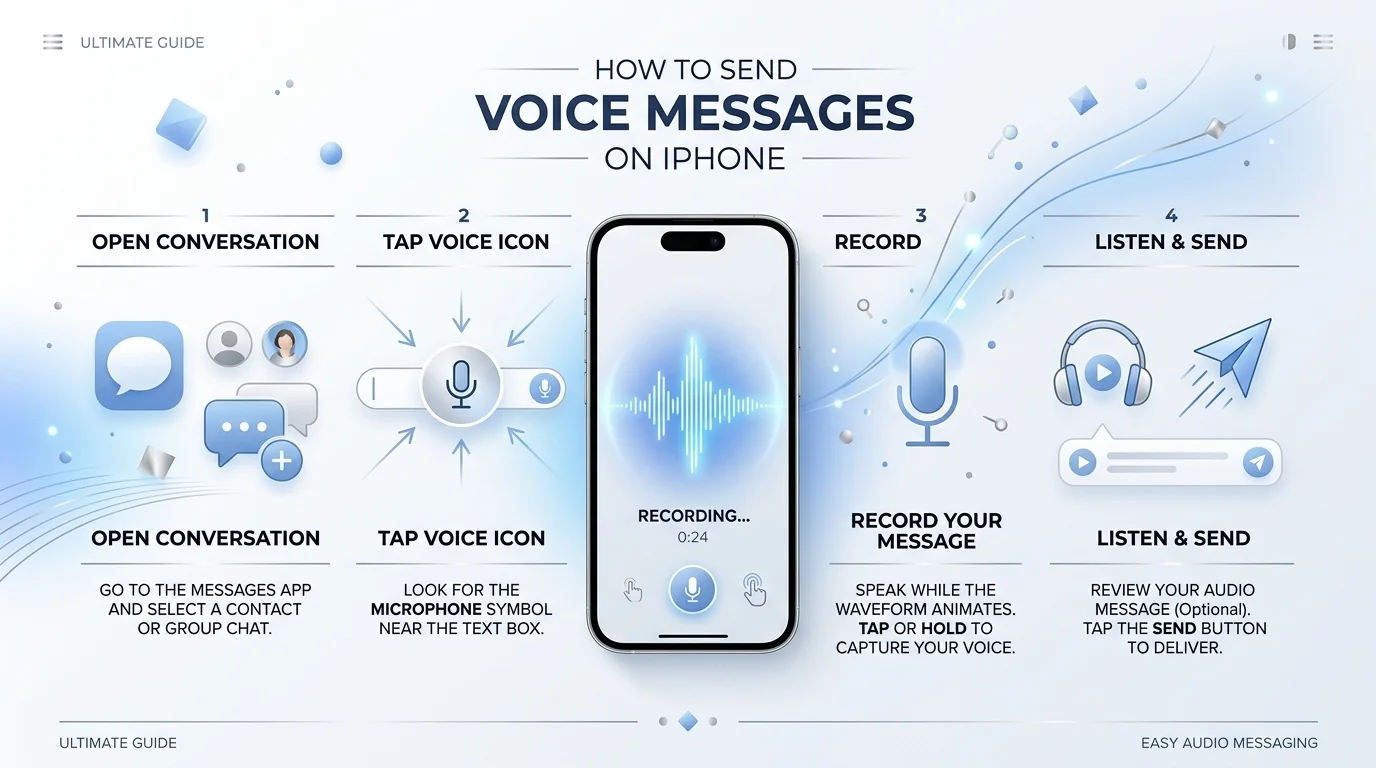
How to Record and Send a Voice Message on iPhone
Sending a voice message on iPhone takes just a few taps, once you know where the record button is hiding this year. Apple has moved this button more than once across software updates, which is exactly why so many people get confused mid-recording.
Case in point: OSXDaily's testing of iOS 26 found that the microphone option had shifted from the text field itself into the app row below it, tucked under a small sound wave icon. Users updating from iOS 18 or earlier often can't find the button at all, simply because Apple relocated it rather than removed it.
Step 1: Open Messages and Pick a Conversation
Unlock your phone and open the Messages app. Tap into the conversation thread where you want to send your message, or start a fresh one if needed.
Step 2: Start Recording
On iOS 26, tap the plus icon beside the text field, then choose "Audio." On iOS 15 and earlier, the microphone icon sits directly inside the text field instead. Tap it once and start talking. For hands-free recording, slide your finger up toward the lock icon, a trick known as slide to lock recording, and keep talking without holding the button down.
Step 3: Preview Before You Send
Tap play to hear your recording before it goes anywhere. Not happy with it? Delete it with the small "x," and record it again. There is no limit here.
Step 4: Send Your Message
Tap the upward arrow. Your recording appears in the thread as a playable audio bubble.
Step 5: Decide Whether to Keep It
By default, your message quietly deletes itself two minutes after playback, part of Apple's auto-delete design. Tap "Keep" if you want to hang onto it instead, a setting we cover in full further down.
Here is a quick reference table, since the layout keeps shifting version to version:
iOS Version | Where to Find the Record Button |
|---|---|
iOS 27 (beta) | Same as iOS 26, plus faster playback speed controls |
iOS 26 | Tap the plus (+) icon, then choose "Audio" |
iOS 18 | Microphone icon in the app row below the text field |
iOS 17 | Same layout as iOS 18 |
iOS 16 | Same layout as iOS 18 |
iOS 15 and earlier | Microphone icon sits directly inside the text field |
How to Listen to or Reply to a Received Voice Message
Playing a received voice message takes one tap on the audio bubble. A small sound wave icon animates while it plays, and a blue dot marks anything you haven't heard yet.
Replying works just like replying to text. Swipe on the bubble, or tap the mic again and record your answer. Slide your finger across the message to fast-forward or rewind, and touch and hold the play button to adjust playback speed, a feature that got noticeably faster in iOS 27 based on recent beta feedback. Every message also gets an automatic transcript, though if you want a cleaner, shareable version of that text, our voice message to text converter can generate one in seconds.
How to Use Raise to Listen (Hands-Free Playback and Replying)
Raise to Listen lets you play and reply to messages by moving your phone, not tapping anything. Raise your iPhone to your ear inside a Messages thread, and the recording plays automatically.
"It works like an old two-way radio, once you get the rhythm down."
That is the best way to describe this walkie-talkie style messaging feature. Lower the phone, raise it again, wait for a tone, then speak. It feels clumsy the first few tries. But once it clicks, it becomes one of the fastest ways to keep a conversation thread moving without typing a single word, perfect for multitasking communication while cooking or driving.
How to Turn Raise to Listen On or Off
Turning off Raise to Listen takes three taps inside the Settings app. Go to Settings, then Apps, then Messages, and flip the toggle off.
This single switch solves one of the most common complaints found on Reddit, where users report their phone recording audio messages by accident. If that has happened to you, this fixes it immediately, and you can always turn the feature back on later.
How to Keep Audio Messages Instead of Letting Them Expire
Audio messages expire two minutes after they get played, unless you change the default. Open the Settings app, tap Apps, tap Messages, then tap Expire under Audio Messages, and select the Never expire setting.
The "Keep" button works per message too, saving just that one recording without touching the global setting. You can also touch and hold any message and choose Save to Voice Memos, which drops it straight into the Voice Memos app for safekeeping. If you'd rather turn that saved file into text instead, our MP3 to text converter can handle it in seconds. Just remember your recipient has their own separate timer, so both sides may need to tap Keep.
Fix: iPhone Shows Voice-to-Text Instead of the Microphone/Voice Message Option
If your phone only offers voice to text and no way to record audio, the button has almost certainly moved, not disappeared. This exact question shows up constantly across Reddit, usually from people who updated their software and lost track of the icon.
Check the app row below the text field first, since that is where the sound wave icon now lives on newer versions. Still missing? Open Settings, then Accessibility, and confirm nothing under Spoken Content is blocking your microphone icon. One Reddit user solved this same problem simply by checking the "Extras" menu inside Messages, which brought the missing option straight back. A quick restart of the Messages app fixes it for plenty of people too.
Troubleshooting Common Voice Message Problems
Most audio message issues fall into a handful of repeat offenders, and nearly all of them have a fast fix.
Problem | Likely Fix |
|---|---|
Message shows 0:00 and won't play | Restart Messages, check your connection, re-download via iCloud |
Message disappeared after listening | The auto-delete window has likely already passed |
Phone records voice memos by accident | Turn off Raise to Listen in Settings |
No confirmation the message was heard | iMessage does not show read receipts for audio the way it does for text |
Microphone option missing entirely | Check Screen Time and Content Restrictions for microphone access |
That last fix rarely gets mentioned anywhere else. If Screen Time restrictions are active on a shared or managed device, the microphone permission tied to digital communication apps like Messages can get quietly switched off, and nobody remembers doing it.
Sending Voice Messages to Android Users or Other Apps (WhatsApp, Snapchat, etc.)
A voice message sent to Android still arrives and plays fine, though it travels differently behind the scenes. Since Android has no iMessage, your recording converts into a standard audio file and delivers over SMS or MMS instead.
WhatsApp voice notes and Snapchat voice memos each run on entirely separate systems, unconnected to Apple's version. If WhatsApp is your main app for voice chats, our guide on transcribing WhatsApp voice messages to text walks through turning those into text too. And if most of your contacts are on Android, our guide on how to transcribe audio on Android covers the same process on that side. For real-time conversation instead of a recording, tapping over to a FaceTime call directly from a Messages thread is often faster.
Frequently Asked Questions
How do I send voice messages over text?
Tap the microphone icon in Messages, record your message, then tap send to deliver it as a voice message over text.
How do I enable voice messaging on my iPhone?
Voice messaging is built into Messages by default, so just tap the microphone or plus icon next to the text field to start recording.
How do I send someone an audio message?
Open your conversation in Messages, tap the microphone icon, record your message, then tap the send arrow to deliver it.
Why won't iMessage let me send a voice message?
This usually happens due to microphone permission restrictions, a Raise to Listen glitch, or a poor internet connection interrupting the send.
Final Thoughts
Once you know how to send a voice message on iPhone, typing long replies starts feeling unnecessary. Between fast recording, hands-free recording through Raise to Listen, and the option to keep messages instead of losing them to auto-delete, this feature does far more than most people realize. It adds a genuine personal touch messaging layer to conversations that plain text simply can't match. Try it on your next chat, and for more guides like this one, browse the rest of our blog.
Read more: What Does ONB Mean in text? Stop Feeling Left Out (2026)
![Recover Gmail Password Without Phone Number [2026]](https://contiocdn.com/efdc9a99-5ac4-4f75-be3a-ed43de859d76/blog-covers/1790082232767-y9rtx1hq-recover-gmail-password-without-phone-number--2026-.webp)