If an app has disappeared, it's almost never deleted — it's hidden. On iPhone, check your App Library first, then the iOS 18 Hidden folder. On Android and Samsung, check Settings > Apps > See all apps, your launcher's "Hide apps" menu, or Secure Folder. Below, I'll walk you through every method, how to Unhide an App step by step.
Ever gone looking for an app on your phone, only to find... nothing? No icon. No trace. Just an empty space where it used to be.
I've been there. And honestly, it's a little unsettling the first time it happens.
Here's the good news, though: your app almost certainly didn't disappear. It's hidden. And once you know where phones like to tuck these things away, getting it back takes about two minutes.
In this guide, I'll walk you through exactly how to unhide an app on iPhone, stock Android, Samsung Galaxy, and Xiaomi/MIUI devices — no guesswork, no tech jargon, just clear steps you can follow right now. If you're an iPhone user specifically, you might also want to check out my guide on hidden apps on iPhone for a deeper dive into where iOS tucks things away.
Why Do Apps Get Hidden in the First Place?
Let's back up for a second, because understanding why an app goes missing actually helps you find it faster.
Apps get hidden for a bunch of reasons. Sometimes it's totally intentional — maybe you wanted to keep a private app off your home screen. Sometimes it's a parent using parental controls to manage what their kid sees. And sometimes? It's a total accident. A stray tap, a settings change you don't remember making.
Whatever the reason, here's the thing you need to hold onto: hiding an app is not the same as deleting it. The app and its data are still sitting on your device. It's just camouflaged.
Quick Comparison: Which Hiding Method Are You Dealing With?
Before you dive into steps, it helps to know exactly what you're up against. Here's how the major methods stack up:
Method | Device/OS | Security Level | How to Reverse It |
|---|---|---|---|
App Library | iPhone (all versions) | None — just decluttered | Long-press icon → Add to Home Screen |
Hidden Folder | iPhone (iOS 18+) | Face ID / Touch ID / Passcode | Open Hidden folder → authenticate → "Don't Require Face ID" |
Hidden Home Screen Page | iPhone (all versions) | None | Edit Pages → tap unchecked circle |
Screen Time Restrictions | iPhone (all versions) | Parental passcode | Settings > Screen Time > Content & Privacy |
Settings > Apps (Disabled) | Android/Pixel | None | Settings > Apps > Enable |
Launcher "Hide Apps" | Android/Pixel/Nova | None | Launcher Settings > Hide Apps > deselect |
One UI Home Hide | Samsung | Low (still searchable) | Home Settings > Hide Apps > deselect |
Secure Folder | Samsung | High — PIN/biometric | Settings > Security > Secure Folder > unlock |
Hide Secure Folder (One UI 8) | Samsung | Very high — encrypted | Tap Secure Folder in quick panel |
App Lock (MIUI) | Xiaomi | PIN/biometric | Settings > Apps > App Lock > Hidden Apps > toggle off |
Keep this table bookmarked — it's the fastest way to figure out which section below applies to you.
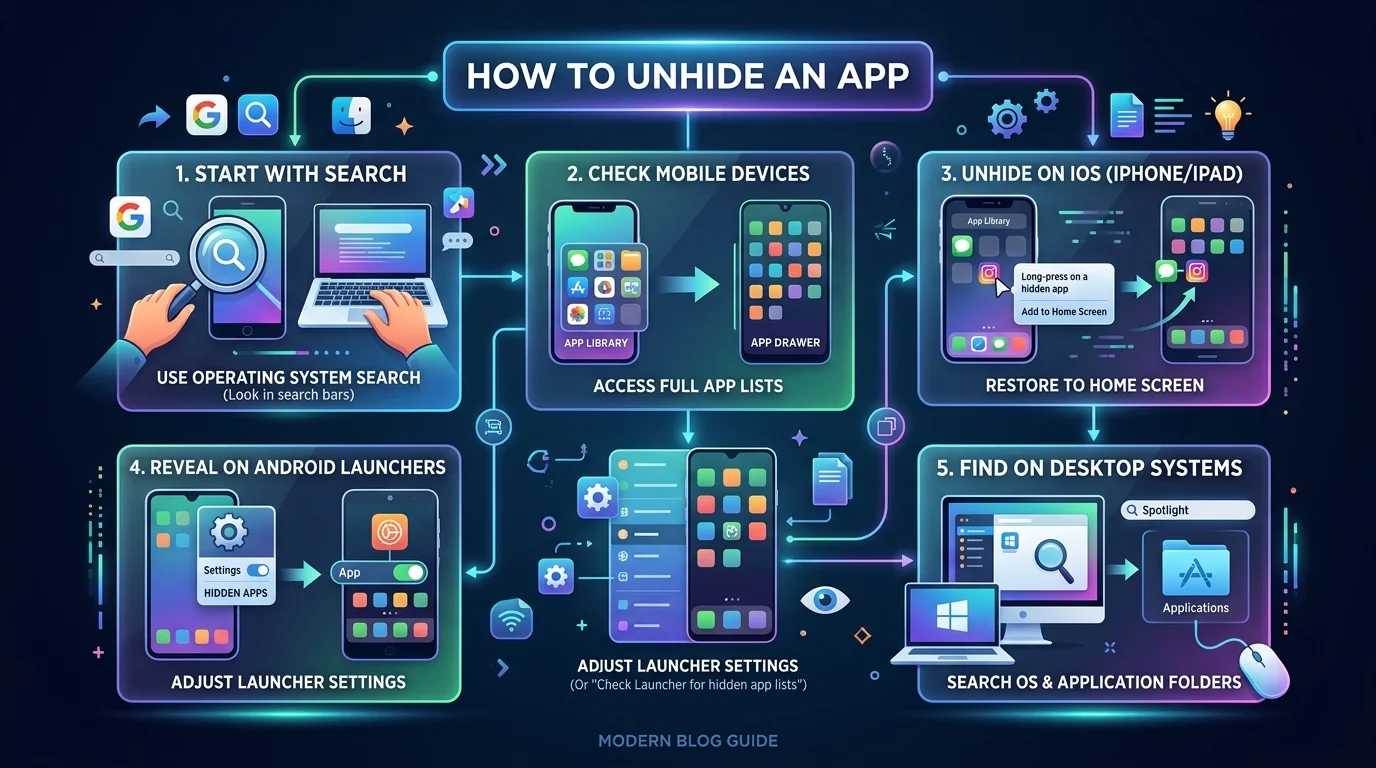
How to Unhide Apps on iPhone (iOS)
If you're on an iPhone, Apple actually gives you three different hiding spots to check. So let's go through them one by one.
Step 1: Check Your App Library
This is always my first move.
Swipe all the way to the left, past your last home screen page, and you'll land on the App Library. Every single app you've installed lives here, sorted into neat little categories — even the ones missing from your home screen.
Found it? Just long-press the icon and tap "Add to Home Screen." Done. It's back.
Step 2: Unhide a Hidden Home Screen Page
Sometimes it's not one app that's missing — it's a whole page.
Here's how you check:
Touch and hold an empty spot on your home screen
Tap Edit, then Edit Pages
Look for unchecked circles under any hidden pages
Tap to bring that page (and everything on it) back into view
Step 3: Open the Hidden Folder (iOS 18+)
Okay, this one's newer, and honestly kind of clever on Apple's part.
If you specifically hid an app using iOS 18's built-in hiding feature, it won't show up in Search or the App Library — it goes into a dedicated Hidden folder instead. To get it back:
Swipe left to the App Library
Scroll down and tap the Hidden folder
Authenticate with Face ID, Touch ID, or your passcode
Long-press the app and tap "Don't Require Face ID"
And just like that, it's back in your regular App Library, no longer locked away. For a closer look at all the ways iOS hides things by default, check out my full breakdown of hidden apps on iPhone.
Step 4: Double-Check Screen Time
If you share a device with family, or if a parent manages your Screen Time, an app might be blocked rather than hidden. Head to Settings > Screen Time > Content & Privacy Restrictions and make sure the app isn't on a blocked list.
How to Unhide Apps on Android (Stock/Pixel)
Android does things a little differently, but it's just as manageable once you know the drill.
Quick Fix: Search the App Drawer
You'd be surprised how often this solves it. Even if the icon's missing from your home screen, typing the app's name into your app drawer's search bar will usually pull it right up.
Full Method: Settings > Apps
If search doesn't cut it, go deeper:
Open Settings
Tap Apps (sometimes labeled Application Manager)
Select "See all apps"
Scroll until you find it
If the app shows an Enable button, tap it — that means it was disabled, not just hidden, and this brings both the function and the icon back.
Check Your Launcher's Hide Settings
Different launchers store their hide/unhide toggle in slightly different places:
Stock/Pixel Launcher: Pinch the home screen → Home Screen Settings → "Hide apps" → deselect
Nova Launcher: Long-press home screen → Nova Settings → App Drawer → "Hidden Apps" → uncheck the apps you want visible
Microsoft Launcher: Open app drawer → tap the three-dot menu → Hidden Apps → tap to unhide
One heads-up worth mentioning: hidden apps still run quietly in the background. They can drain battery, use data, and send notifications you simply can't see. So if you're trying to fully shut one down (not just hide it), you'll want to disable it instead. And if you suspect something more serious than a hidden icon — like unwanted pop-ups or unfamiliar apps installing themselves — it's worth reading my guide on how to remove malware from Android too.
How to Unhide Apps on Xiaomi (MIUI)
Xiaomi phones handle this a little differently than stock Android — MIUI ties hiding directly into its App Lock feature rather than a simple launcher toggle.
Here's how to reverse it:
Open Settings
Tap Apps
Select App Lock
Verify with your PIN or fingerprint
Tap Hidden Apps
Toggle off the apps you want visible again
Because MIUI bundles hiding and locking together, you'll need your App Lock credentials to get in — there's no separate "hide apps" menu like on stock Android.
How to Unhide Apps on Samsung Galaxy (One UI)
Samsung's a bit of a special case because it gives you two separate hiding systems. Let's break both down.
Method 1: Home Screen Hide Apps
This is the basic, less secure option — the app can still be found through drawer search. To reverse it:
Touch and hold an empty spot on your home screen
Tap Settings
Scroll to "Hide apps on Home and Apps screens"
Deselect any app you want back
Tap Done
Method 2: Secure Folder
This one's more serious. Samsung's Secure Folder locks an app behind a PIN, passcode, or biometric, and even clones it so you can run two versions at once.
To retrieve it:
Open Settings > Security and Privacy > Secure Folder
Unlock with your credentials
Access the app from inside
One important note: if you don't know the Secure Folder password, you genuinely can't get in. That's not a bug — it's by design, for privacy.
One UI 8 Update: The New "Hide Secure Folder" Feature
Samsung recently rolled out a feature that goes even further. It essentially acts as a kill switch — hiding the Secure Folder icon entirely and temporarily encrypting everything inside, including notifications.
To reverse it, you just tap the Secure Folder button in your quick panel.
Troubleshooting: When Nothing Above Works
Still stuck? Try these:
Reset your home screen layout — this fixes weird syncing glitches
Check your launcher's own settings, especially if you're using a third-party one
Look for widgets — some background apps never had a launcher icon to begin with
Update your software — older versions sometimes have bugs in the hidden-apps list
Frequently Asked Questions
Do hidden apps get deleted? No. Hiding only removes the icon from view. The app and all its data stay installed until you manually uninstall it.
Can hidden apps still send notifications? Yes, in most cases. Unless the app is also disabled, it keeps running in the background and can still push notifications you won't see.
How do I know if someone hid apps on my phone? Check the app drawer search, Settings > Apps > All Apps, and any Secure Folder or App Lock feature — these are the three most common hiding spots.
What's the difference between hiding and disabling an app? Hiding just removes the icon. Disabling actually stops the app from running until you re-enable it. If you want to fully pause an app (not just hide it), disabling is the better route.
Why can't I find my Secure Folder apps even after unlocking it? Double-check you're using the correct Samsung account credentials — Secure Folder ties to your account, not just a local PIN, on some devices.
Do I need the internet to unhide an app? No — unhiding is a local device setting change. You don't need Wi-Fi or mobile data for any of the steps above.
Final Thoughts
Look, I get it — a missing app feels alarming for about thirty seconds. But here's what I want you to remember: apps don't disappear. They hide. And now you know exactly where to look, whether you're on an iPhone, a stock Android phone, a Samsung Galaxy, or a Xiaomi device.
Check your App Library, your Settings > Apps list, your launcher's hide menu, and any Secure Folder or App Lock feature — that's really all it takes.
You've got this.