How Do You Fix No Sound on Windows?: To fix no sound on Windows, check that the right output device is selected, run the audio troubleshooter, and restart the Windows Audio service. If that fails, update, roll back, or reinstall your audio driver.
I'll be honest, those four moves solve most cases.
Still silent? Keep reading. I'll walk you through every fix, in order, and you can stop the moment your sound comes back.
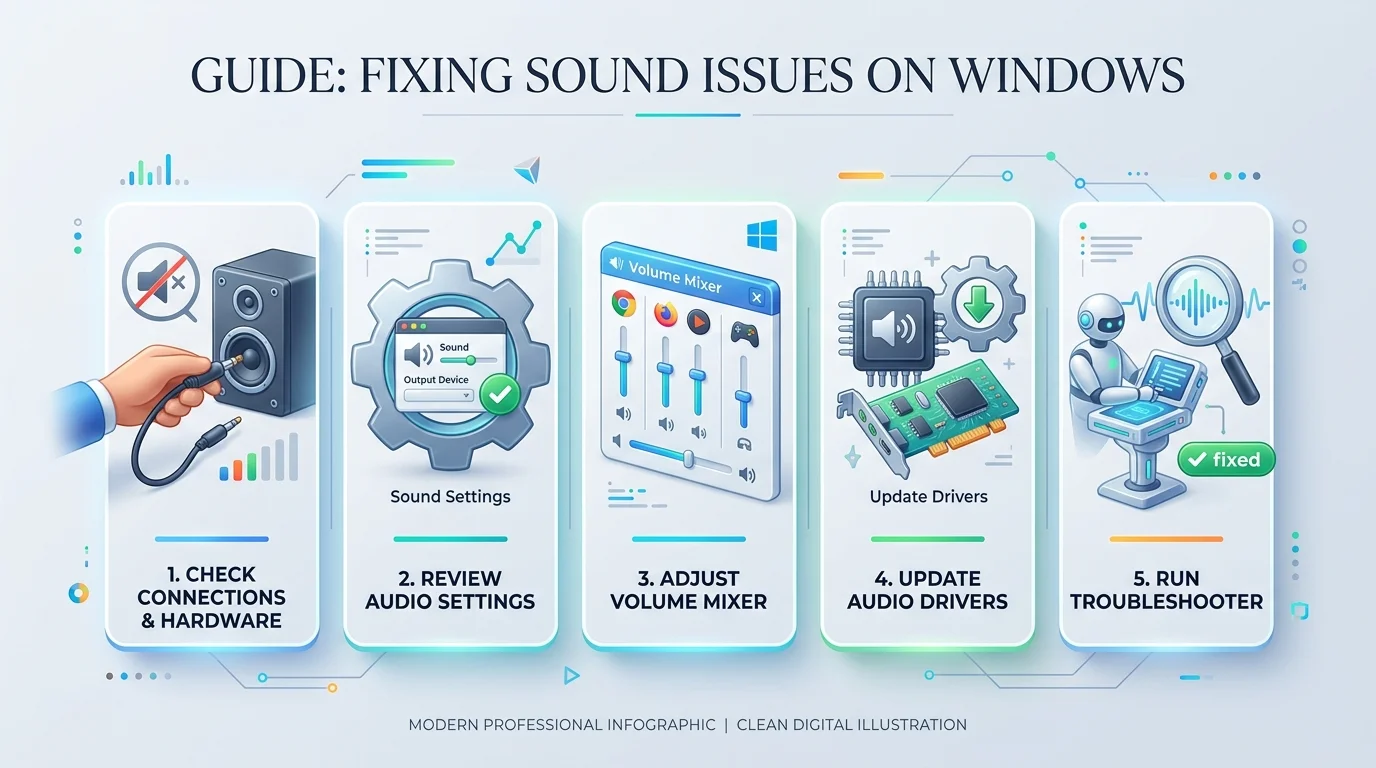
Why Does Sound Stop Working on Windows?
Silence feels like a dead speaker. It usually isn't. In my experience, the cause is a confused setting, a stalled service, or a corrupted driver, and Microsoft says updates can knock audio out too. That's good news, because software problems are cheap to fix. Use the table below to match your symptom to the right fix before you start.
Symptom | Likely cause | Best fix |
|---|---|---|
No sound at all | Wrong default audio device or muted volume | Pick the right output in Sound settings |
Sound died after an update | Audio driver conflict | Roll back or reinstall the driver |
"No audio device is installed" | Disabled or missing driver | Check Device Manager, then reinstall |
One app is silent | Volume mixer or app output setting | Raise the app volume, set its output device |
Bluetooth connected, no sound | Wrong output or bad pairing | Select the headset, then pair it again |
HDMI monitor silent | TV not set as default | Choose the HDMI device as output |
Crackling or distorted audio | Audio enhancements or wrong format | Turn enhancements off, change the format |
How to Fix Sound Not Working on Windows, Step by Step
Here's the plan. I've ordered these fixes from fastest to most involved, so you won't waste time on heavy repairs when a simple click might do. Work through them one at a time, and test your sound after each step. Don't skip around. Honestly, the boring early steps fix more problems than the clever late ones do.
Step 1: Check the Basics
Let's start with the embarrassing stuff, because I've been caught by it myself. A muted slider, a loose cable, or a default audio device that quietly changed after you plugged in a monitor can all produce total silence. These checks take under a minute. Do them first, and you might save yourself half an hour.
Click the speaker icon on your taskbar and make sure you aren't muted.
Open the output list and select the device you actually use, as Microsoft's main guide recommends.
Check the volume mixer and confirm the app isn't turned down.
Reseat the cable, or try a different audio jack or USB port.
Step 2: Run the Windows Audio Troubleshooter
Now let Windows try to help itself. The audio troubleshooter that comes with Windows looks for stopped services, disabled devices, and common sound driver errors, then fixes what it finds. It's free and takes about thirty seconds. Plenty of people skip it, which I never understood. Run it before you start tinkering with drivers.
Open Settings > System > Sound.
Select Troubleshoot common sound problems.
Choose Output devices and follow the prompts.
Test your audio again.
Step 3: Fix Your Audio Driver
Still nothing? Then I'd put my money on the audio driver. Drivers are the small programs that let Windows talk to your sound hardware, and they break more often than you'd expect, especially after a Windows update. Fixing the driver is where most people finally get sound back. Try these two routes, in this order.
Update or Roll Back the Driver
Which direction should you go? If sound vanished right after an update, rolling back is usually faster. Otherwise, update. Both options sit in the same Device Manager menu, so you can try one and then the other without much effort.
Right click Start and open Device Manager.
Expand Sound, video and game controllers.
Right click your device and choose Update driver, then Search automatically.
If that fails, open Properties > Driver > Roll Back Driver.
Uninstall and Reinstall the Driver
If updating didn't work, wipe the slate clean. Removing the driver forces Windows to rebuild it from scratch, which clears corruption you can't see. It sounds risky, but it's safe, because Windows reinstalls the audio driver after you restart. For a Realtek audio chip, the manufacturer's version often beats the generic one, as Windows Report explains. Not sure which driver your PC needs? Check your motherboard model first, so you download the right one.
In Device Manager, right click your audio device.
Choose Uninstall device and tick Attempt to remove the driver.
Restart your PC.
If sound is still missing, download the exact driver from your PC maker's support page (Dell, HP, Lenovo, or ASUS).
Step 4: Restart the Windows Audio Services
Sometimes your drivers are perfectly fine, and a background service has simply stalled. Two services control all your sound, and when either one hangs, you get silence with no warning. Restarting them is quick, free, and fully reversible. Microsoft's guide for missing audio devices covers this scenario too.
Press Win + R, type
services.msc, and press Enter.Right click Windows Audio and select Restart.
Do the same for Windows Audio Endpoint Builder.
Test your sound.
Step 5: Turn Off Audio Enhancements and Exclusive Mode
Here's a fix most guides skip. Audio enhancements are meant to improve sound, yet they can clash with a driver and cut your audio completely. Meanwhile, exclusive mode lets one app grab your device and lock out every other app. Microsoft's developer documentation confirms that exclusive access can block other sounds, so it's worth checking.
Open Settings > System > Sound and select your output device.
Set Audio enhancements to Off.
Open the Sound Control Panel and go to Properties > Advanced.
Untick Allow applications to take exclusive control of this device.
If your audio is fuzzy rather than missing, this distorted audio guide helps. And for sound that's just too quiet, try Microsoft's low volume fixes.
Step 6: Repair Corrupted System Files
Okay, you've tried everything and you're still hearing nothing. Don't panic yet. Damaged Windows files can break the audio endpoint itself, and Windows ships with two repair tools built for exactly this. They run on their own, so you can grab a coffee while they work.
Open Command Prompt as administrator.
Run
sfc /scannowand wait for it to finish.If problems remain, run
dism /online /cleanup-image /restorehealth.Run
sfc /scannowonce more, then restart.
Microsoft's SFC article explains what each result message means.
How to Fix Specific Sound Problems
Not every audio problem looks the same. Maybe your Bluetooth headphones connect but stay silent, or your HDMI audio vanishes the moment you plug in a TV. These cases have their own quirks, and a generic fix often misses them. Below, I've covered the most common ones, so you can jump straight to yours.
Bluetooth Headphones Connected but No Sound
This one drives people crazy, because Windows says "connected" while nothing plays. Usually, Windows keeps sending audio to your laptop speakers, or the pairing went wrong. Fortunately, it's an easy fix. Microsoft has a dedicated Bluetooth connected but no sound guide if these steps don't work. Using Apple earbuds? You may also need to reset your AirPods before pairing them again.
Open Settings > System > Sound and set your headset as the output device.
Select the headset and check Advanced sound properties.
Remove the headset from Bluetooth settings, restart, and pair it again.
Install pending updates under Windows Update.
HDMI Monitor or TV Has No Sound
Picture works, but there's no audio? Don't blame the cable yet. Windows often leaves your speakers as the default and ignores the HDMI audio device. First, confirm your monitor or TV actually has speakers, because some office monitors don't. Then follow this HDMI audio walkthrough. If you connect through a USB-C port, read our guide on fixing USB-C to HDMI not working.
Open Settings > System > Sound.
Under Output, choose your TV or monitor.
In the Sound Control Panel, right click blank space and enable Show disabled devices.
Unplug the HDMI cable from both ends, then plug it back in.
Sound Works in System but Not in One App
If system sounds work but one app stays silent, the problem is almost never your hardware. An app can have its own volume or its own output device, and either can override the system settings. Microsoft's article on app audio not working covers it in detail.
Open Settings > System > Sound > Volume mixer.
Make sure the affected app isn't muted.
Set the correct output device for that app.
Restart the app and the Windows Audio service.
"No Audio Output Device Is Installed"
That red X on the speaker icon looks scary, but it's usually a driver or a disabled device. Open Device Manager and see whether your sound card is listed. If it's missing, install the latest driver from your PC maker. If it's there but disabled, enable it, then restart. Microsoft's missing device guide walks you through every option.
Windows 10 vs. Windows 11: What's Different?
The fixes above work on both systems, but the menus differ a little. That trips people up, so I'll make it simple. On Windows 11, the troubleshooter sits inside Settings > System > Sound. On Windows 10, you'll find it under Playing Audio in the troubleshooter list. Also, keep in mind that Windows 10 support ended on October 14, 2025, so new driver fixes may stop reaching you. Upgrading is worth considering.
Why I Recommend a USB Audio Adapter
Let me be blunt. If you've reached this point, your onboard sound card or its driver is stubborn, and you've already spent a lot of time on it. A USB audio adapter skips the troublesome onboard chip entirely. Windows usually detects it instantly with a driver it already has, so there's nothing to download.
That's why I'd buy one today. Here's what you get:
A permanent workaround for a flaky headphone jack
A backup for laptops whose maker stopped updating drivers
Clean sound without gambling on another driver download
Pick a highly reviewed adapter, plug it in, and choose it as your output. [Insert your product link here.] You get your music back in minutes, and you stop troubleshooting for good.
Frequently Asked Questions
Readers keep asking me the same handful of questions, so I've answered them here in plain language. Each answer is short on purpose. If your question isn't below, start with the step by step fixes above, since they cover nearly every case I've seen.
Why is there no sound on my PC after a Windows update?
An update can replace your working audio driver with a generic one, or leave a service stopped. Roll back the driver in Device Manager, then restart the Windows Audio service. If that doesn't help, install the driver from your PC maker's support page.
How do I restart the Windows Audio service?
Press Win + R, type services.msc, and press Enter. Right click Windows Audio and choose Restart. Then restart Windows Audio Endpoint Builder the same way, and test your sound.
Why is my Bluetooth headset connected but silent?
Windows is probably sending sound to another output device. Select your headset under Settings > System > Sound, or remove it and pair it again. Check Windows Update afterward.
Why is HDMI audio not working on my TV?
Your speakers are likely still the default device. Set the TV as the output, confirm it has speakers, and unplug the HDMI cable at both ends before reconnecting.
Why does only one app have no sound?
The app may be muted in the volume mixer, or set to a different output device. Raise its volume, pick the right device, and restart the app.
Can a driver update fix crackling sound?
Yes, often. Crackling usually comes from audio enhancements, a wrong audio format, or an outdated driver. Turn enhancements off first, then change the default format, and update the driver if the noise continues.
Conclusion: Get Your Sound Back Today
You don't need a new PC to fix sound not working on Windows. Check your output device, run the troubleshooter, restart the audio services, and fix the driver, in that order. Then try the enhancement settings and the system file repair. Most people hear sound again long before the last step.
If nothing works, don't suffer through it. A USB audio adapter is the cleanest shortcut I know. Grab one, plug it in, and enjoy your audio again.
Related reading: Fix USB-C to HDMI not working, How to check your motherboard model, How to reset AirPods.