

StudentVUE is a free student portal and mobile app from Edupoint. It shows your grades, attendance, and class schedule from your school's Synergy Student Information System. Your school district gives you access, usually through an activation key or a district Google login.
Let me guess.
You're staring at a school email that says "activate your StudentVUE account," and you have zero idea where to start. I've been there.
Good news: it's easier than it looks. I'll show you what the student portal does, how to get in, and why you should start tonight.
What Is StudentVUE, Exactly?
StudentVUE is your private window into your school's records. Think of it as one dashboard where your grades, attendance, and class schedule all live together.
But here's the thing: your school didn't build it. A software company did. So before the how to, let me explain who's behind it and why that matters.
StudentVUE is made by Edupoint and plugs into the Synergy Student Information System.
Montgomery County Public Schools calls Synergy its official database for enrollment, course history, schedules, attendance, grades, and more.
Now, you might have heard of ParentVUE. That's the parent portal version. StudentVUE is the student side, and it shows only your own information.
One more thing. Some low quality sites call it a PowerSchool product. It isn't. Edupoint's own support page describes StudentVUE as an Edupoint Synergy portal.
StudentVUE vs. ParentVUE: What's the Difference?
Short on time? This table gives you the answer.
Both portals pull from the same Synergy SIS data. What differs is who logs in and which extras they get. The details below come from Edupoint's support page.
Feature | StudentVUE | ParentVUE |
|---|---|---|
Who uses it | Students | Parents and guardians |
Grades and assignments | Yes | Yes |
Attendance records | Yes | Yes |
Upload files to Google Drive or OneDrive dropbox | Yes | No |
Flex period sign up | Yes | No |
Planned absence submissions | No | Yes |
Fee balances and payments | No | Yes |
Parent teacher conference scheduling | No | Yes |
One login for multiple children | No | Yes |
Features depend on your school district, so check what yours turns on.
What Can You Actually Do Inside StudentVUE?
Here's where it gets fun.
Most people open the app, check one grade, and close it. That's a waste. There's a lot more under the hood, and knowing it can save you from nasty surprises at report card time.
Everyday Features Every Student Should Use
These are the tools you'll touch weekly. Each one takes under a minute, and together they keep you from getting blindsided.
According to Edupoint, you can typically see:
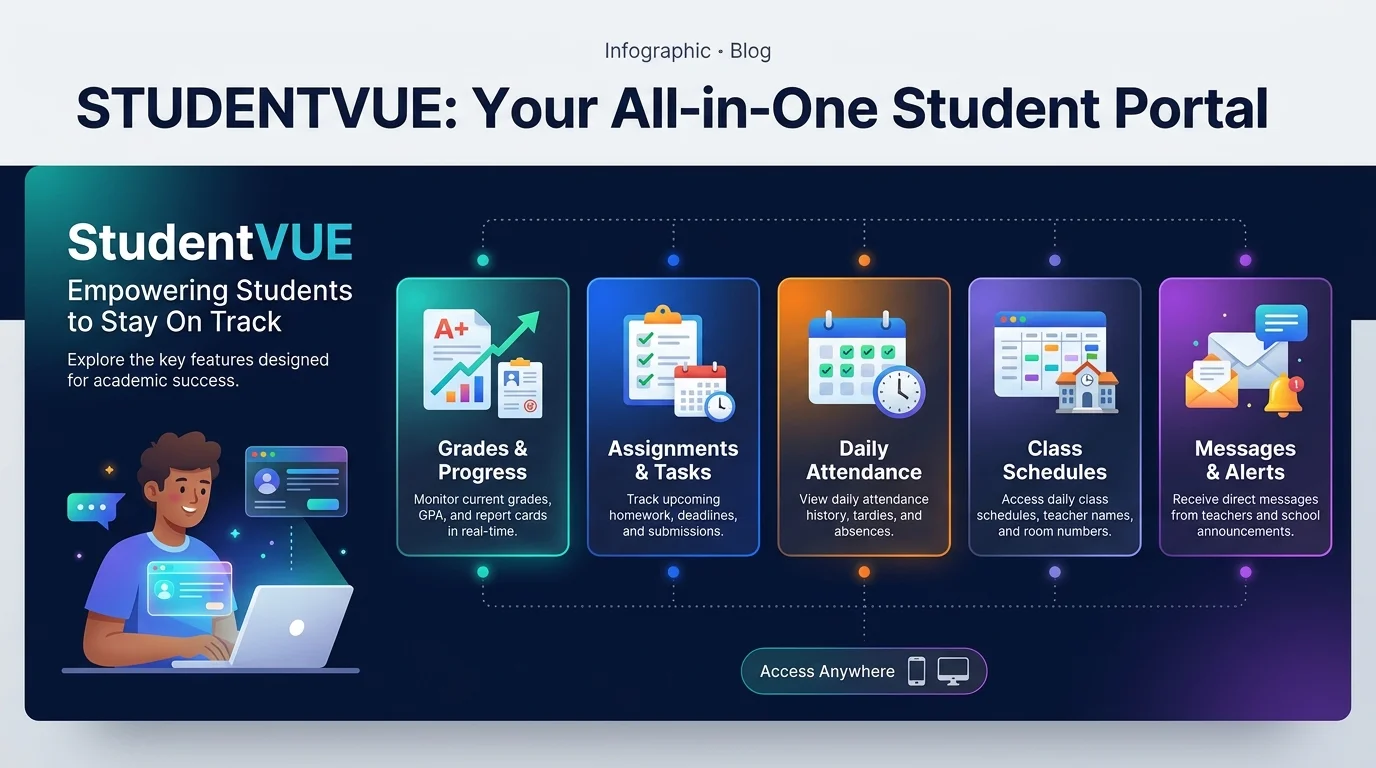
Your calendar and class schedule
Real time grades as teachers record them
Messages to teachers and staff, with automatic translation
Attendance records, transcripts, and graduation status
Course requests, with automatic prerequisite checks
Northshore School District adds report cards and course history to that list.
Student Only Perks Parents Don't Get
Want something cool? Some tools exist only on the student side. Edupoint lists them, and they're handy if your district has them on.
Depending on your district, you can:
Upload assignments from Google Drive or OneDrive to the Digital Dropbox or Google Classroom
Sign up for flex periods and get notifications
Take online tests through Synergy Assessment
How to Set Up StudentVUE: A Step by Step Guide
Alright, let's get you logged in.
There are two ways to do it, the web portal and the mobile app. I'd start with the web portal, because the app uses the same login. Follow the steps in order and you'll be done in about five minutes.
Option 1: Activate Through the Web Portal
Step 1: Find your district's portal address on your school's website or in a school email. One address covers the whole district, per Edupoint.
Step 2: Choose "I am a student."
Step 3: Got a district Google account? Click "Login With Google." Heads up: personal Google accounts won't work.
Step 4: No Google option? Use your activation key. Enter your name and key as printed on the letter, then create a username and password.
Hillsboro School District walks through a similar flow, including a password of at least six characters.
Option 2: Get the StudentVUE Mobile App
It's free, and it's the fastest way to check grades between classes. But there's a catch to know before you download.
Step 1: Install StudentVUE (New) from the App Store or Google Play.
Step 2: Confirm your district runs Synergy SIS v2025 or higher. The new app only supports those districts.
Step 3: Let the app use your location, or search by ZIP code, to find your district.
Step 4: Sign in with the same username and password as the web portal.
Some districts need a manual setup. Elk Grove Unified, for example, has you type in the district's Synergy URL and tap "Test."
Also, SFUSD announced in September 2026 that older app versions still work but will be retired soon. So switch now.
How to Fix Common StudentVUE Login Problems
Can't get in? Don't panic.
Almost every login issue comes down to a handful of causes. I've listed them from most to least likely, so start at the top and work down.
Check the district first. Using the wrong district's portal is a classic mistake, and it produces connection errors.
Refresh the page the right way. A stale page can look like a broken login. Here's how to refresh your browser properly before you try anything else.
Reset your password. Use the "Forgot Password" link. Be quick, though: Edupoint says the verification code expires after 15 minutes.
Ask for a district password reset. Newport News Public Schools says a reset will likely fix student login failures.
Gather your details. Beaverton School District suggests noting your username and last successful login before asking for help.
Still stuck? Contact your school. Edupoint is clear that support comes from your school or district, not from Edupoint directly.
Is StudentVUE Safe to Use?
Fair question. This is your personal data.
Short answer: it's built with protection in mind, but your habits matter too. Here's what the official sources say, and what you should do.
Eagle Point School District states that its schools follow FERPA, and it asks users not to set their computers to log in automatically.
Meanwhile, Prince George's County Public Schools publishes Edupoint's commitment to industry standard safeguards, including encryption.
The App Store listing also says the developer doesn't collect data from the app. That's the developer's own statement.
Your part is simple:
Never share your password
Don't save logins on shared computers
Report anything suspicious to your school right away
Frequently Asked Questions
Got a quick question? These are the ones students and parents ask most.
I've kept each answer short and based on the sources above. If your district does things differently, your school's help page wins.
Is StudentVUE free? Yes. The app is listed as free on the App Store. Your district pays for the underlying system.
Who makes StudentVUE? Edupoint Educational Systems, as part of its Synergy Education Platform.
Can parents use StudentVUE? Parents use ParentVUE instead. It gives one login for all children in a district.
Why can't I log in with my personal Google account? Only district issued Google accounts work, per Edupoint.
Why does the app say my district isn't supported? The new app needs a district on Synergy SIS v2025 or higher. Ask your school which version it runs.
Who do I contact for help? Your school or district. Edupoint doesn't provide direct support to families.
Why You Should Start Using StudentVUE Today
Let me be straight with you.
StudentVUE isn't something you buy. The app is free, and your district already pays for the system. So the only thing you spend is about five minutes.
What do you get back? Real time grades before your teacher hands anything out. Early warning when an attendance record looks off. A clear view of your graduation status while you still have time to fix problems.
Here's my honest take: students who check weekly rarely get ambushed by a bad grade.
Parents get perks too. Gwinnett County Public Schools highlights customizable grade alerts and fee tracking in its ParentVUE app.
Need a device that handles school portals, online tests, and homework without lag? Check our guide to the best laptops for students in 2026.
So here's what I'd do right now.
Open your school's website. Find the portal link. Activate your account tonight, then install the app on your phone.
Do that, and you'll never wonder where you stand again.