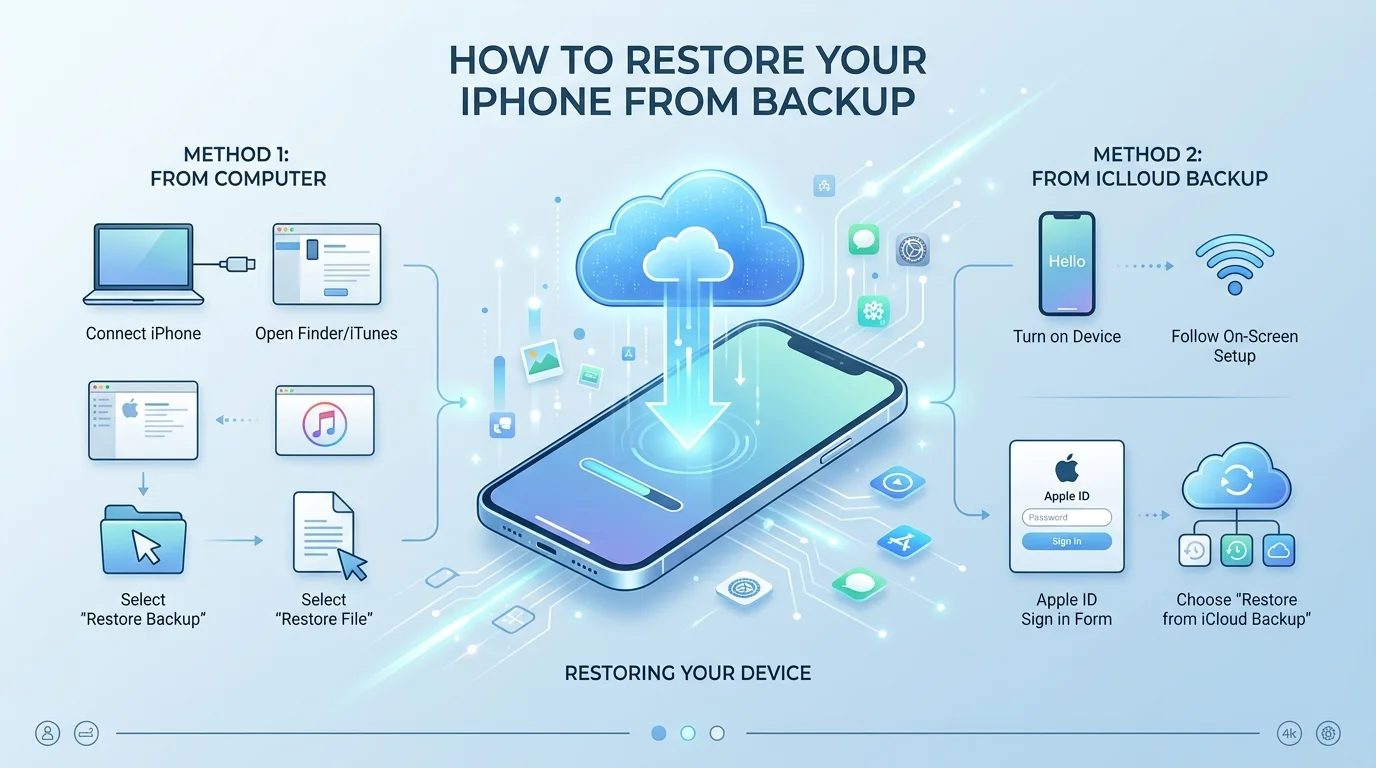
To restore iPhone from backup, erase the phone if it's already set up, then choose From iCloud Backup on the Transfer Your Apps & Data screen. Prefer a cable? Connect your iPhone to a Mac or PC and click Restore Backup. The progress bar can take a few minutes to an hour, and apps and photos keep loading in the background.
You just got a new phone. Or you wiped your old one and now everything feels gone.
Take a breath.
Your photos, chats, and apps are probably safe in a backup, and getting them back is easier than it looks. I'll walk you through both methods using Apple's official restore instructions as the base.
Which Restore Method Should You Choose?
You have two real options, and the right one depends on where your backup lives. Picking the wrong one wastes time, so check this table first. It takes thirty seconds and tells you which section to jump to.
iCloud backup | Computer backup (Mac or PC) | |
|---|---|---|
Needs a computer? | No | Yes (Finder, Apple Devices app, or iTunes) |
Connection | Wi-Fi only (not cellular) | USB cable |
Where you start | Setup screens on the iPhone | Finder, Apple Devices, or iTunes |
Password prompt | Apple Account sign in | Encrypted backup password, if you set one |
Speed depends on | Backup size and Wi-Fi speed | Backup size and your computer |
Best for | Switching phones without a computer | Local backups, or when iCloud is full |
Apple confirms you can't restore from an iCloud backup over a cellular connection, so Wi-Fi is a must for the first method.
Before You Restore: A Quick Checklist
Most restore headaches start before you tap anything. A restore replaces what's on your phone, so a few minutes of prep saves you a lot of stress later. Run through these four checks.
Confirm a backup exists. Look at the date and size of each backup and pick the most relevant one.
Know your Apple Account password. Without it, your apps stay locked.
Plug in your iPhone. A dead battery in the middle of a restore is a bad time.
Find a stable Wi-Fi network (for iCloud) or a working USB cable (for a computer).
How to Restore iPhone From an iCloud Backup
An iCloud backup is the easiest route because you don't need a computer. Everything happens during iPhone setup, right on the phone. There's one catch: you can only restore from iCloud on a fresh or freshly erased device. If your phone is already set up, you'll need to wipe it first.
Step 1: Erase the iPhone (Only If It's Already Set Up)
Already finished setup? Then you have to erase all content and settings before you can restore.
Need a walkthrough? Our guide on how to factory reset an iPhone covers it step by step.
Make sure your latest backup finished first. Check it twice.
Step 2: Follow the Setup Screens
Turn on your iPhone and follow the Setup Assistant screens.
Stop at the Transfer Your Apps & Data screen.
Tap From iCloud Backup.
Sign in with your Apple Account.
Step 3: Choose the Right Backup
You'll see a list of backups. Look at the date and size of each one, then pick the most relevant.
Can't see the one you want? Tap Show All Backups.
If a message says you need a newer version of software, follow the onscreen update steps and carry on.
Step 4: Sign In and Wait
When asked, sign in again to restore your apps and purchases. Forgot the password? You can tap Skip this Step, but your apps won't open until you sign in later.
Now stay on Wi-Fi. Apple says the progress bar can take a few minutes to an hour, depending on your backup size and network speed. If you disconnect too early, it just pauses.
Step 5: Let the Background Restore Finish
Once setup is done, your photos, apps, and music keep downloading in the background. According to Apple, that can take several hours or even days.
So keep your phone on Wi-Fi and power as often as you can.
How to Restore iPhone From a Computer Backup
Prefer a cable? A local backup on your Mac or PC is a solid choice, especially when your iCloud storage is full. The steps are almost identical on both systems. Only the app changes.
Step 1: Open the Right App
Mac: open Finder.
Windows with the Apple Devices app: open the Apple Devices app.
Older Windows setups or macOS Mojave and earlier: open iTunes.
Step 2: Connect and Trust
Plug your iPhone in with a USB cable.
If asked, enter your passcode and tap Trust This Computer.
Forgot your passcode? Apple explains what to do if you forgot your passcode. And if nothing shows up, try this fix for when your device doesn't appear.
Step 3: Click Restore Backup
Select your iPhone in the Finder sidebar, the Apple Devices app, or iTunes.
Click Restore Backup.
Pick the most relevant backup by date.
Click Restore.
Enter your encrypted backup password if asked.
Step 4: Keep It Connected
Don't unplug yet. After the iPhone restarts, keep it connected until it finishes syncing with your computer. Only then is it safe to disconnect.
For more detail, Apple also has a page on restoring from a Mac backup.
What to Do After the Restore
Your phone is back, but a few quick checks will make it feel like home again.
Open your apps and sign in where needed.
Check your photos. If you want a safety copy, see how to transfer photos from your iPhone to a computer.
Set up voicemail again if it's missing. Here's how to set up voicemail on iPhone.
Make a fresh backup once everything looks right.
Common Restore Problems and Fixes
Sometimes a restore stalls. It's rarely as bad as it feels. Most restore errors come down to weak Wi-Fi, outdated software, a forgotten password, or missing data. Find your issue below.
iCloud Restore Failed or Stuck
Plug in your phone and check your Wi-Fi connection. Then check your software version and update if needed.
Still stuck? Apple suggests two fixes:
Try restoring on a different network.
Try another backup using Show All Backups.
The full list is in Apple's guide to what to do if a restore from iCloud backup failed.
Backup Doesn't Appear in the List
First, confirm that a backup exists. Then try a different Wi-Fi network.
Repeated Password Prompts
Used more than one Apple Account for purchases? You may be asked for several passwords. Enter each one, or tap Skip this Step or Cancel for the ones you don't know. Then create a new backup.
Computer Restore Won't Work
Apple has a guide for when you can't back up or restore using a computer.
Forgot the Encrypted Backup Password
This one hurts. An encrypted backup can't be restored without its password. Apple's page on encrypted backups explains your options. Write the password down next time.
Missing Data After Restore
Check Apple's guide on what to do if information is missing after an iCloud restore.
Careful After a Service Appointment
This is easy to miss. If you set your iPhone up as a new device after repair, new iCloud backups can overwrite your older ones. Apple says to erase the device and restore from your saved backup as soon as possible.
Why I Recommend Keeping Backups Switched On
Here's my honest take. The smoothest restore is the one you never had to plan for.
When iCloud Backup is on and your iCloud storage has room, your phone protects itself quietly. Restoring becomes a few taps, with no cables and no hunting for an old laptop.
Without a backup, you risk losing years of photos, messages, app data, and settings. That's a lot to gamble on.
If you want extra protection, do both. Keep an iCloud backup and a computer backup. Apple explains both in its guide to backing up with iCloud and your computer and its page on how to back up your iPhone.
Not sure how much space you need? Open your iCloud settings and check your storage, then upgrade your iCloud+ plan if it's tight. Check Apple's current plans for pricing in your country.
Frequently Asked Questions
Can I restore my iPhone from backup without a computer?
Yes. Use an iCloud backup during setup. Turn on the iPhone, reach the Transfer Your Apps & Data screen, tap From iCloud Backup, and sign in with your Apple Account. You only need a Wi-Fi connection and your password. No cable or computer is required.
Do I have to erase my iPhone to restore from backup?
Yes, if it's already set up. Apple says you need to erase all content first, then restore during setup. Your iCloud backup stays safe while you do this, but make sure your latest backup finished before wiping anything.
How long does it take to restore an iPhone from backup?
It depends on your backup size and Wi-Fi speed. Apple says the progress bar can take a few minutes to an hour. After that, apps, photos, and music keep downloading in the background, which can take several hours or even days.
Why is my iCloud restore stuck or failing?
Usually it's a network or software issue. Plug in your phone, stay on Wi-Fi, and update your software if needed. Then try a different network or choose another backup with Show All Backups. Apple's help page lists more fixes.
Can I restore an encrypted backup if I forgot the password?
No. An encrypted backup can't be opened without its password. If your old iPhone still works, you can make a new backup and set a password you'll remember. Otherwise, try an iCloud backup or set up the phone as new.
Why are some of my apps missing after the restore?
They may still be downloading. Apps load in the background, and you must sign in to your Apple Account before they open. If an app seems hidden instead, read our guide to hidden apps on iPhone.
Final Thoughts
You now have two reliable ways to restore iPhone from backup: iCloud for convenience, or your Mac or PC for a wired restore.
Check your backup first. Follow the numbered steps. Stay connected until everything finishes. And if something breaks, you know exactly where to look.
Most importantly, protect your next restore today. Turn on iCloud Backup, check your storage, and save yourself the stress later.