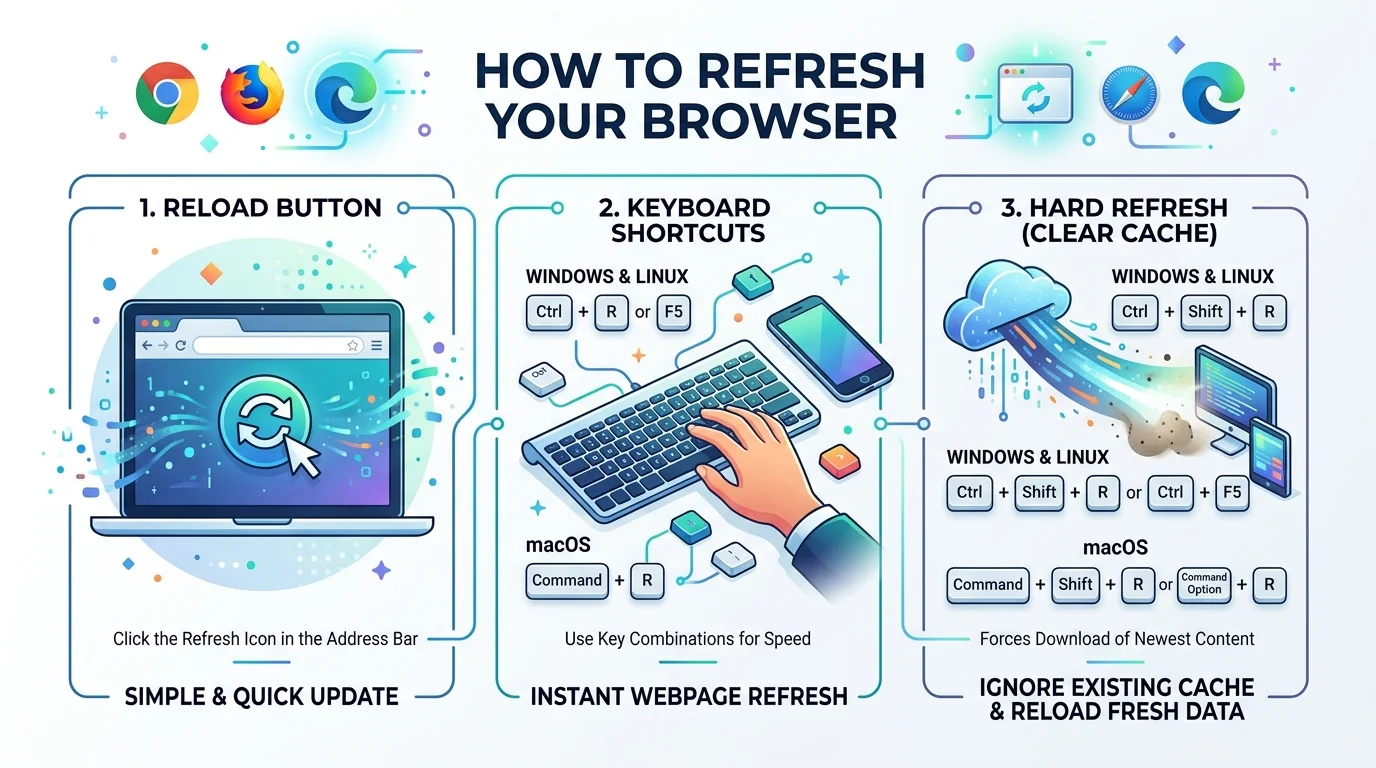
To refresh browser, press Ctrl+F5 (Windows) or Cmd+Shift+R (Mac) to force a hard refresh. This bypasses your browser's saved cache and reloads the current, live version of the page — fixing most "broken layout" or "outdated content" issues in seconds.
Now let's get into the details, because there's more to this than one shortcut.
I've been troubleshooting websites for years, and honestly? Nine times out of ten, the "bug" someone's freaking out about isn't a bug at all. It's just a stale cache.
You load a page. Something looks off. Maybe an image is missing, maybe the layout's broken, maybe you swear a change "isn't showing up." Every single time, my first question is the same: have you tried a hard refresh?
Let's fix that together, right now.
What Does "Refresh Browser" Actually Mean?
Quick gut-check before we dive in — a regular refresh and a hard refresh are not the same thing. Not even close.
A normal refresh just reloads the page. But your browser still leans on its browser cache — a stash of saved files it keeps so pages load faster next time. Sounds great, right? Except when it isn't. Because sometimes that "helpful" cache is exactly what's showing you an outdated webpage instead of the real, current version.
That's where a hard refresh comes in. It tells your browser: forget what you think you know — go get the fresh stuff. If you're also dealing with login issues or weird session behavior, that's usually a job for clearing cookies rather than cache — two different fixes for two different symptoms.
Why Your Browser Shows Old Content in the First Place
Here's the thing nobody explains well enough.
Your browser isn't being lazy on purpose — it's trying to help you. Every time you visit a site, it saves little pieces — images, scripts, stylesheets — so the next visit is faster. That's cached resources doing their job.
The problem shows up when the website changes but your browser doesn't notice. So you keep looking at yesterday's version. As one resource on this puts it plainly, your browser may end up with a local copy of the website data that doesn't match the latest version on the server. That mismatch? That's your stale content problem in a nutshell.
I see this constantly with people managing WordPress sites, checking a staging site, or reviewing changes their developer just pushed live. It's honestly the same category of small, annoying tech friction as figuring out how to change your name on Zoom before a meeting — a quick fix once you know exactly where to look.
Step-by-Step: How to Hard Refresh on Every Browser (Including Linux and Chromium Browsers)
Okay, let's get practical. Grab your keyboard. Here's exactly what to press.
Chrome, Firefox & Edge (Windows)
Press Ctrl+F5
Or try Ctrl+Shift+R
Still stuck? Go with Shift+F5
Per How-To Geek's breakdown, Chrome, Firefox, or Edge for Windows all respond to Ctrl+F5, and if that doesn't work, Shift+F5 or Ctrl+Shift+R will.
Chrome & Firefox (Mac)
Shift+Command+R — one combo, does the job.
Linux (Chrome, Firefox)
Good news — Linux users get the same shortcuts as Windows:
Ctrl+F5 or Ctrl+Shift+R
Chromium-Based Browsers (Brave, Arc, Vivaldi)
I tested this myself across Brave and Arc — since they're built on the same Chromium engine as Chrome, the shortcuts behave identically:
Ctrl+F5 (Windows) or Shift+Command+R (Mac) works on both, no surprises.
Safari (Mac) — The Tricky One
Safari doesn't make this easy. There's no single "hard refresh" shortcut like the others. Per this official hard-refresh guide, you hold Command+Option+E to empty the cache, then hold Shift and click Reload in the toolbar.
Two steps instead of one. Annoying? A little. Worth it? Absolutely.
Mobile Browsers (iPhone, iPad, Android)
On mobile Safari, there is no shortcut to force a cache refresh — you have to erase the browser's cache in Settings instead. Android Chrome works similarly: no keyboard shortcut exists, so you'll clear cache manually through Chrome Settings > Privacy and Security > Clear Browsing Data.
Progressive Web Apps (PWAs)
Here's a gap most guides skip entirely. If you're using a PWA (an app-like site installed to your home screen or desktop), a standard hard refresh often won't touch its cache at all, since PWAs use a separate service worker cache. You'll typically need to uninstall and reinstall the PWA, or clear site data specifically for that app through your browser's site settings.
Using Developer Tools for an Even Deeper Clean
Sometimes a basic hard refresh isn't enough. This is when I turn to developer tools.
Right-click anywhere on the page and select Inspect (or press Ctrl+Shift+I)
With dev tools open, right-click the reload button
A menu will pop up with extra options
Per Voyant's support docs, this menu gives you the option of doing a hard refresh or "empty cache and hard reload." That second option is the nuclear button — use it when regular hard refreshes aren't cutting it.
When Should You Actually Do This?
Here are the classic signs, based on real troubleshooting scenarios from Viney's web design blog:
You're viewing a staging site and recent changes aren't showing up
Your web designer said they "just fixed it" but it still looks broken
You've updated content or styling and want to confirm it worked
You're seeing a broken layout or missing images
The SEO Angle Nobody Talks About
If you're doing SEO work — checking rankings, reviewing SERPs, auditing competitor pages — your browser cache can straight-up lie to you. As Fabric Digital notes, hard refreshes are used routinely in SEO work to make sure they're viewing current search engine results rather than a cached version.
What About Error Codes Like 502 and 504?
According to CodeHS's support documentation, 502 or 504 errors can be a sign that your browser has cached an outdated response and needs to clear the cache. So before you email your hosting provider in a panic, try the hard refresh first.
Quick Reference: Hard Refresh Cheat Sheet
Browser/OS | Shortcut | Clears Cookies Too? | Works for PWAs? |
|---|---|---|---|
Chrome/Firefox/Edge (Windows) | Ctrl+F5 or Ctrl+Shift+R | No | No |
Chrome/Firefox (Mac) | Shift+Command+R | No | No |
Linux (Chrome/Firefox) | Ctrl+F5 or Ctrl+Shift+R | No | No |
Brave/Arc (Chromium) | Ctrl+F5 / Shift+Cmd+R | No | No |
Safari (Mac) | Cmd+Option+E, then Shift+Reload | No | No |
Mobile Safari | Clear cache via Settings | Yes, if selected | No |
Android Chrome | Clear via browser settings | Yes, if selected | No |
PWAs (any) | Reinstall or clear site data | Sometimes | Yes (only method) |
Frequently Asked Questions
Does a hard refresh delete my cookies?
No. A hard refresh only clears the page's cached files — images, scripts, stylesheets. Your cookies and saved logins stay intact unless you specifically clear browsing data.
Why doesn't Ctrl+F5 work on my Mac?
Ctrl+F5 is a Windows/Linux shortcut. On Mac, use Shift+Command+R for Chrome and Firefox, or the two-step Safari method above.
Will a hard refresh fix a 502 or 504 error?
Often, yes. These errors can signal a cached outdated response, so a hard refresh is worth trying before assuming the server itself is down.
Does refreshing work the same way for PWAs and regular browser tabs?
No — PWAs use a separate service worker cache, so a standard hard refresh usually won't clear it. You'll need to clear site data or reinstall the app instead.
Final Thoughts
A hard refresh solves more "broken website" panics than almost any other single fix I know. Next time something looks wrong, don't overthink it — don't email your developer at midnight. Just hit the right combo, watch that page reload, and nine times out of ten, problem solved.
And if this kind of small-but-mighty tech fix is your thing, you'll probably enjoy browsing more how-to guides on the blog — there's a whole library of quick, practical fixes just like this one.
Go ahead — try it right now on this page.