You can transcribe MP3 to text in under two minutes using a free AI-powered converter — no software, no signup, no learning curve. Simply upload your file, and speech to text technology handles the rest, turning spoken audio into clean, readable text automatically. Whether it's a podcast episode, a business meeting, or a college lecture, the process works the same way every time. Audiototextify delivers transcription accuracy above 99% on clear recordings, complete with speaker-labeled transcripts and word-level timestamps for easy navigation. This guide breaks down exactly how the conversion works, what formats you can export to, and how to get the most accurate result from your very first upload.
Transcribe MP3 to Text in 3 Simple Steps
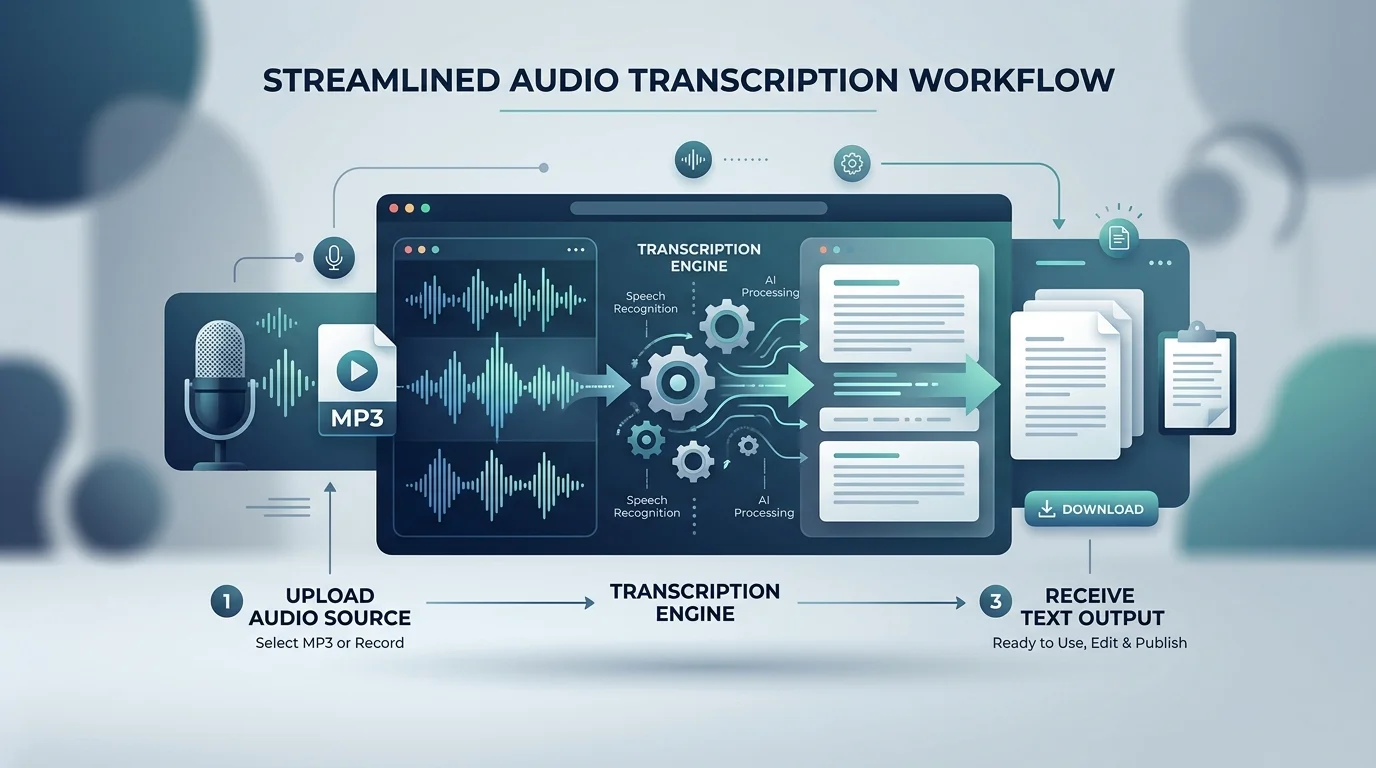
Turning an audio file into readable text does not require any technical skill. The whole process runs through three short stages, and most files finish well before you'd expect. The MP3 to text converter was built so a first-time user and a professional editor both finish the job at the same speed.
Behind the scenes, the platform uses audio understanding models that separate speech from background noise before converting it. That groundwork is why the output reads clean instead of jumbled. Let's break down each stage.
Upload Your MP3 File
Start with a simple drag and drop upload, or click to browse your device. The tool also accepts cloud storage upload from Google Drive and Dropbox, so you don't need the file saved locally. Once the file lands, processing begins automatically — no extra clicks needed.
AI Transcribes Automatically
The engine reads the audio waveform and converts spoken words into text using speech to text modeling trained on thousands of hours of real conversations. It also applies speaker identification, tagging each voice as it switches. A ten-minute file usually finishes in under a minute, depending on server load.
Edit & Download Your Transcript
Once transcription finishes, you land on an editable transcript screen. From there, review flagged words, fix names or jargon the AI may have guessed wrong, then export. The whole review-to-download loop rarely takes longer than the audio itself.
Why Choose Audiototextify for MP3 Transcription
Plenty of tools claim to transcribe MP3 to text, but not all of them handle accents, cross-talk, or long files well. Audiototextify was built specifically to close those gaps, pulling in techniques used by leading audio to text engines while keeping the interface simple enough for non-technical users. For a full breakdown of how the underlying process works, see this audio transcription guide.
Five features set it apart from a basic transcription script: accuracy, speed, language coverage, speaker tools, and privacy. Each one solves a problem that free, bare-bones converters usually get wrong.
99%+ Accuracy Rate
Clean audio typically returns accuracy above 99%, even with technical vocabulary. Background noise handling kicks in automatically, filtering hums, static, and echo before transcription starts, so a slightly noisy recording still comes out readable.
Lightning-Fast Processing
Most ten-minute MP3 files transcribe in under 90 seconds. Longer recordings, like a two-hour lecture, typically finish in five to ten minutes — far faster than typing it out by hand, which can take four to six times the audio's original length.
99+ Languages & Accents Supported
The engine recognizes over 99+ languages, including widely spoken ones like Mandarin, Hindi, and French, plus less common ones such as Malayalam, Cantonese, Serbian, Vietnamese, Polish, Swedish, and Japanese. Dialect recognition adjusts automatically, so a Scottish accent and a Texan accent both transcribe correctly without manual switching.
Speaker Detection & Timestamps
Multi-speaker recognition identifies up to 32 speakers in a single file, labeling each one as "Speaker 1," "Speaker 2," and so on. Combined with word-level timestamps, this makes it easy to jump straight to a specific moment in a two-hour meeting recording.
100% Secure & Private
Files upload over encrypted connections and delete automatically after processing unless you choose to save them. No human ever needs to listen to your recording for the transcript to generate.
Supported Export Formats
A transcript only helps if it fits into your existing workflow. That's why Audiototextify supports several export formats, each suited to a different use case, from subtitle files to spreadsheets.
The table below breaks down which format works best depending on what you plan to do with the text next.
Format | Best For | Common Software |
|---|---|---|
TXT | Quick notes, plain reading | Notepad, TextEdit |
DOCX | Editing, formatting, sharing | Microsoft Word, Google Docs |
SRT / VTT | Video captions and subtitles | YouTube, Premiere, Final Cut |
XLSX | Timestamps, data analysis | Excel, Google Sheets |
Printing, archiving | Adobe Acrobat | |
JSON | Developer workflows | Custom apps, APIs |
HTML | Web publishing | Blogs, CMS platforms |
TXT Format
Plain text export strips out formatting and timestamps, leaving just the words. It's the fastest format to open on any device, and it's ideal for pasting straight into an email or notes app.
DOCX Format
DOCX keeps paragraph breaks and speaker labels intact, making it the right choice when you plan to edit the transcript further in Word or Google Docs before sharing it with a team.
SRT / VTT (Subtitles)
These formats power subtitle generation and caption generation for video platforms. Timing data syncs each line of text to the exact second it was spoken, which is required for synced captions and subtitles on YouTube or social video.
XLSX Format
Spreadsheet export lays out speaker names, timestamps, and text in separate columns. Researchers and analysts often prefer this format when sorting or filtering large volumes of interview data.
Edit Your Transcript Instantly
No AI transcription tool gets every word perfect, especially with technical terms or overlapping speech. That's why an editing layer matters as much as the transcription engine itself.
Audiototextify's transcript editor was designed to make corrections fast rather than tedious, with tools built around how people actually review text.
Built-in Text Editor
Click directly on any word to fix a typo, swap a misheard name, or adjust punctuation. Changes save instantly, and you can reformat paragraphs without leaving the page.
Sync Playback with Text
Audio playback highlights text in real time as it plays, similar to a karaoke display. This makes it fast to catch errors by ear while reading along, rather than scrubbing back and forth blindly.
Search & Replace Tools
Fix a misspelled name or repeated term across the entire transcript in one action. This saves significant time on longer files where the same word might appear incorrectly dozens of times.
Perfect for Every Use Case
Transcription serves very different purposes depending on who's using it. A journalist needs quotable text fast, while a student needs searchable lecture notes. Audiototextify was built flexibly enough to handle both.
Below are the four most common use cases the platform sees, each with slightly different needs from the transcript.
Meeting & Interview Transcription
Meeting transcription turns a recorded call into searchable notes your whole team can reference later. Interview transcription for journalists or researchers captures exact quotes without the risk of mishearing something during a live conversation, a process covered in more detail in this guide on analyzing interview transcripts for qualitative research.
Podcast Transcription
Podcast transcription gives you show notes, blog content, and improved SEO from a single upload. Search engines can't index audio, but they can index the text version, which often drives new listeners to the episode. See the best AI transcription tool for podcasters for a deeper look at podcast-specific features.
Lecture & Educational Content
Lecture transcription helps students review material at their own pace and supports accessibility for those who are deaf or hard of hearing. Many universities now require captioned lecture recordings as a compliance standard — read more in this AI transcription tool for students guide.
Content Creation & Subtitling
Creators repurpose a single recording into blog posts, social captions, and video subtitles. One MP3 file can turn into five pieces of content once it's transcribed and edited.
MP3 to Text API & SDK
Developers building transcription into their own products don't want a manual upload screen — they need programmatic access. Audiototextify offers both API integration and an SDK for developers to fit different technical setups.
Over 100k+ developers currently build on similar transcription infrastructure across the industry, a sign of how standard this kind of integration has become for apps in telecommunications, healthcare, and financial services.
Integrate Transcription into Your App
REST and WebSocket APIs let developers send audio and receive text back in real time or in batches. Documentation covers authentication, rate limits, and response formatting, so integration typically takes a few hours rather than days.
Bulk & Automated Processing
For companies transcribing hundreds of files daily, batch endpoints handle bulk uploads without manual intervention. This suits use cases like call centers, retail and e-commerce support logs, or travel and hospitality booking calls that need automatic documentation.
Pricing Plans
Transcription pricing should be predictable, not a surprise on your card statement. Audiototextify uses a predictable pricing structure with no hidden per-minute markups once you understand which tier fits your volume. If cost is your main concern, this free audio to text converter with no signup guide covers the no-cost option in more depth.
The table below compares the three main plans by cost and included features.
Plan | Cost | Minutes Included | Best For |
|---|---|---|---|
Free Plan | $0 | 15 minutes/month | Occasional, one-off use |
Pay Per File | $0.035/min | Pay as you go | Infrequent users |
Premium / Subscription | From $19.99/month | 3,000+ minutes | Regular, high-volume use |
Free Plan
New users get a limited number of free minutes every month with no credit card required. It's enough to test accuracy on a real file before committing to a paid tier.
Pay Per File
This option suits anyone transcribing occasionally, like a student with one lecture a week. You pay only for what you use, with no recurring subscription charge.
Premium / Subscription
Heavy users, including podcasters and businesses, benefit most from a credits-based pricing model that lowers the per-minute rate significantly. At higher volumes, subscription pricing often costs 70-80% less per minute than pay-per-file.
How Accurate Is AI MP3 Transcription?
Modern AI transcription reaches accuracy rates of 95-99% on clear audio, rivaling professional human transcribers in most everyday conditions. Accuracy benchmarks across the industry, comparing engines like ElevenLabs Scribe, Gemini, and OpenAI models, consistently show AI-driven speech to text systems now outperform manual transcription on speed while matching it on accuracy for clean recordings. For a direct head-to-head, see how Audiototextify stacks up in this Audiototextify vs Otter.ai comparison.
Manual transcription still has an edge in one narrow scenario: extremely noisy audio with heavy cross-talk and no clear speaker separation. A trained human ear can sometimes untangle overlapping voices better than an algorithm. But manual work takes four to six times longer per minute of audio and costs significantly more per file.
For the vast majority of use cases — podcasts, interviews, lectures, meetings — AI transcription with multilingual transcription support and audio event tagging (which flags non-speech sound detection like laughter, applause, and footsteps) delivers a result that's both faster and cheaper without a meaningful accuracy trade-off.
Explore More Tools
Transcription is often just one step in a larger content workflow. Audiototextify's broader toolset covers the rest of that pipeline, from converting other file types to generating entirely new audio.
Related Audio/Video Tools
Beyond MP3 conversion, related tools include Video to Text for MP4 and MOV files, a Subtitle Generator for SRT and VTT exports, a Caption Generator for social clips, Text to Speech for turning written scripts back into audio, a Voice Isolator for cleaning noisy recordings, and Dubbing for translating spoken content into other languages with human-edited translations. Formats supported across the suite include WAV, FLAC, OGG, and AVID, alongside standard exports like PDF and HTML.
Frequently Asked Questions
What audio formats do you support besides MP3?
Beyond MP3, the platform supports WAV, FLAC, OGG, M4A, and AAC, along with video formats like MP4. Clear audio in any supported format transcribes with the same accuracy engine used for MP3 files.
How accurate are the transcripts?
Accuracy typically lands above 99% for clear audio with minimal background noise. Accents, overlapping speakers, or poor recording quality can lower this slightly, though background noise handling reduces the impact significantly.
Can I edit the transcript after it's generated?
Yes. The built-in transcript editor lets you click any word to fix it, reassign speaker labels, or reformat paragraphs before exporting the final file in your chosen format.
What export formats are available?
You can download transcripts as TXT, DOCX, SRT, VTT, PDF, JSON, or HTML. Each format suits a different use case, from plain reading to video subtitling to developer integration.
Can I transcribe multilingual audio?
Yes. The engine supports 99+ languages and automatically detects language and accent, so you don't need to manually select a language before uploading.
Is my audio file kept private?
Yes. Files upload over encrypted connections and are automatically deleted after processing unless you choose to save them in your account.
Is there a file size or length limit?
Free plan users can transcribe up to 15 minutes per month. Paid plans support significantly longer files, with most users successfully transcribing multi-hour recordings without issue.
Conclusion
You now have everything needed to transcribe MP3 to text quickly, accurately, and affordably. Upload a file, let the AI handle the heavy lifting, then edit and export in the format your workflow needs. Whether it's a podcast, a lecture, or a business meeting, Audiototextify turns spoken audio into usable text in minutes, not hours. Try Audiototextify free today and convert your first file in under two minutes.
Read more: Free Video Transcription: Convert Video to Text