

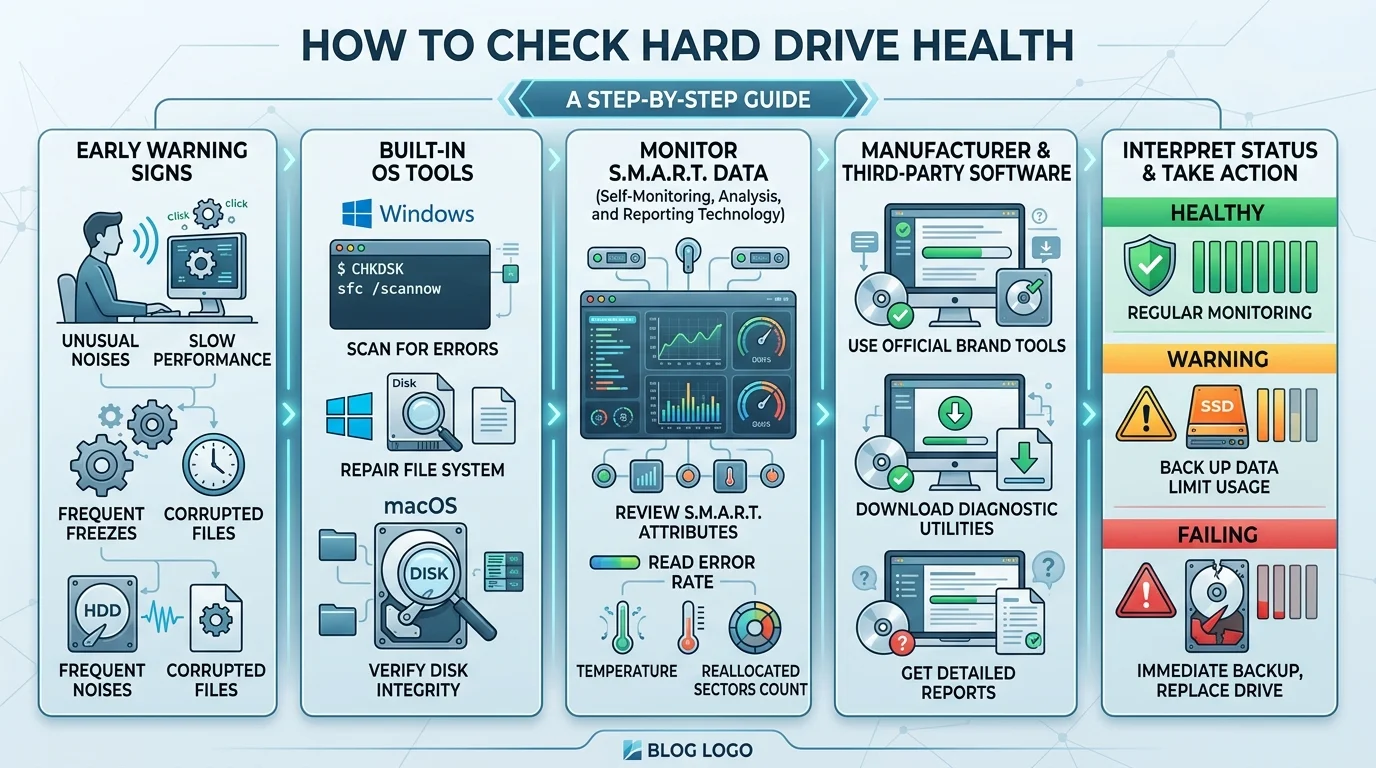
To check hard drive health, read your drive's SMART data. Use PowerShell or CrystalDiskInfo on Windows, Disk Utility or smartmontools on Mac, and smartctl on Linux. Then run CHKDSK to catch file system errors. If SMART reports a failure, back up your files right now and replace the drive.
Last year, I watched a friend lose six years of photos in about ten seconds.
No warning. No drama. Just a click, a freeze, and a silent drive.
Here's the kicker: the drive had been warning him for months. He just didn't know where to look.
So let me show you exactly how to check your drive in under ten minutes.
Why Checking Hard Drive Health Matters
Every drive wears out eventually. That's not pessimism, it's physics. Spinning platters, tiny read heads and heat all take a toll over time, and even an SSD has a limited write endurance.
The good news? Most drives drop hints before they die. You just need to know where to read them. A quick drive health check costs you nothing, while ignoring it can cost you everything on that disk.
Let's get into it.
What Is SMART Status (And Why Should You Care)?
Think of SMART as a fitness tracker built into your drive. It stands for Self-Monitoring, Analysis and Reporting Technology, and it's a supplementary component built into many modern storage devices that monitors, stores and analyzes how the drive is operating.
The drive logs its own error rates, temperature and power on hours. Some drives track more than 70 different values. Then it reports an overall verdict.
Honestly? It's the fastest way to spot trouble early. Next, let me show you how to read it on your system.
How to Check Hard Drive Health on Windows
Windows gives you a quick check with nothing to install, plus a deeper option using free software. Both take only a few minutes, so there's really no excuse to skip them. I'll start with the fast method, then move to the detailed one.
Method 1: The Quick PowerShell Check
Want a fast answer? PowerShell reads your drive's reported condition and shows it in plain English. You'll know within seconds whether Windows sees a problem.
Right click Start and open PowerShell as administrator.
Type
Get-PhysicalDiskand press Enter.Look at the HealthStatus column. "Healthy" is what you want.
Want to go one level deeper? This command lists storage reliability counters for every disk, as explained by WinHost:
Get-Disk | Get-StorageReliabilityCounter | Format-ListYou can also ask Windows whether it predicts a failure:
Get-CimInstance -Namespace root\wmi -ClassName MSStorageDriver_FailurePredictStatusIf PredictFailure shows True, stop reading and start backing up.
Heads Up: WMIC Is Gone
You'll still see old guides telling you to run wmic diskdrive get status. Don't bother.
Microsoft has removed the WMIC utility from Windows 11 and recommends PowerShell for the same tasks. The commands above are the modern replacements.
Method 2: A Free SMART Tool
PowerShell gives you a pass or fail. That's not enough if you want to catch a slow decline. A free disk diagnostic tool shows the actual numbers behind the verdict.
CrystalDiskInfo is my first pick. It reads your drive's SMART data, supports NVMe on Windows 10 and later, and rates health with a color coded status. Always download it from the official site.
Prefer something different? HDDScan is free too. It shows SMART attributes, monitors disk temperature and tests for bad sectors. Yellow icons flag attributes worth worrying about.
Want more choices? Browse this comparison of SMART tools.
How to Check Hard Drive Health on Mac
Mac users, the basics are easy. Open Disk Utility, select your drive in the sidebar and read the SMART status line. Depending on your drive and how it's connected, Disk Utility may show less detail than you'd like. That's why I suggest a second method.
Method 3: Disk Utility Plus smartmontools
For the full readout, install smartmontools. HP's hard drive health guide also points Mac users to DriveDx and GSmartControl.
Install smartmontools (for example with Homebrew:
brew install smartmontools).Run
diskutil listto find your drive's identifier.Run
sudo smartctl -a disk0, swapping in your own identifier.
You'll see the same attribute table that data recovery pros read. That's the deep end, and it's worth it.
How to Check Hard Drive Health on Linux
Linux has the best tooling, hands down. The star is smartctl, part of the smartmontools package. Four commands cover almost everything, so you don't need to be a terminal wizard.
Method 4: Using smartctl
Confirm SMART is on:
sudo smartctl -i /dev/sdaGet the verdict:
sudo smartctl -H /dev/sdaSee everything:
sudo smartctl -a /dev/sdaRun a long test:
sudo smartctl -t long /dev/sda
A healthy drive answers with PASSED. The Debian man page explains every flag, and the Ubuntu community wiki covers the three test types: short, extended and conveyance.
The 5 SMART Attributes That Actually Predict Failure
Not all SMART numbers matter equally. Most are noise.
Backblaze uses only 5 of the 70 plus SMART stats to judge whether a drive is failing. And it says that once SMART 187 goes above zero, it schedules the drive for replacement.
Here's your cheat sheet:
SMART ID | Attribute | What it means | What you should do |
|---|---|---|---|
5 | Reallocated Sector Count | Damaged sectors remapped to spare ones | A rising number means the surface is degrading. Plan a replacement. |
187 | Reported Uncorrectable Errors | Reads the drive could not fix | Above zero? Back up and replace. |
188 | Command Timeout | Operations that timed out | Watch it closely. Rising counts are a bad sign. |
197 | Current Pending Sector Count | Unstable sectors waiting to be remapped | Any pending sector deserves attention. Back up. |
198 | Uncorrectable Sector Count | Sectors that failed offline scans | Any increase is a real read failure. Back up. |
Want the history? Computerworld covered the original findings, including the caveat that manufacturers report SMART inconsistently.
How to Check SSD and NVMe Health
Yes, SMART works on SSDs too. But the attributes differ, so don't go hunting for sector counts.
On NVMe drives, run sudo smartctl -a /dev/nvme0 and look at the health section. Here's an example of what it looks like:
SMART/Health Information (NVMe Log 0x02)
Critical Warning:                   0x00
Temperature:                        41 Celsius
Available Spare:                    100%
Available Spare Threshold:          10%
Percentage Used:                    7%
Data Units Written:                 118,204,442 [60.5 TB]
Here's how to read those lines, based on this smartctl guide:
Critical Warning: a bitmask. Anything other than 0x00 needs investigating right away.
Available Spare: if it falls toward the threshold, the drive is running out of replacement blocks.
Percentage Used: the maker's wear level estimate. It can pass 100% without the drive dying, but it means you're past the rated write budget.
Also check that Media and Data Integrity Errors stays at 0, as this monitoring guide notes.
Method 5: Run CHKDSK for File System Errors
SMART shows hardware health. But what about corrupted files and logical glitches? That's where CHKDSK comes in.
Microsoft's CHKDSK reference says the tool checks a volume for logical and physical errors. It corrects logical errors only when you add the /f switch, and it needs to lock the drive to do that. Back up first, and don't interrupt it once it starts.
Open Command Prompt as administrator.
Type
chkdsk C: /fand press Enter.Press Y to schedule the scan at restart, if prompted.
Reboot and let it finish.
Think of CHKDSK as a file system repair, not a cure for a dying drive.
Which Drive Health Tool Should You Use?
Here's a quick comparison so you can pick in ten seconds:
Tool | Platform | Best for |
|---|---|---|
PowerShell (Get-PhysicalDisk) | Windows | A fast pass or fail with nothing to install |
CrystalDiskInfo | Windows | Color coded SMART data, HDD and SSD |
HDDScan | Windows | Surface tests and temperature monitoring |
Disk Utility | Mac | A quick built in status check |
smartmontools (smartctl) | Linux, Mac | Full attribute tables and long self tests |
CHKDSK | Windows | File system errors |
Warning Signs Your Drive Is Dying
Sometimes you don't need software at all. Your senses will tell you.
Listen for clicking, grinding or a repetitive buzz. EasyRecovery calls these among the clearest signs of mechanical trouble, and says they mean stop, not scan. Watch for slow performance, freezing during file copies and files that refuse to open. Those are classic failing hard drive symptoms.
If you hear clicking, power down. Back up what you can right away.
What To Do If Your Drive Fails the Test
First, don't panic. Second, don't wait.
Copy your important files to another disk now. A drive reporting bad sectors or a FAILED SMART verdict is on borrowed time, and running more repair tools on it only adds stress.
Need a quick way to move your files? Here's how to transfer photos to your computer before anything else goes wrong.
Keep Your Drive Cool
Heat shortens drive life. You can read the current drive temperature with smartctl -A /dev/sda | grep Temperature_Celsius, as the ArchWiki shows.
If your laptop runs hot, fix that first. This guide on laptop overheating causes and fixes walks you through it. And if you're replacing parts, you may also want to check your motherboard model so you buy a compatible drive.
Why You Should Replace It (And Back Up) Today
Let me be blunt: a new drive costs a fraction of what your data is worth.
Think about your photos, your work files, your tax records. Can you replace those for the price of a new SSD or an external backup drive? You can't.
So here's what I'd confidently recommend you do:
Buy a replacement from a reputable brand with a solid warranty the moment SMART warns you.
Pick up a second external drive for automatic backups.
Keep one copy somewhere other than your desk.
I've seen the alternative. It's not fun. A drive purchase is the cheapest insurance you'll ever buy, so make the decision today instead of after the crash.
Frequently Asked Questions
How often should I check my hard drive health?
Check SMART data about once a month and compare it to your previous readings, as MD Repairs suggests. Spotting a trend is more useful than a single snapshot.
Does SMART work on SSDs and NVMe drives?
Yes, but the relevant attributes differ. SSDs use wear indicators, and NVMe drives report fields like Percentage Used and Available Spare, as Linux Junkies explains.
Can a drive fail even if SMART says it's fine?
Yes. SMART isn't perfect, and Backblaze found that its stats don't always signal an impending failure. That's why backups matter more than any single test.
Can CHKDSK fix a failing hard drive?
No. CHKDSK repairs logical file system errors, not worn out hardware. If your drive shows bad sectors, back up and replace it.
What does a clicking hard drive mean?
It usually points to mechanical trouble. Stop using the drive, power it down and back up what you can.
Final Thoughts
Checking hard drive health takes minutes. You now have the tools: SMART, smartctl, CHKDSK and a short list of attributes to watch.
Run a check this week. Put a monthly reminder on your calendar. And if the numbers look bad, buy that new drive and back up before it's too late.
Your future self will thank you.