Laptop overheating happens when dust, dried-out thermal paste, blocked vents, or heavy workloads stop your CPU and GPU from releasing heat fast enough. The three fastest fixes are cleaning your vents with compressed air, moving to a hard flat surface, and using a cooling pad — which independent 2026 testing shows can cut internal temperatures by 20 to 30°C. If your laptop is shutting down, throttling, or running hot even during light tasks, the step-by-step fixes below will solve it in under 20 minutes.
Let's get into exactly why this is happening to you, and how to fix it for good.
What Causes a Laptop to Overheat in the First Place?
Before you can fix anything, you need to understand what's actually happening inside your machine. Think of your laptop like a tiny, cramped engine room. Heat builds up fast, and if it has nowhere to go, things start breaking down.
According to TeamViewer's breakdown of overheating causes, demanding software — think video rendering, compiling code, or gaming — pushes your CPU and GPU to generate serious heat, especially when your laptop's cooling system wasn't built for that kind of load.
But software isn't the only culprit. Here's what else is probably going on:
Dust Buildup Is Enemy Number One
Dust is sneaky. It creeps into your vents and fans over months (sometimes years) and quietly turns into an insulating layer that traps heat instead of releasing it.
A Microsoft Q&A troubleshooting thread confirms this is almost always a major factor in older laptops — dust and debris get pulled into the fans and heatsinks and act like a blanket, blocking the airflow your cooling system desperately needs.
While you're at it, dust is also usually building up on your keyboard at the same rate. If you haven't cleaned that in a while either, our guide on how to clean a keyboard covers the safest way to do both without damaging your components.
Degraded Thermal Paste
Here's something a lot of people don't know about: there's a thin layer of thermal paste sitting between your CPU and its heatsink. Its whole job is to transfer heat away from the chip.
Over time, that paste dries out. It cracks. It stops doing its job. And when that happens, your temperatures spike even if everything else is clean.
Blocked Vents (Yes, Your Bed Is the Problem)
I know working from bed feels cozy. But soft surfaces block the air vents on the bottom of your laptop, and that's a direct path to overheating.
Dell's official support documentation is blunt about this: blocked vents restrict airflow, and that can cause your processor, RAM, and other components to overheat — potentially leading to permanent hardware failure.
Failing Fans and Outdated Drivers
Sometimes it's mechanical. Fans wear out. They spin slower than they should, or they stop working entirely.
Other times, it's software — outdated or corrupted graphics drivers can force your components to work harder than necessary, which means more heat for no good reason. If your laptop is also showing other hardware warning signs, like a blinking indicator light, check out our post on what the DRAM light on a motherboard means to rule out a deeper hardware issue.
How Do You Know If Your Laptop Is Actually Overheating?
Not every warm laptop is a broken laptop. Brief temperature spikes during heavy tasks are normal. What you actually need to watch for is thermal throttling — that's when your laptop automatically slows itself down to avoid damage. Heat isn’t the only reason a PC drags, though. If your temperatures look normal but everything still feels slow, see why your computer is so slow for five other common causes, from startup programs to an aging hard drive.
According to Digital Trends, the real warning signs are sustained heat combined with crashes, random shutdowns, or fans blasting at full speed even during light browsing.
Watch for these symptoms:
Sluggish performance that wasn't there before
Fans running loud constantly, not just under heavy load
The bottom of the laptop is genuinely hot to the touch
Random shutdowns, especially during gaming or video calls
Games running in what feels like slideshow mode
Quick tip: Download a free tool like HWMonitor to check your exact CPU and GPU temperatures in real time. As a general rule, anything sustained above 90°C means your system is actively throttling itself to protect the hardware.
Step-by-Step: How to Fix Laptop Overheating
Step 1: Restart It Properly (Not Just Sleep Mode)
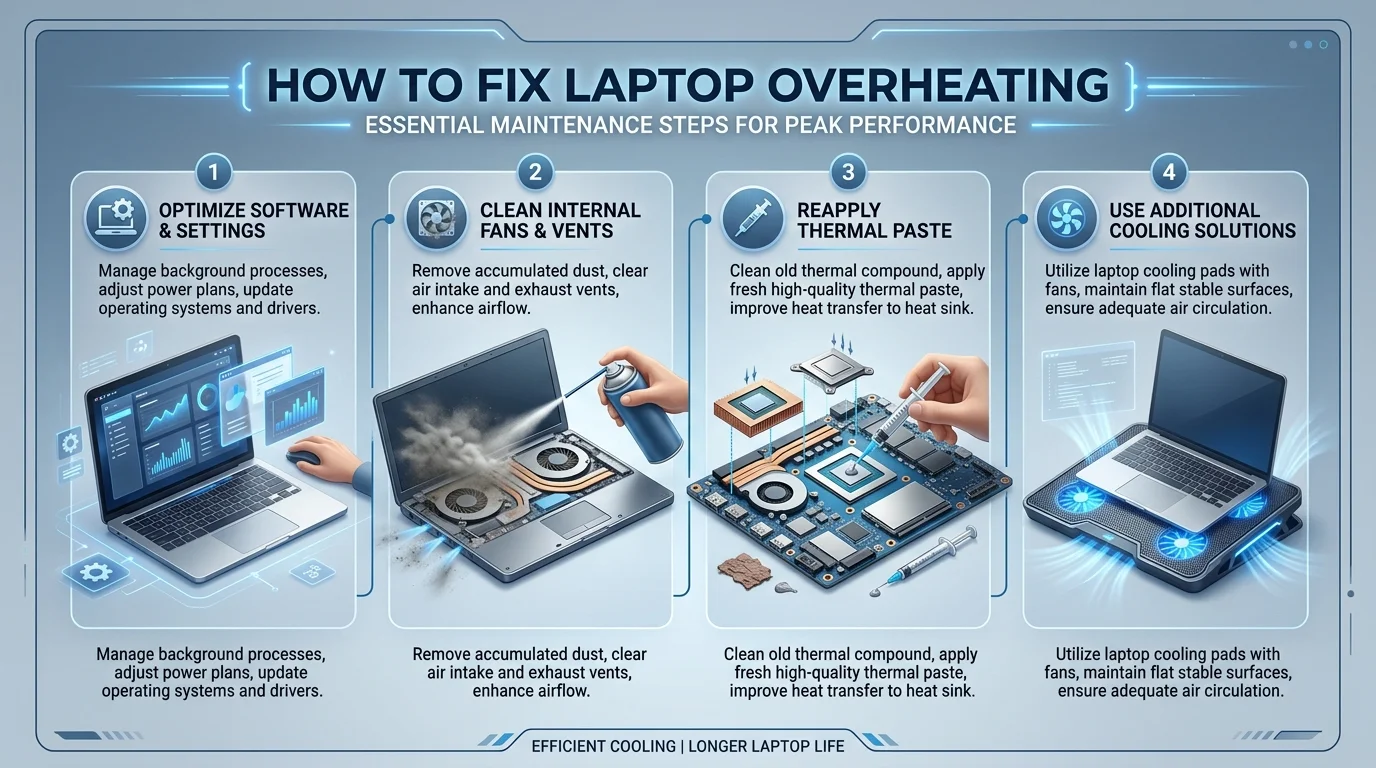
Dell's support team notes that a real restart — not sleep — clears your system memory and shuts down stray background processes. Do a full Shut Down, wait ten seconds, then power back on. Check for pending software and driver updates while you're at it.
Step 2: Clean Out the Dust
Grab a can of compressed air. Power off your laptop, unplug it, and gently blast air into the vents to dislodge trapped dust. Do this every three to four months.
Step 3: Get Your Laptop Off Soft Surfaces
Use a hard, flat surface — a desk, a table, a laptop stand. Anything that lets air flow freely underneath.
Step 4: Invest in a Cooling Pad
A good cooling pad pushes extra ambient air directly into your laptop's intake vents. Based on independent 2026 testing from Thirsty Bear, sealed-chamber cooling pad designs measurably cut laptop temperatures by 20 to 30°C during real stress tests.
Here's a quick comparison of the top-tested picks:
Cooling Pad | Fan Setup | Noise Level | Best For | Price Range |
|---|---|---|---|---|
llano V12 | Sealed-chamber, scroll-wheel control | Moderate | Gamers wanting precise airflow control | Mid-range |
KLIM Wind | Standard fan, 5-year warranty | Quiet | Budget buyers, everyday use | Budget |
IETS GT600 | Industrial turbine, metal build | Loud | Desktop-replacement gaming laptops | Premium |
Kootek Chill Mat 5 | 5-fan (4x70mm + 1x120mm) | Quiet | Broad, even cooling across the chassis | Mid-range |
Razer Cooling Pad | Synapse-integrated smart fans | Quiet | Razer ecosystem users wanting automation | Premium |
If your CPU or GPU is regularly hitting 90°C or higher, a cooling pad directly addresses the problem — and it keeps working every day without you thinking about it.
Step 5: Reapply Thermal Paste (For the Comfortable DIYer)
This is more advanced. If you've already cleaned the dust and added a cooling pad but temperatures are still high, degraded thermal paste is likely your remaining issue. You'll need a small tube of quality paste, a screwdriver set, and about 30 minutes — or take it to a local repair shop.
Step 6: Adjust Your Power Plan
On Windows, switching from a High Performance power plan to Balanced can meaningfully reduce heat generation, especially when raw speed isn't critical for what you're doing that day.
Step 7: Update Your Drivers
Outdated graphics drivers can force your hardware to work harder than it needs to. Check your manufacturer's website regularly, and avoid beta drivers unless you're troubleshooting something specific. Some manufacturers also offer built-in thermal tools — HP CoolSense, for example, uses a motion sensor to automatically adjust fan speed and performance.
Frequently Asked Questions
What temperature is too hot for a laptop?
Most laptops are safe up to around 80–85°C under heavy load. Sustained temperatures above 90°C typically trigger thermal throttling, where your system automatically slows down to protect itself.
Can laptop overheating cause permanent damage?
Yes. Repeated overheating can degrade the battery, warp internal components, and shorten the overall lifespan of your CPU and GPU, according to Dell's official troubleshooting guide.
How often should I clean the dust out of my laptop?
Every three to four months for average use, and monthly if you use your laptop in dusty environments or run it for gaming and rendering daily.
Do cooling pads actually work?
Yes. 2026 testing found that sealed-chamber cooling pads reduced laptop temperatures by 20 to 30°C during sustained stress tests, directly reducing thermal throttling.
Is it bad to use a laptop on your bed?
Yes. Soft surfaces block the bottom air vents, restricting airflow and causing your processor and RAM to run hotter than they should.
How do I check my laptop's CPU temperature?
Free tools like HWMonitor show real-time CPU and GPU temperatures so you can catch overheating before it causes shutdowns.
The Bottom Line
Laptop overheating isn't something you have to live with. It's fixable, preventable, and most solutions above take less than 20 minutes.
The fastest, most reliable long-term fix is a solid cooling pad — cleaning dust helps, adjusting your power plan helps, but a cooling pad tackles the root problem every time you use your laptop, automatically.
Clean it out this week, grab a cooling pad, and give your machine the airflow it's been asking for.