

The fastest way to check your motherboard model is to press Win + R, type msinfo32, and read the BaseBoard Product line. On Windows 11 24H2, 25H2, and 26H1, use PowerShell's Get-CimInstance instead of the old WMIC command, because Microsoft has removed WMIC. No screwdriver required.
Here's the deal.
You're about to upgrade your CPU or RAM, and suddenly you realize you have no clue what's inside your PC. Been there. I once bought the wrong memory kit, and returning it was a hassle I'd rather not repeat.
Good news: you can find your motherboard model in about two minutes.
Let's walk through six methods together, and I'll show you which one fits your situation.
Motherboard Model Checker: Quick Comparison
Before the step-by-step details, here's a cheat sheet. Skim it, pick your method, and jump straight to the section you need.
Method | Works on | Needs admin? | Works if Windows won't boot? | Difficulty |
|---|---|---|---|---|
msinfo32 | Windows | No | No | Easiest |
PowerShell | Windows | Sometimes | No | Easy |
CPU-Z | Windows | No | No | Easy |
BIOS/UEFI | Any PC | No | Yes | Medium |
Label on the board | Any PC | No | Yes | Medium |
dmidecode / sysfs | Linux | dmidecode: yes | No | Easy |
Why Knowing Your Motherboard Model Matters
Your motherboard decides what fits in your PC. The CPU socket, RAM type, PCIe generation, and safe BIOS file all depend on it.
Skip this check, and you risk buying parts that simply won't work.
Sounds dramatic? It isn't. According to TechGuided, installing a BIOS file meant for another board or revision can prevent the PC from booting.
So let's get the basics straight first.
Model vs. Serial Number vs. Chipset vs. BIOS Version
People mix these up all the time.
Motherboard model: the product name, like "TUF Gaming B850-PRO WiFi7 W Neo."
Serial number: unique to your one board, used for warranty claims.
Chipset: the platform inside it, such as AMD B650 or Intel Z790.
BIOS version: the firmware currently installed.
Board revision: a hardware version of the same model, which matters for BIOS files.
You need the model. As ASUS explains, searching your model plus "spec" gets you the manual, drivers, and supported parts.
Method 1: Use System Information (msinfo32)
This is the easiest way to check your motherboard model on Windows. It's already part of Windows, it's free, and I open it first every time.
There's nothing to install and nothing to break. The tool has shipped with Windows for decades, so it works on almost any version you're running.
Step by Step
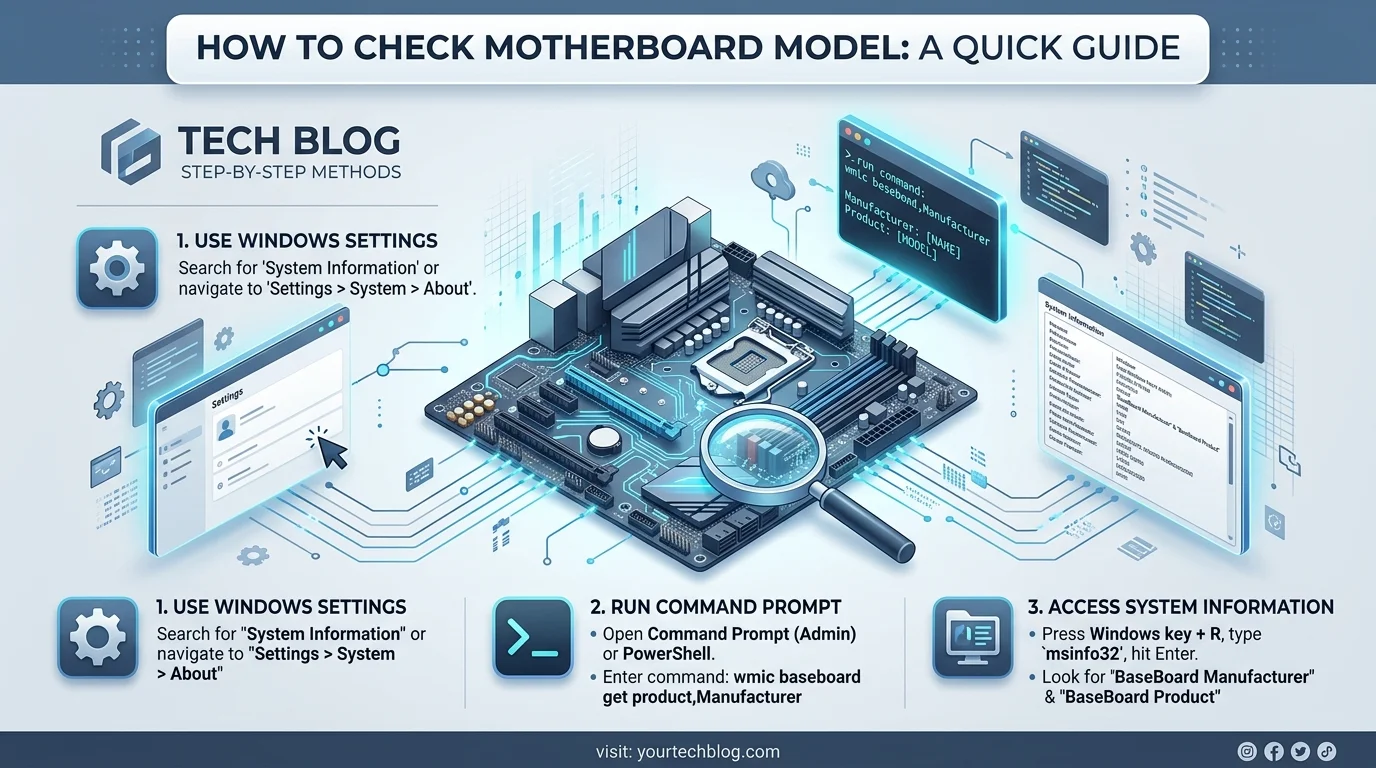
Press Win + R on your keyboard.
Type msinfo32 and press Enter.
Click System Summary on the left.
Find BaseBoard Manufacturer, BaseBoard Product, and BaseBoard Version.
The Product line is your model. Done!
Both Tom's Guide and Avast recommend this exact route.
Method 2: Use PowerShell (The WMIC Replacement)
Most older tutorials still teach the WMIC command. Sadly, that advice has expired.
PowerShell is the modern replacement, and it's just as quick. You paste one line, press Enter, and your board details appear.
Let me show you exactly how.
Why WMIC No Longer Works
Here's the timeline, straight from Microsoft's support page:
2025: WMIC was removed during the upgrade to Windows 11 25H2, though you could add it back as a Feature on Demand.
2026: WMIC was removed from currently supported Windows 11 versions. It's also gone from Windows 11 version 26H1, and it's no longer available as a Feature on Demand.
Only the old command-line tool is gone. WMI itself remains supported, so PowerShell can still read your hardware data.
Step by Step
Right-click Start and open Windows Terminal or PowerShell.
Paste this line:
Get-CimInstance -ClassName Win32_BaseBoard | Format-Table Manufacturer, Product, SerialNumber, Version -AutoSize
Press Enter.
Your Product value is the model.
One warning: Get-CimInstance only works in PowerShell, so Command Prompt won't recognize it. Also, NinjaOne notes that admin rights often help return complete results.
Method 3: Use CPU-Z When Windows Shows Blank Fields
Sometimes Windows gives you nothing useful. You might see empty lines or "To be filled by O.E.M."
Annoying, right? It happens when the manufacturer doesn't fill in the SMBIOS data, which is common on custom built PCs.
A free hardware information tool fixes this fast. It also reveals your chipset and BIOS version.
Step by Step
Download CPU-Z from CPUID. Use the official source only.
Open it and click the Mainboard tab.
Read the manufacturer, model, chipset, and BIOS details.
The CPU-Z user guide confirms this tab shows the manufacturer, model name, chipset, and BIOS version. Microsoft's community forum recommends it for this exact problem.
Method 4: Check the UEFI BIOS
What if Windows won't even boot? Don't panic.
Your UEFI BIOS shows the model without any operating system. This is my favorite trick when I'm building a fresh PC or rescuing a dead one.
Step by Step
Restart your PC.
Tap DEL or F2 during startup.
Look at the main screen, usually EZ Mode.
ASUS support says the model name appears in EZ Mode. Corsair adds that details may sometimes hide inside the BIOS update page, so dig around if you don't see it right away.
Can't even reach the BIOS because a warning light stays on? Check our guide to the DRAM light on a motherboard to see what that light means and how to clear it.
Method 5: Read the Label on the Board or Box
This one's old school, but it never fails.
Power down, unplug the PC, and ground yourself before touching anything. Then open the case. Yes, it takes a minute longer, but it works even when software gives you nothing.
While you're in there, look for dust buildup on the board and fans. Heat problems are common, and our guide on laptop overheating causes and fixes shows what to do about them.
Where to Look
The model is usually printed directly on the motherboard, often near the CPU socket or between PCIe slots.
A serial number label sits on the back of the board, according to ASUS.
Your retail box sticker or receipt also lists the model.
Method 6: Check Your Motherboard on Linux and Mac
Not on Windows? No problem.
Linux users get a powerful command line option, while Mac users face a small twist. Both take seconds.
On Linux
Open a terminal and run:
sudo dmidecode -t baseboard
The output includes the Product Name, as Baeldung's Linux guide shows. The dmidecode man page lists the keyword options, like baseboard-product-name.
Want to skip root? Read the files in /sys/class/dmi/id/, such as board_name and board_vendor, as Greenwebpage describes.
On Mac
Here's the catch. Apple calls it a logic board, and macOS doesn't expose its details the way Windows does.
Instead, open Terminal and run system_profiler SPHardwareDataType to see your Mac's model identifier.
Troubleshooting: What If the Results Look Wrong?
Let's be real. Sometimes the answer looks weird.
Seeing "To be filled by O.E.M." doesn't mean your PC is haunted. It usually means the manufacturer skipped filling in the firmware data. Here's my fix order:
Run CPU-Z and check the Mainboard tab.
Open the BIOS screen.
Read the printed model on the board.
If you're using a prebuilt laptop or desktop, check the brand's support page for your system model too. Shopping for a new laptop instead? Our roundup of the best laptops for students in 2026 can help you pick one.
What to Do After You Find Your Motherboard Model
Now you've got the model. Here's where the real payoff starts.
With the exact name in hand, you can stop guessing and start upgrading with confidence. Follow these steps:
Search your model on the manufacturer's website.
Open the CPU support list and memory QVL.
Check your current BIOS version against what your new CPU needs.
Confirm your RAM type matches the board's supported memory.
Planning a full build? Read how to choose a gaming monitor so your display keeps up with your new hardware.
Then buy the upgrade you've been eyeing. A verified part is the cheapest insurance you'll ever get, and a confirmed-compatible CPU, DDR5 RAM, or NVMe SSD will make your PC noticeably faster. I'd buy it without a second thought.
Frequently Asked Questions
How do I check my motherboard model without opening the case?
Press Win + R, type msinfo32, and read the BaseBoard Product line under System Summary. You can also run Get-CimInstance -ClassName Win32_BaseBoard in PowerShell. Both methods show the manufacturer and model without touching any hardware.
Does the WMIC command still work on Windows 11?
No. Microsoft has removed WMIC from currently supported Windows 11 versions, including 24H2, 25H2, and 26H1. It's also no longer a Feature on Demand. Use PowerShell's Get-CimInstance instead, since WMI itself still works.
Why does my PC say "To be filled by O.E.M."?
The manufacturer didn't populate the SMBIOS firmware data, which is common on custom built PCs. Try CPU-Z's Mainboard tab, check the UEFI BIOS, or read the model printed on the motherboard itself.
Is the motherboard model the same as the chipset?
No. The model is the specific product name, while the chipset (like AMD B650 or Intel Z790) is the platform it's built on. Several different models can share one chipset.
Can I check my motherboard model without Windows?
Yes. Enter the UEFI BIOS by tapping DEL or F2 at startup, or run sudo dmidecode -t baseboard on Linux. You can also read the model printed on the board.
Final Thoughts
So, which method will you try first?
I'd start with msinfo32, move to PowerShell for the modern route, and keep CPU-Z as your backup. It takes two minutes and can save you real money.
Go check your board right now. Then grab that upgrade with total confidence.