To choose the right gaming monitor in 2026, match your resolution and refresh rate to your GPU's actual output, pick a panel type based on your game genre (Fast IPS for most people, OLED for the best image, TN for pure competitive esports), confirm real HDR performance instead of trusting the certification badge, and make sure your adaptive sync tech (G-Sync or FreeSync) matches your graphics card. Below, I'll walk through every step in detail.
I've bought, and returned, more gaming monitors than I'd like to admit. So when you ask me how to pick one, I've got opinions, and I've backed every one of them with current data.
Let's get into it.
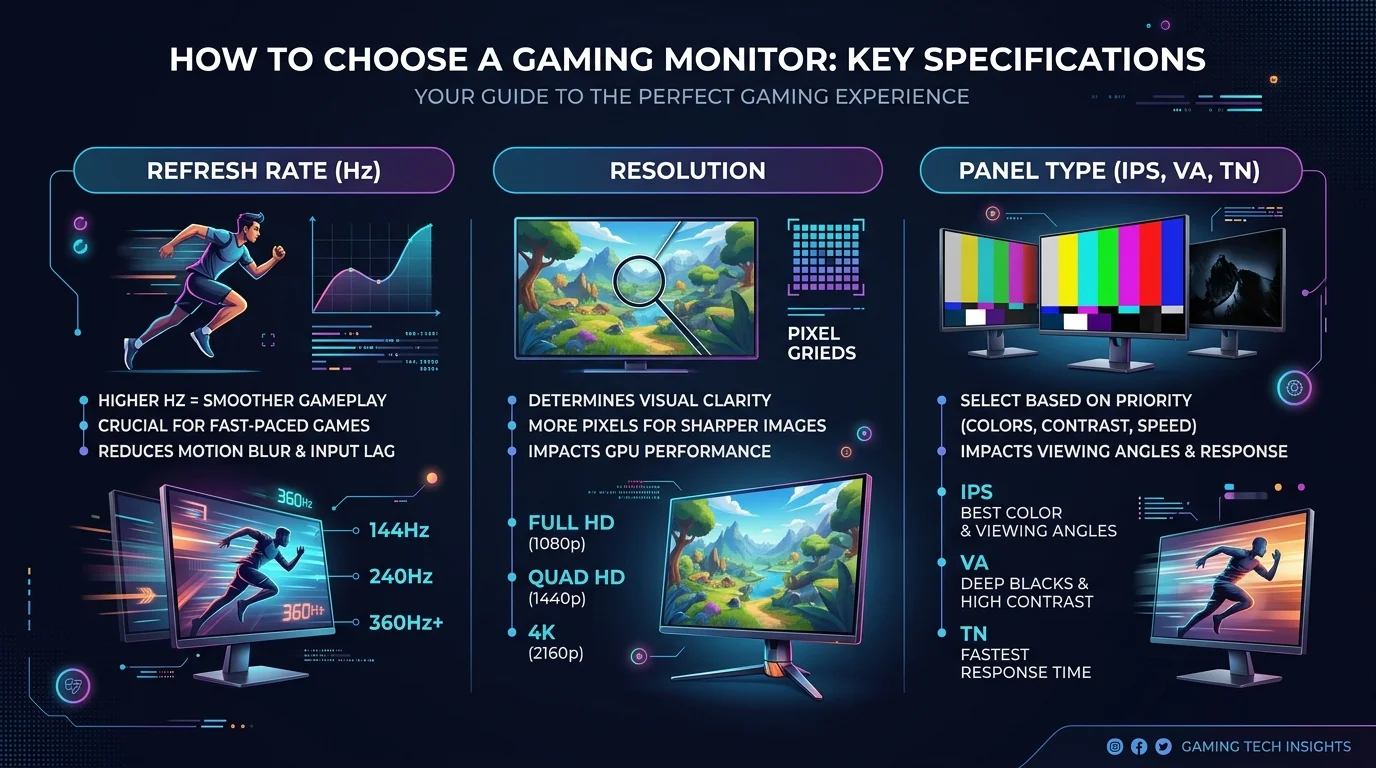
Why Your Monitor Matters More Than You Think
Your GPU means nothing if your monitor can't keep up. According to Tom's Hardware's 2026 monitor guide, the "best" monitor isn't the one with the flashiest specs, it's the one matched to your specific hardware and game genres. A great gaming monitor doesn't just display the game; it changes how the game feels, in ways a bad monitor quietly holds back without you even noticing.
Once you've picked your monitor, don't skip the setup step either, a panel with perfect specs still looks off if it isn't dialed in properly, so it's worth learning how to calibrate a monitor after your purchase to get accurate color and brightness.
The Core Factors You're Choosing Between
Resolution, how sharp the image looks
Refresh rate, how smooth motion feels
Panel type, color, contrast, and response time
HDR, brightness and dynamic range
Adaptive sync, tearing and stutter elimination
Ports, the bandwidth ceiling on everything above
Step 1: Match Your Monitor to Your GPU First
Before shopping for resolution or refresh rate, check what your graphics card can realistically push. This is the #1 mistake gamers make.
If your GPU can't hit at least 80 FPS at your target resolution in your most demanding game, drop a resolution tier. As Gaming PC Guru's 2026 buying guide notes, a 1440p 240Hz monitor running at 110 FPS will feel dramatically better than a 4K 144Hz screen struggling at 35 FPS in a demanding title.
Quick gut-check:
Your GPU tier | Recommended resolution |
|---|---|
Budget (e.g., RTX 5060, Arc B580) | 1080p or 1440p |
Mid-range | 1440p |
High-end (e.g., RTX 5080+) | 1440p or 4K |
Step 2: Pick Your Resolution
1080p Is Still a Smart Choice
Not dead, not even close. PC Game Check's 2026 guide confirms 1080p remains the practical pick for competitive players chasing maximum frame rates and for budget builds.
1440p Is the 2026 Sweet Spot
This is where most PC gamers should land. It balances sharpness with achievable performance without requiring a flagship GPU.
4K Is Gorgeous but GPU-Hungry
Even top-tier cards struggle in demanding titles at high refresh 4K, per Newegg's 4K monitor guide. Pixel density matters more than resolution bragging rights, a well-built 27-inch 1440p screen often looks sharper in practice than a poorly scaled 4K panel. If you're still unsure what the resolution numbers actually mean on screen, this breakdown of what is 4K resolution explains it in plain terms before you commit to a purchase.
Step 3: Understand Refresh Rate
60Hz is no longer an acceptable gaming standard as of 2026. Once you experience something faster, there's genuinely no going back.
Refresh rate | Verdict |
|---|---|
60Hz | Skip it, this is now the absolute floor, not a target |
144Hz | Formerly the gold standard, now the budget entry point |
165 to 180Hz | The real sweet spot for most mixed-genre gamers |
240Hz+ | Built for competitive esports (Valorant, CS2) where milliseconds decide matches |
WorldTechView's testing found that most modern mid-range GPUs comfortably sustain 120 to 180 FPS at 1080p or 1440p, which is exactly why 165 to 180Hz has become the practical standard rather than 144Hz.
Step 4: Choose the Right Panel Type
Panel type is the single decision that most affects color, motion clarity, and contrast.
Panel Comparison Table
Panel | Response Time | Contrast | Best For | Price |
|---|---|---|---|---|
TN | Fastest (0.5ms) | Weakest | Pure competitive esports | $ |
VA | Moderate, can smear | Excellent (up to 4,000:1) | RPGs, horror, cinematic single-player | $$ |
Fast IPS | Near-instant (1ms) | Good | All-round gaming, mixed genres | $$ |
OLED | Near-instant, per-pixel | Best (true blacks) | Best possible image, budget allowing | $$$ |
TN Panels: Fast but Flawed
Blazing-fast response times and the cheapest option, but colors are washed out and viewing angles are narrow. Best reserved for hardcore competitive players on a tight budget.
VA Panels: The Contrast King
Gfinity Esports' panel comparison confirms VA panels deliver contrast ratios that can approach OLED, though fast motion can still smear slightly, ideal for slower-paced, atmospheric games.
IPS Panels: The All-Rounder
HP's display technology guide notes that modern Fast IPS panels now hit 1ms response times while keeping accurate colors and wide viewing angles, the safest pick if you play a mix of genres.
OLED: The Premium Choice
Each pixel switches off individually, producing true blacks rather than dark gray, with unmatched motion clarity. It's the top recommendation if your budget allows it.
Step 5: Don't Get Fooled by HDR Labels
HDR400 certification is the entry-level tier and often underwhelms in real use. NextTechBuy's 2026 guide specifically warns against trusting HDR400 badges at face value. Instead, verify:
Peak brightness, ideally 600 nits or higher
Local dimming zones, more zones mean more accurate contrast
Independent review data, not just the box certification
Step 6: Get Your Adaptive Sync Sorted
Screen tearing, that ugly horizontal rip during fast motion, is solved by two competing technologies.
G-Sync is NVIDIA's proprietary hardware-based sync, offering consistent quality at a higher price.
FreeSync is AMD's open standard, making it cheaper and more widely available, though implementation quality varies by monitor.
Look specifically for FreeSync Premium Pro or full G-Sync certification rather than base-tier versions, these guarantee minimum performance standards instead of just carrying a logo.
Step 7: Check Your Ports
Some monitors advertise "DisplayPort 2.1" while only supporting the lower UHBR10 bandwidth tier instead of full UHBR20, silently capping the resolution-and-refresh-rate combination you can actually run. If you're chasing high-refresh 4K, confirm the actual bandwidth tier, not just the version number printed on the spec sheet.
Frequently Asked Questions
What refresh rate do I need for gaming in 2026?
For most players mixing genres, 165 to 180Hz is the practical sweet spot. Competitive esports players benefit from 240Hz+, while 60Hz should be avoided entirely.
Is OLED worth it for gaming?
Yes, if your budget allows. OLED delivers the best motion clarity and true blacks of any current panel technology, though it costs more than IPS or VA alternatives.
Should I buy a G-Sync or FreeSync monitor?
Match it to your GPU brand where possible. NVIDIA users benefit most from G-Sync or G-Sync Compatible certification; AMD users should prioritize FreeSync Premium or Premium Pro.
Is 1080p still good for gaming?
Yes, it remains the smart choice for competitive players chasing maximum frame rates and for budget-conscious builds paired with entry-level GPUs.
Does HDR400 mean a monitor has good HDR?
No. HDR400 is the lowest certification tier and often delivers a disappointing HDR experience. Look for real peak brightness figures and local dimming instead.
My Final Verdict
If you're still gaming on a 60Hz monitor, you're missing a genuinely different experience, not hype, a measurable upgrade in how games feel.
My recommendations by use case:
Competitive player on a budget: 1080p, high-refresh TN or Fast IPS
Most gamers: 1440p, Fast IPS, 165 to 180Hz, the smartest all-around buy in 2026
Best possible experience: 4K OLED with proper HDR and FreeSync Premium Pro or G-Sync support
Whichever tier fits your budget, match resolution and refresh rate to your GPU first, everything else follows from that one decision. And once it's set up, don't forget to calibrate a monitor properly so you're actually seeing everything it's capable of.