
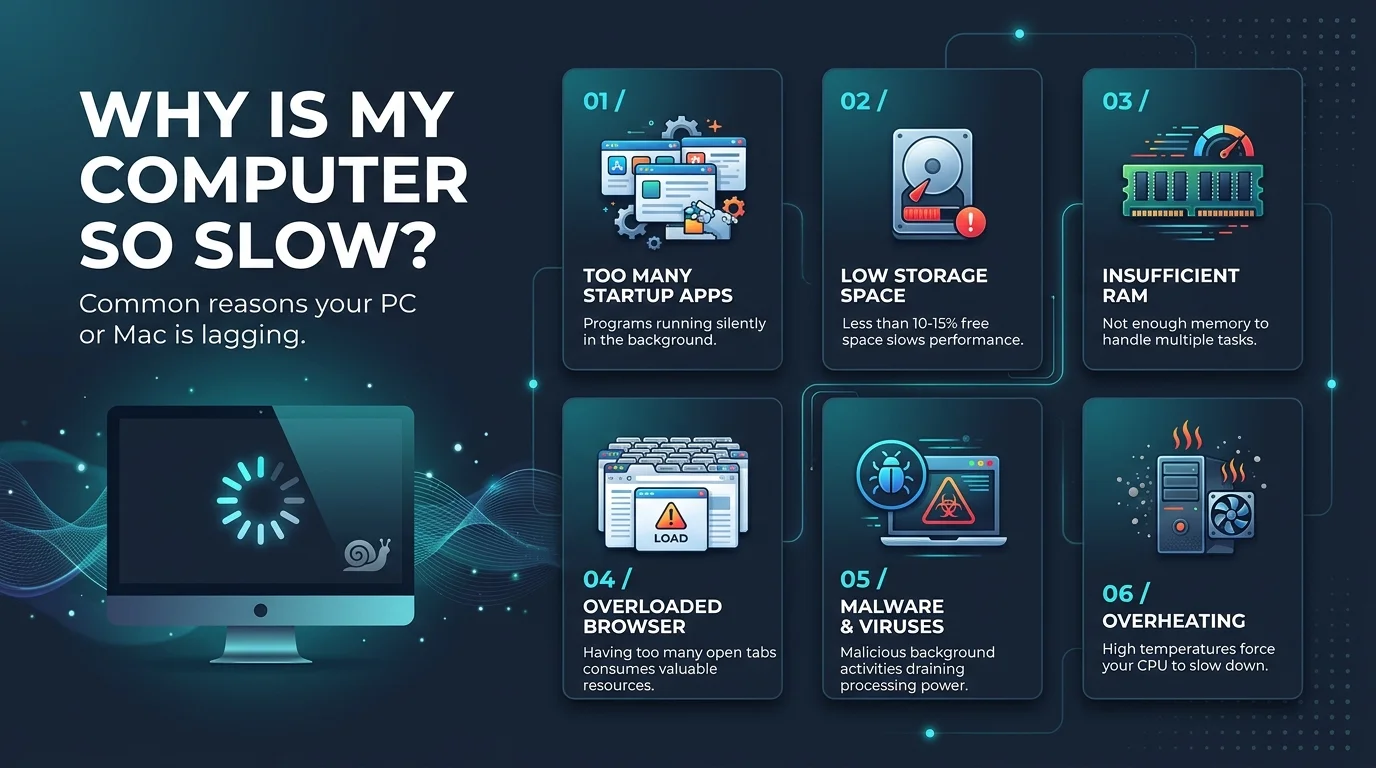
Why Is My Computer So Slow: A slow computer is usually caused by too many startup programs, an old HDD, low RAM, overheating, or malware. Open Task Manager (or Activity Monitor on Mac) to find the resource hog, then clean up startup apps, free storage, and cool the machine. Still slow after that? Upgrade an HDD to an SSD.
Your computer probably isn't dying.
I've watched people toss perfectly good laptops over problems that took ten minutes to fix.
So I dug through manufacturer guides, security warnings, and hardware research to find what really drags a machine down.
Stay with me, and you'll know exactly what's wrong.
Why Does a Computer Slow Down? The Short Answer
Let's skip the fluff. A computer running slow almost always means one resource is maxed out: your drive, your memory, your processor, or your heat budget.
Good news, though. That narrows the hunt fast.
Apple agrees on the basics. Its guide says your startup disk may not have enough free disk space, which is one of the first things to check on a slow Mac.
Use this table to match your symptom to a cause:
Symptom | Likely cause | First fix |
|---|---|---|
Slow only at startup | Too many startup programs or an HDD | Disable startup apps, or consider an SSD |
Slow after 10 minutes | Thermal throttling (heat) | Clean dust, improve airflow |
Fans loud, CPU always high | Malware or cryptojacking | Full antivirus scan |
Everything lags, many tabs open | Low RAM | Close tabs, add memory |
Slow, drive almost full | Low free storage | Delete files and unused apps |
Slow after an update | Outdated drivers or software | Update drivers and OS |
Cause #1: Too Many Programs Fighting for Resources
Here's the thing: most slowdowns aren't hardware failures. They're pileups.
Every app you install wants to launch at startup and run quietly in the background. Together, they eat your memory usage and CPU before you open a single tab.
According to Microsoft's guidance as summarized by SlashGear, too many programs, low RAM, and malware are classic culprits.
Step by Step: Find the Resource Hog
Here's my exact routine for Windows 11:
Press Ctrl + Shift + Esc to open Task Manager.
Click the CPU, Memory, and Disk headers to sort by the biggest hog.
Right click anything you don't need and choose End task.
Open Startup apps and disable what you don't need at boot.
Restart and compare.
On a Mac, use Activity Monitor. MacMost's walkthrough shows how to check memory pressure and background activity.
Cause #2: An Old Hard Drive Is Holding You Back
Now we get to the big one.
If your computer still boots from a mechanical HDD, that drive is probably your bottleneck. A hard disk relies on mechanical movement to read and write data, so every file load and app launch waits on it.
Not sure your drive is healthy? Run through our guide on how to check hard drive health before you decide anything.
Here's how the two drive types compare, using typical speeds from that same source:
Feature | HDD | SSD |
|---|---|---|
How it works | Mechanical moving parts | No moving parts |
Typical speed | Up to about 550 MB/s | 2,000 to 7,000+ MB/s |
Opening apps | Noticeable delay | Near instant |
Multitasking | Frequent lag | Smoother |
Real world results vary. In one user's own upgrade test, average boot time fell from 67 seconds to 18 to 19 seconds. Kingston's white paper also names the HDD as the main culprit when boots and launches drag. Yes, that's a vendor talking, so treat it as a best case.
How to Test Your Drive in Ten Minutes
Don't guess. Follow PrestoMyPC's ten minute test:
Open Task Manager and go to Performance.
Cold boot the machine.
Watch disk usage. Near 100% with low memory use points to the drive.
Why I Recommend an SSD Upgrade
I'll be straight with you. ITechGuides notes that an SSD helps most when it replaces an HDD, and that you should diagnose first if you already have one.
But if you're on a hard disk? Buy the SSD.
One Kingston commissioned test claimed an 82% performance boost. Vendor numbers run optimistic, but no other upgrade changes boot time, app loading, and file transfers this much for the money.
Before you buy, check your motherboard model so the drive's form factor and interface match. And if you're on a Mac, back up your MacBook first. Then clone your old drive or reinstall clean.
Cause #3: Heat and Thermal Throttling
Ever notice your laptop starts fast, then crawls after ten minutes?
That's often thermal throttling. When a processor gets too hot, it deliberately slows down to protect itself. Intel explains throttling and how to avoid it on boxed and laptop processors.
Your computer isn't broken. It's sweating. For a deeper dive, see our guide to laptop overheating causes and fixes.
Step by Step: Cool It Down
Power off and unplug the machine.
Blow dust out of the vents and fans with compressed air.
Move it off blankets and couches that block airflow.
Monitor temperatures with a free tool like HWMonitor or Core Temp.
Consider fresh thermal paste, because Corsair notes it wears out over time.
Cause #4: Malware and Cryptojacking
Here's a cause people overlook: someone else may be using your computer.
Cryptojacking means hidden code mines cryptocurrency on your machine. The FTC says poor device performance is one common symptom, and you can report it through the FTC's consumer site.
Watch for three signs, per Techlicious:
A sudden, big slowdown
Fans running constantly
Unusually high CPU usage
If that sounds familiar, run a full antivirus scan now. Mac users can start with our roundup of the best antivirus for Mac. Then update your browser and operating system, and keep an eye on the latest Chrome emergency update news.
Cause #5: Low Storage, Low RAM, and Outdated Software
These are the easy wins.
A nearly full drive slows everything down. Low RAM forces your system to juggle too much. Old drivers cause conflicts.
Quick Checklist: How to Speed Up a Slow Computer
Delete files and apps you don't use.
Run system updates and update drivers from the manufacturer's site.
Close extra browser tabs.
Restart weekly to clear background clutter.
Reduce visual effects like transparency and animations.
Frequently Asked Questions
Why is my computer so slow all of a sudden?
A sudden slowdown usually points to a runaway background process, malware, or a recent update. Check Task Manager first. If CPU is high while you're idle, scan for malware and disable new startup apps.
Does adding RAM make a computer faster?
Only if memory is the bottleneck. If Task Manager shows memory near its limit during normal use, more RAM helps. If disk usage is pinned at 100% on an HDD, an SSD helps more.
Is an SSD worth it for an old computer?
Yes, if it currently boots from an HDD. It's the clearest storage improvement. If you already have an SSD, diagnose the CPU, memory, and software first.
Can overheating slow down my computer?
Yes. This is thermal throttling: the processor lowers its speed to avoid damage. Cleaning dust and improving airflow usually fixes it.
Can a virus make my computer slow?
Yes. Malware, including cryptojacking, uses your CPU in the background. Common signs are loud fans, high CPU use, and heat while idle.
Final Verdict: What I'd Do Today
Here's the game plan.
First, open Task Manager and kill the startup junk. Second, scan for malware. Third, clean out the dust. That's free, and it fixes a lot of machines.
Still crawling? Check your drive. If it's an HDD, order an SSD today. It's the single most noticeable upgrade I know, and it can make an old computer feel new again.
And if the machine is simply too old to save, compare the best laptops for students in 2026 or the best laptops for writers before you replace it.
Don't spend another year staring at a loading screen.
Your time is worth more. Go fix it.