
If you've ever wished you could read a Vimeo video instead of watching it, you're not alone. Downloading Vimeo transcriptions is one of the smartest moves a creator, marketer, or educator can make in 2026. Transcripts make your content accessible, searchable, and endlessly reusable — all from a video you've already made. Whether you're using Vimeo's built-in AI-powered transcription tool or a third-party platform, the process is simpler than most people expect. This step-by-step guide covers every method, every transcript file format, and every tool you need — so you can stop leaving your video content on the table and start putting it to work. if you also work with audio files outside of Vimeo, check out this free audio to text converter with no signup required — it pairs perfectly with the workflow covered in this guide. Let's get into it.
What Is a Vimeo Transcription and Why Does It Matter?
A Vimeo transcription is simply the written version of everything spoken in your video. It converts spoken audio into readable, searchable text. Think of it as giving your video a second life on the page. Video transcription has gone from a "nice extra" to a genuine content strategy essential — especially for US-based creators competing in crowded niches.
Here's the thing most people miss: transcripts don't just help viewers. They help search engines, content teams, and accessibility advocates all at once. A single auto-generated transcript from a 10-minute video can fuel blog posts, social captions, email newsletters, and internal documentation. That's serious leverage from content you've already created.
Benefits of Having a Video Transcript
Transcription for accessibility is the most obvious benefit — but it's far from the only one. Transcripts serve deaf and hard-of-hearing viewers, non-native English speakers, and anyone watching in a noise-sensitive environment. Beyond that, they dramatically improve how long people stay on your page.
Research consistently shows that pages combining video with a full text transcript perform better in search results. Google can't watch your video. But it absolutely reads your transcript. That one fact alone makes transcription for SEO one of the smartest moves a content creator can make in 2026.
Use Cases — Accessibility, SEO, Repurposing Content
Repurposing video content with transcripts is where the real magic happens. One 20-minute interview becomes a blog post, three LinkedIn updates, a Twitter thread, and a downloadable PDF guide. That's five pieces of content from a single recording session. No extra filming. No extra editing.
From an SEO angle, embedding a transcript below your video turns a previously invisible page into a keyword-rich asset. Search engines index every word. For accessibility, transcripts support ADA compliance — which matters legally if your content reaches a US business audience. The benefits of video transcription truly stack up fast.
Vimeo's Built-In Transcription Capabilities Overview
Vimeo offers native AI-powered transcription starting on the Starter plan, priced at $12 per month billed annually. That's genuinely affordable for the feature set you get. The Vimeo AI transcription tool auto-generates captions, creates searchable transcripts, and supports translation into dozens of languages — all without leaving your dashboard.
The Vimeo Advanced plan unlocks additional features including AI-generated video summaries, chapter timestamps, and bulk transcription options. For most individual creators and small teams, the Starter plan covers everything needed to generate, edit, and download Vimeo transcriptions efficiently.
How to Generate a Transcript on Vimeo (Before You Download)
Before you can download anything, Vimeo needs to create the transcript first. The good news is that Vimeo AI transcription handles this automatically once you're on a paid plan. You upload your video, enable captions, and the system does the rest. No technical skills required whatsoever.
It's worth knowing that transcript generation speed depends on video length and audio clarity. A clean 10-minute video typically processes in under two minutes. Longer or noisier recordings take a bit more time. Either way, it's dramatically faster than any manual vs automated transcription comparison would suggest — AI wins on speed every single time.
Using Vimeo's Native AI Transcription Feature
Log into your Vimeo account and open your video manager. Click on the video you want to transcribe. Navigate to the "Distribution" section within your Vimeo video settings. From there, select "Subtitles" and click "Generate Captions." Vimeo's AI-powered transcription engine processes your audio and returns a complete, timestamped transcript directly in your dashboard.
What makes this feature genuinely useful is the inline editor. You can fix errors, adjust timing, and update wording without re-uploading the video. The Vimeo online video editor handles everything in one place — a workflow advantage that standalone transcription tools simply can't match.
How to Enable Auto-Generated Captions on Vimeo
Enabling auto CC (auto closed captions) on Vimeo takes about 60 seconds. Open your video settings, click the "Distribution" tab, then select "Subtitles." You'll see an option to add a caption track. Choose "Autogenerate Captions" and select the primary language of your video. Vimeo then processes the audio and delivers a complete caption track — ready to review, edit, and download.
One underrated tip: always review the auto-generated captions before publishing. Vimeo AI transcription is accurate for clear audio but stumbles on proper nouns, industry jargon, and heavy accents. A quick 10-minute review pass will catch 90% of errors before anyone else sees them. For more general tips on getting clean transcriptions from any audio source, the how-to guides at AudioToTextify are worth bookmarking.
Supported Languages and Accuracy Expectations
Vimeo currently supports AI-powered transcription in English, Spanish, French, German, Portuguese, Italian, and several other widely spoken languages. English transcription delivers the highest accuracy — typically between 85% and 95% for recordings with clean audio. Non-English languages perform slightly below that range depending on dialect and audio quality.
Transcript accuracy tips worth knowing: accuracy drops noticeably when multiple speakers talk over each other, when technical vocabulary is heavy, or when recording environments are noisy. For mission-critical content, always plan a human review pass after AI transcription software generates the first draft. Think of the AI as your fast first draft — not your final product.
How to Download a Vimeo Transcript (Step-by-Step)
This is the part you came for. How to download Vimeo transcript files from your own account is genuinely simple — once you know where to look. The process takes under three minutes from start to finish. You need to be the video owner or have manager-level access to complete these steps directly through Vimeo.
If you're working with a video you don't own, that's a different situation entirely — and we cover it in the next section. For now, here's the clean, step-by-step process for downloading transcripts from videos in your own Vimeo library.
Step 1 – Open Your Vimeo Video Settings
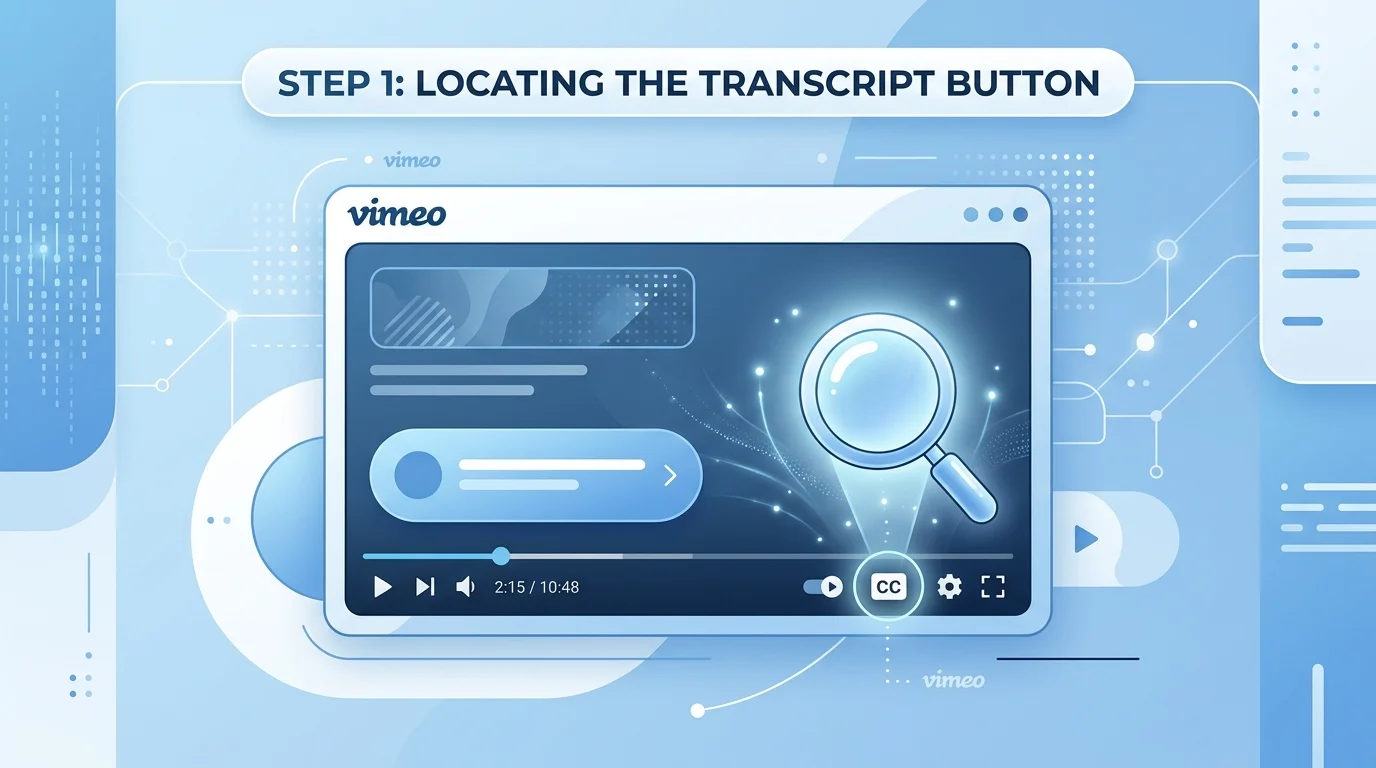
Sign into Vimeo and head to your video library. Find the video whose transcript you need. Hover over it and click the settings gear icon — or click the video title and select "Settings" from the management panel. This opens your full Vimeo video settings dashboard where all caption and subtitle tools are housed.
Make sure your video already has captions generated before proceeding. If you haven't generated them yet, go back to the previous section and complete that step first. No captions means no transcript to download — it's that straightforward.
Step 2 – Navigate to the Captions/Subtitles Tab
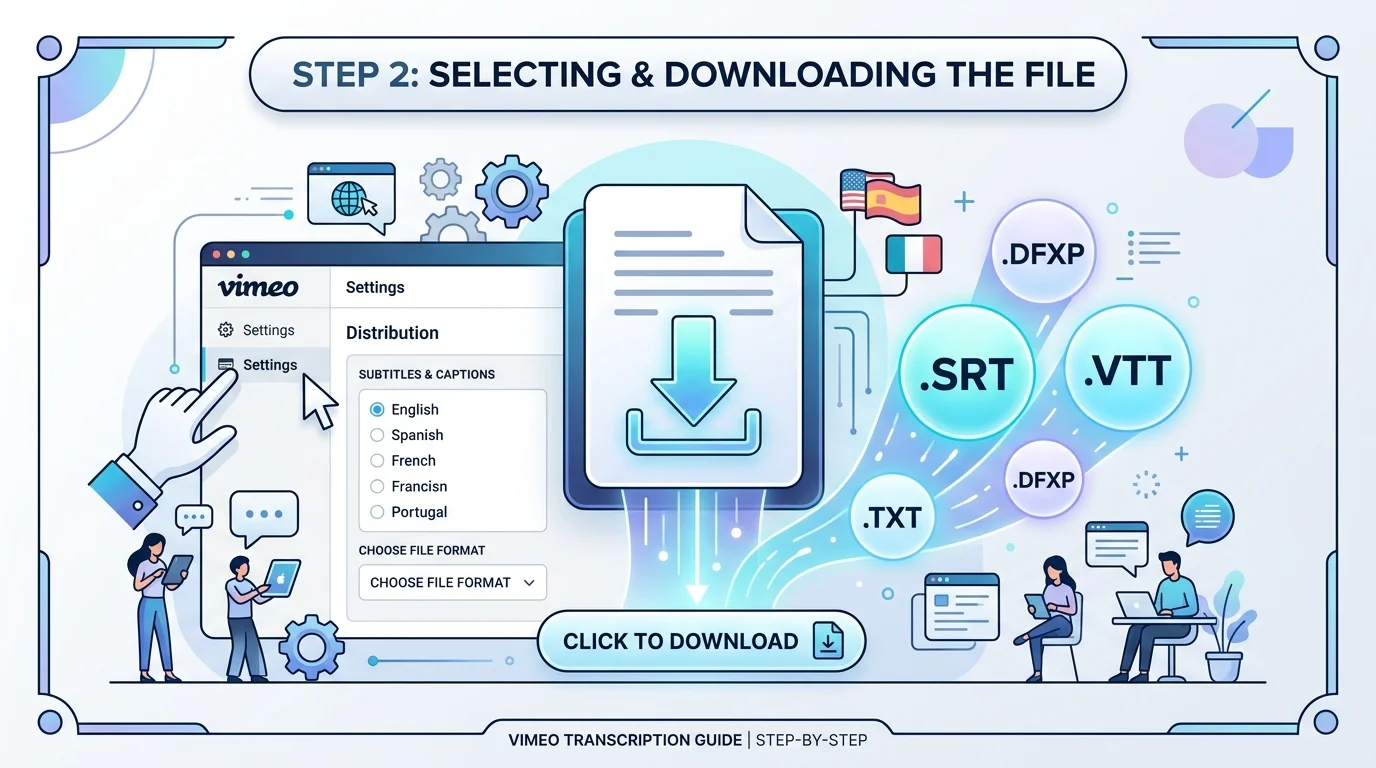
Inside your video settings, click the "Subtitles" tab. Depending on your plan and interface version, this may appear under the "Distribution" section. You'll see a list of any existing caption tracks attached to this video. If auto CC was previously generated, your transcript track will be listed here with a language label and creation date.
If you see multiple caption tracks — perhaps one auto-generated and one manually uploaded — select the one you want to download. The Vimeo transcript panel clearly labels each track so you can identify the right one without confusion.
Step 3 – Export or Download the Transcript File
Click the three-dot menu icon next to your chosen caption track. A small dropdown appears with options including "Edit," "Delete," and "Download." Click Download. Your browser will immediately save the transcript file to your default downloads folder. The whole action takes about five seconds once you're in the right place.
How to export Vimeo captions is genuinely this simple for video owners. The downloaded file will be in SRT format by default — which works directly on YouTube, Facebook, LinkedIn, and most other major platforms without any conversion needed.
Available File Formats (SRT, VTT, TXT)
Vimeo natively exports transcripts in SRT file and VTT file formats. Each serves a distinct purpose depending on where you plan to use the transcript next.
Format | Full Name | Best Used For | Contains Timestamps? |
|---|---|---|---|
SRT | SubRip Subtitle | YouTube, Facebook, LinkedIn uploads | Yes |
VTT | Web Video Text Tracks | HTML5 web players, embedded video | Yes |
TXT | Plain Text | Blog posts, documents, email copy | No |
DOCX | Word Document | Editorial review, collaborative editing | No |
Portable Document | Client deliverables, reports | No |
For TXT export, DOCX, or PDF formats, use a third-party tool like Notta or convert your SRT file manually using a free subtitle editor. The format you choose should match exactly where the transcript is going next.
How to Download Transcripts from Vimeo Videos You Don't Own
Not every transcript you need lives in your own account. Maybe it's a colleague's training video, a webinar you attended, or a public tutorial from an industry expert. How to get transcript from Vimeo video files you don't own is a common question — and the answer depends on the video's privacy settings.
Always respect copyright and platform terms of service before extracting any transcript. Using transcripts for personal reference or internal notes is generally fine. Republishing or monetizing someone else's transcript without permission is a different story entirely. With that said, here are your legitimate options.
Can You Download Transcripts from Public Vimeo Videos?
Vimeo doesn't provide a direct download button for transcripts on videos you don't own — even public ones. However, if the video owner has enabled transcript view on their embedded player, you can read the full transcript directly in the Vimeo player interface. Click the Vimeo captions icon and open the transcript panel to read along as the video plays.
For short videos, manually copying this text is perfectly workable. For longer content, that approach gets tedious fast. That's where third-party Vimeo transcript generator online tools become genuinely valuable — and we cover those in the next section.
Using Third-Party Tools to Extract Transcripts via URL
Third-party Vimeo transcription tools like Proactor AI, Notta, and Otter.ai let you paste any public Vimeo video URL directly into their platform. The tool fetches the audio, runs it through Automatic Speech Recognition (ASR), and delivers a downloadable transcript — often in under 60 seconds. It's the fastest practical solution for videos outside your own account.
Here's a quick comparison of how the top tools handle URL-based Vimeo transcription:
Tool | Paste Vimeo URL? | Free Tier Available? | Avg. Processing Time | Export Formats |
|---|---|---|---|---|
Proactor AI | Yes | Yes (limited) | Under 1 minute | TXT, DOCX |
Notta | Yes | Yes (2hrs/month) | 2–5 minutes | TXT, DOCX, SRT, PDF |
Otter.ai | Yes | Yes (limited) | 2–4 minutes | TXT, DOCX |
OpenAI Whisper | Via API only | Free (self-hosted) | Variable | TXT, SRT |
OpenAI Whisper is worth a special mention here. It's a free, open-source AI-powered transcription model that delivers exceptional accuracy. However, it requires technical setup — not ideal for non-developers. If you're already comfortable converting audio files, pairing Whisper with a tool like AudioToTextify's MP3 to text converter gives you a powerful no-cost workflow for longer recordings.
What About Password-Protected Vimeo Videos?
Password-protected Vimeo videos present a hard wall for third-party tools. Most external platforms require a publicly accessible audio stream to generate a transcript. Even if you personally have the password, the tool typically cannot authenticate and access the video's audio track.
Your best option here is direct communication. Reach out to the video owner and request the transcript file or caption track directly. If you have legitimate access — for example, it's a company training video and you're an employee — ask your IT or content team to download and share the transcript from the owner's account.
Best Tools to Transcribe and Download Vimeo Videos
Picking the right transcription tool is genuinely important. Accuracy, speed, language support, pricing, and export flexibility all vary significantly between platforms. Here are the six best tools for anyone looking to transcribe Vimeo video to text — whether you own the video or not.
This isn't a generic list. Each tool below has been evaluated specifically for Vimeo use cases, including URL-based extraction, export format variety, and real-world accuracy on typical video content. The AI transcription software comparison below goes deeper than most competitor articles bother to go.
1. Vimeo's Native Transcription Tool
Vimeo's native transcription tool is the obvious first choice for video owners. It's built directly into the platform — no switching between apps, no re-uploading files. The Vimeo Starter plan transcription feature activates at $12 per month and includes auto-generated captions, transcript editing, and AI translation into 30+ languages.
The Vimeo Advanced plan adds AI video summaries, chapter timestamps, and bulk transcription — critical features for teams managing large video libraries. The standout exclusive feature is voice cloning, which lets you dub your video's audio track into another language while preserving the original speaker's voice. No competitor in this list offers that natively.
Feature | Starter Plan | Advanced Plan |
|---|---|---|
Auto-generated captions | Yes | Yes |
Transcript download | Yes | Yes |
AI translation (30+ languages) | Yes | Yes |
Chapter timestamps | No | Yes |
AI video summaries | No | Yes |
Voice cloning / AI dubbing | No | Yes |
Bulk transcription | No | Yes |
2. Notta
Notta is one of the strongest third-party Vimeo transcription tools available for teams. It supports 58 languages for transcription and translation across 40+ — numbers that genuinely dwarf most competitors. The platform's AI summary feature automatically distills long videos into concise action items, which is a huge time-saver for meeting recordings and webinars.
Vimeo vs Notta transcription comes down to one key distinction: Notta is purpose-built for collaborative review and multi-format export. It exports in TXT, DOCX, SRT, XLSX, and PDF — giving your team the flexibility to use transcripts across every workflow. The free plan covers two hours of transcription per month. Paid plans unlock higher limits and priority processing speed.
3. Otter.ai
Otter.ai operates as an AI meeting agent rather than a pure transcription tool. It transcribes, summarizes, identifies speakers, and generates action items — all automatically. Paste your Vimeo video link and Otter processes it end-to-end. The result is more than a transcript. It's a structured, searchable document your whole team can query.
The limitation worth knowing: Otter's focus on meetings makes it less flexible for non-meeting video content like tutorials, marketing videos, or creative projects. Natural language processing (NLP) powers its summarization engine — which is impressive for business content but occasionally over-simplifies nuanced creative material.
4. Proactor AI
Proactor AI is the speed champion of this list. Paste any public Vimeo video URL, select your language, and receive a complete transcript in under 60 seconds. Beyond basic transcription, it adds AI-generated summaries, key takeaways, insights, and even a to-do list — features that turn a raw transcript into an immediately actionable document.
Privacy-conscious users will appreciate this: Proactor AI processes your content in real-time and deletes all data immediately after transcription completes. No stored recordings. No data retention. For teams handling sensitive client or business content, that's a meaningful differentiator that most transcription tools for creators can't claim.
5. ElevenLabs
ElevenLabs is the power user's choice. Their platform combines audio-to-text conversion, voice cloning, AI dubbing, and multilingual AI translation in one ecosystem. The API is exceptionally generous compared to rivals — making it the top pick for developers building transcription workflows at scale.
The honest drawback: ElevenLabs' Pro plan starts at $22 per month. Their free tier only handles very small demo files. For individual creators just wanting a quick transcript download, the cost-to-value ratio doesn't quite match simpler tools. But for agencies, SaaS teams, and developers? It's arguably the most powerful platform on this list.
6. Riverside
Riverside targets podcasters and marketing teams with studio-quality audio workflows. It offers two free hours of video-to-text transcription monthly — though free exports carry a Riverside watermark. Remove the watermark and unlock unlimited transcription on Pro plans, which also add multistreaming, presentation recording, and branded export templates.
What sets Riverside apart is audio quality processing. It records local audio tracks independently for each participant — meaning even in a shaky internet interview, the transcript source audio is pristine. That directly translates to higher transcription accuracy compared to tools that work from compressed, streamed audio.
How to Convert Your Vimeo Transcript into Different Formats
Downloaded your transcript but need it in a different format? You're not stuck. Converting Vimeo video to text output in various formats is straightforward — and most conversions take under five minutes using free tools. This step matters because different platforms, editors, and workflows each prefer different file types.
Your SRT file works great on YouTube. But your blog editor wants plain text. Your client expects a Word document. Knowing how to convert between transcript file formats quickly makes your transcript genuinely portable — usable everywhere without starting from scratch each time. This is especially useful if you regularly work with multiple audio and video formats like MP3, MP4, WAV, M4A, AVI, MOV, and WMV across different projects.
Converting SRT to Plain Text (TXT)
Open your SRT file in any basic text editor — Notepad on Windows or TextEdit on Mac. The file will display transcript text interspersed with sequence numbers and timestamp lines. Manually delete those lines and save the file as .TXT. For longer transcripts, free tools like a subtitle editor automate this conversion instantly.
Alternatively, paste your SRT content into ChatGPT and ask it to strip timestamps and return clean paragraph text. This works surprisingly well for long transcripts and takes about 10 seconds. ChatGPT won't transcribe a video directly — but it's excellent at reformatting transcript text once you already have it. If you frequently convert audio formats before transcribing, AudioToTextify's WAV to text tool is a reliable free starting point.
Converting Transcripts to Word or Google Docs
Copy your plain text transcript and paste it into Google Drive via Google Docs, or open Microsoft Word and paste directly. Use "Find and Replace" to clean up any remaining timestamp artifacts or number sequences. For SRT-to-DOCX conversion without manual cleanup, tools like Notta handle the DOCX export automatically — preserving paragraph structure and making collaborative editing far smoother.
Google Drive also lets you share transcripts instantly with teammates, clients, or editors without emailing large files back and forth. For teams working across time zones, this collaborative approach to transcript editing is a genuine workflow upgrade over traditional file-sharing methods.
Using Transcripts to Create Subtitles or Captions
Your downloaded SRT file uploads directly to YouTube, Facebook, LinkedIn, Twitter/X, and most other major video platforms. For Vimeo itself, navigate back to your video's Subtitles tab and upload the edited SRT to replace or supplement the auto-generated transcript. This is especially useful when you've manually corrected errors in the downloaded file and want to push the clean version back to your video.
Transcribing videos for closed captions using your existing transcript is far faster than generating captions from scratch. Upload the SRT, review the timing sync, and adjust any lines that appear too early or too late. Most video platforms include a built-in caption timing editor — no separate software needed.
Tips for Getting Accurate Vimeo Transcriptions
Here's something most transcription guides won't tell you: the tool you choose matters far less than the audio you feed it. Audio quality for transcription is the single biggest variable affecting accuracy — more than AI model quality, processing speed, or plan tier. Get the audio right and everything downstream improves dramatically.
These tips apply whether you're using Vimeo AI transcription, Notta, Proactor AI, or any other platform. They're universal best practices that will cut your post-processing correction time in half — at minimum. And if you're transcribing on a mobile device, the guide to transcribing audio on iPhone covers mobile-specific audio tips that complement everything in this section.
Ensure Clear Audio Quality Before Uploading
Use a dedicated USB or XLR microphone rather than your laptop's built-in mic. Record in a small, carpeted room to naturally reduce echo and reverb. Keep your microphone 6–8 inches from your mouth at a slight angle — directly in front causes plosive popping sounds that confuse Automatic Speech Recognition (ASR) engines significantly.
Noise reduction for transcription starts before you hit record. Close windows, silence your phone, disable desktop notifications, and check for HVAC hum in your recording space. These small environmental controls consistently push AI-powered transcription accuracy above 90% — even for speakers with regional accents.
Speak Slowly and Avoid Background Noise
Coach your speakers to slow down by about 20% compared to natural conversation speed. Enunciate word endings clearly — particularly "-ing," "-ed," and "-tion" suffixes that machine learning transcription models frequently mishear when speech is rushed. Run three or four warmup sentences before the actual recording begins.
Real-time transcription tools are particularly sensitive to speaking pace. If your video involves multiple speakers, remind everyone to avoid talking over each other. Crosstalk is one of the most consistent accuracy killers across every AI transcription platform currently available. Android users recording on the go can find device-specific audio tips in this guide to transcribing audio on Android.
Review and Edit Auto-Generated Transcripts
Never publish an auto-generated transcript without a human review pass — not even from the best tools. AI makes predictable, repeatable mistakes: it confuses homophones (their/there/they're), mangles proper nouns, and occasionally invents words that sound similar to what was actually said. These errors are small individually but embarrassing in print.
Budget roughly 15 minutes of review time per 30 minutes of video content. Read the transcript while playing the video at 0.75x speed in a separate tab. This is the most efficient hybrid transcription method — AI speed for the first draft, human precision for the final pass.
Use Timestamps for Long-Form Videos
For videos longer than 10 minutes, transcript navigation becomes a real usability issue. Timestamps solve this instantly. The Vimeo Advanced plan auto-generates chapter timestamps alongside transcripts. For other tools, add manual timestamps every two to three minutes using the format [00:02:30] inline in your text.
Timestamped transcripts are dramatically more useful for viewers, editors, and search engines alike. They turn a long, intimidating wall of text into a navigable document that people actually engage with — rather than skim past.
How to Use Your Vimeo Transcript for SEO and Content Repurposing
Your Vimeo transcript is far more valuable than most creators realize. It's not just a text version of your video — it's a content asset that can drive organic search traffic, fuel weeks of social content, and improve accessibility compliance all at once. Most creators use about 10% of what their transcripts are actually capable of delivering.
Think of it this way: you spent hours planning, recording, and editing that video. The transcript lets you publish that same intellectual effort across five different channels simultaneously. That's an extraordinary return on a single creative investment — and it costs nothing extra once the transcript exists.
Adding Transcripts to Your Website for Search Visibility
Embed your Vimeo video on a dedicated page and publish the full transcript as text content directly below it. Search engines index every single word of that transcript. This transforms a previously invisible video into a keyword-rich landing page that ranks for long-tail search queries your competitors' video-only pages simply cannot capture.
For maximum SEO impact, add structured data markup (VideoObject schema) to the page alongside your transcript. This signals to Google exactly what the page contains — increasing your chances of appearing in rich results. Transcription for SEO is one of the highest-ROI content moves available to video creators in 2026.
Repurposing Transcripts into Blog Posts or Social Content
Repurposing video content with transcripts is the fastest content multiplication strategy available. Extract your strongest insights and reshape them into a long-form blog post. Pull punchy standalone sentences for LinkedIn posts. Break down key points into a Twitter/X thread. Quote compelling moments in your email newsletter.
One well-produced 15-minute video can realistically generate all of the following from a single transcript:
Content Type | Source from Transcript | Platform |
|---|---|---|
Long-form blog post | Full transcript, restructured | Website / Medium |
LinkedIn article | Key insights, expanded | |
Twitter/X thread | Punchy one-liners pulled verbatim | Twitter/X |
Email newsletter | Opening hook + 3 key takeaways | Email list |
Instagram caption | Single powerful quote | |
YouTube description | Summary paragraph | YouTube |
Internal training doc | Step-by-step sections | Google Drive |
Improving Accessibility with Closed Captions
Upload your SRT file as closed captions on every platform where your video lives. This serves deaf and hard-of-hearing viewers first — but the benefits extend well beyond that audience. Non-native English speakers, viewers in sound-sensitive environments, and people with attention processing differences all benefit meaningfully from accurate captions.
Captioned videos consistently outperform uncaptioned ones across engagement metrics. Facebook's own internal research found that captioned video ads deliver 12% more watch time than uncaptioned equivalents. Transcribing videos for closed captions isn't just an accessibility checkbox — it's a measurable performance upgrade for every video you publish.
Frequently Asked Questions
Is there a way to transcribe a Vimeo video?
Yes — Vimeo's native AI transcription tool auto-generates transcripts on paid plans, or you can use third-party tools like Notta or Proactor AI by pasting the video URL.
How do I extract a Vimeo transcript for free?
Paste any public Vimeo video URL into a free tool like Proactor AI or Notta's free tier to extract and download a transcript at no cost.
Where is the transcript on Vimeo?
Go to your video settings, click the "Distribution" tab, then select "Subtitles" — your transcript lives inside the caption track listed there.
Can I get a transcript of a video for free?
Yes — tools like Notta (2 hours/month free), Riverside, and Proactor AI all offer free tiers that let you generate and download transcripts without paying.
Read more: How to Transcribe Audio on iPhone [2026 Guide]