The fastest way to edit a PDF is to open it in a dedicated PDF editor such as Adobe Acrobat Pro, click the text, and type. Word, Mac Preview and free online tools handle simple jobs, but they can shift your layout or limit what you can change. Scanned files need OCR first.
You've got a PDF. It has one typo. And the deadline was ten minutes ago.
I've been there, and it's painful. The good news? You can fix it in about two minutes if you pick the right tool. Pick the wrong one, and your fonts scatter like startled pigeons.
So in this guide, I'll walk you through five methods, the exact steps for each, and the one tool I'd actually pay for. Let's get into it.
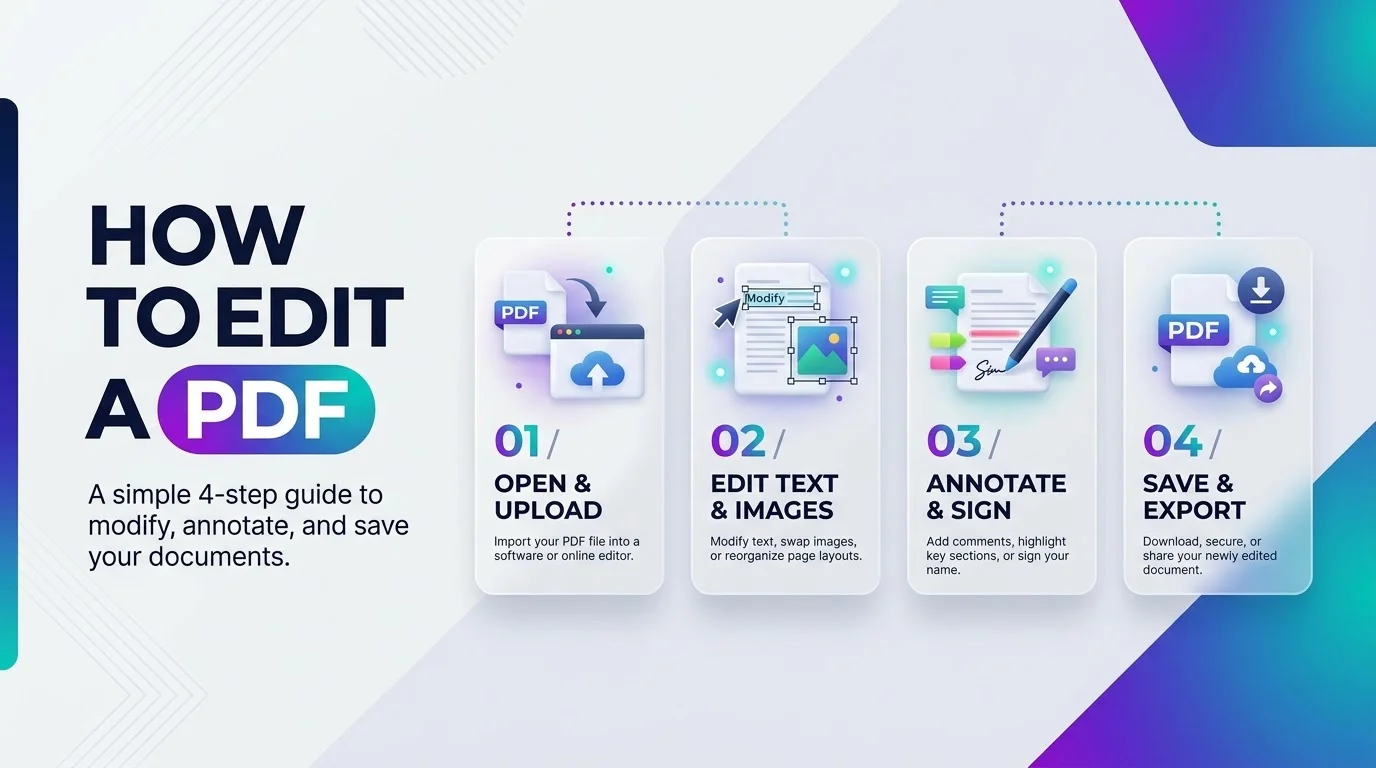
Which PDF Editing Method Should You Pick? (Quick Comparison)
Before we dive deep, here's the cheat sheet. Honestly, most people only need one row of this table. Find the job you need done, check the layout accuracy, and note whether your file leaves your computer. That last part matters more than you'd think, especially with contracts, invoices and anything with personal details inside.
Method | Edit existing text | Scanned PDFs (OCR) | Redaction | Layout accuracy | Where your file goes |
|---|---|---|---|---|---|
Microsoft Word | Yes, via conversion | Limited | No | Can shift | Stays on your device |
Mac Preview | No, markup only | No | Yes | Original kept | Stays on your device |
Free online editors | Varies by tool | Varies | Varies | Varies | Uploaded to a server |
LibreOffice Draw | Basic | No | No | Text boxes may split | Stays on your device |
Adobe Acrobat Pro | Yes, in place | Yes | Yes | Original kept | Desktop app or Adobe cloud |
See the pattern? The more control you want, the more a dedicated editor pays off.
Why Is a PDF So Hard to Edit?
Here's the deal. PDFs were never built for editing. That's the whole point of them.
A PDF locks your text, images and fonts into a fixed layout document, so it looks identical on every device. That's brilliant for sharing. It's awful when you need to change one word.
The PDF Association explains that a PDF holds a complete description of a fixed layout document, with everything needed to display it. The current specification, ISO 32000-2:2020, has also been free to download since April 2023.
Once you get this, every tool's quirks suddenly make sense.
Method 1: Edit a PDF in Microsoft Word
If you already own Word, this is the quickest free route. It works by converting your PDF into a Word file, so think of it as a convert PDF to Word shortcut. It's decent for simple, text heavy files, and it's risky for anything fancy like brochures or multi column layouts.
Here's how to do it:
Go to File > Open in Word.
Select your PDF.
Click OK when Word warns that it will make a copy.
Make your edits.
Choose Save As and pick PDF.
Microsoft's own guide confirms the original PDF stays untouched. However, lines and pages may break in different places.
Quick tip: keep a safety copy before you start. Here's how to duplicate a Word document in a few clicks.
So, is it perfect? Nope. But for a quick fix, it's solid.
Method 2: Mark Up a PDF in Mac Preview
Preview is free, and it's already on your Mac. Sadly, it can't edit PDF text. Apple says so plainly in its Preview guide. Still, it's brilliant for feedback, signing and quick notes. Think of it as a digital pen rather than a digital eraser. If you only need to comment or sign, you can stop reading right here.
What you can do is add PDF annotations: text boxes, highlights, shapes, notes and signatures.
Want to lock your changes in? Choose File > Print, then Save as PDF. That flattens the annotations so nobody can tweak them later.
Preview also has a redaction tool. Apple notes the redaction becomes permanent once you close the document, so work on a duplicate. Smart tip, right?
Method 3: Use a Free PDF Editor Online
Maybe you don't want to install anything. Fair enough. A free PDF editor in your browser can handle basic jobs, and you'll have it open in seconds. Just know the limits before you start. Most free plans let you add things, but only a few let you change what's already on the page. Here's what I found when I compared the big names.
Adobe's free online editor adds comments, highlights, drawings and signatures. It won't change existing body text, which needs a paid plan.
Smallpdf lets you add text, images and shapes with almost no learning curve.
Canva imports PDFs up to 500 pages and 300 MB, then breaks them into editable elements.
Now, the catch. Online tools upload your file to someone else's server. For anything sensitive, think twice.
Method 4: Edit a PDF with LibreOffice Draw (Free and Open Source)
LibreOffice Draw is the free, open source option. It works on Windows, Mac and Linux, and it runs offline. That's a big win if privacy is your top concern. The trade off is polish. Draw treats your PDF like a drawing, so it needs a little patience.
Here's the process:
Open LibreOffice Draw.
Go to File > Open and choose your PDF.
Click a text block and edit it.
Choose File > Export As > Export as PDF.
As TechRepublic notes, Draw suits basic edits, not interactive forms. Long paragraphs often arrive split into separate text boxes, which gets messy fast.
How Do You Edit a Scanned PDF with OCR?
A scanned PDF is just a picture of a page. You can't click it, select it or fix a typo in it. Frustrating, I know.
The fix is OCR, or optical character recognition. It reads the shapes of letters and turns them into real text, which makes your editable PDF possible. Here's how it works in Adobe Acrobat:
Open the scanned file.
Click the Edit PDF tool.
Let Acrobat run OCR automatically.
Edit the text.
Save a new copy.
Then proofread everything. OCR is impressive, but it still mistakes a "1" for an "l" now and then.
How to Redact a PDF the Right Way
Please don't draw a black box over sensitive text and call it done. The words are often still there underneath, and anyone can copy them out. That's a nightmare waiting to happen.
To redact a PDF properly, use a true redaction tool that deletes the content for good. Then deal with PDF metadata, which includes author names, edit history and other hidden details.
This is a classic mistake. The NSA flagged leftover metadata as one of the most common redaction failures, as Nextgov reported. Australia's cyber agency also published a test of Acrobat's redaction features, and it's worth skimming if the stakes are high.
Finally, try to select and search the redacted area. If nothing comes back, you're good.
Why I'd Pay for Adobe Acrobat Pro
I've juggled all the tools above. Here's my honest take: they're fine for emergencies, but they struggle with real, repeat work. Word shifts your layout. Preview can't touch your text. Free web tools cap your edits, and some upload your private files. If you edit PDFs weekly, those small headaches add up fast.
With Adobe Acrobat Pro, you click the text and type. That's it. Adobe's tutorial shows you how to fix typos, restyle text, and resize, crop or replace images inside the original file.
Here's the whole process:
Open your PDF and choose All tools > Edit a PDF.
Click any text block and start typing.
Adjust the font, size or color in the format panel.
Click an image to crop, resize or replace it.
Save, and you're done.
Got a scanned file? It runs OCR for you. Got a sensitive file? It has real redaction and password restrictions built in. One tool covers all of it.
And you don't have to take my word for it. Adobe offers a 7 day free trial of Acrobat Pro, so you can test it on your own ugliest PDF.
Want people to type into your file instead? Learn how to make a PDF fillable next.
Why Can't I Edit My PDF? (Quick Fixes)
Sometimes you do everything right, and the text still won't budge. Annoying, right? Usually it's one of three culprits, and each has a simple fix. Check these in order, because the first one is the most common cause by far.
The PDF is a scan. Run OCR first, then edit.
A permissions password is set. The author restricted editing, so you'll need to contact them for access.
You're in the wrong mode. Make sure the Edit PDF tool is active, not the Comment tool.
Also, if you only need a page as a picture, check JPG vs PNG before you export.
Frequently Asked Questions About Editing a PDF
Can I edit a PDF for free?
Yes, for basic jobs. Word, Mac Preview, LibreOffice Draw and free online editors cover annotations and simple text changes. However, editing existing body text in complex files usually needs a paid editor.
Can I edit a scanned PDF?
Yes, but you need OCR first. OCR turns the picture of text into real, selectable text, which you can then edit. Always proofread the result for small recognition errors.
Can I edit a PDF in Word?
Yes. Open the PDF in Word, accept the conversion prompt, edit, then save as a PDF. Expect some line and page breaks to shift.
Can I edit PDF text in Mac Preview?
No. Preview offers annotations, signatures and redaction, but Apple says you can't edit the text itself.
Is it safe to edit a PDF online?
It depends on the tool and the file. Online editors upload your document to a server, so avoid them for sensitive files and use an offline editor instead.
How do I redact a PDF permanently?
Use a true redaction tool, not a black box. Then remove hidden metadata and test that the redacted text can't be searched or copied.
Final Verdict: Which Method Should You Use?
Let me make this simple.
Need a tiny tweak on a text only file? Use Word. Just marking up a document? Preview or a free online tool will do.
But if you edit PDFs regularly, you'll want the real thing. Your time matters, and so does your layout. Foxit's guide agrees that editing directly in a PDF editor gives you the best control over the file.
So here's my advice. Start the Acrobat Pro free trial today, open that stubborn PDF, and fix it in two minutes flat. You'll never go back.