


How to Merge Cells in Excel: To merge cells in Excel, select the adjacent cells, go to the Home tab, and click Merge & Center. Excel keeps only the upper left value and deletes the rest, so copy anything you need first. To keep every value, join the text with TEXTJOIN. For centered headers, use Center Across Selection instead.
That's the short version.
But here's the thing. Most people merge cells the wrong way, then spend an hour fixing a broken sheet.
Let's make sure that's not you.
What Does It Mean to Merge Cells in Excel?
When you merge cells, Excel combines two or more neighboring cells into one larger cell. People use it for titles, report banners, and labels that span several columns. If you build financial summaries, like the ones in our guide on how to read a balance sheet, you'll see merged headers everywhere. It looks tidy, and it takes seconds. However, merging changes how Excel reads your grid, and that has side effects you'll want to know about before you start. Here's the biggest one: when several cells hold data, only the upper left value survives, as Microsoft's merge and unmerge guide confirms.
How to Merge Cells in Excel: Step by Step
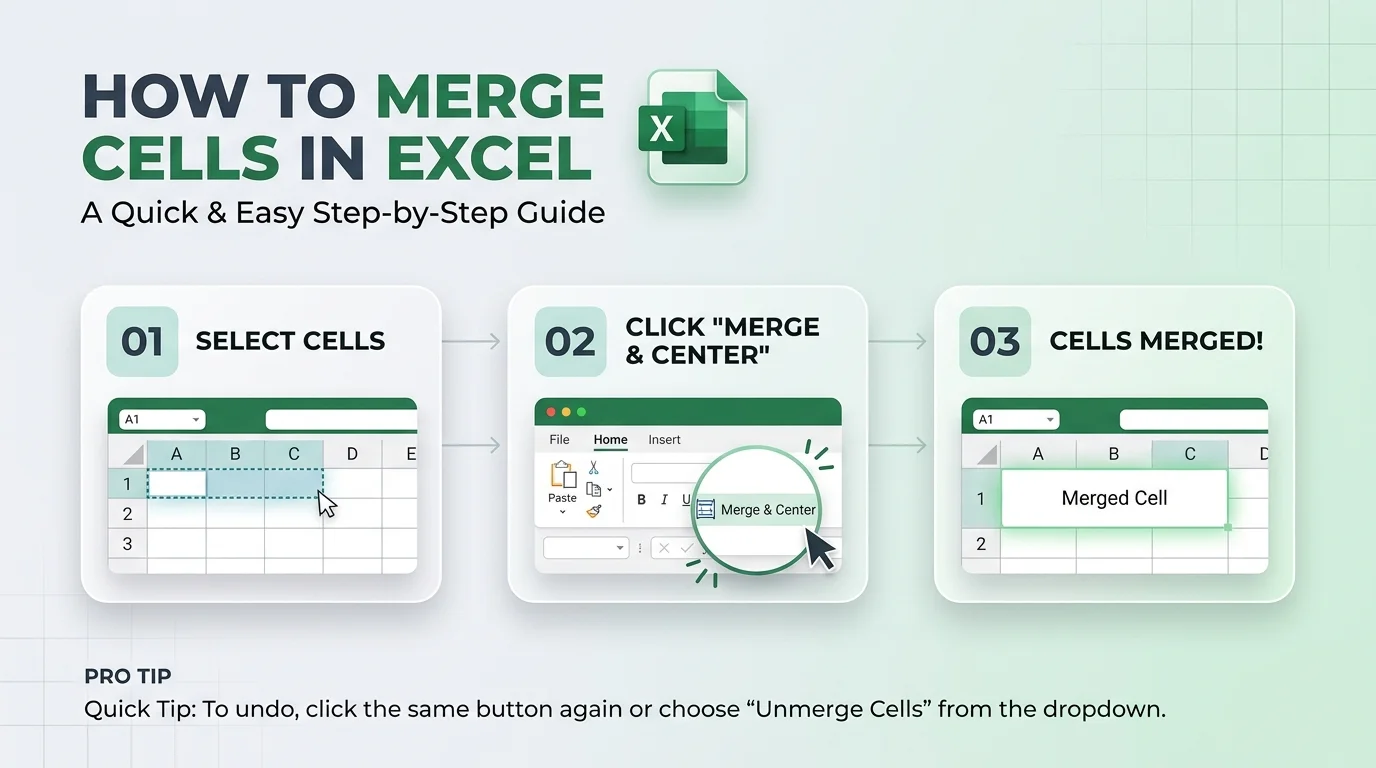
Ready to do it? The process takes three steps and about ten seconds. Below, I'll walk you through each click so you don't have to guess. Just follow along in order, and keep a backup of any data you can't afford to lose. Trust me, a quick copy and paste beforehand is cheap insurance, and it's the habit that separates calm Excel users from panicked ones.
Step 1: Select the Cells You Want to Merge
Start by clicking the first cell. Then hold Shift and click the last one. The cells must touch each other, because Excel can't merge scattered cells. Before you move on, check that you're not in edit mode, since that blocks the button. If you've got data in more than one cell, copy it to a spare spot first. That way, nothing disappears when you merge.
Step 2: Click Merge & Center
Open the Home tab and find the Alignment group. Click Merge & Center, and you're done.
Want a different layout? Click the small arrow beside the button. You'll see three more choices:
Merge & Center: joins the cells and centers the text
Merge Across: merges each row separately
Merge Cells: joins the cells without centering
Pick the one that matches your layout.
Step 3: Unmerge If You Change Your Mind
Everyone second guesses a merge sometimes. Luckily, reversing it is easy. Click the merged cell, open the same dropdown, and choose Unmerge Cells. Did you merge by accident a moment ago? Press Ctrl + Z to undo it right away. Just remember that unmerging won't bring back deleted values. Only undo can do that.
Excel Merge Cells Shortcut (Windows, Mac and Web)
Shortcuts save real time when you merge often. On Windows, you tap the keys one after another, not all at once. Press Alt, then H, then M, then the final letter. The table below covers each platform, and I've flagged the Mac situation honestly, because many sites get it wrong. Sources conflict on this topic, so I checked Microsoft's own community answers.
Action | Windows | Mac | Excel for the web |
|---|---|---|---|
Merge & Center | Alt, H, M, C | None built in | Home > Merge & Center |
Merge Across | Alt, H, M, A | None built in | Dropdown arrow beside the button |
Merge Cells | Alt, H, M, M | None built in | Dropdown arrow beside the button |
Unmerge Cells | Alt, H, M, U | None built in | Dropdown arrow > Unmerge Cells |
The Windows sequences come from Automate Excel's shortcut list. On a Mac, a Microsoft Community moderator explains that you can assign your own shortcut. Go to Tools > Customize Keyboard, pick the Home tab, search "merge," and set your keys.
How to Merge Cells in Excel Without Losing Data
Now for the part most guides rush through. The standard merge deletes values, so you need another approach when every cell matters. The good news? Excel gives you several, and each one combines text while leaving your originals untouched. First, here's a quick comparison so you can pick the right tool fast.
Method | Keeps all data | Safe for sorting | Minimum version | Best for |
|---|---|---|---|---|
Merge & Center | No | No | All versions | Quick visual titles |
Center Across Selection | Yes | Yes | All versions | Centered headers |
TEXTJOIN | Yes | Yes | Excel 2019 or Microsoft 365 | Joining text with a separator |
CONCAT | Yes | Yes | Excel 2019 or Microsoft 365 | Joining ranges, no separator |
Ampersand (&) | Yes | Yes | All versions | Simple two cell joins |
Flash Fill | Yes | Yes | Excel 2013 and later | Pattern based combining |
Use TEXTJOIN or CONCAT
TEXTJOIN is my favorite here. It joins text from many cells and puts a delimiter between each piece. Try =TEXTJOIN(", ", TRUE, A2:A8). The TRUE tells Excel to skip blank cells, which keeps your result clean. Per Microsoft's TEXTJOIN documentation, it accepts up to 252 text arguments, and a result longer than 32,767 characters returns a #VALUE! error.
Prefer simpler? The CONCAT function joins ranges but has no delimiter option. The ampersand operator also works. For worked examples, see ExcelDemy's walkthrough.
Try Flash Fill
Want to skip formulas altogether? Flash Fill learns from your example. Type the combined result once, such as a full name in C2. Then begin the next one, and Excel previews the rest. Press Enter to accept it, or hit Ctrl + E to run it manually. Microsoft's Flash Fill guide shows every step.
Merge & Center Grayed Out? Here's How to Fix It
Few things annoy Excel users more than a dead button. If Merge & Center is grayed out, don't panic. Usually, one of a handful of simple causes is to blame, and each has a fast fix. Work through the list below in order, because the first two cases solve most problems. You'll be merging again within a minute or two.
You're editing a cell. Press Enter or Esc, then try again. This comes straight from Microsoft's guidance.
The cells sit inside an Excel table. Microsoft says merging doesn't work there. Click a table cell, open Table Design, and choose Convert to Range, as ExcelDemy explains.
The sheet is protected. Go to Review and select Unprotect Sheet, as Spreadsheet Planet describes.
Track Changes is on. Users on Microsoft's community forum report that this disables merging too.
Why Merged Cells Cause Problems (and What to Use Instead)
Merging looks harmless. Still, it's behind a lot of spreadsheet headaches. Excel can't sort a column that contains merged cells, according to Microsoft's note on finding merged cells. Copying, pasting, filtering, and formulas can break too. Accessibility suffers as well, because screen readers lose their place. That's why Microsoft's accessibility best practices say to avoid merged cells in tables.
Use Center Across Selection Instead
This trick gives you the same look without merging anything. Each cell stays independent, so sorting and filtering keep working. Follow these steps:
Select the cells.
Press Ctrl + 1 to open Format Cells.
Click the Alignment tab.
Under Horizontal, choose Center Across Selection.
Click OK.
Both Wall Street Prep and SpreadsheetWeb recommend it for this reason.
Find Every Merged Cell in a Workbook
Inherited a messy file? Here's how to hunt down hidden merges. Click Home > Find & Select > Find, then Options > Format. Under Alignment, tick Merge cells. Click Find All, and Excel lists each one. Clicking an item jumps to it, so you can unmerge cells one by one, as Microsoft's find merged cells page shows.
Why You Should Get Microsoft 365 for This
Let me be direct about this. If you work in spreadsheets every week, the right version matters. TEXTJOIN and CONCAT work in Excel 2019 and later, or with a Microsoft 365 subscription, per Microsoft. Older versions simply don't have them.
With Microsoft 365, you get these tools plus Flash Fill and the Accessibility Checker. It's the easiest way to merge text safely and keep your files clean. So if you're still on an old version, upgrade. You'll save more time than the subscription costs you.
Frequently Asked Questions
Does merging cells delete data in Excel?
Yes, if more than one cell contains data. Excel keeps only the upper left value and deletes the others. Copy your data first, or use TEXTJOIN to keep everything.
Why is Merge & Center grayed out?
Usually, you're editing a cell, the cells are in an Excel table, or the sheet is protected. Convert the table to a range or unprotect the sheet.
Can I merge cells in an Excel table?
Not directly. Convert the table to a range first, or use Center Across Selection for a similar look.
How do I merge cells without losing data?
Use TEXTJOIN, CONCAT, the ampersand operator, or Flash Fill. These combine text in a new cell and leave your originals intact.
What is the shortcut to merge cells in Excel?
On Windows, press Alt, H, M, C for Merge & Center. Mac has no default shortcut, but you can assign one in Customize Keyboard.
What is better than merging cells?
Center Across Selection. It centers text across columns while keeping sorting, filtering, and formulas working.
Final Thoughts
You now know how to merge cells in Excel, unmerge them, use shortcuts, and protect your data.
Use Merge & Center for quick titles. Choose TEXTJOIN when every value matters. Pick Center Across Selection for anything you'll sort, filter, or share.
Once your sheet looks right, you may want to share it as a PDF. If you need to fix anything afterward, our guide on how to edit a PDF walks you through it.
Open Excel and try one of these methods today.