The best productivity Chrome extensions in 2026 are Todoist for task capture, OneTab for tab overload, uBlock Origin Lite for a cleaner page, Bitwarden or 1Password for logins, Notion Web Clipper for research, and Forest for focus. Every tool below is Manifest V3 compatible, actively maintained, and free to start. This guide covers 14 extensions grouped by the problem each one solves, plus what changes when Google removes the last Manifest V2 extensions on 31 August 2026, and a five-step checklist for vetting anything before you install it.
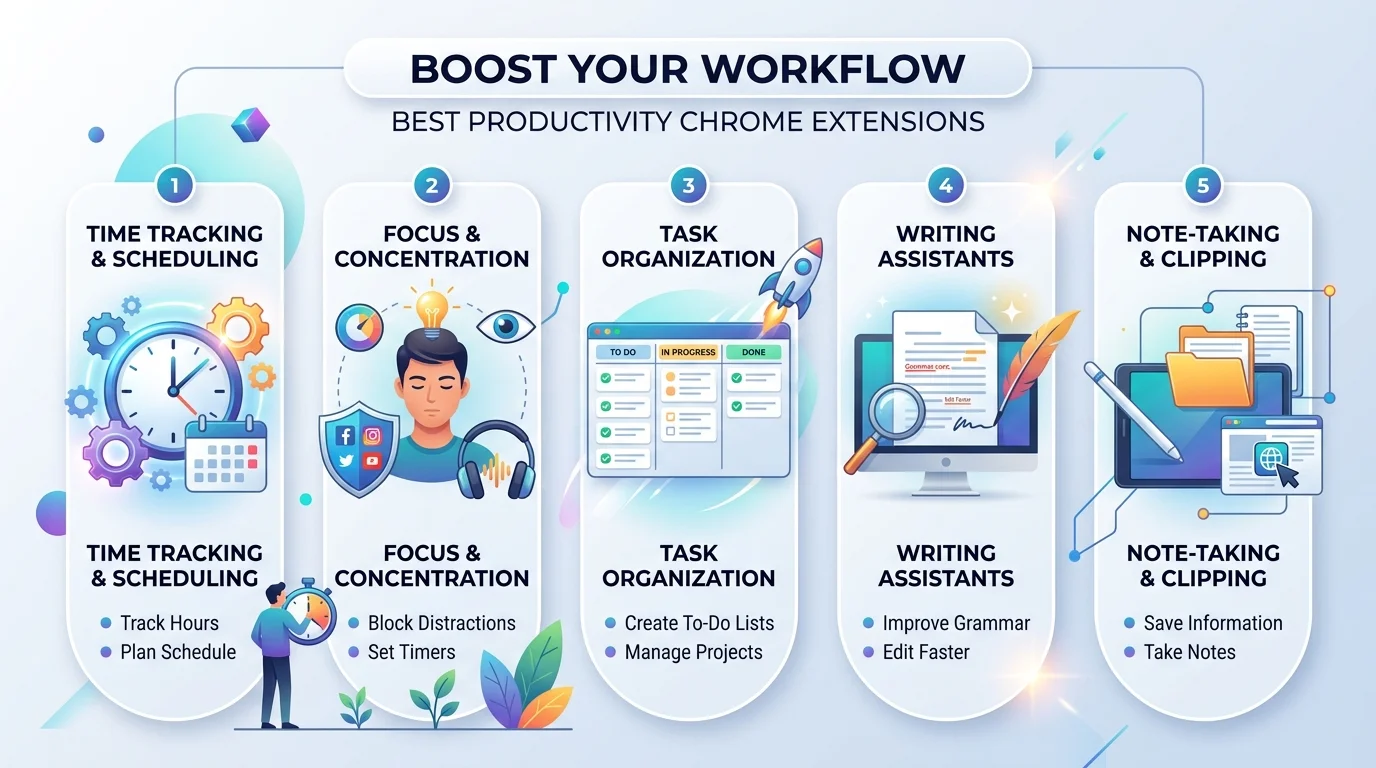
Quick Comparison: All 14 Extensions at a Glance
Before the detail, here's the whole shortlist in one place. Scan the "Best For" column, find your loudest bottleneck, and start there. Notice that every tool listed is already Manifest V3 compliant, which matters more this month than it usually would. Pricing reflects what the free tier actually gets you, not the headline marketing claim.
Extension | Category | Price | Best For | MV3 |
|---|---|---|---|---|
OneTab | Tab management | Free | Collapsing 30 tabs into one list | ✅ |
Toby | Tab management | Free / paid teams | Project-based tab collections | ✅ |
Workona | Tab management | Free / paid | Cloud workspaces across devices | ✅ |
Forest | Focus | Free / one-time paid | Gamified focus timers | ✅ |
Freedom | Focus | Paid | Scheduled cross-device blocking | ✅ |
BlockSite | Focus | Free / paid | Blunt site blocklists | ✅ |
uBlock Origin Lite | Ad blocking | Free | Cleaner, faster pages | ✅ |
AdGuard | Ad blocking | Free / paid | Tracker and annoyance filtering | ✅ |
Grammarly | Writing | Free / paid | Grammar and tone everywhere you type | ✅ |
LanguageTool | Writing | Free / paid | Multilingual, open-source checking | ✅ |
Notion Web Clipper | Research capture | Free | Saving articles into Notion | ✅ |
Raindrop.io | Research capture | Free / paid | Visual bookmark libraries | ✅ |
Zapier | Automation | Free / paid | Connecting apps without code | ✅ |
Bitwarden | Passwords | Free | Open-source password management | ✅ |
Why I'd Install One Extension, Not Twenty
Here's what nobody tells you about chrome extensions for productivity: each one is a small program running inside your browser. Ten of them eat memory. Fifteen start conflicting with each other. And most become another dashboard you never open.
The mistake most people make is treating a roundup like a shopping list.
So flip the approach. One extension per bottleneck, then stop.
Think about where your day actually leaks. Tabs? Focus? Writing? Passwords? Fix the loudest problem first. The browser workflow you want is quiet, not crowded, and extension sprawl is itself a productivity cost you pay in CPU, memory, and attention. If you're building a wider system rather than just patching one leak, our guide to self-management skills covers the habits these tools are meant to support.
The Four Bottlenecks Worth Solving
Most browser time disappears in four places, and you probably recognise at least two. Tabs multiply until the favicons are unreadable. Focus evaporates the second a notification lands. Repetitive typing eats a morning. And password chaos pushes you into reusing the same one everywhere. Each has a clean fix, and none takes more than sixty seconds to install. Work through them in order of pain, not in order of this list.
Best Tab Management Extensions
Tab overload isn't a discipline problem. It's a storage problem. You keep tabs open because they're your only memory of what you were working on, so closing them feels like deleting work. A tab management extension solves that by giving those tabs somewhere to live. Once you trust they'll come back, closing thirty stops feeling risky. For most people this is the highest-leverage install available, which is why it sits first. If you're already using Chrome's built-in tab groups, extensions still win when you need backups or cross-app workflows.
OneTab
OneTab is the blunt instrument, and that's the appeal. One click collapses every open tab into a single list and frees the memory they were holding. Completely free, no account required.
Limitation: the list is plain text with no folders. Past a few hundred saved tabs it gets unwieldy.
Toby
Toby is the organised version. You build named collections per project and restore a whole context in one click. Free for individuals, paid for team sharing.
Limitation: it replaces your new-tab page, which not everyone wants.
Workona
Workona treats tabs as cloud workspaces that sync across machines. Best if you switch between a laptop and a desktop constantly.
Limitation: the heaviest of the three, and the free tier caps workspaces.
How to actually use one:
Install OneTab from the Chrome Web Store
Pin it to your toolbar so it's one click, not two
When you hit ten-plus tabs, click it
Name the group before you walk away
Restore tabs individually, never all at once
One habit that pairs well here: when a saved group refuses to load properly, a hard reload usually fixes it before you start troubleshooting the extension. Our walkthrough on how to refresh your browser covers the shortcuts worth memorising.
Best Focus and Distraction Blocking Extensions
Willpower isn't the answer here, and you already know that. A distraction blocker extension works because it adds friction, and that half-second of "ugh, I'd have to disable this" is usually enough. A focus mode chrome extension earns its place during deep work blocks and should be switched off afterward. The trick isn't blocking everything forever. It's blocking the right things for ninety minutes.
Forest
Forest gamifies focus. Start a timer, grow a virtual tree, and leaving for a blocked site kills it. Silly? Yes. Effective? Surprisingly so, because the loss is visible.
Limitation: the gimmick wears off for some people after a month.
Freedom
Freedom blocks on a schedule across every device you own, not just Chrome. The strictest option here.
Limitation: no meaningful free tier.
BlockSite
BlockSite is the straightforward blocklist with a work-mode timer. Free tier covers a handful of sites.
Limitation: asks for broad permissions, so read them before installing.
Focus tools matter most when nobody else is setting your schedule, which is why they show up in almost every work from home setup worth copying. If the whole remote vocabulary is still new to you, start with what WFH actually means.
Worth knowing: CISA has recommended ad-blocking software as a defence against malvertising, so an ad blocker belongs in this section too. Fewer autoplay videos and cookie banners means fewer things pulling at your attention, and one less malware vector.
Best Writing and Research Capture Extensions
This is where free chrome extensions hand you real hours back. Writing tools catch errors before you send. Clippers save research without breaking flow. These compound, because each one shaves minutes off something you already do daily rather than adding a habit you have to maintain. Add them second, after tabs are handled.
Grammarly
Grammarly checks grammar and tone across Gmail, Docs, LinkedIn, and any text field. The free tier is genuinely usable.
Limitation, stated plainly: Incogni's 2026 privacy report analysed 442 AI-powered Chrome extensions and ranked Grammarly among the most privacy-heavy by permissions required and data collected. Worth weighing.
LanguageTool
LanguageTool is the open-source alternative, covering 30+ languages out of the box. The obvious pick if you write in German, Spanish, or Portuguese.
Limitation: style suggestions are less polished than Grammarly's.
Notion Web Clipper and Raindrop.io
Notion Web Clipper saves articles straight into your workspace database. Raindrop.io does the same for bookmarks with a visual library.
Limitation: the clipper only makes sense if Notion already holds your notes.
Capture tools have a blind spot, though: they save pages, not conversations. Anything that happens on a call still needs converting before it becomes searchable, which is where a free AI transcription tool fills the gap your clipper can't. AudioToTextify turns meeting recordings, voice notes, and interviews into text you can drop straight into Notion, and you can convert MP3 to text without creating an account first.
Zapier
Zapier handles workflow automation, turning "save this email into a spreadsheet" into one click across thousands of apps. Bardeen is the newer, more AI-driven equivalent.
Limitation: the free plan's task limit runs out fast on real workflows.
Best Password and Utility Extensions
Small tools, disproportionate payoff. A password manager extension stops credential reuse, which is the single biggest security upgrade available to a normal person. Everything in this group runs silently and only surfaces when needed, which is the mark of an extension worth keeping.
Bitwarden and 1Password
Bitwarden is free, open-source, and zero-knowledge. 1Password is the paid, more polished option with better family sharing. Either beats a notes file by a mile.
Dark Reader and Vimium
Dark Reader has been maintained since 2014, is fully open source with no ads or data collection, and passes six million users, which makes it about as safe a bet as extensions get. Vimium gives you keyboard-only navigation if you'd rather your hands never left the home row.
Best Picks by Audience
Different jobs break in different places, so the right shortlist shifts depending on what your day looks like. These are the combinations that make sense rather than the full fourteen. Pick the group that matches you and ignore the rest, because three extensions chosen well outperform ten installed at random.
For students
OneTab, Notion Web Clipper, Forest. Research capture plus focus timers covers almost everything coursework demands. Add LanguageTool if you write in a second language, and see our roundup of AI transcription tools for students for turning recorded lectures into revision notes.
For remote workers
Workona, Grammarly, Bitwarden, Zapier. Cross-device workspaces matter more when you switch machines, and automation kills the status-update busywork.
For developers
Vimium, OneTab, Bitwarden, plus React Developer Tools or Wappalyzer for inspection work. Keyboard navigation pays off fastest for people already living in a terminal.
For freelancers and marketers
Toby for client-based tab collections, Grammarly for client comms, Zapier for invoicing and lead workflows, Raindrop.io for swipe files.
For readers who struggle with focus
Forest or Freedom for external structure, uBlock Origin Lite to strip visual noise, OneTab to reduce the open-loop anxiety of thirty tabs. External friction does the work that internal focus struggles with.
What Changes on 31 August 2026
This matters and almost nobody covering this topic is mentioning it. Google finishes its Manifest V2 deprecation at the end of this month, when every remaining MV2 extension is removed from the Chrome Web Store. The reassuring version first: if an extension works for you today, it's already Manifest V3 and nothing happens to it. The purge clears dead listings, not working software.
But there's one real casualty.
Full uBlock Origin is gone from Chrome. MV3 replaced the webRequest API with declarativeNetRequest, capping filtering rules and removing the dynamic blocking that made the original so effective. The Register documented the rollout as it disabled the extension for millions of users.
Your options are uBlock Origin Lite on Chrome, AdGuard as an MV3-native alternative, or switching to Firefox, which kept webRequest and still runs the full version.
How to Vet Any Extension Before Installing It
This checklist outlasts any list of tools, which is why it's here. Malicious chrome extensions are a documented 2026 problem, not a hypothetical one. In February, researchers found 300+ extensions with roughly 37 million combined installs leaking browsing data, and several carried the store's "Featured" badge. Barracuda documented how trusted tools turn malicious through updates months or years after install.
Run these five steps every time.
Check the last update date. Anything untouched for a year is abandoned.
Read the permissions. A tab manager requesting host permissions on all sites is a red flag.
Find the privacy policy. No policy, no install.
Scan reviews for a pattern break. A sudden cluster of negative reviews usually means a bad update shipped.
Audit quarterly. Open
chrome://extensionsand remove anything you haven't opened in a month.
That last step is the one everyone skips, and it's the one that protects you. The same logic applies on your phone, where extension-style permissions creep is just as common. If something already feels off, work through how to remove malware from Android before it spreads to accounts you actually care about.
Frequently Asked Questions
What is the single best Chrome extension for productivity?
For most people it's OneTab, because tab overload is the most common browser bottleneck and the fix takes ten seconds. If your problem is writing rather than tabs, Grammarly delivers the most value per minute of setup.
How many Chrome extensions is too many?
Past eight to ten actively used extensions you'll notice memory pressure and occasional conflicts. Aim for one per genuine bottleneck, typically four to six total.
Do Chrome extensions slow down your browser?
Yes, though the effect varies. Every extension runs as a small program consuming CPU and memory. Content blockers like uBlock Origin Lite can make browsing feel faster by preventing scripts and ad units from loading at all.
Are Chrome extensions safe to install?
Not automatically. A Chrome Web Store listing is not a safety guarantee. Researchers found 300+ extensions with roughly 37 million installs leaking data in February 2026, some of them store-featured. Vet permissions, update dates, and privacy policies before installing.
What happened to uBlock Origin on Chrome?
Manifest V3 removed the webRequest API that full uBlock Origin depended on. The extension no longer runs on stable Chrome. uBlock Origin Lite is the MV3 substitute with filter-rule limits, and the full version still works on Firefox.
What is Manifest V3 and does it affect my extensions?
Manifest V3 is Chrome's current extension platform, introduced for security, privacy, and performance reasons. If your extensions work today, they're already MV3 compliant and the 31 August 2026 removal of MV2 listings won't affect you.
Do Chrome extensions work on mobile?
No. Chrome for iOS and Android does not support extensions. Use each service's companion app instead, since Todoist, Grammarly, 1Password, Bitwarden, and Notion all have mobile apps that sync the same data.
Are paid productivity extensions worth it?
Usually only after the free tier has proven the habit sticks. Password managers and automation tools justify paid plans fastest. Start free for at least a month before upgrading anything.
How do I check what permissions an extension has?
Open chrome://extensions, click Details on any extension, and review "Site access" and permissions. Anything requesting access to all sites without an obvious reason deserves scrutiny.
Do these extensions work on Edge, Brave, and Opera?
Yes. All Chromium-based browsers install from the Chrome Web Store, so every extension here works across them. Brave has its own built-in ad blocking that overlaps with uBlock Origin Lite.
Start With One Extension Today
Pick your loudest bottleneck and install exactly one extension for it this afternoon. If tabs are the problem, OneTab is free and takes ten seconds. If it's passwords, Bitwarden's free tier covers everything a normal person needs. If it's focus, start a Forest timer before you finish reading this sentence.
Give it a week. Then, and only then, add a second one.
Your browser should feel lighter after this, not heavier. And once the browser side is handled, close the loop on everything your extensions can't capture: run your recordings through AudioToTextify's free audio to text converter with no signup required, and browse the rest of our business productivity guides for the next step.