What Is a Router?
A router is a networking device that forwards data packets between different computer networks, directing traffic to its correct destination using IP addresses. Honestly, that's the whole idea in one sentence.
Think of it like a traffic cop standing at a busy intersection. Every car (packet) has a destination. The cop (router) looks at where each car needs to go and waves it down the right street. That's it. That's a router.
Your home router does this every single time you load a webpage, send an email, or stream a video. It connects your local area network (LAN) — your phone, laptop, smart TV — to the wider internet, which is technically a giant wide area network (WAN). According to Cloudflare's networking glossary, a router connects two or more IP networks or subnetworks and manages traffic between them.
So here's the deal — without a router, none of your devices could talk to the internet, or to each other, in any organized way.
How Does a Router Actually Work?
I want to slow down here because this is where most explanations get too technical too fast.
At its core, a router operates at what's called the network layer — Layer 3 of the OSI model. You don't need to memorize that. Just know it means the router is smart enough to read where a packet is going, not just pass it along blindly.
Here's the step-by-step version of what happens behind the scenes every time you open a website:
You type a URL (like google.com) into your browser.
Your device breaks the request into small data packets, each stamped with a source and destination IP address.
The packet hits your router first.
The router checks its routing table — basically a map of known paths — to figure out the fastest, most efficient route.
It forwards the packet toward the next hop, which might be another router, all the way until it reaches its destination server.
The response comes back the same way, packet by packet, and your router reassembles it into the webpage you actually see.
All of this happens in milliseconds. Genuinely wild when you think about it.
Routers also use dynamic routing protocols to adjust in real time — if one path gets congested, a good router reroutes traffic automatically to avoid network congestion. That's part of what HPE's explainer on routers calls traffic engineering: using smart metrics to keep data flowing smoothly.
If you're setting up a network from scratch, it's worth reading our guide on how home networks are structured before you buy any hardware.
Router vs Modem vs Switch (The Confusion Ends Here)
Okay, real talk — this is probably the question that brought you here in the first place. People mix these three up constantly, and I get why. They sit in the same cabinet, they have similar blinking lights, and honestly they kind of look identical.
But they do very different jobs. Here's the clearest way to see it side by side:
Device | Main Job | OSI Layer | Assigns IP Addresses? | Typical Home Use |
|---|---|---|---|---|
Modem | Converts ISP signal into usable data | Physical / Data Link | No | Brings internet into the home |
Router | Directs traffic between networks | Network (Layer 3) | Yes | Creates and manages your LAN + Wi-Fi |
Switch | Connects multiple wired devices | Data Link (Layer 2) | No | Expands wired ports on a large network |
Here's a simple way to remember the flow:
Internet → Modem → Router → Switch → Your Devices
Most home setups combine the modem and router into a single box your ISP hands you. That's convenient, sure, but it's also why a lot of people never actually learn the difference — the box just does everything quietly in the background. A switch, meanwhile, doesn't assign IP addresses or manage traffic like a router does; it just lets wired devices talk to each other efficiently using MAC addresses.
Types of Routers You Should Know About
Not all routers are created equal. Depending on what you're trying to do, you'll run into a few different flavors:
Wireless routers — the most common type in homes. They broadcast Wi-Fi so your phone, laptop, and smart devices can connect without cables. Learn more about how they compare to standard wired routers.
Wired routers — connect devices directly via Ethernet ports. Faster and more stable, but less flexible.
Core routers — used by large enterprises to move massive volumes of data within a network's backbone. These don't talk to the outside internet directly.
Edge routers — sit at the "edge" of a network, connecting it to external networks like the internet.
Mesh routers — multiple router units working together to blanket a large home or office in strong Wi-Fi coverage, eliminating dead zones.
Brouters — a hybrid device that acts as both a bridge and a router at once.
Worth noting for 2026: Wi-Fi 7 routers are gaining real traction now. In the U.S., Wi-Fi 7 adoption reached 7.2% of all Wi-Fi router connections by Q1 2026, up roughly 300% year-over-year, according to Ookla Speedtest data covered by IEEE ComSoc. It's still a minority of routers overall, but it's the fastest-growing category — worth factoring in if you're buying new hardware this year. If you're in the market, check out our Wi-Fi 7 router buying guide for current picks.
If you're setting up a home network, you'll almost always be choosing between a standard wireless router and a mesh system. For anything larger — offices, campuses, data centers — you're looking at core and edge routers working together.
Why Routers Matter So Much (Beyond Just "Getting You Online")
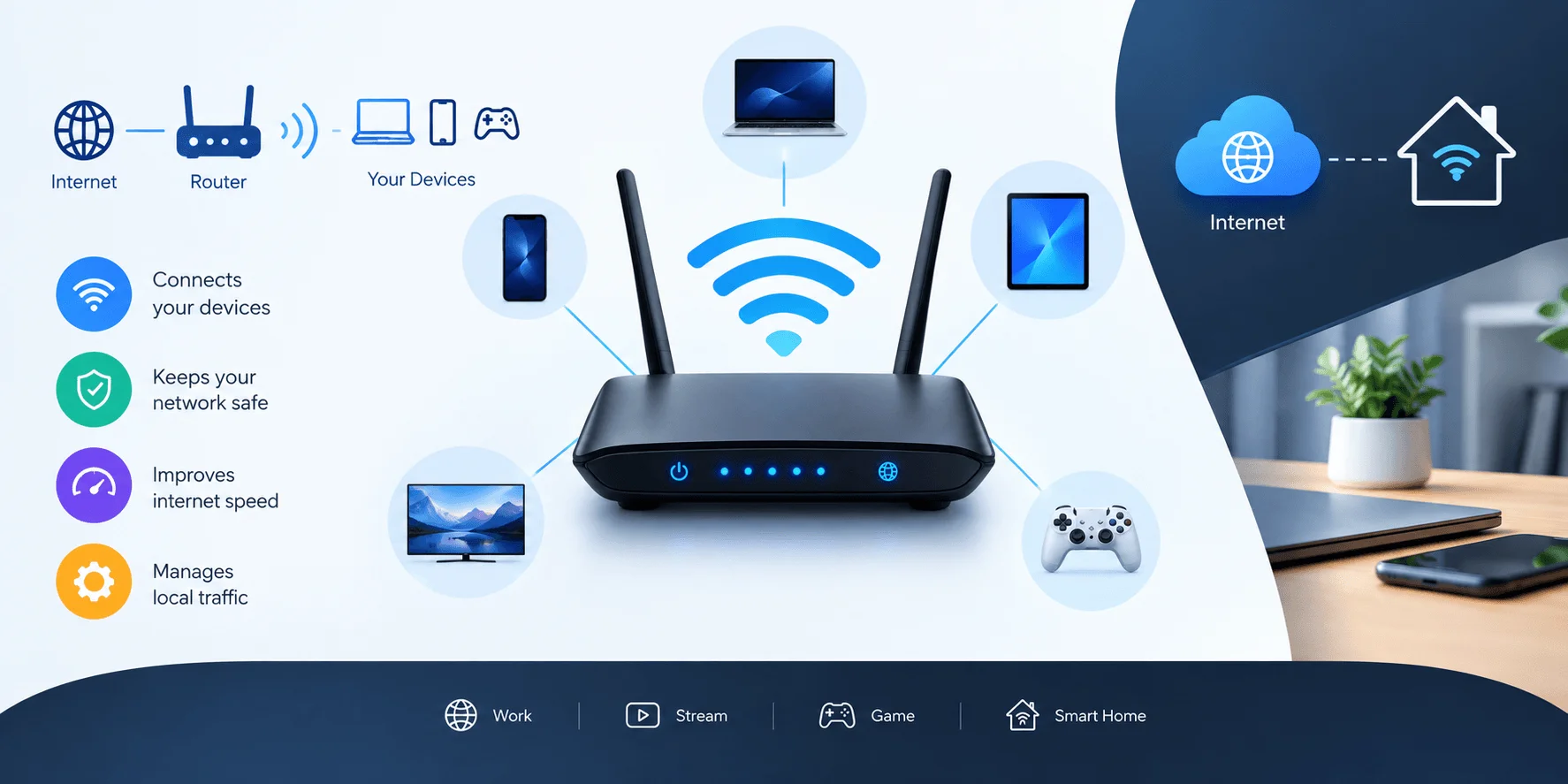
Here's something people don't talk about enough: your router isn't just a traffic director. It's also your first line of network security.
Most modern routers come with a built-in firewall, which filters out malicious traffic before it ever reaches your devices. Combine that with Network Address Translation (NAT) — which hides your internal device IP addresses behind a single public one — and your router is quietly doing a ton of security work you never see. A firewall helps, but it can’t stop everything. A DDoS attack floods your network with traffic from thousands of hijacked devices, and a home router can’t absorb that on its own. For a deeper look at hardening your setup, see our home network security checklist.
A few other things your router handles without you noticing:
DHCP (Dynamic Host Configuration Protocol) — automatically assigns IP addresses to every device that joins your network, so you never have to set them manually.
Port forwarding — lets specific traffic reach specific devices, useful for gaming or hosting a server.
Quality of Service (QoS) — prioritizes certain traffic (like a video call) over less time-sensitive stuff (like a background download).
Resource sharing — letting your whole household use one printer or one shared hard drive over the network.
So yeah. It's doing a lot more than just "giving you Wi-Fi."
How to Set Up a Router (Step-by-Step)
I know this part can feel intimidating if you've never done it. It's genuinely not that bad. Here's the basic process — and if you want a more detailed walkthrough, check out our full router setup guide:
Connect the router to your modem using an Ethernet cable, plugging into the port usually labeled "WAN" or "Internet."
Power it on and wait for the lights to stabilize — this usually takes 60–90 seconds.
Connect to the router either via Wi-Fi (using the default network name and password printed on the device) or with an Ethernet cable directly into your computer.
Open the router's admin panel by typing its IP address (often something like 192.168.1.1) into your browser.
Change the default admin password immediately — this step gets skipped way too often, and it's a real security risk.
Set your Wi-Fi network name (SSID) and password. Pick something unique, and use WPA3 encryption if your router supports it.
Update the firmware if a newer version is available. Outdated router firmware is one of the most common security vulnerabilities in home networks.
Test your connection on a couple of devices before calling it done.
That's genuinely the whole process. Takes maybe 15–20 minutes the first time. If you get stuck, our router troubleshooting guide covers the most common setup errors.
Common Router Mistakes to Avoid
I've seen these trip people up constantly, so let's knock them out quickly:
Never changing the default password — this is how routers get hijacked.
Placing the router in a closet or behind furniture — signal strength drops fast with obstructions.
Skipping firmware updates — manufacturers patch real security holes with these.
Using outdated Wi-Fi security protocols (like WEP) — always go with WPA2 or WPA3 if available.
Overloading one router in a large space instead of upgrading to a mesh router setup.
If your router is already acting glitchy, a clean restart often solves it — here's how to properly reset a router without losing your custom settings.
Small fixes. Big difference.
Frequently Asked Questions
What is the main function of a router?
A router's main function is forwarding data packets between networks, using IP addresses to determine the most efficient path from source to destination.
Is a router the same as Wi-Fi?
Not exactly. Wi-Fi is a wireless technology standard; the router is the physical device that broadcasts a Wi-Fi signal so your devices can connect without cables.
Do I need both a modem and a router?
Yes, technically — though many ISPs provide a combo device that handles both jobs in one box. The modem brings the internet in; the router distributes it.
How long does it take to set up a router?
Most home router setups take 15–20 minutes from unboxing to a working internet connection, assuming your modem is already active.
Can a router work without internet?
Yes. A router can still create a local network — letting devices communicate with each other and share files or a printer — even without an active internet connection.
What's the difference between a router and an access point?
A router manages traffic and assigns IP addresses across a network; an access point simply extends Wi-Fi coverage and relies on a router to actually handle the routing.
How often should I restart my router?
Restarting your router every few weeks can clear minor glitches and free up memory, though a well-maintained router with updated firmware rarely needs frequent restarts.
Is Wi-Fi 7 worth it in 2026?
For most households, not yet essential — Wi-Fi 7 adoption sits at just 7.2% in the U.S. as of Q1 2026, and you need both a Wi-Fi 7 router and a Wi-Fi 7 device to see real benefits.
Final Thoughts
So — what is a router? At the end of the day, it's the quiet workhorse sitting in the corner of your room, directing every single bit of data that flows in and out of your home network.
It connects your devices, keeps them secure, and makes sure every packet gets where it's supposed to go — all without you ever thinking about it.
Now that you know how it actually works, setting one up (or troubleshooting one) should feel a whole lot less mysterious.