A USB-C to HDMI adapter converts the DisplayPort video signal carried over a USB-C port into a format your HDMI display can read. You need one whenever your laptop, tablet, or phone lacks a built-in HDMI port but your monitor, TV, or projector only accepts HDMI. The catch is that not every USB-C port sends video: your device needs DisplayPort Alt Mode, Thunderbolt, or USB4 support for this to work at all. Below, you'll find how it works, how to pick the right adapter, a comparison table, and how to fix it when the screen stays black.
Last updated: September 2026.
I've spent way too many hours plugging cables into laptops, staring at black screens, and wondering why a $15 adapter wasn't doing its one job. So let me save you that headache.
What Is a USB-C to HDMI Adapter, Really?
Here's the short version: it's a bridge between two connector types that were never designed to talk to each other directly.
USB-C is a connector shape, not a promise of video capability. That distinction trips up more buyers than anything else on this list. Your device's USB Type-C port might charge your phone beautifully and still refuse to send a single pixel to your TV.
HDMI, on the other hand, is the standard interface built specifically for high-definition video and audio between devices like computers, gaming consoles, and displays. It's been the default for over a decade, which is exactly why so many monitors and projectors still expect it.
So when you connect the two, the adapter is doing real translation work. It takes the DisplayPort video signal riding along your USB-C connection and reformats it into something your HDMI port understands.
Why This Matters Before You Buy Anything
I want you to internalize this fact before we go further: a USB-C to HDMI adapter can only convert a signal that already exists.
If your laptop's USB-C port was built for data and charging only, no adapter will magically create video output. That's not a cable problem. That's a hardware limitation baked into the device itself.
How USB-C to HDMI Adapters Actually Work
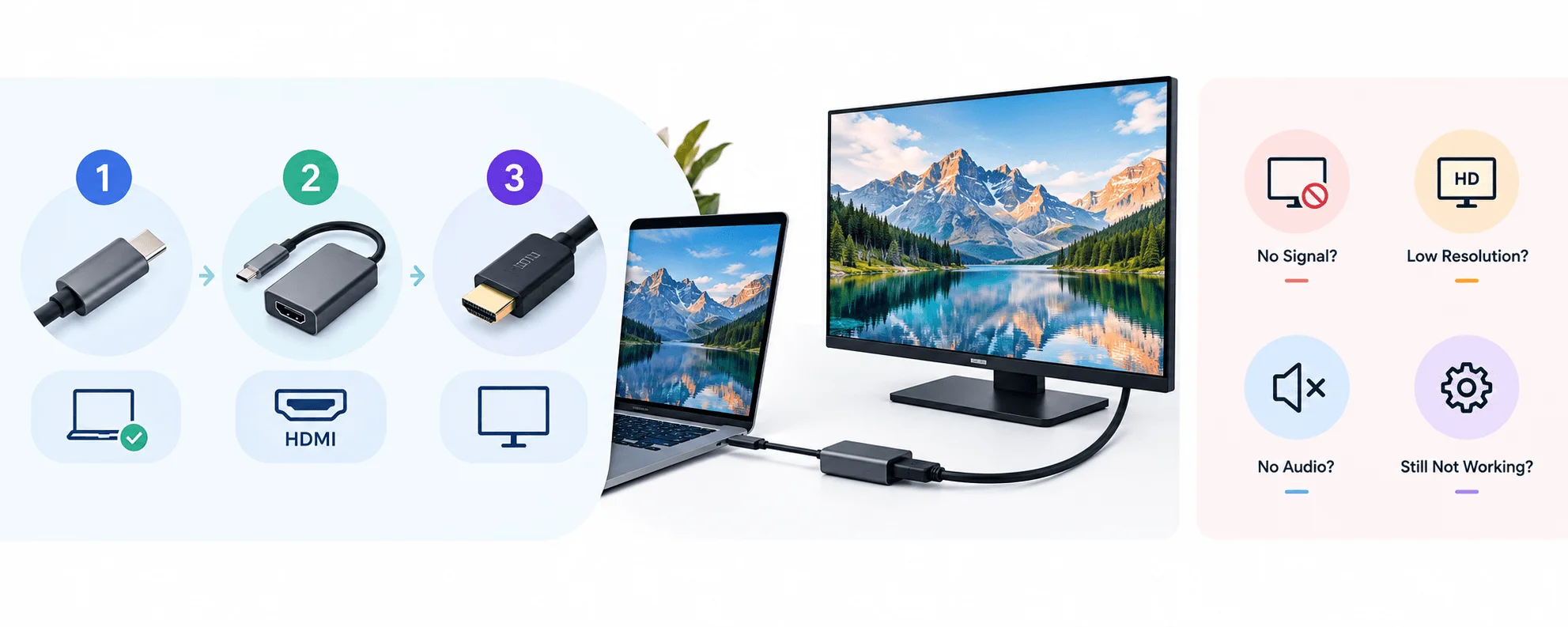
The adapter reads the DP Alt Mode signal coming from your device's USB-C port and translates it into standard HDMI output your display can process.
Think of DisplayPort Alt Mode as a passenger riding inside the USB-C cable alongside your regular data and power. When your laptop's controller supports it, that passenger carries full video information: resolution data, refresh rate, and often audio.
Some devices support this through Thunderbolt 3 or Thunderbolt 4, which piggybacks extra bandwidth onto the same connector. Others rely on plain USB4. Either way, the video has to originate somewhere before your adapter can do its job.
USB-C looks identical whether it supports video or not. There's no visual cue unless the manufacturer adds a small display icon next to the port, so checking your device's official spec sheet is the only reliable way to confirm support.
USB-C to HDMI Adapter Comparison
Here's how the main options stack up against each other, so you can match the adapter to your actual use case instead of guessing.
Adapter Type | Max Resolution | HDMI Version | Best For | Watch Out For |
|---|---|---|---|---|
Basic passive adapter | 1080p–1440p | HDMI 1.4 | Office monitors, presentations | No 4K, no HDR |
Standard USB-C to HDMI 2.0 adapter | 4K @ 60Hz | HDMI 2.0 | Streaming, dual monitors, general productivity | Requires HDMI 2.0-rated cable and display |
Thunderbolt-powered adapter | 4K @ 60–120Hz | HDMI 2.1 | Gaming, high-refresh external displays | Only works on Thunderbolt-enabled ports |
Direct USB-C to HDMI cable | 4K @ 60Hz | HDMI 2.0 | Travel, minimal setups | Can't swap out a damaged HDMI segment separately |
Multiport USB-C hub/dock | 4K @ 60Hz (varies) | HDMI 2.0/2.1 | Desk setups needing USB, Ethernet, and video together | Video bandwidth can be shared with other ports |
What You Need Before You Start
Before you plug anything in, gather these four things.
A USB-C to HDMI adapter or direct cable — an adapter needs a separate HDMI cable, while a direct cable is a single all-in-one solution.
A device with a video-capable USB-C port — confirm it supports DP Alt Mode or Thunderbolt. If you're shopping for a new machine, check our guide to the best laptops for students in 2026 for models with reliable USB-C video output
An HDMI-compatible display — your TV, monitor, or projector.
A quality HDMI cable rated for your target resolution — HDMI 2.0 or higher for 4K at 60Hz, HDMI 2.1 if you're targeting higher refresh rates on newer displays.
Skipping step two is where most people lose an afternoon. Check your device's official specs sheet and look for language like "Video Output," "DisplayPort over USB-C," or "Thunderbolt 3/4" listed next to the port.
Step-by-Step: Connecting USB-C to HDMI
Once you've confirmed compatibility, the actual connection process only takes a couple of minutes.
Step 1: Plug the Adapter Into Your Device
Insert the USB-C end of the adapter firmly into your laptop, tablet, or phone. A loose connection is one of the most common causes of intermittent signal loss, so give it a gentle push to confirm it's snug.
Step 2: Connect the HDMI Cable
If you're using an adapter rather than a direct cable, plug one end of your HDMI cable into the adapter's HDMI port, and the other end into your display's HDMI input.
Step 3: Select the Correct HDMI Input on Your Display
This step gets skipped constantly, and it's usually the reason people think their adapter is broken. If your TV has HDMI 1, HDMI 2, and HDMI 3, you need to select the exact port you plugged into.
Step 4: Detect the Display in Your Operating System
On Windows, right-click your desktop, select "Display settings," and click "Detect" to find the external display. From there, choose to extend your desktop or duplicate your screen.
On macOS, head to System Preferences > Displays, click "Detect Displays," and pick your preferred display mode.
Once your display is detected and running, take a few minutes to calibrate your monitor so colors and brightness look accurate through the new connection, since HDMI adapters can occasionally shift default color settings.
Step 5: Check Your Audio Output
If picture comes through but sound doesn't, your computer might still be routing audio to its built-in speakers. Head into your sound settings and manually select the HDMI display as the audio output source. Still no audio after switching the output? Follow our step-by-step guide to fix sound not working on Windows, which covers driver, audio service and HDMI output fixes.
Choosing the Right USB-C to HDMI Adapter
Not all adapters are created equal, and cheap options tend to fall apart fastest under real workloads.
Look for 4K 60Hz support if you plan on doing anything beyond basic office work. If you're not sure what that resolution actually means for your setup, it's worth understanding what 4K resolution involves before you buy. A quality adapter should handle HDMI 2.0 bandwidth at minimum, deliver HDR when your content supports it, and include HDCP compliance so streaming services like Netflix don't block the signal. Newer adapters built around HDMI 2.1 support higher refresh rates, which matters if you're connecting to a modern gaming or high-refresh monitor.
If you're gaming or running a high-refresh monitor, pay closer attention to bandwidth. DisplayPort tends to remain the cleanest high-refresh route when your laptop's USB-C output supports it, since HDMI on older adapters can cap out well below 144Hz.
For portable monitors specifically, buying guidance consistently points toward models offering both USB-C and HDMI inputs. That combination protects you against future compatibility headaches, whether you're pairing with a brand-new USB-C laptop or an older machine that only has HDMI.
USB-C to HDMI Not Working? Here's How to Fix It
You've plugged everything in, switched inputs, and you're still staring at a black screen. Let's work through it systematically.
1. Confirm Your USB-C Port Actually Supports Video
This is the number one cause of "broken" adapters that were never broken to begin with. Video output support varies port by port, even on the same laptop.
Many laptops ship with multiple USB-C or Thunderbolt ports, but only one or two of them actually carry video. Try every USB-C port on your device individually before assuming the adapter is defective.
2. Swap the HDMI Cable
A damaged or low-quality HDMI cable can prevent a clean signal from reaching your display. Try a different cable, ideally one rated for the resolution you're targeting.
3. Update Your Graphics Drivers
Outdated graphics drivers cause a surprising number of USB-C to HDMI failures, especially right after a Windows update changes driver behavior underneath you.
On Windows, open Device Manager, expand Display Adapters, right-click your graphics card, and select Update Driver. Restart, then test the connection again.
4. Reset the Physical Connection
Sometimes the fix really is that simple. Unplug the adapter and HDMI cable completely, wait a few seconds, then reconnect everything from scratch. This clears up a surprising number of handshake failures during the initial connection.
5. Lower the Resolution or Refresh Rate
If you're pushing 4K at 60Hz through an older adapter or cable, try dropping to 1080p temporarily. If the picture comes through fine at a lower setting, you've found your bandwidth ceiling.
6. Check for a "Billboard Device" Error
Microsoft's own community support thread documents cases where Windows recognizes the adapter as a "Billboard Device" instead of the actual monitor, which blocks display output entirely. Affected users resolved this by rolling back a recently auto-installed graphics driver.
7. Test With a Different Laptop or Monitor
Swapping components one at a time helps you isolate the actual failure point. If the adapter works fine on a different laptop, the original device's port likely lacks DP Alt Mode. If nothing works over USB-C but the native HDMI port on your laptop works fine, you now know your machine's limitation clearly.
Common Mistakes People Make With USB-C to HDMI
Assuming all USB-C ports support video. They don't. Check specs first, buy second.
Buying the cheapest adapter available. Underpowered adapters struggle with 4K and HDR, causing flickering and dropouts.
Ignoring the HDMI cable quality. A weak cable bottlenecks even the best adapter.
Forgetting to select the correct HDMI input on the display itself.
Skipping driver updates after a major OS update changes hardware behavior.
Frequently Asked Questions
Does USB-C to HDMI work both ways?
Usually not. A standard adapter sends video from your USB-C device to the HDMI display, not the reverse direction.
Why is my USB-C to HDMI adapter showing no signal?
The most common causes are a USB-C port without video output support, the wrong HDMI input selected on your display, a loose connection, or outdated graphics drivers.
Can any USB-C port connect to HDMI?
No. Your device needs DisplayPort Alt Mode, Thunderbolt, or USB4 video support. A basic charge-only or data-only port cannot output video no matter which adapter you use.
What HDMI version do I need for 4K 60Hz?
You'll want HDMI 2.0 or newer, paired with a cable and adapter that explicitly support that bandwidth. For higher refresh rates on newer displays, look for HDMI 2.1 support instead.
Is USB4 the same as DisplayPort Alt Mode?
No. USB4 is a broader connection standard that includes video support, but DisplayPort Alt Mode is the specific mode responsible for carrying the video signal itself.
Wrapping This Up
USB-C to HDMI connections feel like they should just work, and most of the time, they do. But when they don't, the fix is almost always one of a handful of predictable issues: unsupported ports, wrong inputs, tired drivers, or a cable that's simply not up to the job.
Work through the checklist above in order, and you'll land on your answer faster than you'd expect. Once it's dialed in, you get a setup that just works every time you plug it in.