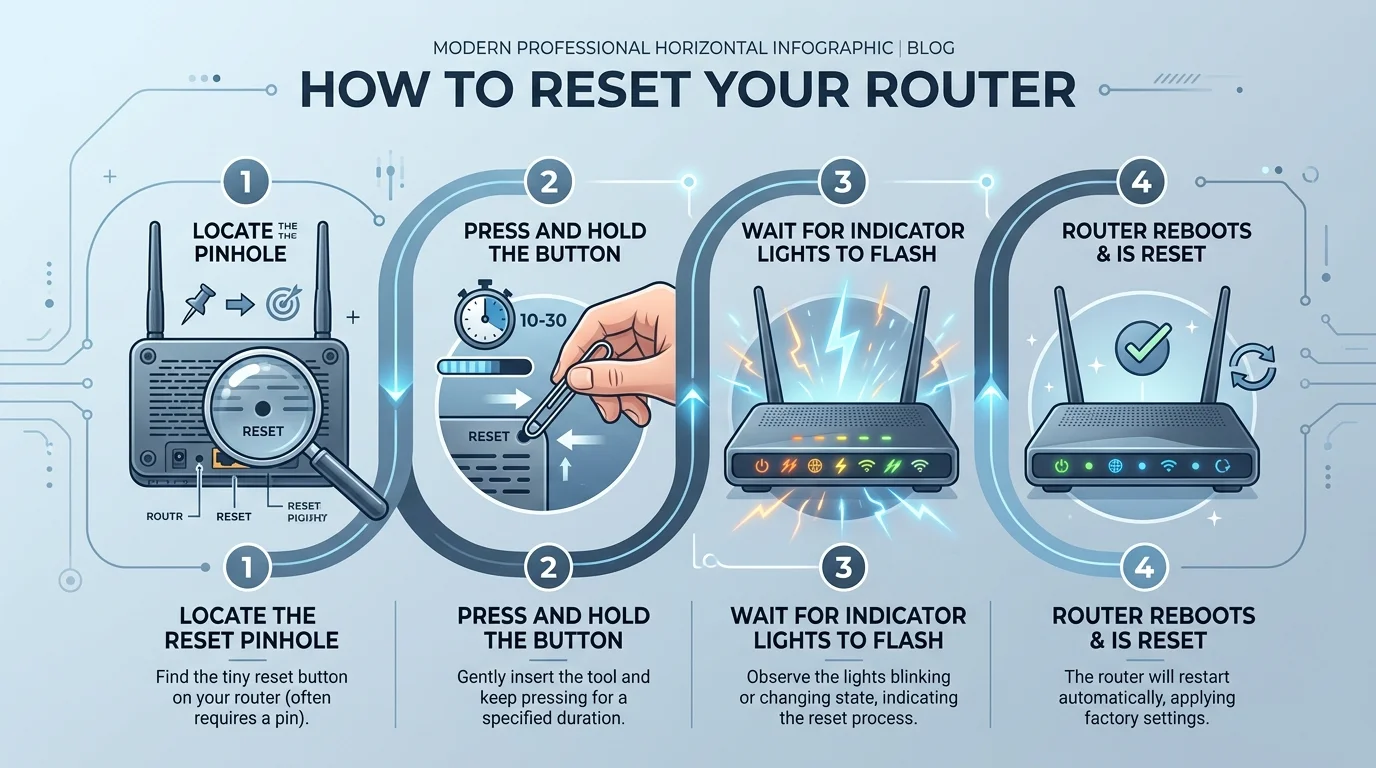
To reset a router, locate the small reset button (usually on the back or bottom), press and hold it for 10-30 seconds until the lights flash, then wait 2-5 minutes for it to reboot into factory settings. This wipes your Wi-Fi name, password, and custom settings, so you'll need to set them up again afterward. If you just want to fix a slow connection without losing settings, try a simple reboot first instead.
Now let's get into the details.
Okay, real talk — I've been in your shoes.
You're sitting there, staring at a blinking light, wondering why your Wi-Fi decided to quit on you in the middle of a Zoom call. Frustrating, right?
Here's the good news: resetting your router is one of the easiest fixes in tech. In this guide, I'll walk you through exactly how to do it — the right way, without breaking anything.
Reboot vs. Reset: What's the Difference?
This trips up almost everyone, so let's clear it up first.
A lot of people use "reboot" and "reset" interchangeably. But they're not the same thing, and mixing them up can cost you hours of frustration (or a wiped-out network you have to rebuild from scratch).
Action | What Happens | Time Needed | When to Use |
|---|---|---|---|
Reboot | Restarts the device; settings untouched | 1-2 minutes | Slow speeds, minor glitches, dropped connection |
Soft Reset | Restarts and clears temporary memory | 2-3 minutes | Persistent lag, minor bugs |
Factory Reset | Wipes all settings back to default | 2-5 minutes | Forgotten password, security issue, reselling device |
According to most ISP support teams, a simple reboot resolves the majority of everyday connectivity complaints — so always start there before reaching for a full reset.
When Should You Actually Reset Your Router?
You shouldn't reset your router just because. That's overkill, and honestly, it's a hassle to redo everything afterward.
Here's when a reset actually makes sense:
You've forgotten your router password and can't log into the admin panel
Your network has weird, unexplained issues that won't go away no matter what you try
You suspect a security breach or unauthorized access
You're selling, donating, or handing off the router to someone else
Your firmware seems corrupted and nothing else is fixing it
A router reset should be treated as a last resort — something you try only after simpler troubleshooting has failed you.
How to Reset Your Router: Step-by-Step
Alright, let's get into the good stuff.
Step 1: Locate the Reset Button
Flip your router over, or check the back panel. You're looking for a small, recessed button — usually labeled "Reset."
Depending on the model, you might need a paperclip or a pinhole reset tool to reach it. Don't confuse this with the WPS button — that's a totally different feature used for pairing devices, and it won't reset anything.
Step 2: Press and Hold
Once you've found it, press and hold that button for 10 to 15 seconds.
Some manufacturers, like TP-Link, recommend releasing once the status light changes from a slow flash to a quick flash. Others suggest holding for a flat 30 seconds. Check your specific model's manual to be safe.
Step 3: Wait for the Reboot
Now comes the waiting game.
Your router will restart — sometimes more than once — and this is completely normal. Give it two to five minutes to fully reboot and settle into its default factory settings.
Step 4: Reconnect and Log Back In
Once it's back online, it'll broadcast its default network name (usually printed right on the device).
Connect to it, open a browser, and head to the default gateway address — commonly 192.168.1.1 or 192.168.0.1. Log in using the default admin credentials, typically found on a sticker on the router.
Step 5: Reconfigure Everything
Here's the part people forget.
After a reset, you need to rebuild your network from scratch:
Set a new Wi-Fi name and password
Enable WPA2 or WPA3 encryption
Update your router's firmware
Re-add any port forwarding or static IP settings
Not sure how to get your network back up from scratch? Our complete guide on how to set up a router walks through the entire process, from cabling to Wi-Fi configuration.
Pro tip: reuse your exact old Wi-Fi name and password, and most devices reconnect automatically — no extra steps on your phone or laptop.
What About ISP-Rented Routers and Gateways?
If your router came from your internet provider — a combined modem/router gateway — proceed carefully.
The equipment isn't yours to alter. A reset is usually fine, but if it doesn't reconnect properly afterward, you'll likely need to call your provider rather than troubleshoot it yourself. Some ISPs also push firmware and configuration updates remotely, which a factory reset can interrupt. When in doubt, reach out to us or check your provider's app before resetting rented hardware.
What About Mesh Wi-Fi Systems?
If you're running a mesh Wi-Fi system — think eero, Google Nest Wifi, or Orbi — the process looks different.
These systems have multiple nodes, and resetting the whole network means resetting each node individually and rebuilding everything from scratch. Good news: many mesh systems let you do a soft reset through their companion app in under a minute. If just one node is acting up, you often don't need to wipe the entire mesh — just restart that node first.
Is the 30/30/30 Method Still a Thing?
You might've heard of the 30/30/30 method — hold the reset button for 30 seconds, unplug the router while still holding it for another 30 seconds, then plug it back in while holding for a final 30 seconds.
Honestly? This method is outdated. It was designed for older router hardware and isn't necessary for most modern devices. Stick to your manufacturer's official instructions instead.
Frequently Asked Questions
Will resetting my router fix slow internet?
Sometimes, but not always. A reset clears configuration issues and bugs, but if your speeds are slow because of an outdated router or an ISP-side problem, a reset won't help. Try a reboot first.
What if my router has no reset button?
Some newer routers skip the physical button entirely. In that case, log into the admin panel through your browser and look for a "Restore Factory Settings" option under Administration or System Tools.
How long does a router reset take?
Typically 2 to 5 minutes for the device itself to reboot, plus another 5-10 minutes to reconfigure your Wi-Fi name, password, and any custom settings afterward.
Does resetting my router change my IP address?
It can refresh the IP address assigned by your ISP, but it won't necessarily change your public-facing IP permanently — that depends on your provider's setup.
Is resetting bad for my router?
No. A factory reset is a standard, safe feature built into every router. It won't damage the hardware. And if you're resetting other devices at home too, check out our guide on how to reset AirPods for a similar step-by-step walkthrough.
Should You Reset or Just Buy a New Router?
If you find yourself resetting your router every few weeks just to keep it functional, that's not a "reset" problem — that's a hardware problem.
Older routers struggle to keep up with modern bandwidth demands, especially with a house full of smart devices and multiple people working from home. Constant resets are often a band-aid on a bigger issue: outdated hardware.
If that sounds familiar, it might be time to look at a newer router with WPA3 encryption, multi-band Wi-Fi (2.4GHz, 5GHz, and 6GHz), and solid firmware update support baked in.
Final Thoughts
Resetting your router doesn't have to be scary.
Now that you know the difference between a reboot and a factory reset, when to use each one, and exactly how to do it step-by-step — you're way better equipped than you were five minutes ago.
Try a simple restart first. If that doesn't cut it, go ahead and reset. And if you're resetting constantly just to stay online? That's your sign to consider an upgrade.