Quick answer: To reset your AirPods, put them in the charging case, close the lid for 30 seconds, forget the device under Settings > Bluetooth, then hold the setup button (or double-tap the case, depending on your model) until the status light flashes amber, then white. Full steps for every model are below.
Your AirPods stopped connecting out of nowhere. One bud went silent mid-call. Or maybe the case light just won't stop blinking amber.
I get it. It's annoying.
And here's the thing — you don't need to buy new AirPods. According to Apple Support, a proper AirPods reset resolves the vast majority of connection and pairing issues in under two minutes, and some troubleshooting guides put the software-related share of "won't connect" complaints as high as 85%, with true hardware failure being comparatively rare.
In this guide, I'm going to walk you through exactly how to reset your AirPods — every model, every device, every edge case. No fluff. No filler.
Let's dive in.
Why You Might Need to Reset Your AirPods
Before we get into the "how," let's quickly cover the "why." Honestly, this part matters more than people think.
A factory reset isn't just a magic fix-it button — it's a specific tool for specific problems. You wouldn't use a hammer to fix a leaky faucet, right? Same logic applies here.
You'll typically want to reset your AirPods when:
They won't connect to any device at all
Audio only plays out of one AirPod (see our guide on one AirPod not working for a deeper dive)
The Bluetooth pairing keeps failing or dropping
You're selling or gifting your AirPods to someone else
You've already tried restarting them and nothing changed
The case shows charging problems, or you're dealing with other iPhone audio setup issues — check our voicemail setup guide if you're troubleshooting audio features beyond just AirPods
Small tip: restarting and resetting are not the same thing. Restarting just refreshes the connection. Resetting wipes the pairing data completely and starts from scratch. Keep that distinction in your back pocket — it'll save you a headache later in this guide.
Reset Methods at a Glance
Here's a quick-reference table before we get into the step-by-step detail. Bookmark this if you own multiple Apple devices.
Model | Reset Trigger | Time Required | Status Light Behavior |
|---|---|---|---|
AirPods 1/2/3, Pro 1/2 | Hold setup button on case | ~15 seconds | Amber → White |
AirPods 4 / Pro 3 | Triple double-tap on case | ~10–15 seconds | Amber → White |
AirPods Max | Hold Digital Crown + listening mode button | ~15 seconds | Amber → White |
Step-by-Step: How to Reset AirPods (1, 2, 3, Pro 1, and Pro 2)
Okay, here's where we get practical.
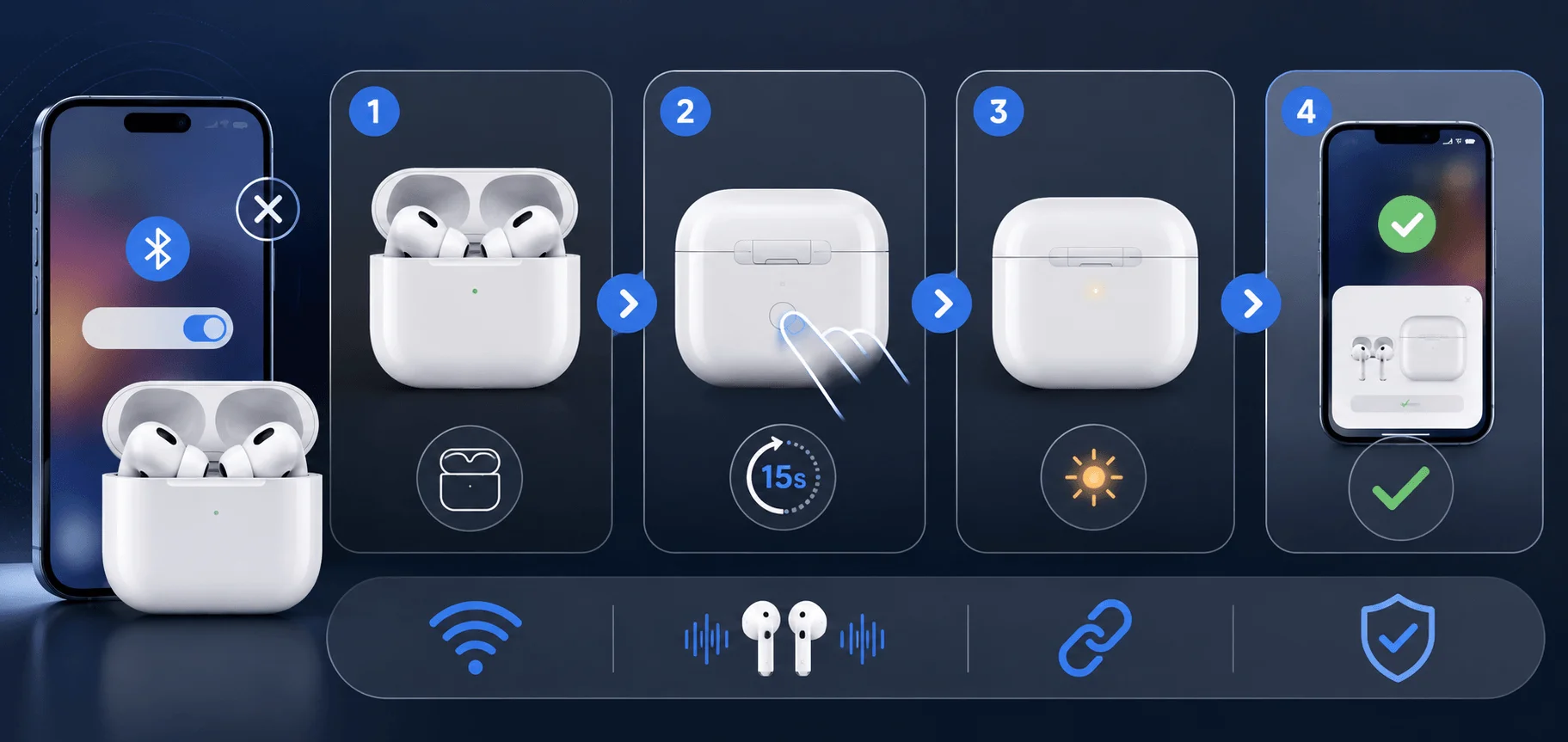
If you're using the original AirPods, AirPods 2, AirPods 3, or the older AirPods Pro models, this is your process. I'm laying it out exactly the way Apple Support documents it, because there's no reason to reinvent the wheel here.
Step 1: Close the Lid and Wait
Put both AirPods in the charging case, close the lid, and just... wait. Thirty seconds, to be exact.
I know it feels pointless. It's not. This step lets the case reset its internal connection state before you touch anything else.
Step 2: Forget the Device
Grab your iPhone or iPad. Head to Settings, then tap Bluetooth.
If your AirPods show up under "My Devices," tap the little info icon next to them, then tap Forget This Device. Confirm it.
Don't see them listed at all? No worries — just skip ahead to Step 3.
Step 3: Hold the Setup Button
Open the case lid. On the back of the case, there's a small setup button — press and hold it for about 15 seconds.
Watch the status light closely here. You're looking for it to flash amber, then switch to white.
Step 4: Re-Pair Like Normal
Once that white flash happens, you're basically home free. Follow the on-screen pairing prompt on your device, and your AirPods will connect like they're brand new.
Pretty simple, right?
How to Reset AirPods 4 and AirPods Pro 3
Now, if you've got the newer AirPods 4 or AirPods Pro 3, the process is almost identical — with one twist.
Apple ditched the long single button-hold for these models and replaced it with a triple double-tap sequence. It sounds more complicated than it actually is.
Here's the breakdown:
Put your AirPods in the case, close the lid, wait 30 seconds
Go to Settings > Bluetooth and tap Forget This Device (same as before)
Open the case lid
Double-tap the front of the case while the light is on
Double-tap again when the light flashes white
Double-tap a third time when it flashes faster
When you nail the sequence, the light flashes amber, then white — and you're set to reconnect.
Honestly? This method feels a little fiddly the first time. Do it slowly. Rushing the taps is the #1 reason people mess this up.
How to Reset AirPods Max
AirPods Max work completely differently from the earbuds — no case, no setup button. Instead, you're using the physical controls on the headphones themselves.
Here's what Apple's official guide recommends:
Charge them to at least 50% first. This isn't optional — a reset attempt on a low battery can behave unpredictably.
Then:
On the right ear cup, press and hold the listening mode button and the Digital Crown at the same time
Hold for about 15 seconds
Watch the LED — it'll flash amber, then white
Quick warning, though: if you're just trying to restart (not reset) your AirPods Max, be careful with your timing. Apple explicitly notes that holding those same buttons for longer than about 10 seconds accidentally triggers a full factory reset instead of a simple restart. It's a subtle but important difference — one that trips up a lot of people.
Unpairing AirPods From Other Apple Devices
Here's something a lot of guides skip over completely: your AirPods aren't just paired with your iPhone. They're tied to your Apple Account, which means they might still be connected to your Mac, Apple Watch, or Apple TV.
If you're resetting your AirPods to sell them, give them away, or just start totally fresh, you need to remove them from every device — not just your phone.
Here's how, device by device:
On a Mac: Click the Apple menu, go to System Settings, click your AirPods' name in the sidebar, then hit Forget This Device.
On Apple Watch: Open Settings, tap Bluetooth, tap the info icon next to your AirPods, then tap Forget Device.
On Apple TV: Head to Settings, then Remotes and Devices, then Bluetooth. Select your AirPods and choose Forget This Device.
Miss this step, and you might run into weird syncing issues later — where your AirPods keep trying to auto-connect to a device you don't even have with you anymore.
What If Resetting Doesn't Fix the Problem?
Alright, real talk: sometimes a reset alone won't cut it. If you've done everything above and your AirPods still aren't cooperating, here are a few things worth checking before you assume it's a hardware issue.
Check for a Software Update
This one gets overlooked constantly. An outdated iOS version can cause weird Bluetooth pairing glitches that have nothing to do with your AirPods themselves, according to troubleshooting guides from Best Buy.
While you're in there, it's also worth confirming other audio-dependent features work properly — our guide to sending voice messages on iPhone walks through a similar troubleshooting flow if you run into related audio glitches.
Toggle Bluetooth the Right Way
Here's a detail that trips a lot of people up — don't just swipe open Control Center and tap the Bluetooth icon off and on. That only temporarily disconnects things.
Instead, go into Settings > Bluetooth and toggle it off and back on from there. It forces a full re-scan instead of a shallow disconnect.
Watch Out for Automatic Switching
If you own more than one Apple device, your AirPods are designed to auto-switch between them. Sometimes that "smart" behavior backfires — your AirPods look like they "won't connect" to your iPhone simply because they're quietly locked onto your iPad or Mac instead.
Turning off Bluetooth on your other nearby devices (or disabling automatic switching under Settings > Bluetooth > [i] > Connect to This iPhone) usually clears this right up.
Clean the Contacts
Sounds too simple to matter, but it does. Dust and debris on the charging contacts — both on the AirPods themselves and inside the case — can quietly cause charging and pairing issues that look like software problems but aren't.
A dry, soft brush or cotton swab does the job. Don't use anything wet.
AirPods Reset vs. Restart: Quick Recap
Let's clear up the confusion one more time, because it genuinely matters:
Restarting = a quick refresh. Doesn't erase pairing data. Good first move for minor glitches.
Resetting = a full wipe. Removes all pairing history. Necessary for persistent issues or before reselling.
Think of restarting like closing and reopening an app on your phone. Resetting is more like deleting the app and reinstalling it from scratch.
Frequently Asked Questions About Resetting AirPods
Does resetting my AirPods delete my settings?
Yes — a full reset wipes your pairing history and any custom settings tied to that specific device pairing, like noise control preferences. You'll set those back up once you re-pair.
Will resetting fix one AirPod not working?
Often, yes. A huge chunk of "one AirPod is silent" cases come down to a stuck pairing or an unbalanced audio setting rather than an actual hardware fault — so it's absolutely worth trying before you assume the worst. If it doesn't resolve it, and you're also having trouble with audio input or dictation features on your iPhone, our voice-to-text on iPhone guide covers related audio troubleshooting.
How long does it take to reset AirPods?
The actual reset process takes about 30–60 seconds. The whole troubleshooting flow, start to finish, usually takes under five minutes.
Can I reset AirPods without the case?
No — for the earbud models, the case is required since the setup button lives on it. AirPods Max is the exception, since the reset happens directly on the headphones.
Is a reset the same as unpairing?
Not quite. Unpairing (via "Forget This Device") removes the Bluetooth connection from one device, while a full reset also clears the pairing data stored on the AirPods themselves — so both steps are usually needed together for a clean fix.
Final Thoughts
Look — resetting your AirPods isn't complicated once you know the exact sequence for your model. The trick is just being patient with the timing, especially with that trickier triple double-tap on the newer models.
Try the basic reset first. If that doesn't do it, work through the troubleshooting checklist above before you assume you need a repair or replacement.
Most of the time? You'll be back to normal listening in a couple of minutes, tops.