Set up voicemail on iPhone takes under two minutes: open the Phone app, tap Voicemail, tap Set Up Now, create a 4–7 digit password, then record or choose a greeting. You can also enable Live Voicemail separately in Settings for real-time transcripts. Below, I'll walk you through every step, plus how Visual Voicemail compares to standard carrier voicemail, and how to fix it if something breaks.
Let's be honest — nobody enjoys digging through settings menus. But here's the good news: this isn't one of those "Apple hid it somewhere weird" situations. It's quick, it's simple, and once you're done, you'll never miss an important message again. I've walked through this process more times than I can count, so let me show you exactly where to tap.
Why Voicemail Still Matters on Your iPhone
I know what you're thinking — does anyone even check voicemail anymore? Actually, yes. A missed call from a doctor's office, a delivery driver, or a client can turn into a real headache if your iPhone voicemail setup isn't ready to catch it.
Here's why it's worth five minutes of your time:
You'll never lose an important message again
Visual Voicemail lets you skip messages you don't need to hear in full
Live Voicemail shows you a real-time transcript as someone is talking
A proper voicemail greeting makes you look more professional to callers
What You Need Before You Start
Before you touch a single setting, let's make sure you're ready. You'll need an active cellular connection (Visual Voicemail needs data, not just Wi-Fi), a carrier that supports it — AT&T, Verizon, and T-Mobile all do — and a few quiet minutes to record your greeting.
Quick checklist:
iPhone with cellular signal
Your carrier's voicemail service enabled
A 4–7 digit number in mind for your voicemail PIN
A quiet spot to record your greeting
How to Set Up Voicemail on iPhone (Step-by-Step)
This is the part you came for. Follow these steps in order, and you'll be done before your coffee gets cold.
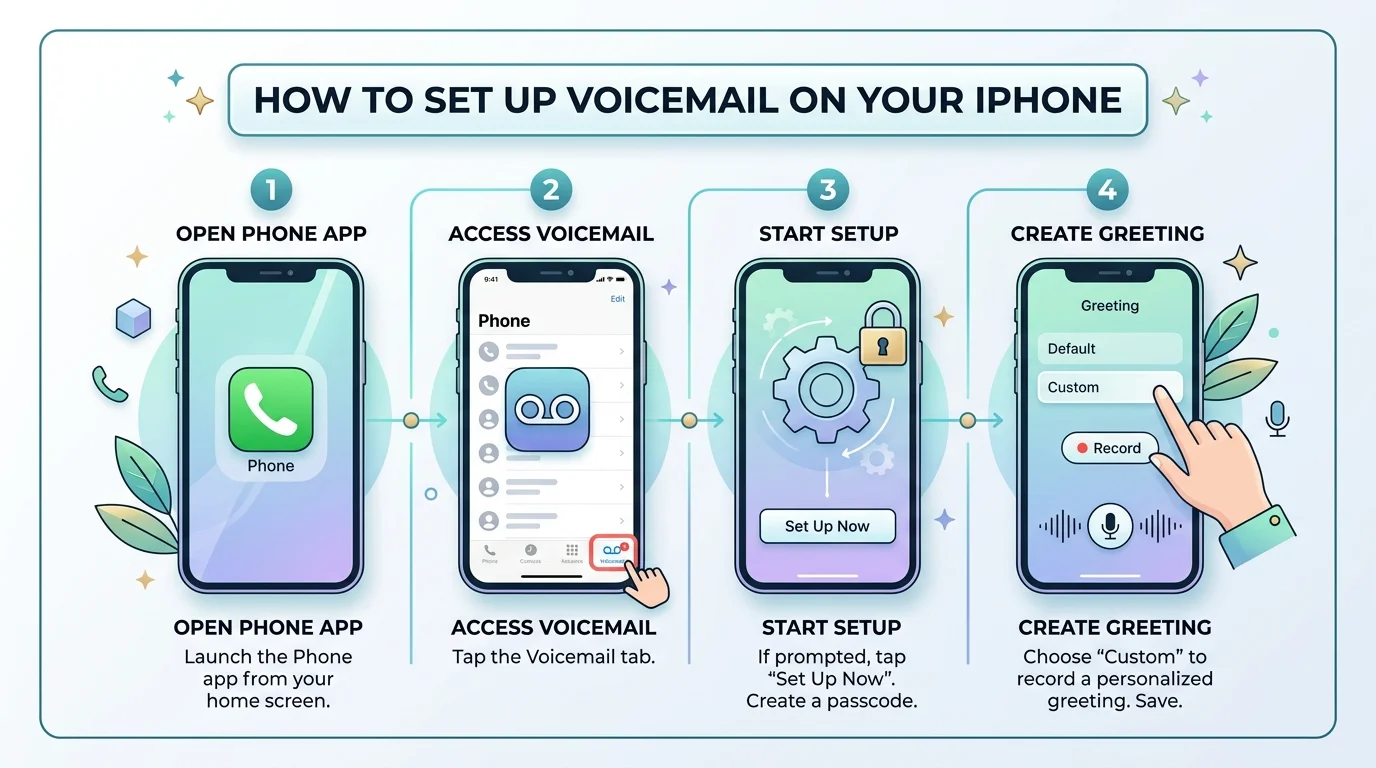
Step 1: Open the Phone App
Find the green Phone icon on your home screen and tap it. This is your command center for everything voicemail-related.
Step 2: Tap the Voicemail Tab
At the bottom of the Phone app, tap Voicemail. First time here? You'll see a blank screen with a "Set Up Now" button. Tap it.
Step 3: Create Your Voicemail Password
You'll be asked for a voicemail password — a PIN between 4 and 7 digits that keeps your messages private. Avoid obvious sequences like 1234 or your birth year. Confirm it once more, and you're through the hardest part.
Step 4: Record or Choose a Greeting
Now for the fun part. Go with Apple's default voicemail greeting, or record a custom voicemail greeting in your own voice. Keep it tight — most carriers cap greetings at 30–90 seconds, but 15–25 seconds is the sweet spot before callers get impatient and hang up.
Step 5: Save and Test It
Tap Done, and that's it — your iPhone voicemail setup is complete. Test it by having a friend call you and let it ring through, or dial your own number from another phone.
Visual Voicemail vs. Carrier Voicemail: Side-by-Side
This trips people up constantly, so here's a direct comparison you can scan in ten seconds. And if you're weighing an Android phone too, our guide on how to set up voicemail on Android covers the same steps for that side of things.
Feature | Visual Voicemail | Standard Carrier Voicemail |
|---|---|---|
Setup location | Built into the Phone app | Dial-in via keypad |
Requires data connection | ✅ Yes | ❌ No |
Play messages in any order | ✅ Yes | ❌ No (sequential only) |
Transcription available | ✅ Often (varies by carrier) | ❌ No |
Supported carriers | AT&T, Verizon, T-Mobile, most MVNOs | All carriers |
Best for | Most everyday users | Areas with weak data signal |
How to Enable Live Voicemail on iPhone
Live Voicemail shows you a real-time transcript while someone is leaving a message — so you can read what they're saying and decide whether to pick up.
To turn it on:
Open Settings
Tap Apps, then Phone
Toggle Live Voicemail on
Now, whenever a call goes to voicemail, the words appear on your screen as they're spoken. Like this feature? You'll probably also want to know how to transcribe audio on iPhone for voice memos, meetings, and other recordings beyond just voicemail.
How to Change Your Voicemail Greeting Later
Life changes, and so should your greeting. Head back into the Phone app, tap Voicemail, then tap Greeting in the corner. Select Custom, record your new message, and save.
Common Voicemail Problems (and Quick Fixes)
Sometimes things don't go as planned, and that's okay — most voicemail not working issues have a fast fix.
Full Inbox
Delete old messages under Voicemail > Edit. Most iPhones cap voicemail storage between 30–100 messages.
Call Forwarding Is On
Check Settings > Phone > Call Forwarding and toggle it off — this alone silently redirects calls away from your voicemail.
Cellular Data Issues
Toggle Cellular Data off and back on, or try Airplane Mode for a few seconds.
Still Stuck?
As a last resort, reset your network settings under Settings > General > Transfer or Reset iPhone > Reset. Just know it'll erase saved Wi-Fi passwords, so keep those handy.
Frequently Asked Questions
Is voicemail free on iPhone?
Yes, basic voicemail is included with virtually every carrier plan at no extra cost. Some carriers charge a small monthly fee only for premium features like extended storage or automatic transcription.
How do I listen to voicemail without calling in?
Open the Phone app, tap the Voicemail tab, and tap any message to play it directly — no dialing required if Visual Voicemail is set up.
What if I forgot my voicemail password?
Most carriers offer a self-service reset: AT&T through the myAT&T app, Verizon through My Verizon, and T-Mobile through T-Mobile.com or the T-Life app. They'll text you a temporary PIN to reset it.
How long can my voicemail greeting be?
Most carriers allow 30–90 seconds, but 15–25 seconds keeps callers engaged and less likely to hang up early.
Why does my voicemail go straight to a full inbox message?
Your voicemail box has hit its storage limit. Delete old messages under Voicemail > Edit to free up space.
Final Thoughts
Setting up voicemail on your iPhone really is one of those five-minute tasks that pays off the moment you need it most. You've now got a working password, a greeting that sounds like you, and a clear picture of Visual Voicemail versus Live Voicemail — so nothing is stopping you from missing a message again.
Go ahead, open your Phone app right now, and get it set up while it's fresh in your mind.
Read more: How to Set Up Voicemail on Android (2026 Guide)
![Recover Gmail Password Without Phone Number [2026]](https://contiocdn.com/efdc9a99-5ac4-4f75-be3a-ed43de859d76/blog-covers/1790082232767-y9rtx1hq-recover-gmail-password-without-phone-number--2026-.webp)