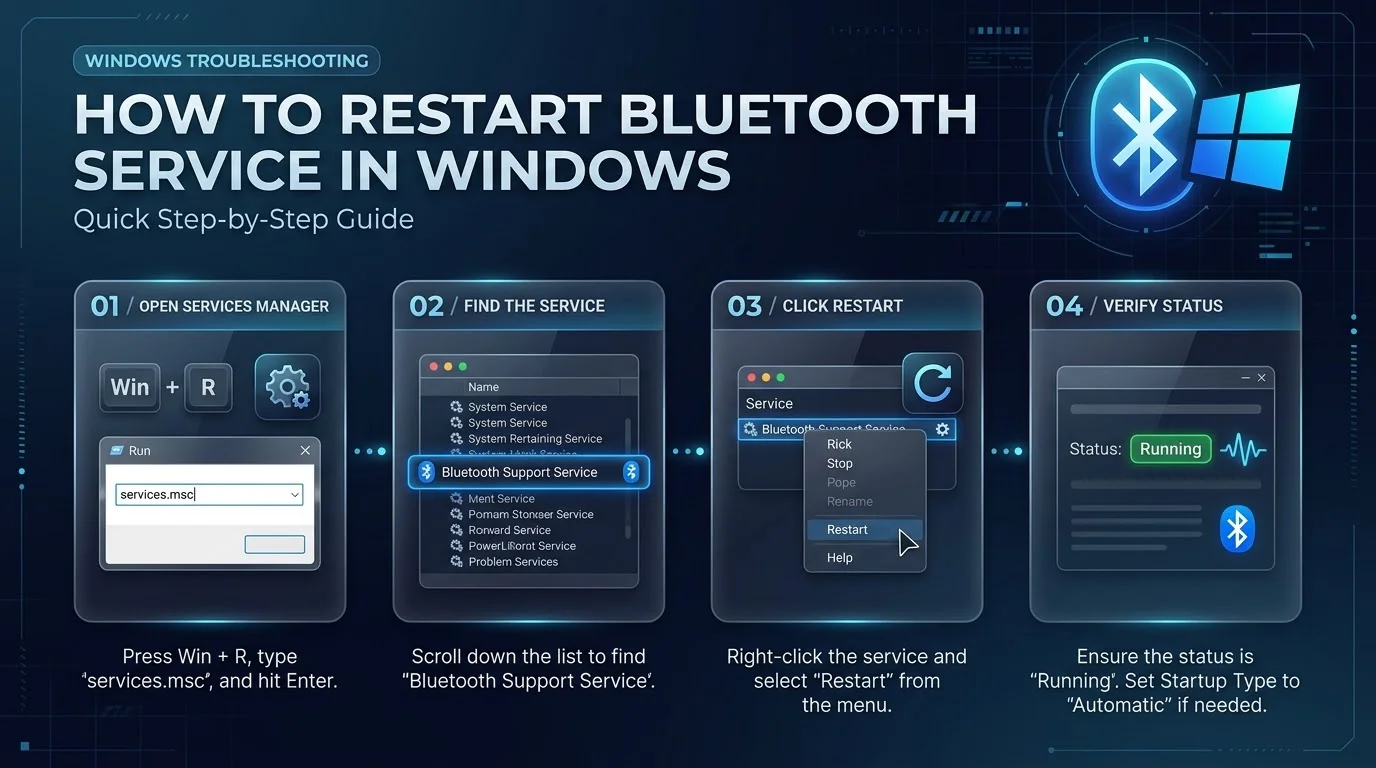
To restart Bluetooth service Windows, press Windows + R, type services.msc, right click Bluetooth Support Service, and select Restart. You can also run Restart-Service -Name bthserv in an admin PowerShell window.
Either way, it takes about 30 seconds. You need administrator rights.
Your headphones won't connect. Your mouse is dead. The Bluetooth toggle has vanished.
I've been there, and it's maddening.
The good news is that one stuck background process is often the culprit. Let me show you how to fix it.
Why Your Bluetooth Stops Working in Windows
Before you click anything, you should know what's breaking. Windows runs Bluetooth through a background process, and when it hangs, your devices disappear from the list. Think of it as a waiter who stopped taking orders while the kitchen still works. Once you understand that, the fix makes sense.
Most failures come from three things: a frozen Bluetooth Support Service (called bthserv), an outdated Bluetooth driver, or a bad Windows update. Microsoft says outdated or incompatible drivers are among the most common causes of Bluetooth connection problems.
A quick note: toggling Bluetooth off and on only resets the radio. Restarting the service resets the Windows service layer behind it, so it's a deeper reset.
Which Restart Method Should You Use?
You have three options, and they all get you to the same place. Your choice depends on comfort level and how much typing you want to do. Check the table, pick one, and move on.
Method | Difficulty | Admin rights needed | Best for |
|---|---|---|---|
Services console (services.msc) | Easy | Yes | Beginners who want clicks, not commands |
PowerShell | Medium | Yes | Fast fixes and scripting |
Command Prompt (sc.exe / net) | Medium | Yes | Older setups and quick scripts |
Whichever you pick, you must be signed in as an administrator to start, stop, or restart services.
Step by Step: How to Restart the Bluetooth Service
Ready? Follow the steps below exactly. I've kept them short because nobody wants a 40 step ordeal for a 30 second fix. Moreover, each method ends with a quick check, so you'll know whether it worked.
Method 1: Restart Through the Services Console
This is the easiest route, and it's where I'd start. No commands and no black windows. The Microsoft Q&A community recommends this exact approach, so you're in good company.
Here's what you do:
Press Windows + R.
Type services.msc and hit Enter.
Scroll down to Bluetooth Support Service.
Right click it and choose Restart.
If Restart is greyed out, the service isn't running. Choose Start instead.
Method 2: Restart With PowerShell
Prefer the keyboard? Then PowerShell is your friend. The Restart-Service cmdlet sends a stop message, then a start message, to the Windows Service Controller. It's quick and clean.
Open PowerShell as Administrator and run:
Restart-Service -Name bthserv
Next, verify the result:
Get-Service -Name bthserv
You want to see the status read Running. This walkthrough uses the same commands if you'd like a second opinion.
Method 3: Restart From Command Prompt
Command Prompt still works perfectly, and sometimes it's the only tool you have. You simply stop the service and start it again. The Microsoft docs for sc stop and sc start describe the syntax.
Open Command Prompt as Administrator and type:
sc stop bthserv
sc start bthserv
Alternatively, net start bthserv works too. PCWelt uses it to bring up a stopped service.
Restart the Related Bluetooth Services Too
Here's where most guides stop, and honestly, that's a mistake. Bluetooth on Windows isn't powered by one service alone. Several helpers work together, so a stuck helper can still break your headset after you've restarted the main one. Check them all.
Open services.msc again and look at this list:
Service | What it does | Default startup |
|---|---|---|
Bluetooth Support Service (bthserv) | Core Bluetooth discovery and pairing | Manual (Trigger Start) on most systems |
Bluetooth Audio Gateway Service (BTAGService) | Supports the audio gateway role of the handsfree profile | Manual (Trigger Start) |
Bluetooth User Support Service | Per user Bluetooth features | Manual (Trigger Start) |
Device Association Service | Pairs and connects devices | Varies by system |
Don't worry if some show "Manual (Trigger Start)." That's normal. Security hardening guides list the audio gateway's default as exactly that. The same guide notes it arrived in Windows 10 version 1803 and replaced the older Bluetooth Handsfree Service.
Microsoft's community specialists suggest restarting every related service.
Want it to heal itself? Double click Bluetooth Support Service, open the Recovery tab, and set First failure to Restart the Service. HP's support forum recommends this for services that keep stopping.
Common Errors and How to Fix Them
Sometimes the restart doesn't go smoothly. Don't panic. These errors are common, and each has a simple fix. Let's go through them.
Restart Is Greyed Out
This just means the service is stopped. Click Start instead, then confirm the status says Running. If it stops again right away, use the Recovery tab trick from earlier.
"Access Is Denied"
You're not running with admin rights. Close the window, then reopen PowerShell or Command Prompt using Run as administrator. In the Services console, sign in with an administrator account.
The Service Is Missing
If Bluetooth Support Service isn't listed or Bluetooth has vanished from Device Manager, don't give up yet. In Device Manager, click Action > Scan for hardware changes, as a Microsoft Q&A answer suggests. Then reinstall the Bluetooth driver from your PC maker's website.
What to Do When Restarting Isn't Enough
You restarted everything and nothing changed. Frustrating, I know. A service restart fixes software hiccups, but it can't repair a corrupted driver or a failing adapter. So work through these in order, cheapest first.
Run the Bluetooth troubleshooter under Settings > System > Troubleshoot > Other troubleshooters.
Update or reinstall the driver from your PC manufacturer.
Disable power management for the adapter, so Windows can't switch it off to save energy.
Install the latest Windows updates. Microsoft issued a hotpatch in 2026 for a bug that hid Bluetooth devices in Settings, and preview builds have improved Bluetooth LE Audio reliability.
Check the basics. Dell's guide reminds you to confirm the toggle and notification icon are enabled.
Fix the sound separately. If your headphones connect but you hear nothing, follow our guide to fix sound not working on Windows.
Reset the device itself. If your earbuds still refuse to pair, reset your AirPods and pair them again from scratch.
One more thing: Microsoft ended free Windows 10 updates after October 14, 2025. If you're still on Windows 10, you won't get future Bluetooth fixes from Windows Update.
Frequently Asked Questions
Here are quick answers to the questions I hear most. Each one is short, so you can skim and move on.
What is bthserv?
bthserv is the internal name of the Bluetooth Support Service in Windows. It handles discovering and connecting remote Bluetooth devices.
Is it safe to restart the Bluetooth service?
Yes. Restarting only stops and starts the background service. You may briefly lose connected devices, but nothing is deleted.
Why is Restart greyed out?
The service isn't running. Click Start instead.
Do I need to restart my PC afterward?
Usually not. If Bluetooth still fails, a full reboot can help, followed by a driver update.
What's the difference between toggling Bluetooth and restarting the service?
The toggle resets the radio. Restarting the service resets the software layer controlling it.
Stop Fighting Flaky Bluetooth: Buy a USB Adapter
Let's be real. If you've restarted the service, updated drivers, and still lose your connection every week, your built in adapter is probably the problem. Old laptop radios just don't age well.
My honest advice? Buy a quality USB Bluetooth adapter. It costs very little and plugs in within seconds. It also bypasses your faulty internal radio entirely.
Here's what I'd look for:
A recent Bluetooth version (5.x) for better range and stability
Bluetooth LE Audio support for improved headphone sound
Plug and play driver support on Windows 10 and 11
Don't waste another evening on a hardware problem. Run the restart steps above first. If the trouble comes back, upgrade the adapter and get on with your day.