To powerwash a Chromebook, sign out, press and hold Ctrl + Alt + Shift + R, choose Restart, then select Powerwash and Continue. Per Google's official guide, this erases local data, including your Downloads folder, but not files on Google Drive. Work or school Chromebooks generally can't be reset by the user, so those need an administrator.
That's the short version. Now let me walk you through the details, so nothing catches you off guard.
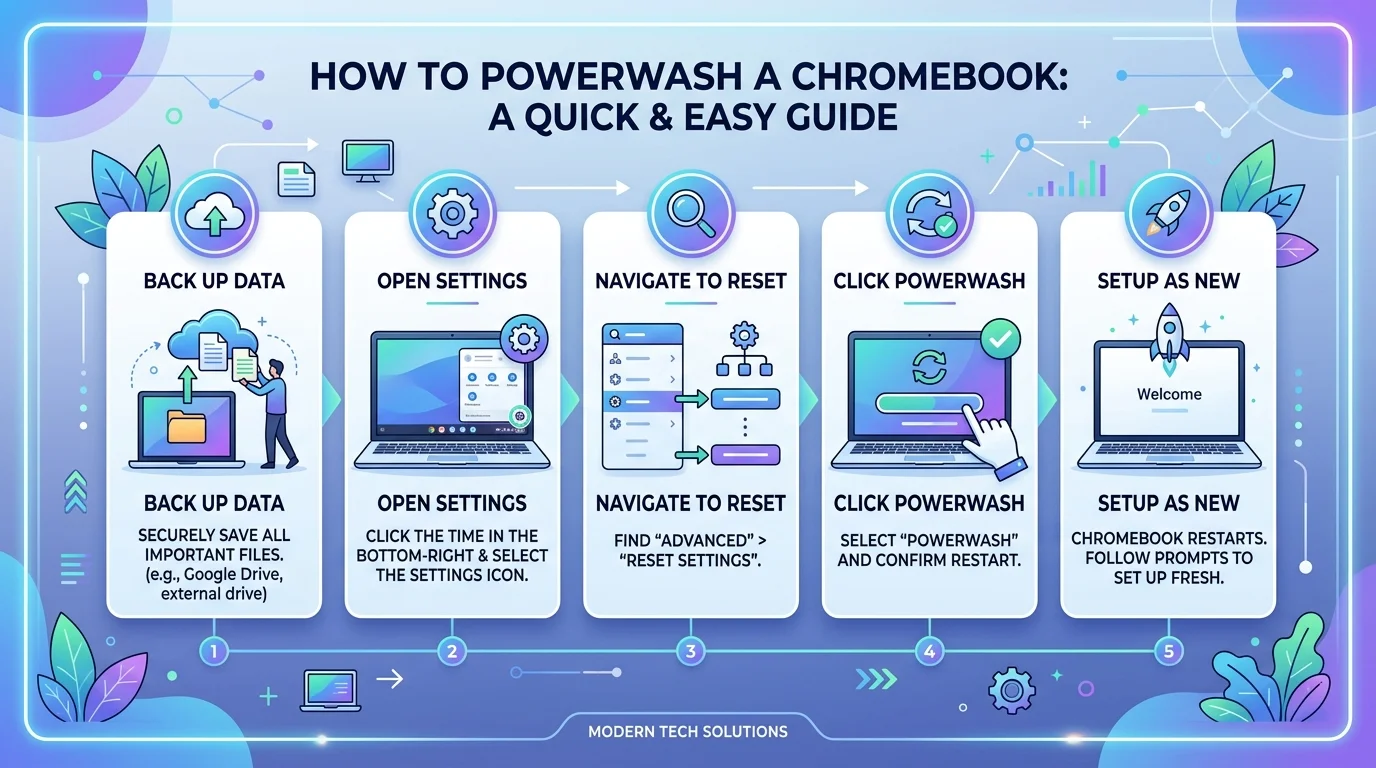
What Does a Chromebook Powerwash Actually Do?
A Powerwash is the Chromebook factory reset built into ChromeOS. It wipes your local files, settings, apps and accounts, then returns the device to its original state. Sounds scary, right?
Relax. Anything synced to your Google Account survives, and that's the beauty of the whole thing. If you've ever done a factory reset on an iPhone, the idea is the same, only the steps differ.
Here's the quick split:
Erased: Downloads, local files, saved networks, installed apps and local settings.
Kept: Files in Google Drive, Gmail, Google Photos and anything else stored in the cloud.
One more detail worth knowing: Google says the reset erases most, but not all, device information. A few diagnostic and operational pieces of data stay put.
Safety Reset vs. Powerwash vs. Recovery Mode
Three different tools live under the "reset" umbrella, and people mix them up constantly. The right one depends on how broken your Chromebook actually is. Safety Reset is the mildest, a Powerwash is the middle option, and Chromebook Recovery Mode is the strongest fix. This table shows the differences at a glance.
Safety Reset | Powerwash | Recovery Mode | |
|---|---|---|---|
What it does | Disables extensions, resets settings, clears cookies | Erases all local data | Removes and reinstalls ChromeOS |
Local files kept? | ✅ Yes | ❌ No | ❌ No |
Best for | Pop-ups, network glitches | Slowness, profile problems, selling a device | "ChromeOS is missing or damaged" error |
You'll need | Nothing extra | A backup and your Google Account | Internet connection, or a USB drive of 8 GB or more |
Managed devices | Ask your admin if blocked | Admin only | Admin only |
Sources: Google's Safety Reset, factory reset and recovery guides.
Not sure which one you need? Start at the left and move right.
Try These Fixes Before You Powerwash
Start with the gentler options and keep the reset for last. If your Chromebook is running slow, a small fix often does the job. Google itself says to try these steps first, so follow that order. You'll save yourself an afternoon of setup.
Turn off your Chrome extensions one at a time, checking after each one. Once things run smoothly again, swap heavy add-ons for a leaner set from our list of the best productivity Chrome extensions.
Try a hardware reset.
Run a Safety Reset: select the time at the bottom right, open Settings, choose System preferences, then select Safety reset under "Reset."
Still sluggish? Check the heat too. A hot device slows itself down, and our guide to laptop overheating causes and fixes shows how to rule that out before you wipe anything.
Still broken after all that? Then it's time to back up.
Back Up Your Files First
Don't skip this. Seriously. Once a Powerwash starts, local files are gone for good.
Move important files to Google Drive or an external drive. Google's backup instructions walk you through it.
Turn on Chrome Sync, so your settings and extensions come back.
Check your Downloads folder. That's where people lose things.
Step by Step: How to Factory Reset Your Chromebook
You have two ways to do this, and both end at the same clean setup screen. The keyboard shortcut is faster and works even when you can't reach Settings. The Settings route feels friendlier if you like clicking around. Pick whichever suits you.
Method 1: The Powerwash Keyboard Shortcut
This one takes under a minute to start. Here's the process, straight from Google's documentation.
Sign out of your Chromebook.
Press and hold Ctrl + Alt + Shift + R.
Select Restart.
In the box that appears, choose Powerwash, then Continue.
Follow the onscreen steps and sign in with your Google Account.
Quick heads up: the account you sign in with first becomes the owner account. So choose wisely.
Method 2: Reset Through Settings
Prefer the mouse? Fine by me. Menu labels have shifted across ChromeOS versions, so yours may look a little different.
Select the time at the bottom right.
Open Settings, then System preferences. On older versions, look under Advanced and Reset settings, as ASUS's support guide shows.
Find Powerwash and click Reset.
Choose Restart, then confirm Powerwash.
What If You Forgot Your Password?
Here's some good news. The shortcut works from the sign in screen, so you don't need to log in at all. ASUS points to the keyboard shortcut for exactly this situation, when you can't sign in to your Google Account. Just remember you'll need your Google Account details afterward, so test your password or set up recovery options before you begin.
How Long Does a Powerwash Take?
Plan on a few minutes up to about 15. Sources disagree here. HP says the reset itself typically takes 2 to 5 minutes, while ChromebookFixes puts the whole thing at 10 to 15 minutes. Setup afterward adds more time, depending on how many apps you restore.
Can You Powerwash a School or Work Chromebook?
For a school Chromebook or work device, the answer is mostly no, and a Powerwash won't free it anyway. Google says you can't reset a work or school Chromebook yourself and should contact your administrator. Even when a wipe happens, management usually stays. Let me explain why, so you don't waste an hour trying.
Enrollment is tied to the device itself. That's why a managed Chromebook enrolls again automatically after a reset, as this university IT guide shows.
Admins who want a device released for good must deprovision it first, otherwise it reconnects the moment it finds Wi-Fi. If that's you, Google's admin guide covers how to wipe ChromeOS device data.
Bottom line? Talk to your IT team.
What to Do After the Reset
Congrats, your Chromebook feels brand new! Now comes the fun part: setting it up your way. Because ChromeOS is built around the cloud, signing back in restores much of your experience automatically. A few things still need your attention, so grab a coffee and run through this checklist.
Connect to Wi-Fi and sign in with your Google Account.
Reinstall Android apps from the Google Play Store.
Pair Bluetooth devices again, like your mouse and headphones.
Turn on Linux (Crostini) again if you used it, then reinstall those apps.
Turn extensions back on one at a time, so you can spot any troublemaker.
That last tip matters. If the slowdown returns, you'll know exactly which extension caused it. Your keyboard may need a little care too, so check our guide on how to clean a keyboard while you're refreshing the whole setup.
Selling or Donating Your Chromebook? Do This
If you're handing your device to someone else, a Powerwash is the right move. It removes your personal data and leaves the new owner a clean setup screen. Google even lists changing the device owner as a valid reason to reset. Follow this short routine so nothing personal sneaks through.
Back up everything you want to keep.
Sign out and run the Powerwash using the shortcut above.
Stop at the welcome screen. Don't sign in again, or you'll become the owner.
Check your Google Account's device list and remove the Chromebook if it appears.
Then hand it over with a clear conscience.
What If the Problem Continues After a Powerwash?
If trouble survives a reset, check your update channel first. Google notes that beta and dev versions of ChromeOS can cause crashes, so try switching to the stable channel. Still stuck? Then move to Chromebook Recovery Mode, which reinstalls the operating system entirely.
Here's how that works:
Remove anything plugged in, like a mouse or external drive.
Press Esc + Refresh, then press Power.
Choose Recover using internet connection, or use a USB drive of at least 8 GB with the Chromebook Recovery Utility.
If problems persist even after recovery, the cause is likely hardware. Contact your manufacturer for repair.
Why a Chromebook Is Worth Buying
Here's the case for it: your files sync to the cloud, your settings follow your Google Account, and many software problems come down to a shortcut and a few minutes. Google also gives you three escalating options (Safety Reset, Powerwash and Recovery) before you'd ever need a technician.
That's real peace of mind.
So if you're shopping for a laptop that's simple to maintain, compare your options in our roundup of the best laptops for students in 2026. Writing a lot? Our pick of the best laptop for writers is worth a look too. You'll be glad you did.
Frequently Asked Questions
Does a Powerwash delete everything on a Chromebook?
It deletes all local data, including Downloads, settings, apps and accounts. Files stored in Google Drive, Gmail and Google Photos stay safe in your Google Account.
Does Powerwash delete Google Drive files?
No. Google says a factory reset won't delete files on Google Drive or an external storage device. Only data stored on the Chromebook itself is erased.
How long does a Chromebook Powerwash take?
Sources vary. HP says 2 to 5 minutes for the reset itself, while another guide says 10 to 15 minutes overall. Allow extra time to sign in and restore apps.
Is a Powerwash the same as a factory reset?
Yes. Powerwash is the name ChromeOS uses for its factory reset. It restores the device to its original state without reinstalling the operating system.
Can you Powerwash a school Chromebook?
Not on your own. Google says work and school Chromebooks must be reset by an administrator, and the device enrolls again automatically after a wipe.
What is the difference between Powerwash and Recovery?
Powerwash erases user data. Recovery removes and reinstalls ChromeOS itself. Use Recovery for the "ChromeOS is missing or damaged" error, after simpler steps fail.
Can I Powerwash a Chromebook without a password?
Yes. Use Ctrl + Alt + Shift + R from the sign in screen. You will need your Google Account details to set the device up again afterward.
What does Safety Reset do?
It disables extensions, resets settings to safe defaults and clears cookies, but keeps your local files and apps. Try it before a full Powerwash.
Final Thoughts
You now know exactly how to powerwash a Chromebook and when to choose a gentler option instead. Remember the order: try the easy fixes, back up your data, then reset. Do that, and your device will feel snappy again.
So give it a go today. And if you're ready for a fresh start with new hardware, see our picks for the best laptops for students in 2026.
Read Also: How to Make a GIF: Complete Guide 2026