
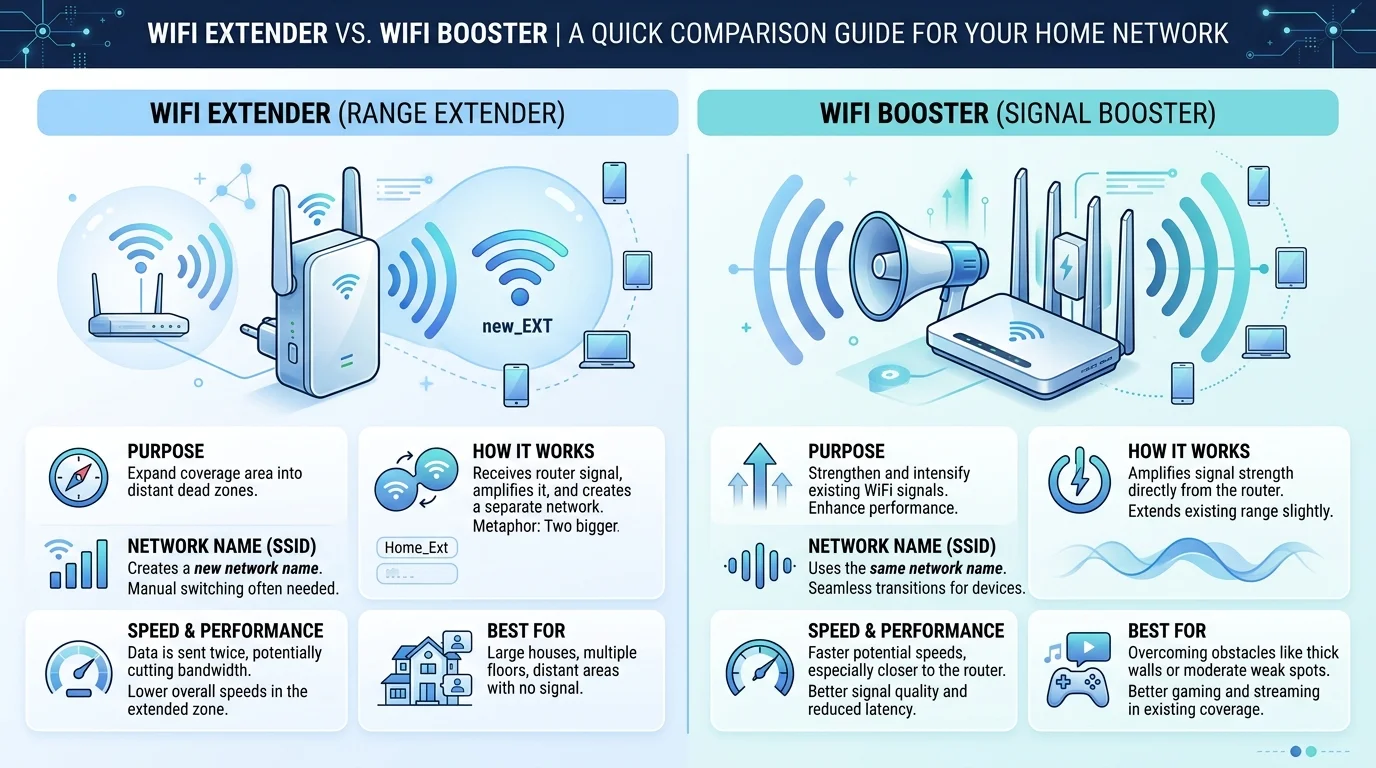
WiFi Extender vs Booster: A WiFi extender and a WiFi booster are usually the exact same device. "Booster" is a marketing label, while "extender" describes what the hardware actually does: it picks up your router's signal and rebroadcasts it into your WiFi dead zones.
So here's the deal.
If one or two rooms suffer from a weak WiFi signal, a dual band extender is the fastest, cheapest fix. If your whole home struggles, a mesh WiFi system is the better buy.
Below, I'll show you the real difference, my top 3 picks for 2026, and how to set yours up in about 15 minutes.
What Is a WiFi Extender?
A WiFi range extender is a small device that plugs into a wall outlet between your router and the room where your signal dies.
It listens to your router. Then it repeats that signal into the area your router can't reach.
Simple, right?
Before you buy one, it helps to know what a router actually does, because your extender can only repeat what your router sends. A strong router plus a well placed extender is a winning combo.
In fact, NETGEAR notes that a range extender can dramatically improve internet and smart device performance in small and medium homes. For a bedroom, a garage office, or a back patio, that's exactly what you need.
Why Cheap Extenders Slow You Down
Now, here's the catch most buyers never hear about.
Cheap single band WiFi repeater models send and receive on the same channel. Because the radio can't talk and listen at the same time, that design can cut your bandwidth roughly in half.
The fix is easy, though.
Choose a dual band or tri band model with a dedicated backhaul. It talks to your router on one channel and to your devices on another, so you keep far more of your speed.
What Is a WiFi Booster?
This is where things get confusing.
Walk into any electronics store and you'll see "booster" printed on almost every box. NETGEAR explains that it's a broad term covering extenders, repeaters, and sometimes even mesh systems.
Technically, a true signal amplifier strengthens an existing signal without creating a new network. An extender, by contrast, receives and retransmits the signal as a new access point.
The truth? Almost every home "WiFi booster" you can buy today is really an extender.
So don't pay extra for the label. Pay for the specs.
WiFi Booster vs Cell Phone Signal Booster
Here's a mix up I see all the time.
A cell phone signal booster has nothing to do with your router. It improves cellular voice and data, while a WiFi extender improves the coverage from your home network.
Cell boosters are also tightly regulated. In the US, new FCC signal booster rules took effect on March 1, 2014, and you must register your booster with your carrier.
So if your problem is dropped phone calls, you need a cell booster. If it's buffering Netflix, you need an extender.
WiFi Extender vs Booster vs Mesh: Side by Side
Want the whole picture in one glance? Perfect.
The table below compares the four main ways to fix bad WiFi coverage at home. I've included mesh and wired adapters too, because the right choice comes down to two things: how many dead zones you're fighting, and whether your home has usable wiring.
Find the row that matches your home. Then jump to the buying advice below.
Option | What It Does | Best For | Network Name | Speed Impact |
|---|---|---|---|---|
WiFi extender | Rebroadcasts your router's signal | 1 or 2 dead zones | Often a separate "_EXT" name | Moderate (lower with dual band) |
WiFi booster | Usually an extender sold under another name | Same as extender | Same as extender | Same as extender |
Mesh WiFi system | Several nodes create one network | Large or multistory homes | One name everywhere | Low with good backhaul |
Powerline or MoCA adapter | Sends data over electrical or coax wiring | Gaming and home offices | Depends on setup | Lowest (wired) |
Which One Should You Buy?
Here's my straight talk buying advice.
If your router covers most of your home well and just one area drops out, TP-Link calls an extender a simple, affordable fix. I agree completely.
On the other hand, if you have dead zones on several floors, mesh is the better fit. You get automatic seamless roaming under a single SSID, so your phone never clings to the wrong network.
And homes are getting busier. The Wi-Fi Alliance reports that home networks now need to handle up to 20 active devices at once.
Buy a WiFi extender if:
You have one or two problem rooms
You rent and can't run cables
You want the lowest cost fix today
Buy a mesh WiFi system if:
Your home is large or multistory
You take video calls while walking around
You have dozens of smart home devices
Buy a MoCA or powerline adapter if:
You game competitively and need the lowest latency
You already have coax jacks in both rooms
Pro tip: Choose an extender with EasyMesh support. The Wi-Fi Alliance launched this open standard in May 2018, and TP-Link says nearly all its newer extenders now use it. That means your extender can grow into a full mesh network later.
What About WiFi 7?
Good question.
A WiFi 7 extender makes sense if your router is already WiFi 7. You'll get the fastest speeds available and room to grow.
But if your router is WiFi 6? Save your money.
The headline WiFi 7 feature, multi link operation (MLO), rarely adds speed for your devices yet. Tom's Hardware adds that MLO requires WPA3 and only works with WiFi 7 devices.
Bottom line: a WiFi 6 extender is the sweet spot for most homes in 2026.
3 Best WiFi Extenders to Buy in 2026
Ready to buy? Great.
I've narrowed the field down to three proven models, each backed by independent lab testing. One is for WiFi 7 homes, one is the best all rounder, and one is the budget pick.
Every speed figure below comes from real tests, not the numbers printed on the box. Pick the one that matches your router, and you're done.
Model | WiFi Standard | Tested Speed | Ethernet Port | Best For |
|---|---|---|---|---|
TP-Link RE655BE | WiFi 7 (BE11000) | 719.5 Mbps at 15 ft | 2.5 Gbps | WiFi 7 routers |
TP-Link RE715X | WiFi 6 (AX3000) | Over 300 Mbps on gigabit | 1 Gbps | Most homes |
Linksys RE7350 | WiFi 6 | 203.7 Mbps at 10 ft | 1 Gbps | Tight budgets |
My pick for most people: the TP-Link RE715X. BroadbandNow found it delivered the fastest speeds of any extender they tested.
Want the fastest option overall? In Tom's Guide testing, the RE655BE still hit 376.7 Mbps at 40 feet. That's seriously impressive.
How to Set Up a WiFi Extender (Step by Step)
Good news: setup is easy.
Most extenders take about 15 minutes to install. But here's what most people miss: extender placement matters more than the brand you buy.
Distance really does matter. In Tom's Guide testing, the Linksys RE7350 dropped from 203.7 Mbps at 10 feet to 80.6 Mbps at 40 feet.
If your router itself isn't configured properly, start with this router setup guide. Then follow these three steps in order.
Show Image
Step 1: Find the Sweet Spot Halfway
First, grab a power outlet roughly halfway between your router and the dead zone.
NETGEAR's rule is simple: halfway, but still within your router's range. TP-Link gets more specific, suggesting 25 to 40 feet from the router for external antenna models, at about four feet off the ground.
Never plug the extender into the dead zone itself.
It has nothing to grab there.
Spots to Avoid
Next, take a quick look around your chosen outlet.
Metal and water are signal killers. How-To Geek warns that refrigerators, stoves, water heaters, and even packed bookshelves absorb radio waves.
Also avoid spots near microwaves, mirrors, and cordless phones. And keep your extender off the floor, since low placement weakens both the signal it receives and the signal it sends.
Step 2: Pair It With Your Router
Now connect your extender to your network.
Most models pair using the WPS button or a phone app. Just follow the prompts, and you're set in minutes.
Got an Ethernet cable handy? Even better. Switch on access point mode and run a cable from your router. TP-Link recommends this whenever walls block a stable wireless link, and a wired connection avoids the bandwidth loss entirely.
If your router uses MAC filtering, add the extender's MAC address to the allowed list first.
Step 3: Test Your Speed and Adjust
Finally, prove it works.
Run a speed test right next to your router. Then walk into the old dead zone and test again, just as Tom's Guide suggests.
Check the extender's status light too. On NETGEAR models, green is best, amber is good, and red is poor.
Red light? Move it closer to the router. Still stuck? Try a router reset, then pair again.
Common Mistakes to Avoid
Even the best extender will disappoint you if you set it up wrong.
The good news is that almost every extender problem comes from the same handful of avoidable mistakes. So before you blame the hardware or return it to the store, run through this quick checklist.
Fix these, and you'll usually see a big jump in speed.
Placing it inside the dead zone. It can't repeat a signal it can't hear.
Chaining extenders together. Each hop multiplies speed loss, so connect every extender directly to your router.
Buying single band to save money. The bandwidth penalty costs you far more than the small price difference.
Ignoring firmware updates. Updates often fix speed and security issues.
Using an extender for a whole house. That's a job for mesh.
Frequently Asked Questions
Still have questions? You're not alone.
These are the questions people search most when comparing a WiFi extender vs booster. I've kept every answer short and direct, so you can make your decision quickly and get back to enjoying fast internet in every room of your home.
What is the difference between a WiFi extender and a WiFi booster?
There's usually no real difference. "Booster" is a marketing term, and most products sold under that name are extenders that receive your router's signal and rebroadcast it. A true signal amplifier boosts a signal without creating a new network, but those are rare for home WiFi. So compare specs, not labels.
Does a WiFi extender slow down your internet?
Yes, a little. Single band repeaters can halve your bandwidth because they send and receive on one channel. Dual band models reduce the slowdown, and an Ethernet backhaul removes it. Either way, a slightly slower connection in a dead zone beats no connection at all.
Is a WiFi booster worth it?
Absolutely, for targeted problems. If one room keeps dropping your signal, an extender sold as a booster is the most affordable fix available. For whole home coverage, invest in mesh instead. And if you work from home and live on video calls, reliable coverage in your office pays for itself quickly.
Is mesh WiFi better than an extender?
Mesh is better for large or multistory homes. It creates one network name, hands your devices between nodes automatically, and uses a dedicated backhaul to protect your speed. An extender is better for one or two dead zones, because it costs less and works with the router you already own.
What's the difference between a repeater and an extender?
The terms are often used interchangeably. Technically, a repeater rebroadcasts on the same wireless channel it receives on, which can cut bandwidth roughly in half. Better extenders use separate bands or a dedicated backhaul channel, so they keep more of your original speed. When shopping, look for dual band or tri band.
Does a WiFi booster work through walls?
Yes, but thick walls still weaken the signal. Concrete, brick, metal, and water all absorb WiFi. The trick is placing your extender where it has a clear path to both the router and the dead zone. If walls block everything, use access point mode with an Ethernet cable, or try MoCA or powerline adapters.
How far can a WiFi extender reach?
Most extenders cover a few hundred to a couple of thousand square feet, depending on your walls and layout. For the connection back to your router, TP-Link recommends placing the extender about 25 to 40 feet away for external antenna models. Open floor plans get noticeably more range than homes with many walls.
Can I use two WiFi extenders?
Yes, but connect each one directly to your router. Chaining one extender to another multiplies the speed loss. If you need two or more, a mesh system is usually the smarter buy, because it manages multiple nodes automatically and keeps your whole home under one network name.
The Bottom Line
So, WiFi extender vs booster: which should you buy?
Buy a dual band WiFi extender with EasyMesh support. It's the same thing stores call a booster, it fixes one or two dead zones fast, and it can grow into a mesh network later.
For most homes, the TP-Link RE715X is the smart pick. If you have a WiFi 7 router, go with the RE655BE. And for a big, multistory home, go straight to mesh.
Either way, stop putting up with buffering. Pick your device today, place it halfway, and enjoy strong WiFi in every room.