
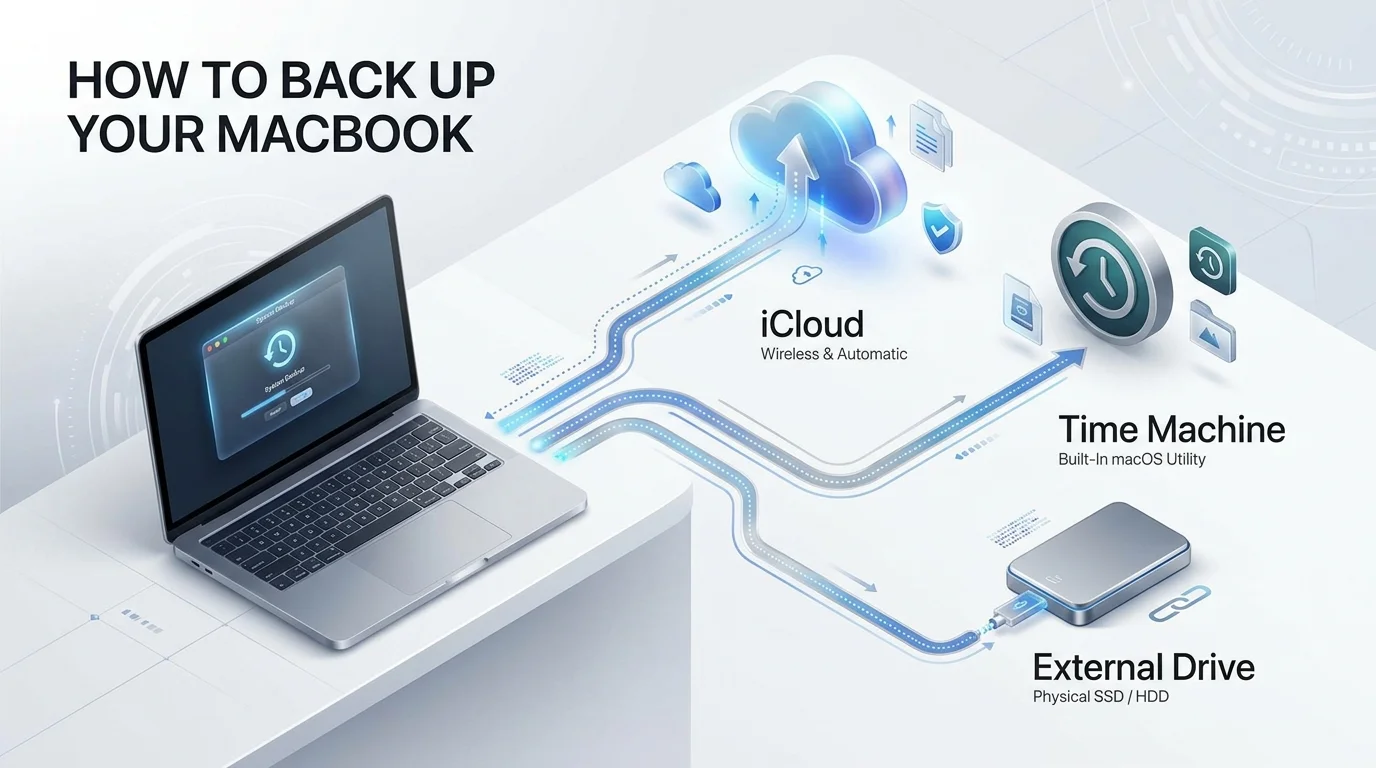
The best way to back up a MacBook is to use Time Machine with an external drive, then add a cloud backup for offsite protection. iCloud syncs your files, but Apple says it doesn't back up your entire Mac. Do both, and you're covered.
Why You Need a MacBook Backup Today
Your Mac holds your photos, your work and years of memories. One spilled coffee or dead SSD, and they're gone.
Ransomware makes it worse. CISA's ransomware guide tells you to keep offline, encrypted backups and test them regularly. Attackers often try to delete or encrypt any backup they can reach. Pair your backups with a solid best antivirus for Mac so malware never gets that far.
So stop putting it off. Let's fix this in about fifteen minutes.
Which Mac Backup Method Is Right for You?
Not sure where to start? This table shows the big picture. I'd pick the first row, then add the last one.
Method | Cost | Offsite? | Full system restore? | Best for |
|---|---|---|---|---|
Time Machine + external drive | Drive cost only | No | Yes | Your everyday local backup |
iCloud+ | $0.99/mo (50 GB) to $9.99/mo (2 TB) | Yes | No, files only | Syncing files across devices |
Cloud backup (Backblaze) | About $99/year | Yes | Files, not a bootable system | Offsite backup |
Disk clone (Carbon Copy Cloner) | $49.99 | No | Data copy | Power users |
Prices come from Apple, CostBench and TidBITS. Check each vendor's site before you buy.
Method 1: Back Up Your Mac With Time Machine
Time Machine is Apple's built in backup tool, and it's free. It copies your apps, music, photos, email and documents automatically. After the first run, it saves only what changed, so incremental backups stay quick.
First, grab a drive. Apple suggests one with at least twice your Mac's storage. So a 512 GB MacBook needs a 1 TB drive. Already own an old drive? Run through our guide on how to check hard drive health before you trust it with your data.
Set Up Time Machine on macOS Tahoe
Here's the exact process:
Plug in your external drive.
Open System Settings, then General, then Time Machine.
Click Add Backup Disk and select your drive.
Choose whether to encrypt, then confirm.
Pick Back Up Now from the menu bar icon.
Start it in the evening. The first backup can take hours, and you can keep working while it runs.
One more thing. Always eject the drive before unplugging it, or shut down your Mac first.
Don't Lose Your Encryption Password
Encryption protects your data security. But Apple is blunt: forget the password and your data is gone.
Store it in a password manager. Do it now.
How to Restore From Time Machine
Setting up a new Mac or recovering from a crash? Open Migration Assistant and choose From a Mac, Time Machine, or startup disk. Then pick your backup and follow the prompts.
Method 2: iCloud Is Sync, Not a Full Backup
I love iCloud Drive. But it's a cloud sync service, not a system backup. It won't save your apps, settings or macOS.
Still, it gives you an offsite copy of key files. To turn it on, open System Settings, click your name, then iCloud. Next, choose See All and enable iCloud Drive.
Apple's pricing page lists plans from 50 GB at $0.99 a month to 2 TB at $9.99. Apple bills monthly, with no annual discount.
Got photos stuck on your phone? Our guide on how to transfer photos to your computer gets them onto your Mac so Time Machine can protect them.
Method 3: Add a Cloud Backup (and Know Where Clones Fall Short)
Here's where most people stop. Don't.
A fire, flood or theft can destroy your Mac and the drive next to it. That's why I add Backblaze. Laptop Mag's reviewer calls it great for remote restores, and the personal plan runs about $99 a year for unlimited data.
What about disk cloning? Carbon Copy Cloner can copy your Mac to another drive. But a bootable clone is only a best effort attempt. And on Apple Silicon, your Mac won't start if its internal storage fails, even with a bootable backup attached.
So treat clones as a bonus, not your main plan.
Follow the 3-2-1 Backup Rule
This rule keeps things simple. The 3-2-1 backup rule says:
Keep three copies of your data.
Use two different media types.
Store one copy offsite.
For you, that means your MacBook, a Time Machine drive and a cloud backup. Done.
Want extra safety? Time Machine can rotate between multiple disks. Keep one at home and one at work.
Back Up to a NAS and Fix Common Problems
Prefer a network attached storage (NAS) device? Time Machine supports NAS devices over SMB. But skip the old AFP method, because Apple won't support it in macOS 27 or later.
Backup stalled? Check these fixes:
Drive disconnected mid backup: reconnect it, let it mount, then choose Back Up Now.
Disk full: Time Machine deletes the oldest backups first.
Windows formatted drive: Time Machine can't use it unless you reformat it, which erases everything.
Test Your Backup Every Month
An untested backup is a guess. So once a month, restore one file from Time Machine and one from the cloud.
CISA also recommends you can roll back at least seven days, because ransomware can lurk before it strikes. That's a good reason to keep version history.
Mac Backup FAQ
Does iCloud back up my entire Mac?
No. iCloud syncs files, photos and notes. For a full Mac backup, use Time Machine.
How big should my backup drive be?
At least double your Mac's storage, per Apple.
How long does the first Time Machine backup take?
It can take hours, depending on how much data you have and your drive speed. Let it run overnight.
Can I back up without an external drive?
Yes, with a cloud service like Backblaze. But a local drive restores much faster.
What if I forget my Time Machine password?
You can't recover the backup. Erase the disk and start fresh, then store the new password safely.
How often should I back up my MacBook?
Time Machine lets you pick a backup frequency. Keep it automatic, and keep your drive connected often.
My Recommendation: Buy Your Backup Setup This Week
Here's what I'd do in your shoes.
Buy an external SSD with double your Mac's storage. Then add a Backblaze plan for roughly $99 a year. That's your 3-2-1 setup, with no complicated tools.
Yes, it costs money. But so does losing your thesis, your client files or ten years of photos. And you'll sleep better the minute that first backup finishes.
So plug in a drive tonight. Your future self will thank you.