A factory reset iPhone erases all content, settings, and accounts, restoring the device to its original out-of-box state, in under 10 minutes. You do this through Settings, iCloud, or a connected computer, and it's required before selling, trading in, or donating your device. Once complete, your iPhone shows the Hello screen, ready for new setup or a backup restore.
I've walked dozens of people through resetting their iPhones, and the reset itself is quick. What trips people up is everything around it: the backup they forgot, the Apple Account they're still signed into, the Activation Lock that turns an old phone into a paperweight for whoever buys it next. Here's exactly how to do it right.
Why You'd Want to Factory Reset Your iPhone
A factory reset solves three common problems: a glitchy device, a phone you're selling, or a phone you're handing down.
If your phone's been acting up, crashing apps, draining battery for no clear reason, wiping it clean often resolves issues that basic troubleshooting can't touch. If you're selling it, resetting properly keeps your photos, messages, and saved passwords out of a stranger's hands. And if you're gifting or donating it, a clean reset means the next owner starts fresh instead of inheriting your accounts and data.
What You Need Before You Start
Skip these steps and you will lose something you wanted to keep.
Before touching the Erase button, make sure you have:
A backup of your device (iCloud or your computer)
Your Apple Account password
Your device passcode
A stable Wi-Fi connection for the backup
Your Apple Watch unpaired, if you have one linked
To back up first, go to Settings, tap your name, tap iCloud, then iCloud Backup, then Back Up Now. Stay connected to Wi-Fi until it finishes. Apple's backup guide covers this in more detail if you want the full walkthrough.
How to Factory Reset an iPhone: Step-by-Step
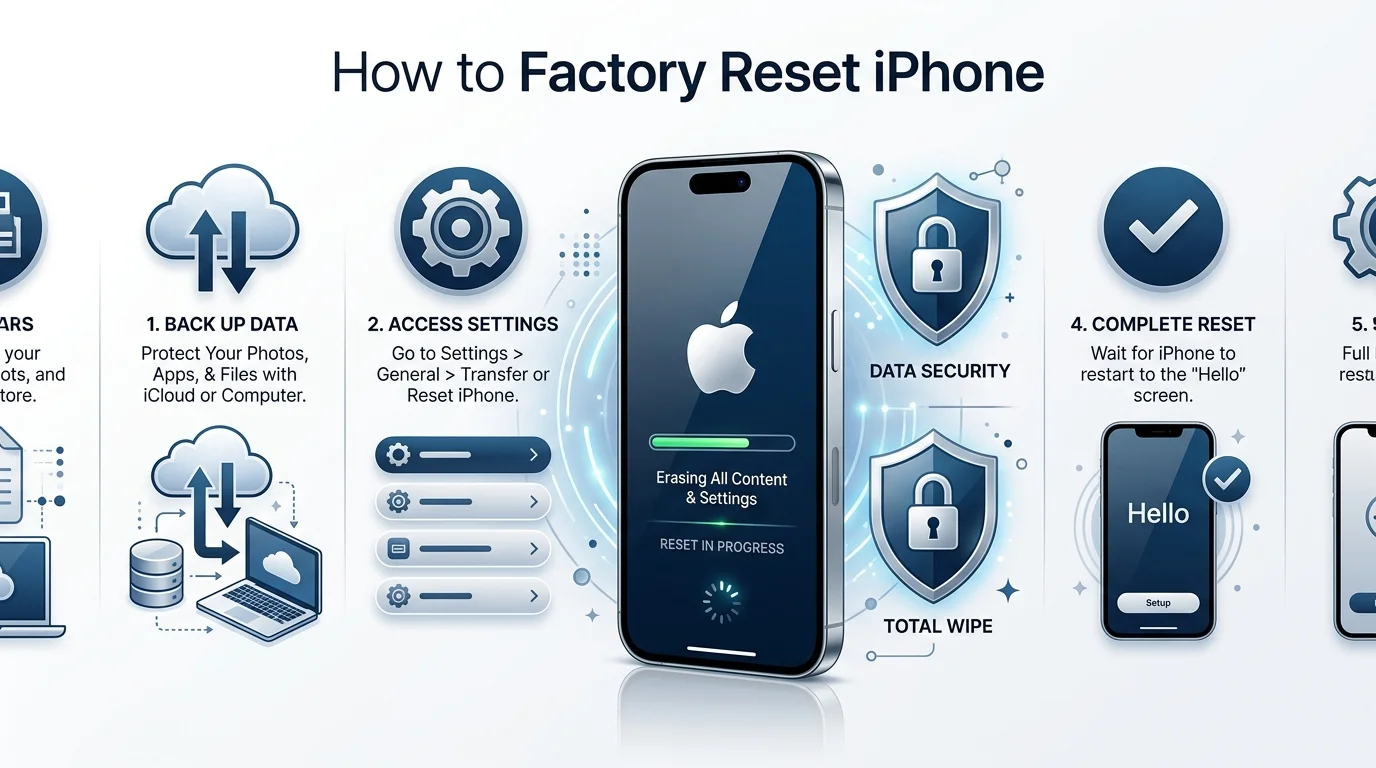
Here's the exact sequence, based on Apple's official reset instructions:
Open Settings
Tap General
Scroll down and tap Transfer or Reset iPhone
Tap Erase All Content and Settings
Tap Continue
Choose whether to keep or delete your eSIM
Enter your device passcode
Enter your Apple Account password
Wait for the erase process to finish
Once done, your iPhone lands on the Hello screen. From there, set it up as new or restore your iPhone from a backup.
A quick note on eSIM: erasing it means calling your carrier to reactivate service. If you're keeping the phone, choose to keep the eSIM instead.
What Actually Gets Erased
An Erase All Content and Settings reset removes:
All passwords and security settings
Messages, emails, and photos
Installed apps and their data
Face ID or Touch ID configuration
All system preferences
Nothing survives the process. That's the point of a true factory reset versus a lighter settings reset (more on that difference below).
How to Reset Your iPhone Using a Computer
If your phone is frozen or unresponsive, resetting from a Mac or PC is the reliable fallback.
Steps, based on Apple's computer-restore guide:
Update your computer to the latest software
Back up your device
Turn off Find My iPhone in Settings
Connect your iPhone with a USB cable
Open Finder (Mac) or the Apple Devices app (PC)
Select your iPhone when it appears
Click Restore
This installs a fresh copy of iOS while wiping the device, in one step.
What If You Forgot Your Passcode?
You are not locked out permanently. Three options exist here, detailed in Setapp's recovery guide:
Recovery mode: Connect your iPhone to a computer, press the volume buttons in sequence, then hold the side button until the recovery screen appears. Use Finder or iTunes to restore from there.
iCloud erase: Sign in at iCloud.com, select your device under "All Devices," and click Erase iPhone.
Security Lockout screen: After too many failed passcode attempts, iOS offers an on-screen erase option directly.
Apple Watch and Data Security During a Reset
If you have an Apple Watch paired to the iPhone you're resetting, unpair it first. Unpairing automatically creates a backup of the watch and resets it to factory settings on its own, so you don't lose your watch data in the process. If the watch is out of Bluetooth range when you unpair, that backup may not capture your most recent data, so keep both devices close together during this step. If you're resetting your AirPods at the same time, the process is separate and worth knowing on its own, here's how to reset your AirPods if they're paired to the device you're wiping.
On the security side, iOS handles erasure differently than older systems. Every iPhone encrypts its data by default, and Apple's reset process works by discarding the encryption key rather than overwriting each file individually. That's why the reset finishes in minutes instead of hours: once the key is gone, the data underneath is unreadable, even though the physical storage technically still holds it. This is a meaningfully more secure approach than a basic format, which is one reason security researchers generally consider Apple's reset trustworthy for resale.
Before You Sell or Trade In Your iPhone
Your iPhone is tied to your Apple Account, which means it's protected by Activation Lock. Skip removing your account first, and your buyer inherits a phone they can't actually activate.
Sign out of your Apple Account completely (Settings > your name > Sign Out), confirm Find My iPhone is off, then run the reset. Cult of Mac's guide explains why this order matters. It's also worth checking that features tied to your account, like sharing your location on iPhone, are turned off before handing the device to a new owner, since those settings can otherwise carry over unexpected access.
Also sign out of any apps that stored logins, especially banking or payment apps. Identity theft expert Steve Weisman noted in that leftover login data "could be readily used to make you a victim of identity theft or scams."
Reset Settings vs. Factory Reset
These two options live near each other in Settings but do very different things.
Reset Settings | Factory Reset (Erase All Content and Settings) | |
|---|---|---|
What's erased | Wi-Fi, Bluetooth, display, sound preferences | Everything: apps, photos, messages, accounts, settings |
What stays | All personal data, apps, photos, files | Nothing |
Apple Account | Stays signed in | Signed out, Activation Lock removed |
Best for | Fixing minor settings glitches | Selling, trading in, or donating your device |
Time required | 1–2 minutes | 5–10 minutes |
If you're keeping the phone and just fixing a setting, use Reset Settings. If the phone is leaving your hands, always use the full factory reset.
Frequently Asked Questions
How long does a factory reset take on iPhone?
Typically 5 to 10 minutes, depending on how much data is stored on the device and whether it needs to reinstall software afterward.
Does a factory reset delete iCloud data?
No. A factory reset erases the data stored on your physical device. Anything backed up to iCloud remains in your Apple Account and can be restored to a new or reset device.
Can I undo a factory reset?
No. Once the erase process completes, the data is unrecoverable unless you had a backup beforehand. This is why backing up first is non-negotiable.
Do I need Wi-Fi to factory reset my iPhone?
Not for the erase itself, but you'll need Wi-Fi or cellular data afterward to reactivate the device, sign back into your Apple Account, or restore from an iCloud backup.
What's the difference between erase and restore?
"Erase" removes all content and settings from the device. "Restore" typically refers to reinstalling iOS via a computer, which also wipes the device but installs fresh system software at the same time.
Will factory reset remove a forgotten passcode?
Yes. Using recovery mode, iCloud's Erase iPhone feature, or the Security Lockout screen all bypass a forgotten passcode by fully wiping the device.
Does factory reset remove Activation Lock?
Only if you sign out of your Apple Account and turn off Find My iPhone before or during the reset. Otherwise, Activation Lock stays active and blocks the next user.
Final Thoughts
A factory reset sounds more complicated than it is. Back up your data, sign out of your accounts, follow the steps in order, and you'll have a clean, secure iPhone in under ten minutes. Whether you're troubleshooting a buggy device or prepping it for its next owner, this process protects your data far more than it costs you in time.
Read Also: How to Address an Envelope: USPS Guide