Quick answer: To share your location on iPhone, open the Find My app, tap People, tap +, select Share My Location, choose a contact, and pick how long to share (1 hour, until end of day, or indefinitely). You can also share a one-time pin or Live Location directly through Messages, or share your ETA in Apple Maps. Below, I'll walk through every method step-by-step, plus how to stop sharing when you're done.
I'll be honest with you — figuring out how to share location on iPhone used to trip me up too. There are like five different ways to do it, and Apple doesn't exactly make it obvious which one you should use.
So I dug into this. A lot. I tested every method, cross-checked with Apple's official Find My documentation, and I'm going to walk you through exactly what works.
By the end of this post, you'll know how to:
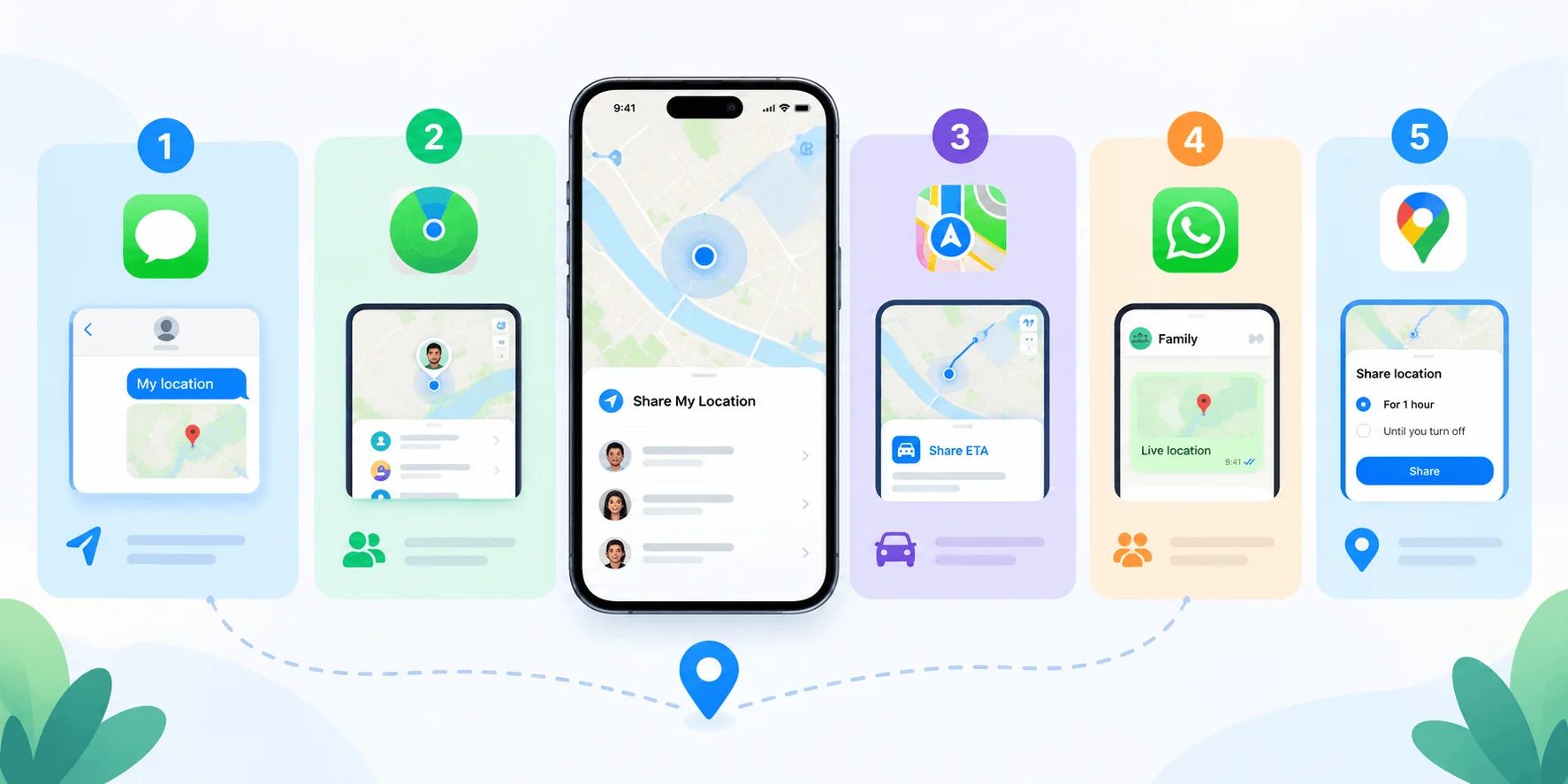
Share your location using the Find My app
Send a one-time pin or Live Location in Messages
Share your ETA in Apple Maps
Set up Family Sharing location access
Fix location sharing when it's not working
Stop sharing whenever you want (this part matters more than people think)
Let's get into it.
Why Location Sharing on iPhone Actually Matters
Quick gut check before we dive into steps.
You might be thinking: "Do I really need this?" Fair question.
Here's the thing though — location sharing isn't just a novelty feature. It's genuinely useful. Parents use it to know when their kid gets home from school. Friends use it to find each other at a crowded concert without the "where are you?!" text chain. And honestly? If your phone ever gets lost or stolen, having Find My set up could be the difference between recovering it and not. (If you haven't already, it's worth pairing this with a broader look at your iPhone privacy settings — including checking your hidden apps on iPhone — to control exactly what you're sharing and with whom.)
So yeah, it matters. Moving on.
Step 1: Turn On Location Services First
This part trips a lot of people up, and I get why.
Before any of the sharing methods below will work, you need Location Services switched on. Otherwise, you'll tap "Share My Location" and... nothing happens. Or worse, it shares stale, inaccurate info.
Here's how to check:
Open Settings
Tap Privacy & Security
Tap Location Services at the top
Toggle it on (green) if it isn't already
Scroll down and tap Find My
Choose While Using the App
Toggle Precise Location on
That last step — Precise Location — is easy to skip, but don't. Without it, whoever you're sharing with only gets a general area, not your exact spot. According to Tom's Guide, this is one of the most commonly missed steps, and it's the reason so many people think location sharing is "broken" on their phone.
Alright. Now let's actually share your location.
Step 2: Share Your Location Using the Find My App
This is the main method, and honestly, it's the one I'd recommend defaulting to.
Find My is built directly into iOS, so you don't need to download anything extra. It combines what used to be two separate apps — Find My iPhone and Find My Friends — into one place.
How to Share Location via Find My (Step-by-Step)
Here's exactly what to do:
Open the Find My app
Tap the People tab at the bottom
Tap the + icon
Select Share My Location
Type in the contact's name (or select from your list)
Tap Send
Choose how long you want to share: One Hour, Until End of Day, or Indefinitely
That's it. Seven steps, maybe 30 seconds once you've done it a couple times.
A Small Detail Worth Knowing
You can also set a custom location label. So instead of Find My just showing "iPhone," you can label it Home, Work, Gym, whatever makes sense. Small detail, but it makes the app feel a lot less clunky.
And if you're wondering whether this works with an Apple Watch — it does. If your iPhone is paired with a GPS + Cellular Apple Watch, your location gets shared from the watch automatically when you're out of range of your phone (as long as it's on your wrist). Pretty seamless, according to Apple's own support page.
Step 3: Share Location Through the Messages App
Now, sometimes you don't want to go through the whole Find My setup. You just want to send someone your location, right now, in a text. Messages handles this really well.
There are actually two options here, and they serve different purposes — so let me break both down.
Option A: Send a One-Time Location Pin
This is the quickest option. You're basically dropping a pin that shows where you are right now — no ongoing tracking, no ongoing anything.
Open a conversation in Messages
Tap the + button
Tap Location
Tap the Map Pin button
Tap Send Pin
Done. Whoever you sent it to can tap it to open Apple Maps and get directions straight to you.
Option B: Share Live Location
This one's more useful if you're, say, on your way to meet someone and want them to be able to track your progress in real time.
Tap the recipient's name at the top of the conversation
Select Share My Location
Choose your duration — One Hour, Until End of Day, or Indefinitely
Here's a small catch though: Live Location sharing (the kind where they can literally watch you move in real time) requires both you and the recipient to be on iOS 15 or later. Per Engadget's breakdown, this feature is iPhone-to-iPhone only — if your friend has an Android, they'll just get a link that opens in their browser instead of the live tracking experience.
Not a dealbreaker, just something to know going in.
Step 4: Share Your ETA in Apple Maps
This one's a bit different from the others, and I think it's honestly underrated.
Instead of sharing your live, moving location indefinitely, Apple Maps lets you share your estimated time of arrival — including your actual turn-by-turn route — for a specific trip. So if you're driving to a friend's place, they can see exactly when you'll show up, and watch your route in real time until you get there.
It automatically stops once you arrive. No manual toggle-off required. That's the part I really like — it's self-contained.
This is genuinely one of the best options if you just want situational, short-term sharing rather than an ongoing arrangement.
Step 5: Set Up Family Sharing for Ongoing Location Access
If you're setting this up for your family — kids, parents, a partner — you'll want Family Sharing, not the one-off methods above.
How to Turn On Family Location Sharing
Open Settings
Tap your name at the top
Tap Find My
Tap Use This iPhone as My Location
Go to Family → Location Sharing
Choose which family members to share with
There's also a toggle for Automatically Share Location, which — and I'd actually recommend turning this on — automatically extends location sharing to any new member who joins your Family Sharing group later. Saves you from having to manually redo this every time.
According to Apple's Family Sharing guide, this setup is also what powers the "help me find my lost device" feature — so if your kid's phone goes missing, another family member can use Find My to track it down. Genuinely useful safety net.
Comparing Your Options: Which Method Should You Use?
Different situations call for different tools, so here's how the main methods stack up against each other:
Method | Best For | Duration Options | Works With Android? | Real-Time Tracking |
|---|---|---|---|---|
Find My | Ongoing sharing with close contacts | 1hr / End of day / Indefinite | No (iPhone only) | Yes |
Messages (Live Location) | Casual, in-conversation sharing | 1hr / End of day / Indefinite | Link only, no live view | Yes (iPhone-to-iPhone) |
Messages (Pin) | One-time "here's where I am" | Single snapshot | Yes, via map link | No |
Apple Maps ETA | Trip-specific sharing | Until arrival | Yes, via link | Yes, until arrival |
Google Maps | Cross-platform sharing | Custom / Indefinite | Yes, fully | Yes |
If you're sharing with someone on Android, Google Maps or a Messages pin are your most reliable bets — Find My's Live Location is locked to Apple devices.
Alternative: Sharing Location via Google Maps
Now, not everyone lives entirely in the Apple ecosystem, and that's fine.
If you (or the person you're sharing with) prefer Google Maps, you can do this instead:
Open Google Maps
Tap your profile picture
Select Location Sharing
Choose a contact, or generate a shareable link
This is a solid workaround if you're sharing location with someone on Android, since it works cross-platform without needing them to have an iPhone at all — unlike Find My's Live Location feature. Worth keeping in your back pocket.
Location Sharing Not Working? Try This
If you've followed the steps above and it's still not working, it's almost always one of these:
Location Services is off — double-check Settings → Privacy & Security → Location Services is toggled on
Precise Location is disabled for the Find My app specifically
No internet connection — you need either Wi-Fi or cellular data active for location to update
Outdated iOS — Live Location requires iOS 15+; some newer sharing options need iOS 17
The recipient hasn't accepted — location sharing is a two-way handshake; if they haven't accepted your request, it won't show up on their end
Low Power Mode — this can throttle background location updates, so temporarily disable it if sharing seems delayed
If none of that fixes it, try restarting Find My or your iPhone entirely — it sounds basic, but it resolves a surprising number of sync issues.
Frequently Asked Questions
Does sharing my location drain my battery?
A little, especially with Live Location sharing turned on for long periods, since it keeps GPS actively updating. A one-time pin or ETA share has minimal impact.
Can someone track me without me knowing?
No — iOS requires your explicit permission to share location, and you'll always see an indicator when your location is actively being shared. You can check what's being shared anytime in Settings → Privacy & Security → Location Services.
Does location sharing work if my phone is off or dead?
No. Find My can show your device's last known location before it died, but it can't share live location without power and a connection.
Can I share my location with someone who has an Android phone?
Yes — use a Messages pin, Apple Maps ETA link, or Google Maps. Find My's Live Location feature is iPhone-only.
How do I stop sharing my location?
See the full breakdown in the next section — but the short version: open Find My, tap the person or the Me tab, and turn sharing off.
Is Find My the same as Find My Friends?
Not anymore. Apple merged Find My iPhone and Find My Friends into a single Find My app back in iOS 13.
How to Stop Sharing Your Location
Okay, this part is just as important as sharing it in the first place. Maybe more important, honestly.
You don't want to be "stuck" sharing your location with someone indefinitely just because you forgot to turn it off. Here's how to undo each method:
To stop sharing with one person in Find My:
Open Find My
Tap People
Select their name
Tap Stop Sharing My Location
To stop sharing entirely:
Open Find My
Tap the Me tab
Toggle Share My Location off
To stop sharing via Messages:
Open the conversation
Tap their name at the top
Tap Stop Sharing My Location
To disable location sharing app-by-app:
Go to Settings → Privacy & Security → Location Services
Scroll to find the specific app
Adjust or turn off its access
As Victra's guide points out, you can also just disable Location Services entirely if you want a full stop across every app — though that's a pretty blunt tool, so I'd only use it if you genuinely want to go off-grid for a bit.
Quick Tips Before You Go
A few last things I wish someone had told me earlier:
Live Location sharing drains battery a bit faster — worth knowing if you're already low on charge
Sharing your location doesn't require cellular data specifically, but you do need either Wi-Fi or cellular data active
You can rename how your location appears to others (Home, Work, etc.) so it's not just a generic device name
If someone shares their location with you, you get the option to share yours back — you're never forced into it
Location sharing is just one piece of setting up your iPhone properly — if you're still getting everything configured, our guide on how to set up voicemail on iPhone is worth a look too
Wrapping This Up
So that's really the full picture of how to share location on iPhone — whether you're using Find My, Messages, Apple Maps' ETA sharing, or even Google Maps as a cross-platform option.
My honest recommendation? Use Find My for ongoing sharing with close family, and Messages' one-time pin or Live Location for casual, short-term situations — like meeting a friend somewhere new. If you're coordinating across iPhone and Android, lean on Google Maps or Apple Maps' ETA link instead.
And if you're looking to get more out of your iPhone's everyday communication features, our voice-to-text guide for iPhone is a natural next read.
Try it out, see what fits your routine, and remember — you can always turn it off just as easily as you turned it on