"Cannot Get Mail The connection to the server failed" appears when your iPhone's Mail app can't establish a connection with your email server, usually due to a network issue, an outdated password, incorrect IMAP or POP settings, or a temporary outage on your provider's side. It affects iOS 18 down through much older versions and shows up across Gmail, Yahoo, Outlook, and iCloud. Most cases are fixable on your own device in under ten minutes. This guide walks through the exact causes, a 10-step fix process, provider-specific notes, and a quick self-check to tell you whether it's your phone or your provider's server.
If you're staring at this error right now, I want you to take a breath first. You're not alone, and your phone probably isn't broken.
Quick Self-Diagnostic: Is It You or the Server?
Before you touch a single setting, run this 60-second check. It tells you which half of this guide actually applies to you.
Symptom | Likely Cause | Where to Start |
|---|---|---|
Webmail also won't load in a browser | Provider server outage | Skip to Step 10, check provider status page |
Webmail works fine, only the Mail app fails | Device/account config issue | Start at Step 1 |
Error appeared right after a password change | Outdated saved password | Jump to Step 3 |
You use 2FA and never generated one | Missing App Specific Password | Jump to Step 4 |
Error appeared right after an iOS update | Reset permissions/auth token | Jump to Step 7, then Step 3 |
This table alone should point you to the right fix before you waste time on the wrong one.
What Does "The Connection to the Server Failed" Actually Mean?
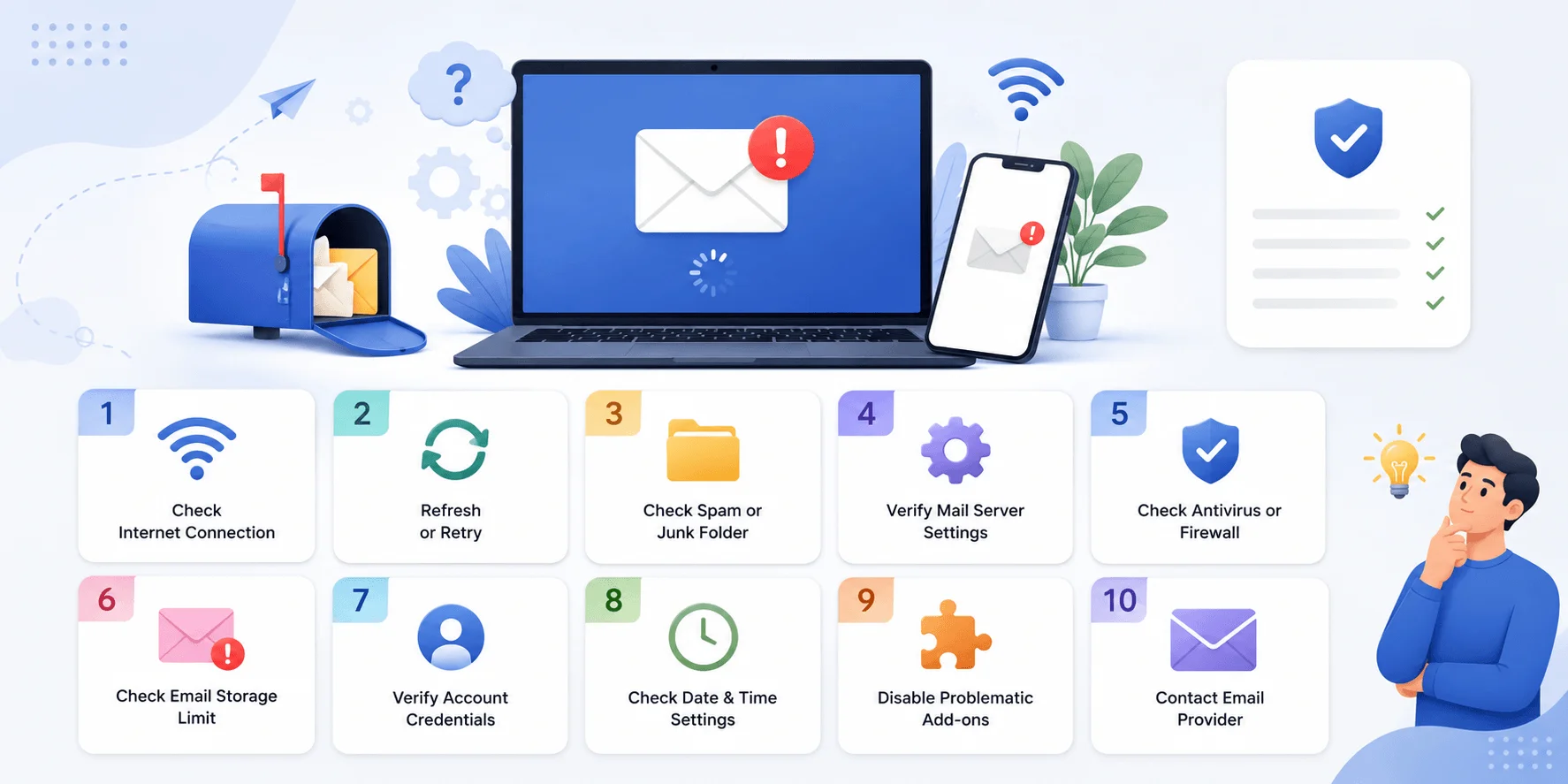
This error means your device attempted to reach your email provider's server and the handshake failed somewhere along the way. It's not a diagnosis of doom.
The message shows up when the Mail app can't connect, usually because of incorrect account settings, slow internet connectivity, outdated iOS, authentication issues, or server downtime, and this doesn't necessarily mean anything is wrong with the iPhone itself. Sometimes it's you. Sometimes it's them. That distinction changes which fix you try first, which is exactly what the table above is for.
You'll usually see it phrased one of two ways:
"Cannot Get Mail. The connection to the server failed."
"The mail server 'imap.gmail.com' is not responding."
Both point to the same root issue: a broken link between your Mail client and the IMAP or POP server holding your inbox.
Which iOS Versions Get Hit With This?
Basically all of them. This issue has been reported across iOS 18, 17, 16, 15, 14, 13, and even older versions like iOS 9, 8, and 7. A fresh update doesn't protect you. If anything, updates sometimes trigger it, since they can reset network permissions or conflict with cached account credentials.
Why Does This Error Keep Happening?
Five root causes account for nearly every report of this error.
1. Your internet connection is unstable. The most common and most boring cause. A flaky Wi-Fi network or weak cellular data signal will trigger a server timeout on its own.
2. Your password changed and your phone doesn't know it yet. If you updated your email password on the web but not on your device, the Mail app keeps retrying the old one until it throws this error.
3. You need an App Specific Password. Providers like AOL, Yahoo, Google, and Microsoft require an App Specific Password whenever you're using anything other than their own official mail app. Your regular password won't authenticate in that case.
4. Your IMAP or POP server settings are wrong. This usually happens after a manual account setup or a migration between providers.
5. The server itself is down. Sometimes it's genuinely not you. Providers have documented outage windows where this exact error spikes across thousands of devices at once.
Real User Reports
On the Apple Support Community, one user described updating both their iPhone and iPad, and immediately afterward being unable to send or receive email at all. Another reported their iPhone 13 showing "connection to server failed" alongside a message that wouldn't download from the server for days at a time.
On Microsoft's Q&A forum, a user reported the same error appearing suddenly on their iPhone, with a support volunteer recommending a password change and an Outlook update as first steps.
The pattern holds: it's rarely one single cause. It's a cluster of small things funneling into the same message.
Step-by-Step Guide: How to Fix It
Work through these in order. The earlier steps solve this fastest for most people.
Step 1: Check Your Internet Connection
Open a browser and load any website. If it's slow or won't load, that's your problem, not the Mail app. If pages seem to hang, try a proper browser refresh before assuming it's a mail-specific issue.
Switch from Wi-Fi to cellular data, or the reverse
Move closer to your router if you're on Wi-Fi
Restart your router if nothing else loads either
Step 2: Restart Your iPhone
A full restart clears temporary network caches that often cause this exact server connection failure. Hold the power and volume button until the slider appears, power off, wait ten seconds, then boot back up.
Step 3: Re-Enter Your Email Password
Go to Settings > Mail > Accounts, tap the affected account, and re-enter your password manually. This single step resolves it for many users, especially after a recent password change.
Step 4: Generate an App Specific Password
If you use Gmail, Yahoo, AOL, or Outlook with two-factor authentication enabled, your regular password won't work.
Log in to your provider's account settings through a browser, find the security section, and generate an App Specific Password. Enter that instead when re-adding your account.
Step 5: Remove and Re-Add the Email Account
Go to Settings > Mail > Accounts
Tap the account causing the issue
Tap Delete Account
Go back and tap Add Account
Re-enter your credentials with the correct incoming and outgoing mail server details from your provider
Deleting an account through IMAP or Exchange does not delete your emails. If you're using IMAP or Exchange, your mail stays stored on the server, so this step is safe.
Step 6: Toggle Mail Data Under Cellular Settings
Go to Settings > Cellular, scroll to Mail, and confirm the toggle is on. If it's already on, switch it off, wait a few seconds, then turn it back on.
Step 7: Update iOS
Outdated software is a quiet but frequent culprit. Go to Settings > General > Software Update and install anything pending.
Step 8: Reset Network Settings
This clears corrupted network profiles that a regular restart won't touch, though it also wipes saved Wi-Fi passwords and VPN configs.
Go to Settings > General > Transfer or Reset iPhone > Reset > Reset Network Settings.
Step 9: Reset All Settings
If nothing above worked, go one level deeper with Settings > General > Transfer or Reset iPhone > Reset > Reset All Settings. This clears every customized setting on your phone, including display preferences and keyboard dictionaries, but not your photos or apps.
Step 10: Test Webmail to Rule Out a Server Outage
Open a browser and log into your email through its website. If webmail also fails, the problem sits with your provider's server, not your phone. In that case, check the provider's status page and wait it out.
Provider-Specific Notes
Gmail: Watch for "imap.gmail.com is not responding" specifically. This traces back most often to an expired App Specific Password or IMAP being disabled in Gmail settings.
Yahoo Mail: Server connection failures on Yahoo often stem from outdated credentials, incorrect server settings, or temporary outages, and removing and re-adding the account is the recommended first fix.
Outlook/Exchange: Update the Outlook app itself, not just iOS. Exchange accounts are particularly sensitive to authentication token expiration.
iCloud: If iCloud Mail itself throws this error, check Apple's System Status page before touching any device settings.
Common Mistakes That Make This Worse
Deleting your account without writing down your server settings first
Assuming a password reset applies automatically across every device
Skipping the App Specific Password step for accounts with 2FA enabled
Not checking the provider's status page before troubleshooting the device. And if you're worried about mail issues extending to sent messages, it's worth knowing whether you can unsend an email once your account is back up and syncing properly.
Frequently Asked Questions
Will removing my email account delete my messages?
No. If you're using IMAP or Exchange, your mail remains stored on the server the entire time.
Why does this happen right after an iOS update?
Updates can reset certain permissions or temporarily disrupt account authentication tokens, which is enough to trigger the error until you re-verify your credentials.
Does this affect Android too?
Yes. The underlying cause, a broken connection between your mail client and the server, isn't exclusive to iOS. If you're troubleshooting on desktop too, it also helps to understand basics like what CC means in email so you're not misreading delivery issues as configuration problems
How do I know if it's a server outage and not my phone?
Try loading your email through a browser. If webmail also fails, check your provider's official status page rather than continuing to troubleshoot your device.
Final Thoughts
Start with your connection and password. Work through the account reset next, and reach for the deeper resets only if nothing else clears it. Most people solve this within the first three steps. The rest is patience while your provider works through its own server issues.
Read Also: Hidden Apps on iPhone: How to Find Them Fast 2026