
Ever needed just one slice of a song and felt stuck? Maybe you wanted a clean ringtone, or you needed to trim audio from a long recording. Bulky programs make simple jobs feel like homework. That's where an audio cutter steps in and saves your day. This handy online audio editor lets you cut, clip, and save sound right in your browser. There's nothing to install and nothing to pay. You just upload a file, drag the sliders, and download your clip. Whether you want to cut songs online, build an iPhone ringtone, or extract audio from video, this tool handles it all in seconds, quickly and cleanly.
What Is an Audio Cutter?
An audio cutter is a simple tool that lets you cut audio online without any bulky program. You upload audio file, pick the part you want, and save it. That's the whole job. Think of it like scissors for sound. You keep the good bits and toss the rest.
People reach for an audio trimmer for all kinds of reasons. A podcaster might trim interviews. A student might shorten a clip for a class project. This browser-based audio cutter does the heavy lifting while you stay in your browser tab. There's no software installation and no learning curve. And once your clip is ready, turning it into text is easy too, since you can transcribe audio to text in just a few clicks.
Powerful Features of Our Audio Cutter
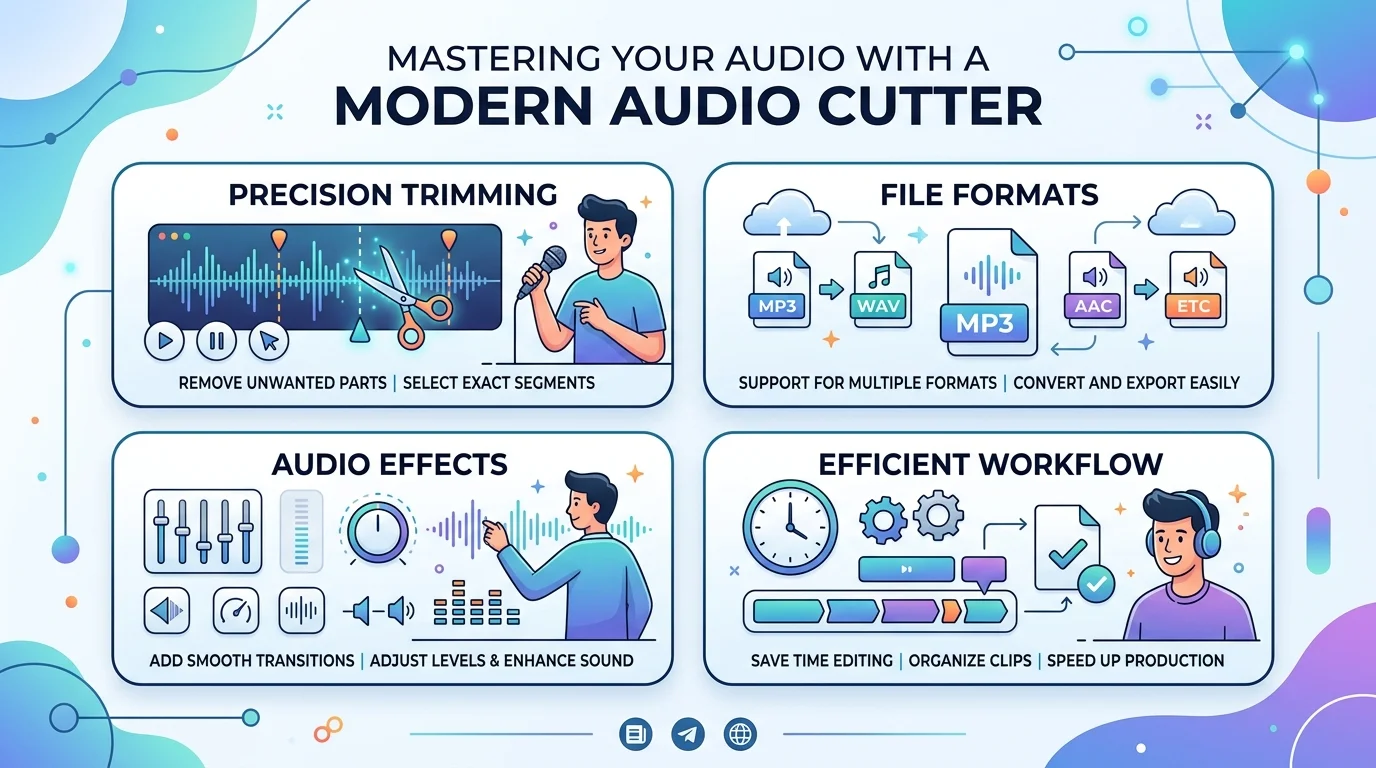
We built this online audio editor around one idea: give you everything you need, and skip the clutter. Every feature below exists to save you time. You get speed, quality, and safety in one place. Nothing to download, nothing to figure out.
That's why people stay. The audio trimmer feels light and quick, yet it can export audio clips in the format you actually want. Here's a fast look before we dig in.
Feature | What It Does for You |
|---|---|
All formats | Works with almost any file you throw at it |
Fast processing | Trims your clip in seconds |
Lossless quality | Keeps sound crisp and clean |
Fade effects | Smooths the start and end of a track |
Support for All Audio Formats
Our MP3 cutter handles the big names like MP3, WAV, AAC, FLAC, and M4A. In fact, it supports all audio formats you're likely to meet. Whether it's music, a podcast, or a phone recording, the audio formats just work.
Lightning-Fast Processing
Everything runs right in your browser, so you get fast processing without straining your device. There are no long waits and no software installation. This online audio cutter trims your clip in seconds, even on an older laptop.
Lossless Quality & Privacy First
Your sound stays sharp because we keep lossless quality from start to finish. We also keep things secure and private. Your uploads travel through SSL encryption, and files automatically deleted from our servers once you're done.
Fade In and Fade Out Effects
Want a smooth start and a soft finish? The fade in and fade out feature does exactly that. It's perfect for a ringtone maker job, where a hard cut sounds jarring. A gentle fade makes any clip feel polished.
How to Cut Audio Online in 3 Steps
You don't need a manual for this. The whole thing takes minutes, not hours. Upload, trim, and save. That's it. The user-friendly interface guides you the entire way, so you never feel lost.
Below is the simple path from raw file to finished clip. Follow these three steps and you'll download the result in no time. Ready? Here's how to trim your track.
Step | What You Do |
|---|---|
1. Upload | Add your file by drag and drop or from your device |
2. Trim | Slide the markers to keep just what you need |
3. Save | Pick your format and download the clip |
Upload Your Audio File
Start by adding your track. You can use drag and drop upload, grab it from your hard drive, or pull it from cloud storage upload. Any device works too, whether it's a PC, Mac, or phone.
Trim, Clip, or Cut the Parts You Need
Now select a fragment using the sliders on the sound wave timeline. You can drag the slider on the timeline or adjust intervals with your arrow keys. Always preview before downloading so you catch the exact spot.
Choose Format and Download
Pick your output format, like MP3 or m4r format for an iPhone. Then save in preferred format and hit download. You can even shift pitch, change volume, or change speed before you export.
What You Can Do With the Audio Cutter
This tool does more than one trick. Yes, it can trim music, but it can also pull sound from video and build ringtones. It's a small tool with a big reach. Once you start, you'll find new uses every week.
Think of it as your go-to for quick sound jobs. You can cut songs online, clean up a voice note, or crop music down to the chorus. Let's walk through the most popular tasks people love it for.
Trim Pauses, Mistakes, and Dead Air
Recordings are messy. There are long gaps, bad takes, and awkward silences. This tool lets you remove pauses and dead air fast. It's a favorite for podcast editing, and once your episode is clean, you can turn it into a full audio transcript for show notes. It's also handy for voice memo trimming.
Cut Songs and Extract the Chorus or Hook
Sometimes you only want one part of a track. The song cutter grabs the chorus or hook in seconds. Use it to cut recordings or crop music into short, punchy clips for social posts.
Create Custom iPhone and Android Ringtones
Want a fresh tone for your phone? This MP3 ringtone cutter makes custom ringtone creation easy. It saves your iPhone ringtone in the m4r format with a 40-second ringtone length, ready to load through iTunes. Working on an iPhone often means recording too, and you can learn how to transcribe audio on iPhone if you need the words as well. Android users can follow this guide to transcribe audio on Android.
Extract Audio From a Video
Love a sound from a clip? You can extract audio from video with a click. It's great when you want to extract soundtrack from movie files or save a line from a music video as its own track. And if that clip came from YouTube, you can also turn a YouTube video into a transcript in minutes.
Supported Audio Formats
Format worries end here. Our tool works with over 300 supported formats, and we keep adding more. You don't need to convert a file first just to open it. Whatever you have, drop it in and go.
Why does this matter? Because format freedom saves you a step. There's no need for a separate audio converter before you start. The table below shows the common types and when each one shines.
MP3, WAV, AAC, M4A, FLAC, OGG, and More
Format | Best For | Type |
|---|---|---|
MP3 | Everyday music and sharing | Lossy |
WAV | High-quality raw recordings | Lossless |
AAC | Apple devices and streaming | Lossy |
FLAC | Audiophile-grade backups | Lossless |
OGG | Open-source and web audio | Lossy |
M4A | iTunes and Apple libraries | Lossy |
So the WAV cutter, AAC cutter, FLAC cutter, and OGG cutter all live inside one tool. You pick the file, and the tool handles the rest.
Why Choose Our Online Audio Cutter
Plenty of audio editing software exists, but most of it is heavy and slow. Our tool skips the download and the price tag. You open it, use it, and move on. No strings attached.
The goal is zero friction. You get fast processing, real privacy, and a clean design. Below are the four reasons folks pick this online audio editor over the rest.
Completely Free and Online
This tool is completely free, with no credit card required. There's no account wall and no trial timer. You get full access the moment you land on the page. If you like free tools, you'll also enjoy this free audio to text converter with no signup.
No Software Installation Required
Everything works in your browser, so there's no software installation to deal with. That means no updates, no storage space, and no hassle. Just open the page and start.
Works on Desktop and Mobile
The tool is fully mobile compatible. It runs on your phone, tablet, Mac, or Windows PC without a hitch. Trim on the couch or at your desk, whichever suits you.
100% Secure and Private
Your files stay yours. We use SSL encryption, and your uploads are secure and private the whole time. Best of all, files automatically deleted after you finish, so nothing lingers behind.
Explore Related Audio Tools
Cutting is just the start. Once your clip is trimmed, you might want to join, convert, or speed it up. We have a full set of audio tools for those jobs. They all share the same simple style.
Think of them as a connected kit. You can bounce from one to the next without learning anything new. Here's a quick map of what each related tool does.
Tool | What It Does |
|---|---|
MP3 / WAV / AAC Cutter | Trim specific file types with precision |
Audio Converter | Switch between formats fast |
Audio Compressor | Shrink files without junking the sound |
Audio Merger | Join clips into one track |
Crop Music | Cut songs down to the best part |
Speed Changer | Slow down or speed up audio |
MP3 Cutter, WAV Cutter, AAC Cutter
Need to work with one format? The MP3 cutter, WAV cutter, and AAC cutter give you precise trimming built for each type. Pick the one that matches your file.
Audio Converter, Compressor, Merger
The audio converter swaps formats in a click. The audio compressor shrinks big files. And the audio merger, also called an audio joiner, stitches clips together into one smooth track.
Crop Music and Speed Changer
Use crop music to keep only the good part of a song. Then reach for the audio speed changer to change speed without warping the pitch. You can also rearrange audio clips into any order you like.
Trusted by Creators and Editors
Real people use this audio cutter every day, and they keep coming back. Podcasters, students, musicians, and sound pros all lean on it for quick jobs. The average rating sits around 4.8 out of 5 across thousands of reviews.
What do they love? Speed, zero setup, and clean sound. There's no learning curve, so anyone can jump in. Here's what a few users had to say.
"This tool saved my episode. I needed to remove a long pause from a WAV recording, and it was done in seconds." — Sarah, Podcaster
"I make custom ringtones all the time. It cuts precisely and keeps the sound quality perfect." — David, Music Fan
"I'm not techy at all, but this user-friendly interface is so simple. I trimmed a song for class in minutes." — Alice, Student
Frequently Asked Questions
Is this audio cutter completely free?
Yes, it's completely free to use. There are no hidden fees and no credit card required. You get full access to every feature the moment you open the page. Trim as many files as you want.
What audio formats do you support?
The tool supports all audio formats you'll likely need, including MP3, WAV, AAC, FLAC, M4A, and OGG. In total, it handles over 300 supported formats, and the list keeps growing every month.
Do I need to install any software?
No, you don't. Everything works in your browser, so there's no software installation at all. No downloads, no updates, no wasted storage. Just open the page and start trimming right away on any device.
Is it safe to upload my personal recordings?
Absolutely. Your files travel through SSL encryption and stay secure and private. Once you finish, your uploads are files automatically deleted from our servers. No one else can access or hear your recordings at any point.
Can I use it on my mobile phone?
Yes, the tool is fully mobile compatible. It runs smoothly in the browser on both iPhone and Android. You can also use drag and drop upload or pull files straight from cloud storage upload on your phone.
Is there a file size limit?
Most everyday files upload with no trouble at all. Very large recordings may take a little longer to process. For huge files, try to shorten audio file size first, or split the job into smaller parts.
Ready to Trim Your Audio?
Your perfect clip is just a few clicks away. Upload a file, mark start and end points, and cut the section you need. Then download the result in the format you want.
Give our audio cutter a try today. It's fast, free, and ready when you are.
Read more: How to Convert WhatsApp Voice Messages to Text