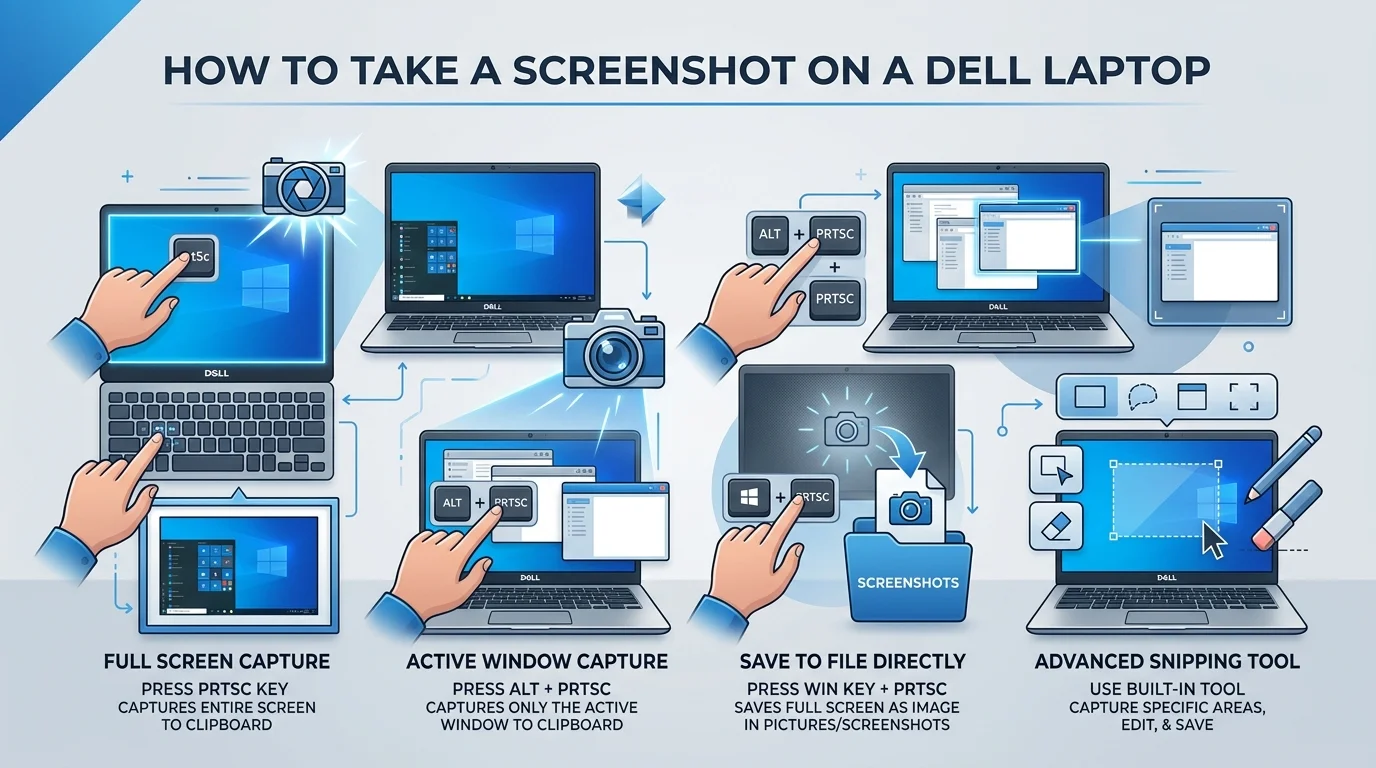
To take a screenshot on Dell laptop, press Windows + PrtScn. Your screen dims briefly and the image saves automatically to Pictures > Screenshots as a PNG. On many Dell models you'll need Fn + Windows + PrtScn instead, because the Print Screen key shares the function row. For a partial capture, press Windows + Shift + S.
Now, here's the part most guides skip.
Dell keyboards do their own thing. The Print Screen key hides in odd places, wears six different labels, and sometimes doesn't exist at all. The Fn key hijacks your top row without telling you. So half the shortcuts you read online quietly fail on an XPS or a Latitude — and you're left wondering if your keyboard is broken.
It usually isn't.
I dug through Dell's official support documentation, Microsoft's Snipping Tool docs, and a stack of Dell community threads to build this. Let's go.
Dell Screenshot Shortcuts at a Glance
Before we get into the how, here's the what. I put every working Dell laptop screenshot shortcut into one table so you can scan it in ten seconds and get back to work. Notice the third column especially — that's where people get tripped up, because only one of these shortcuts actually saves a file on its own. The rest park your capture on the clipboard, which means an extra paste step. Bookmark this section.
Shortcut | What It Captures | Where It Goes | Common Dell Fn Variant |
|---|---|---|---|
Windows + PrtScn | Entire screen | Saved to Pictures > Screenshots | Fn + Windows + PrtScn |
PrtScn | Entire screen | Clipboard only (or Snipping Tool overlay on Win 11 23H2+) | Fn + PrtScn |
Alt + PrtScn | Active window only | Clipboard only | Fn + Alt + PrtScn |
Windows + Shift + S | Your choice of region | Clipboard + Snipping Tool editor | None needed |
Windows + Shift + R | Screen recording | Snipping Tool editor | None needed |
Windows + Alt + PrtScn | Active window (Game Bar) | Videos > Captures | None needed |
Fn + Insert | Entire screen | Same as PrtScn | For keyboards with no PrtScn key |
One quick reality check before you troubleshoot anything: according to Dell function key troubleshooting analysis, roughly 90% of unresponsive function key issues on Dell laptops come from a software toggle, an accidental Fn Lock, or an outdated keyboard driver — not broken hardware. So relax. You can almost certainly fix this yourself in under ten minutes.
How Do You Take a Full-Screen Screenshot on a Dell Laptop?
If you only memorize one shortcut, make it this one. I use it maybe twenty times a day. You press two keys, the screen flashes, and a finished PNG lands in a folder — no pasting, no editor, no extra clicks. It's the only built-in Windows screenshot shortcut that writes a real file straight to disk. For documenting a bug, building a tutorial, or saving a receipt, this should be pure muscle memory.
Step-by-step:
Set your screen up exactly how you want it captured.
Press Windows key + PrtScn together.
Watch for the brief screen dim — that's your confirmation it fired.
Open File Explorer and navigate to Pictures > Screenshots.
Your timestamped PNG screenshot file is waiting there.
Simple, right?
Now the catch. On plenty of Dell laptops, you'll need Fn + Windows + PrtScn instead. That's not a defect — it's just how the function row is wired on many models. Try both combinations. One will work.
Quick side note on file types: Windows saves screenshots as PNG for a reason. If you're wondering whether to convert them later, our breakdown of JPG vs PNG explains exactly when each format wins — and why compressing a text-heavy screenshot to JPG usually makes it look worse.
Where Is the Print Screen Key on a Dell Keyboard?
This trips up more people than any other part of the process. Dell doesn't label this key consistently across its lineup, and depending on your model year you might be hunting for a key that appears not to exist. Before you assume anything is broken, do a slow visual sweep of the top-right corner and the entire function row. It's usually there — just wearing a disguise.
Per Dell's own knowledge base, the label may read as any of these:
PrintScreen
PrntScrn
PrntScr
PrtScn
PrtScr
PrtSc
On most Dell laptops it sits in the function key row and requires Fn + F10.
Got a slim model with a capacitive or illuminated function row? You may need to enable the function layer before the key responds at all.
And if there's genuinely no dedicated key — some Dell keyboards, including the KM3322W, use Fn + Insert instead.
Does the Print Screen Key Location Change by Dell Model?
Yes, and this is where model-specific guidance actually matters. Dell's consumer, business, and gaming lines use different keyboard layouts, different function-row philosophies, and in some cases different default Fn Lock states straight out of the box. If a shortcut works on your colleague's Dell but not yours, this is usually why.
Dell XPS — Slim, premium chassis. PrtScn typically shares F10, and newer XPS units with capacitive rows may need the function layer enabled first.
Dell Inspiron — The most common consumer line. Usually ships in multimedia-key-first mode, so Fn + PrtScn is often required.
Dell Latitude — Business models frequently ship with Function Key First already set in BIOS, meaning a bare PrtScn press often just works.
Dell Vostro and G-Series — Larger chassis often include a dedicated PrtScn key near the top-right cluster, separate from the function row.
Dell 2-in-1s and tablets — With the keyboard detached, press the Windows button + Volume Down to capture the screen.
How Do You Screenshot Just Part of the Screen on a Dell?
Full-screen captures are blunt instruments. Most of the time you don't want your taskbar, your browser tabs, and that embarrassing Slack notification in the shot — you want one specific region. That's where the Snipping Tool earns its place. It's baked into Windows 11 and Windows 10, it's free, and it gives you precision cropping plus annotation in one flow. This is the Dell laptop screenshot method I personally reach for first.
How to use it:
Press Windows + Shift + S.
Your screen dims and a small toolbar drops down from the top.
Choose your snipping mode: Rectangle, Freeform, Window, or Full screen.
Drag to select your area, then release.
The capture hits your clipboard — click the notification to open the editor.
Inside that editor you can crop, highlight, add shapes, and even extract text directly out of the image.
Want video instead? Press Windows + Shift + R for a screen recording.
Hardware note: Microsoft confirms that Perfect screenshot and Color picker only appear on Windows 11 AI PCs and Copilot+ PCs. If yours doesn't show them, that's the reason.
One more thing worth checking if your captures look washed out or the colors seem off compared to what you see on screen. That's rarely a screenshot problem — it's a display problem. Walking through how to calibrate a monitor will fix the color accuracy at the source, so every capture you take afterwards matches what you actually intended to share.
Why Does My Print Screen Key Open the Snipping Tool Now?
This one blindsided a lot of users, so I want to flag it clearly. Microsoft quietly rewired the Print Screen key in newer Windows builds. If you're running Windows 11 version 23H2 or later and pressing PrtScn suddenly pops open a selection overlay instead of silently copying your whole screen, nothing is broken. The default behavior changed underneath you — and it's a single toggle to reverse.
Go to Settings > Accessibility > Keyboard.
Find the toggle labeled "Use the Print Screen key to open Snipping Tool."
Switch it off to restore the classic clipboard-copy behavior.
How Do You Screenshot a Single Window on a Dell Laptop?
Sometimes you only need one window. Just the browser. Just the error dialog. Nothing else. Manually cropping a full-screen capture wastes your afternoon, and this shortcut skips it entirely by grabbing only whichever window currently has focus. The trade-off: it lands on your clipboard rather than saving as a file, so budget one extra step. Still worth it.
The steps:
Click the window you want so it becomes active.
Press Alt + PrtScn (or Fn + Alt + PrtScn on many Dells).
Open Microsoft Paint, Photoshop, Word — anything that accepts pasted images.
Press Ctrl + V.
Edit and save wherever you like.
That's it.
Capturing a web page rather than an app? Load the page fully before you press anything — a half-rendered page produces a half-useless screenshot. If elements are missing or stale, refreshing your browser with a hard reload clears the cached version first.
Can You Screenshot on a Dell Using the Xbox Game Bar?
Don't let the name mislead you. I've used the Xbox Game Bar to capture plenty of non-gaming windows and it handles regular apps fine. It's especially convenient when you want screenshots and screen recordings from the same overlay without installing a third-party screenshot tool. One limitation worth knowing: it won't capture File Explorer or the desktop itself, so treat it as a supplement rather than a replacement.
Press Windows + G to open the overlay, then click the camera icon.
Or bypass the overlay entirely with Windows + Alt + PrtScn.
You can rebind that shortcut under Settings > Gaming > Game bar.
If you'd rather keep everything inside your browser, there are lighter options too — several of the best productivity Chrome extensions handle full-page and scrolling captures that native Windows shortcuts simply can't reach.
Where Are Screenshots Saved on a Dell Laptop?
Half the "my screenshot disappeared" panic comes down to not knowing that different shortcuts behave completely differently. Some write files. Some don't. Knowing which is which saves you a genuine amount of frustration, so let's settle it once. This applies identically across Windows 10 and Windows 11 on every Dell model.
Windows + PrtScn → saved automatically to C:\Users\[YourName]\Pictures\Screenshots
PrtScn and Alt + PrtScn → clipboard only, nothing saved until you paste and save manually
Windows + Shift + S → clipboard, plus the Snipping Tool editor. It only auto-saves if you've enabled it
Xbox Game Bar → C:\Users\[YourName]\Videos\Captures
To turn on automatic saving, open Snipping Tool, click the settings gear in the upper right, and enable "Automatically save screenshots." Default destination is your Screenshots folder, and newer builds let you change that location.
Using OneDrive? Check its backup settings too — it can quietly redirect your screenshot save location to the cloud instead.
How Do You Recover a Screenshot You Didn't Save?
You closed the Snipping Tool without hitting save. The capture feels gone. Usually it isn't — Windows keeps temporary copies in two places most people never think to check. Try these in order, and move fast, because both locations get cleaned up eventually.
First, check clipboard history. Press Windows + V. If your capture appears, paste it into Paint and save it immediately.
Second, check the Snipping Tool cache. Paste this into File Explorer's address bar:
%LOCALAPPDATA%\Packages\Microsoft.Windows.SnippingTool_8wekyb3d8bbwe\TempState\ScreenClip
On Windows 10 with Snip & Sketch, use this instead:
%LOCALAPPDATA%\Packages\Microsoft.ScreenSketch_8wekyb3d8bbwe\TempState\ScreenClip
Find something recent? Copy it somewhere safe right now. If a file looks like an image but won't open, copy it first, then rename the copy so it ends in .png.
Fix: Screenshot Not Working on Your Dell Laptop
So you've tried everything above and your Dell still refuses to cooperate. Take a breath — remember that roughly nine out of ten cases are configuration, not hardware. The usual culprit is Fn Lock, a setting that flips whether your top row behaves like F1–F12 or like media keys. When it's in the wrong state, your Dell screenshot command never reaches Windows at all.
Fix #1: Toggle Fn Lock with Fn + Esc
Press Fn + Esc.
Look for a tiny LED on the Esc or Fn key. Lit usually means Fn Lock is active and your top row is in media-key mode.
Press the combo again to flip it back, then retest your screenshot shortcut.
Worth knowing: Fn Lock isn't supported on every Dell keyboard. If your Esc key shows no lock symbol, skip to the next fix.
Fix #2: Change Function Key Behavior in BIOS
This is the permanent solution, and it's far easier than it sounds. You're changing exactly one dropdown, then leaving.
Restart your Dell laptop.
Tap F2 repeatedly at the Dell logo to enter BIOS/UEFI setup.
Navigate to System Configuration or Advanced.
Locate Function Key Behavior.
Select Function Key First.
Press F10 to save and exit.
Your F1–F12 keys — and your Print Screen key — will now work without holding Fn.
Fix #3: Check Windows Mobility Center and Drivers
Still no luck? Two more places to look before you assume hardware failure.
Open Windows Mobility Center, find the Fn Key Behavior dropdown, and switch it to Function key.
Then update your keyboard, chipset, and BIOS drivers through Dell SupportAssist or the Dell support site. If none of that works, test an external USB keyboard — if PrtScn works there, you've isolated a genuine hardware fault on the built-in keyboard.
Frequently Asked Questions
Below are the questions I see asked most often about taking a screenshot on a Dell laptop. I've kept every answer short and direct so you can find yours fast and get moving. If your specific situation isn't covered, the troubleshooting section above handles nearly every remaining edge case.
Why doesn't Print Screen work on my Dell laptop?
Almost always Fn Lock. Your top row is in multimedia mode, so the key never sends a Print Screen signal. Press Fn + Esc to toggle it, or try Fn + PrtScn directly. For a permanent fix, set Function Key Behavior to Function Key First in BIOS.
Where do screenshots go on a Dell laptop?
Windows + PrtScn saves to Pictures\Screenshots. PrtScn and Alt + PrtScn only copy to the clipboard — nothing is saved until you paste into an editor and save manually. Game Bar captures land in Videos\Captures.
How do I screenshot on a Dell laptop without the Print Screen key?
Press Windows + Shift + S to open the Snipping Tool overlay. No Print Screen key required. Alternatively, some Dell keyboards map the function to Fn + Insert.
How do I take a screenshot of just one window on a Dell?
Click the window to make it active, then press Alt + PrtScn (or Fn + Alt + PrtScn). Paste into Paint with Ctrl + V and save.
Is the screenshot shortcut different on Windows 10 and Windows 11?
The core shortcuts are identical. The difference is that Windows 11 version 23H2 and later makes the PrtScn key open the Snipping Tool overlay by default. Change it under Settings > Accessibility > Keyboard.
How do I screenshot on a Dell tablet or 2-in-1 with the keyboard detached?
Press the Windows button + Volume Down simultaneously. The capture saves to your Screenshots folder just like Windows + PrtScn would.
Can I edit and annotate a screenshot on a Dell without extra software?
Yes. The built-in Snipping Tool includes pen, highlighter, shapes, eraser, cropping, and text extraction. For most people that removes any need for a third-party screenshot tool entirely.
Why is my screenshot saving to OneDrive instead of my Pictures folder?
OneDrive can back up your Screenshots folder automatically. Open OneDrive settings, check the Backup or Sync tab, and disable screenshot backup if you'd rather keep captures local.
The Bottom Line
Taking a screenshot on a Dell laptop is genuinely a two-key job — once you know which two keys your specific model wants. Start with Windows + PrtScn. If nothing happens, add Fn. If that still fails, toggle Fn Lock with Fn + Esc or set Function Key First in BIOS, and you're permanently sorted.
For everything else, Windows + Shift + S is the shortcut worth committing to memory.
Now go capture something.