Learning how to transcribe audio file for free is simpler than most people expect in 2026. You do not need paid software or special training. With the right free transcription tool, anyone can turn a voice recording into clean, searchable text in just a few minutes. This guide walks you through the entire process, from choosing the best app to editing your finished transcript. We will cover both online and offline methods, so you can pick whichever fits your needs best. Whether you are a student, journalist, or podcaster, you will learn exactly how to convert audio to text using tools trusted by millions of people every day.
Transcribing an audio file for free is easier than most people think. You do not need fancy equipment. You do not need a paid subscription either. With the right free transcription tool, anyone can turn a voice recording into clean, readable text in just a few minutes. This guide shows you exactly how to do it, using both online and offline methods. For a broader look at the topic, check out our full audio transcription guide.
Whether you are a student, a podcaster, or a busy professional, this article will walk you through every step. We will cover the best free apps, explain how AI-powered transcription works, and show you how to avoid common mistakes. By the end, you will know exactly how to transcribe audio to text for free, using tools trusted by millions of people across the United States. You can also try our own free converter anytime on the AudioToTextify homepage.
What Is Audio Transcription and Why Use It?
Transcription is the process of turning spoken audio into written text. It sounds simple, but it saves people huge amounts of time. Instead of replaying a recording over and over, you get a clean transcript you can read, search, and share in seconds. This is why speech to text technology has become so popular in recent years.
Today, most people rely on automatic transcription instead of typing everything by hand. AI tools now handle the heavy lifting. They listen to your file, detect the words, and generate a verbatim transcript almost instantly. This shift has made audio to text conversion accessible to everyone, not just professionals with expensive software.
Common Use Cases (Interviews, Lectures, Meetings, Podcasts)
People use transcription for many different reasons. Journalists rely on interview transcription to quote sources accurately. Students use lecture transcription to review class notes later. Remote teams depend on meeting transcription to keep clear meeting notes without missing details. Podcasters also use podcast transcription to turn episodes into blog posts, show notes, and searchable text for their websites.
Manual vs. AI Transcription
There are two main ways to transcribe audio. The first is manual transcription, where a person listens and types every word by hand. This method is accurate but very slow. It often takes four times longer than the audio itself. The second method uses AI. This is much faster and usually free. The table below shows a quick comparison.
Method | Speed | Cost | Best For |
|---|---|---|---|
Manual Transcription | Slow (4x audio length) | Free (but time-costly) | Short, high-stakes clips |
AI Transcription | Fast (near real-time) | Free or low-cost | Most everyday transcription needs |
Best Free Tools to Transcribe Audio to Text
Choosing the right free transcription tool can feel confusing. There are dozens of apps online, and they all promise fast, accurate results. To make things simple, we tested and compared the most popular options, and rounded up even more picks in our best free transcription software guide. Each tool has its own strengths, so the best choice depends on what you need.
Some tools work best inside a browser. Others run offline for extra privacy. A few even support batch transcription, which means you can upload many files at once. Below is a full comparison table, followed by a closer look at each option.
Tool | Free Limit | Best For | Offline? | Languages |
|---|---|---|---|---|
Canva Audio to Text | Free with account | Captions inside designs and videos | No | Multiple |
HappyScribe | Free trial, limited minutes | Multilingual projects | No | 150+ languages |
Whisper (via Audacity) | Free, unlimited | Long recordings, privacy | Yes | 99 languages |
Vibe | Free, open source | Cross-platform users | Yes | 100+ languages |
TurboScribe | Free, 3 files/day | Quick daily transcripts | No | Multiple |
Canva Audio to Text
Canva offers a built-in audio to text feature inside its design platform. You simply upload your audio file, and Canva generates a text transcript you can edit and drop straight into a video, caption, or document. This is a great option if you already use Canva for social media content or presentations. The main limitation is that it works best for short clips, not long recordings.
HappyScribe
HappyScribe is one of the most well-known free transcription tool options available today. It supports over 150+ languages and claims up to 99% accuracy on clear audio. HappyScribe is trusted by more than 6M+ users and 41,000+ teams, and it holds a strong 4.7/5 Trustpilot rating. It also offers SOC 2 and GDPR compliance, which matters if data privacy is a concern. You can export your transcript as DOCX, PDF, TXT, SRT, or VTT.
Whisper (OpenAI, via Audacity/OpenVINO Plugin)
Whisper is an open-source AI model built by OpenAI. It supports 99 languages (Whisper) and can run entirely on your own computer. When paired with Audacity and the OpenVINO plugin, Whisper becomes a powerful offline transcription tool with no upload required at all. Developers can also test Whisper directly through Hugging Face or Google Colab. Because nothing leaves your device, this method offers strong secure transcription for sensitive recordings.
Other Free/Open-Source Options
Beyond the big three, several smaller tools are worth knowing. Vibe is a free, open-source app that works across Windows, Mac, and Linux. TurboScribe offers a handful of free transcripts each day. Mobile users often turn to Fireflies.ai, VOMO AI, Transcraibe, TranscriberAI, Notes.ai, or Aiko for quick, on-the-go voice memo conversion. If you are curious how our own converter stacks up, read our AudioToTextify vs Otter.ai comparison. Each tool has slightly different limits, so it pays to test a few before settling on one.
How to Transcribe Audio Online (Step-by-Step)
Online transcription is the fastest way to convert audio to text. There is nothing to install and no learning curve involved. All you need is a web browser and your audio file. This method works well for short interviews, quick voice memos, and everyday transcription workflow tasks.
The steps below apply to most cloud-based tools, including Canva and HappyScribe. Once you learn the process on one platform, you can use it almost anywhere. Most tools also offer a free trial with no credit card required, so you can test the results before committing to anything.
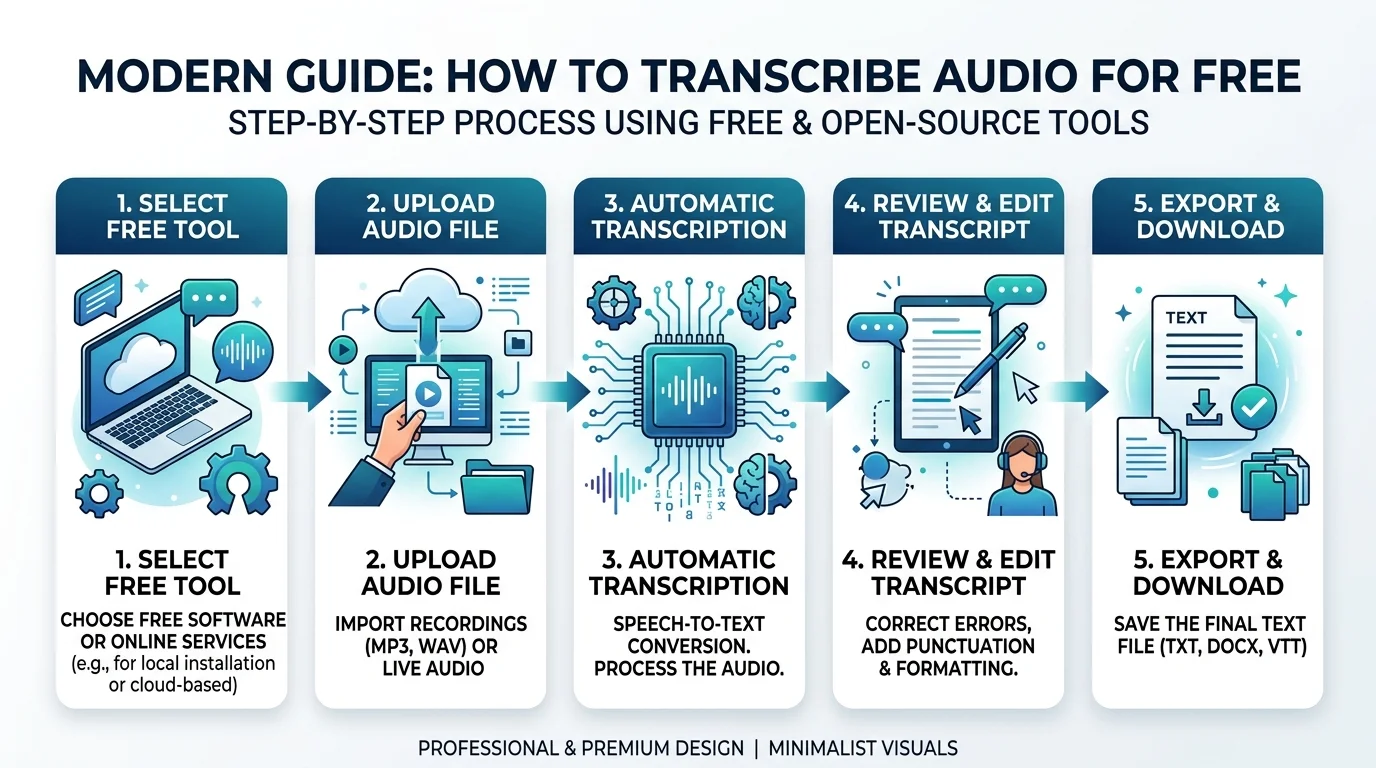
Upload Your Audio File
Start by opening your chosen tool and clicking upload audio file. Most platforms accept common formats like MP3, WAV, and M4A. Some also support AAC, FLAC, OGG, WMA, and even AIFF files. Keep in mind that free plans often come with a file size limit, so very large recordings may need to be split first.
Select Your Language
Next, choose the spoken language in your recording. Many tools include language detection, often called auto-detect language, which guesses the language automatically. However, manually selecting the language usually improves transcription accuracy, especially for strong accents or mixed-language audio.
Auto-Generate the Transcript
Once uploaded, the AI engine begins working. This is where automatic transcription happens behind the scenes. The software listens to the audio, identifies each word, and often adds time-stamped text so you can match text back to specific moments in the recording. A ten-minute clip usually finishes in under a minute.
Edit and Proofread the Text
No transcript is ever completely perfect. After generation, open the built-in transcription editor and review the text carefully. Look closely at names, numbers, and technical terms first, since these are the most common errors. A quick proofread turns a rough draft into an accurate transcript you can trust.
Download or Export Your Transcript
Finally, it is time to download transcript files in the format you need. Most tools let you export transcript data as TXT, DOCX, PDF, or as SRT and VTT files for subtitles and closed captions. Choose the format based on your purpose, whether that is a written report or caption generator output for video.
How to Transcribe Audio Offline Using Whisper (Audacity Method)
For anyone who prefers offline transcription, Whisper running through Audacity is the best free option available. Nothing is uploaded to any server. This makes it ideal for legal recordings, therapy sessions, or any content where data privacy truly matters. It is also completely free, with no minute caps or time limit restrictions of any kind.
Setting this up takes a little more effort than a browser tool, but the process is straightforward. Once installed, you can reuse this offline transcription setup as many times as you like, on Windows, Mac, or Linux.
Install the AI Plugin
First, download Audacity, which is free and open source. Then install the OpenVINO plugin, which adds Whisper's AI transcription features directly inside the app. This is a one-time setup step.
Import Your Recording
Open Audacity and import your audio file using File then Open. You can also drag and drop the file directly into the workspace. Select the full track, or just the portion you want to transcribe.
Run the Transcription
Next, go to the Analyze menu and choose OpenVINO Whisper Transcription. A settings window will appear, letting you control exactly how the transcription runs before you click Apply.
Choose Model, Language, and Settings
This is where you fine-tune your results. Whisper offers several model sizes, including base, small, medium, large, and large-v3. Smaller models run faster, while larger models offer better transcription accuracy. You can also enable speaker diarization using the small.en-tdrz model, which helps with speaker detection in conversations with multiple people. Advanced users can adjust Beam Size, Initial Prompt, and Max Segment Length for even more control. Processing runs faster on a GPU or NPU, especially on newer Intel Core Ultra laptops, though standard CPU processing works fine for most files.
Supported Languages, Accents, and Audio Formats
Language support varies between tools, so it helps to know your options. Whisper alone supports 99 languages, while HappyScribe covers over 150. This makes both tools strong choices for multilingual transcription projects, including interviews conducted in more than one language.
File format support is just as important as language coverage. Most free tools accept over 45+ audio formats, though some common ones appear far more often than others. The table below breaks down the most widely supported formats.
Format Type | Common Extensions |
|---|---|
Audio Input | MP3, WAV, M4A, AAC, FLAC, OGG, WMA, AIFF |
Video Input | MOV, MP4 |
Text Export | DOCX, PDF, TXT |
Subtitle Export | SRT, VTT |
How Accurate Is Free Audio Transcription?
Accuracy is often the biggest concern people have before trying a free transcription tool. The honest answer is that results vary. Clean, single-speaker audio can reach close to 99% accuracy, especially with larger AI models. Noisy or overlapping audio brings that number down significantly.
Understanding what affects accuracy helps you get better results every time. It also helps to know a few simple tricks that professionals use before hitting record.
Factors That Affect Accuracy (Accent, Noise, Overlapping Speech)
Several things influence how accurate your transcript turns out. Strong accent and dialect handling remains a challenge for smaller AI models, since many were trained mostly on standard American or British English. Background noise handling is another major factor, along with overlapping speech from multiple speakers talking at once. Poor microphone quality also lowers accuracy, even when the AI model itself is powerful.
Tips for Getting Cleaner Results
A few simple habits make a big difference. Recording with an external microphone instead of a laptop's built-in mic almost always improves results. Running noise reduction or denoising tools before transcription also helps significantly. Selecting your language manually, rather than relying on auto-detect, further boosts accuracy. Finally, choosing a larger Whisper model, when speed is not urgent, produces noticeably cleaner text.
Free vs. Paid Transcription Tools — What's the Difference?
Free tools cover most everyday needs, but paid tools offer extra features for demanding users. Paid platforms like Rev, Trint, Notta, and Sonix typically include human review, faster turnaround times, and unlimited minutes without a minute limit. They also often provide dedicated support for business teams managing large volumes of recordings. If budget matters most, our free audio to text converter with no signup is a solid starting point.
For casual users, free tools remain the smarter choice. Students, journalists, and podcasters transcribing a few hours a week rarely need paid features. Businesses handling UX research transcription or legal-grade accuracy, however, may find the extra cost worthwhile. The right choice really depends on your transcription workflow and how often you transcribe.
"I switched from paying for transcription every month to using Whisper through Audacity. It's free, it's private, and honestly, the accuracy surprised me." — Maria, independent podcast producer
Frequently Asked Questions
Can ChatGPT transcribe an audio file?
ChatGPT can transcribe audio when it has file upload enabled, since it uses OpenAI's Whisper model behind the scenes.
Can Google transcribe an audio file to text?
Yes, Google Docs Voice Typing and the Google Recorder app can both transcribe audio to text for free.
What is the best way to transcribe audio?
The best way is AI-powered transcription software like Whisper or HappyScribe, since it is fast, free, and highly accurate.
Is Google Transcribe free?
Yes, Google's transcription tools, including Recorder and Voice Typing, are completely free to use.
Related Tools and Next Steps
Transcription rarely exists on its own. Most people who need it also need related tools somewhere in their workflow. Understanding how these tools connect can save you even more time down the road.
Below, we cover one closely related technology, along with suggestions for where to go next if you want to keep learning.
Text-to-Speech vs. Speech-to-Text
Transcription and text-to-speech are opposite processes. Transcription turns voice to text, while text-to-speech turns written words back into spoken audio. Many podcasters and content creators use both tools together, transcribing an episode first, then generating voiceovers for translated versions later.
Related Transcription Guides
If you found this guide useful, a few related topics are worth exploring next. On mobile, check out our guide on how to transcribe audio on iPhone, or browse the full AudioToTextify blog for more comparisons, use-case guides, and language-specific tutorials.
Final Thoughts
Learning how to transcribe an audio file for free is a genuinely useful skill in 2026. Whether you choose a browser-based tool like HappyScribe or an offline transcription method using Whisper and Audacity, the process takes only a few simple steps. Start small with a short recording, get comfortable with the transcription workflow, then scale up to interviews, lectures, or full podcast episodes whenever you are ready.
Read more: Free Link to Audio Converter Online – Fast & Easy